The UEFN PCG forest generator saves you from placing trees one at a time. A PCG Volume Lite and a small graph can scatter different tree meshes across a landscape, and changing the settings gives you a fresh arrangement without starting again.
Epic’s official UEFN PCG forest generator tutorial walks through the setup from start to finish. We’ll follow those nodes and show what to tweak if your forest is too thick, too thin or made up of identical-looking trees.
Set up your UEFN PCG forest generator project and volume
UEFN PCG forest generator: Epic Games’ procedural forest illustration, used as a visual example of generated foliage.
Start with a landscape in UEFN. Epic uses the Survival Island level template, but you can use another suitable landscape as long as the PCG volume covers the area where you want the trees.
- Open UEFN and create a new project or a suitable level. Epic’s example begins with a new level using the Survival Island template. Save it before building the graph.
- Switch to Selection Mode and open Place Actors if it is not visible.
- Search Classes for PCG Volume Lite and add the volume to your level.
- Select the volume and adjust its bounds so it covers the area where you want trees. Epic sets Scale X, Y and Z to 8.0 in its example.
- Keep the volume selected: its PCG Component is where you will assign the graph and trigger generation.
The volume determines which area your UEFN PCG forest generator works in. If it’s positioned outside the forest area, the graph may be fine but won’t give you the points you expect.
Create the UEFN PCG forest generator graph
- Right-click inside the Content Browser or Content Drawer and choose Procedural, then PCG Graph.
- If the template picker appears, choose Create empty graph. Name your new asset PCG_ForestGen, matching Epic’s example.
- Open PCG_ForestGen in the graph editor.
- Select the PCG Volume Lite in the level, open its PCG Component in Details and choose PCG_ForestGen from the Graph dropdown.
- Return to the graph editor. Add a Get Landscape Data node, then connect its output to a Surface Sampler node.
Get Landscape Data tells the graph where the terrain is. Surface Sampler places points on it. With the UEFN PCG forest generator, check those points first; if they’re in the wrong place, adding the tree meshes won’t solve the problem.
Use Surface Sampler to place forest points
Select Surface Sampler and press D to enable Debug Rendering. With your volume selected, click Generate in its PCG Component. You should see debug points following the landscape. If not, check the volume position, assigned graph and connections before adding more nodes.
The UEFN PCG forest generator settings below come from Epic’s example, not universal values for every island or performance target. A different landscape may need much lower point density or a more restricted generation area.
| Setting | Epic’s forest example | What it changes |
|---|---|---|
| PCG Volume Lite scale | X 8, Y 8, Z 8 | Sets the example volume bounds |
| Points Per Squared Meter | 0.15 | Sets sampling density |
| Point Extents | 50 on X, Y and Z | Controls each point’s bounds |
| Looseness | 1.0 | Controls how points depart from a regular grid |
| Rotation Max Z | 360 degrees | Varies tree direction |
| Scale Min | 0.5 on X, Y and Z | Smallest random tree scale |
| Scale Max | 1.2 on X, Y and Z | Largest random tree scale |
A dense UEFN PCG forest generator can make the map look full immediately, but 0.15 is not a recommended mobile budget. Treat it as a starting demonstration and adjust based on how large your trees are and how the island performs.
Add tree rotation and size variation
Next, connect Surface Sampler’s output to Transform Points. This is the stage that stops every spawned tree appearing identical. Set Rotation Max Z to 360 for full directional variation, enable Absolute Rotation as shown in Epic’s forest workflow, and use a random scale range such as 0.5 to 1.2 on all three axes.
Move Debug Rendering from Surface Sampler to Transform Points to inspect the result after the transforms are applied. A forest generally looks more natural when the scale and facing direction vary rather than producing identical rows.
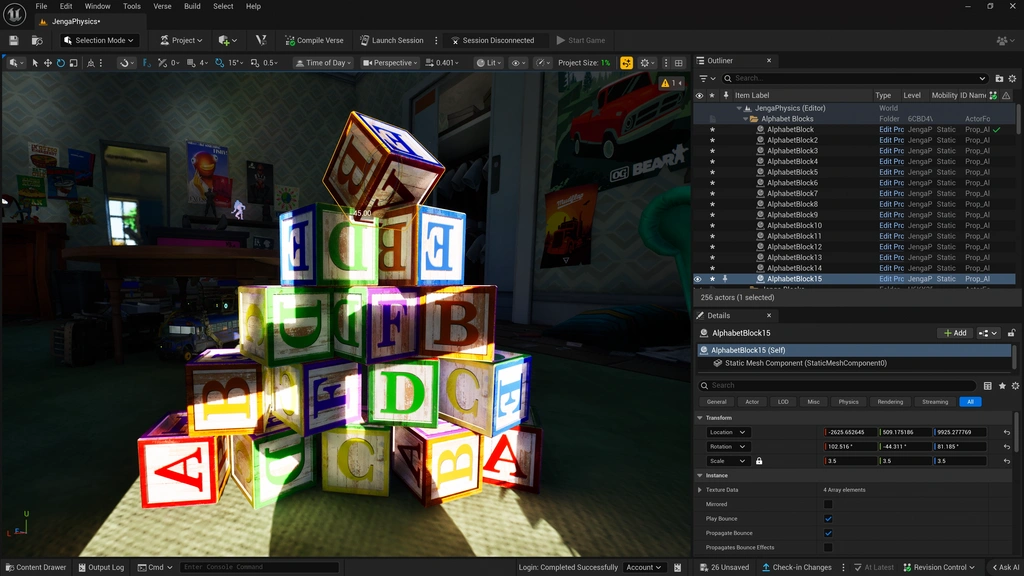
UEFN PCG forest generator: Epic Games’ UEFN editor reference. This is a general editor view, not a screenshot of the Surface Sampler graph.
Spawn trees with the UEFN PCG forest generator
- Add a Static Mesh Spawner node to the graph and connect Transform Points to its input.
- Select Static Mesh Spawner and expand Mesh Selector, then Mesh Entries in the Details panel.
- Add an entry with the + control, expand its Descriptor and choose a tree Static Mesh. Epic demonstrates OakLarge01.
- Generate again from PCG Volume Lite and inspect the actual trees in the level.
- For a mixed woodland, add further tree mesh entries and adjust the Weight for each asset.
Weights are relative. If one mesh has Weight 3 and another has Weight 1, the first is selected roughly three times as often. That does not mean there will always be exactly three of one tree for every other tree in a small patch.
Try a different Seed on PCG Volume Lite if you don’t like the layout. It produces another distribution without rebuilding the graph. Add more than one tree mesh for variety, and lower the point density if the trees overlap too heavily.
Why is the UEFN PCG forest generator not showing any trees?
If debug points appear but no tree meshes do, inspect the Static Mesh Spawner’s Mesh Entries and the connection from Transform Points. If you have no points at all, begin with Get Landscape Data, Surface Sampler, the selected PCG Volume Lite and Generate.
For a forest in the wrong location, check that your volume overlaps the intended landscape. If the island is cluttered, reduce Points Per Squared Meter, shrink the PCG volume or adjust your chosen mesh scale. Change one setting at a time so you can see what made the difference.
Does the UEFN PCG forest generator run during a live match?
No. UEFN’s PCG implementation is editor-only, and Epic says there is no Verse API for PCG. The graph is a worldbuilding tool, not a way to generate new trees on demand each time a Fortnite match starts.
Once the trees are generated, walk through the area at ground level. Look for blocked paths and awkward collisions, and check performance on the devices you intend to support. Trees generated by PCG still count toward island memory and rendering cost.
Can you reuse a UEFN PCG forest generator graph?
Yes. UEFN lets you mark a PCG graph as a template in Graph Settings under Asset Info, making it available when creating another graph. Keep a woodland setup you like and change the volume, meshes or density to create another biome without repeating the whole setup.
Related Guides
Official source: Epic Games’ Procedural Content Generation Overview for UEFN.