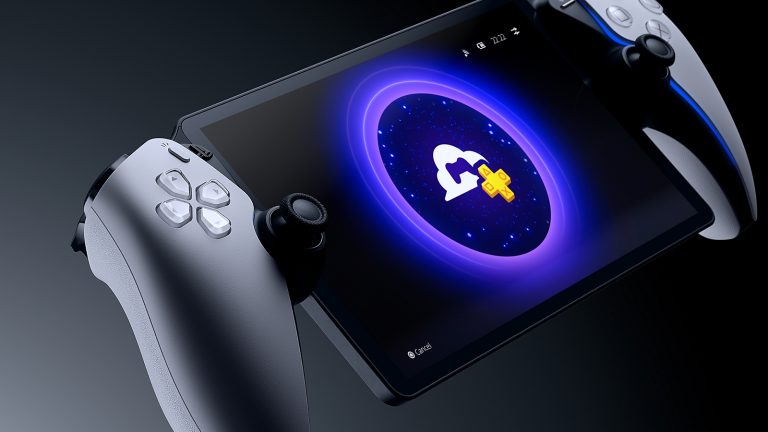
PlayStation Portal not connecting to PS5? Check Remote Play on the console first, followed by its rest-mode settings and your Wi-Fi connection. You can often find the problem without resetting either device.
Start at home with the PS5 switched on and Portal nearby. Sony specifically advises testing a connection while you’re near the console before expecting it to work away from home. Here’s where to look.
PlayStation Portal not connecting to PS5: enable Remote Play
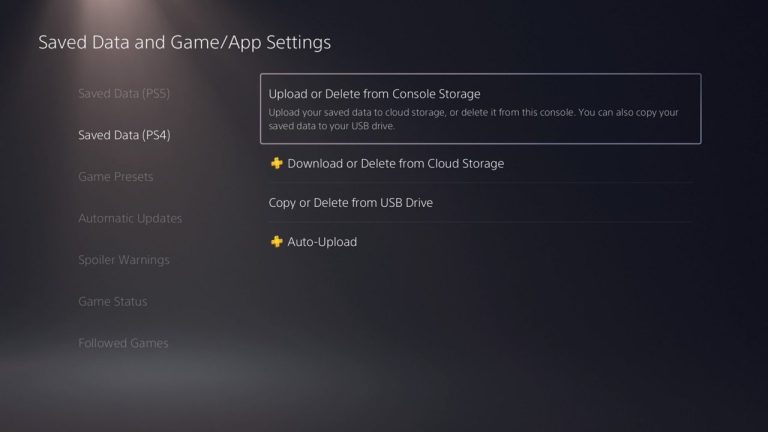
Make sure the PS5 is online, fully updated and signed into the same PlayStation account as Portal. On the console, open Settings > System > Remote Play and switch on Enable Remote Play.
That switch is set per user. If someone else enabled Remote Play under their profile, yours may still be off. Try connecting from Portal again before changing anything else.
PlayStation Portal not connecting to PS5 from rest mode
If Portal connects while the PS5 is on but fails when it’s resting, open Settings > System > Power Saving > Features Available in Rest Mode on the console.
- Turn on Stay Connected to the Internet.
- Turn on Enable Turning On PS5 from Network.
- Put the console into rest mode rather than selecting full power off.
- Try starting Remote Play again from Portal.
A PS5 that is completely switched off can’t be woken by Portal. If PlayStation Portal not connecting to PS5 happens specifically during rest mode, those two switches are the first place to look.
PlayStation Portal not connecting to PS5: choose the right console
On Portal, open the quick menu, tap the PS5 icon and choose the console you want to control. If your PS5 isn’t listed, it may not be ready for Remote Play. Check that it’s online and that Remote Play is enabled for your account.
If the devices haven’t connected for some time, Sony warns that Portal may struggle to find the console. Make a fresh connection at home before trying another location; it’ll tell you whether the basic console setup is working.
PlayStation Portal not connecting to PS5: Wi-Fi checks
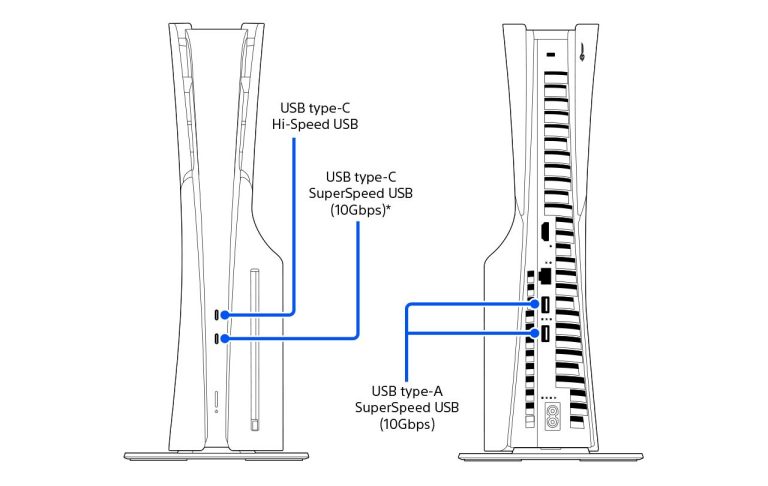
For the strongest connection, plug your PS5 into the router with an Ethernet cable and connect Portal to 5 GHz Wi-Fi where possible. If your PS5 also uses Wi-Fi, put both devices on the same home network while testing.
Sony recommends at least 15 Mbps for a better Remote Play experience. If your router constantly switches devices between 2.4 GHz and 5 GHz, Sony suggests disabling that band-steering feature where possible. Only adjust router options you’re comfortable changing.
If the connection only fails in one room, test closer to the router. A weak signal in one corner of the house points to Wi-Fi rather than a lost account pairing.
PlayStation Portal not connecting to PS5 away from home
Remote Play isn’t limited to your home Wi-Fi. You can use Portal on another compatible Wi-Fi network, provided your PS5 stays online at home and can wake from rest mode when necessary.
If the connection only fails when you’re away, check whether the PS5 was left ready and whether your current Wi-Fi permits Remote Play. Public and hotel Wi-Fi may have restrictions or variable performance even when normal websites load.
Does PlayStation Plus Premium fix the connection?
No. Remote Play connects to your own PS5 and doesn’t need Premium. Cloud Streaming runs eligible PS5 games on Sony’s servers instead and requires an adult account with PlayStation Plus Premium in a supported region.
Cloud Streaming can work while your PS5 is switched off or used by somebody else, but it won’t fix Remote Play settings or make unsupported installed games available in the cloud. Read our comparison of the two modes if you’re unsure which one you need.
PlayStation Portal not connecting to PS5: final checklist
Check the same PlayStation account on both devices, PS5 internet and software, Remote Play enabled for your user, both rest-mode network switches, the selected console and your Wi-Fi signal, in that order.
Sony’s Portal setup doesn’t call for the manual pairing code used in guides for some other Remote Play devices. If it connects at home, you’ve established that the core settings work. Any remaining failures away from home deserve a closer look at the networks involved.
Official source: PlayStation Support, Remote Play on PS Portal.