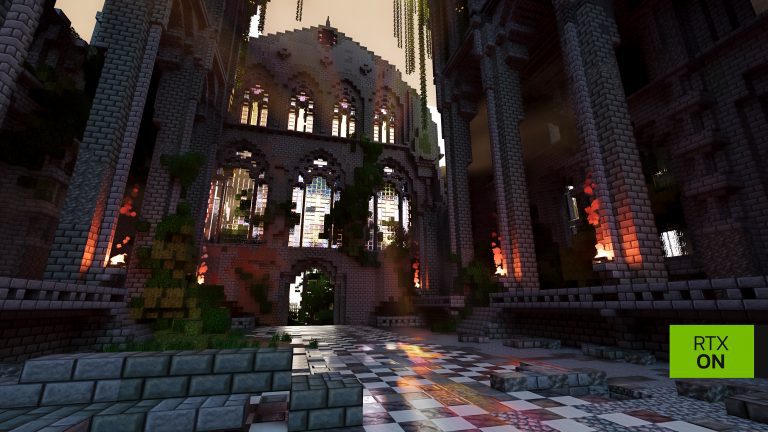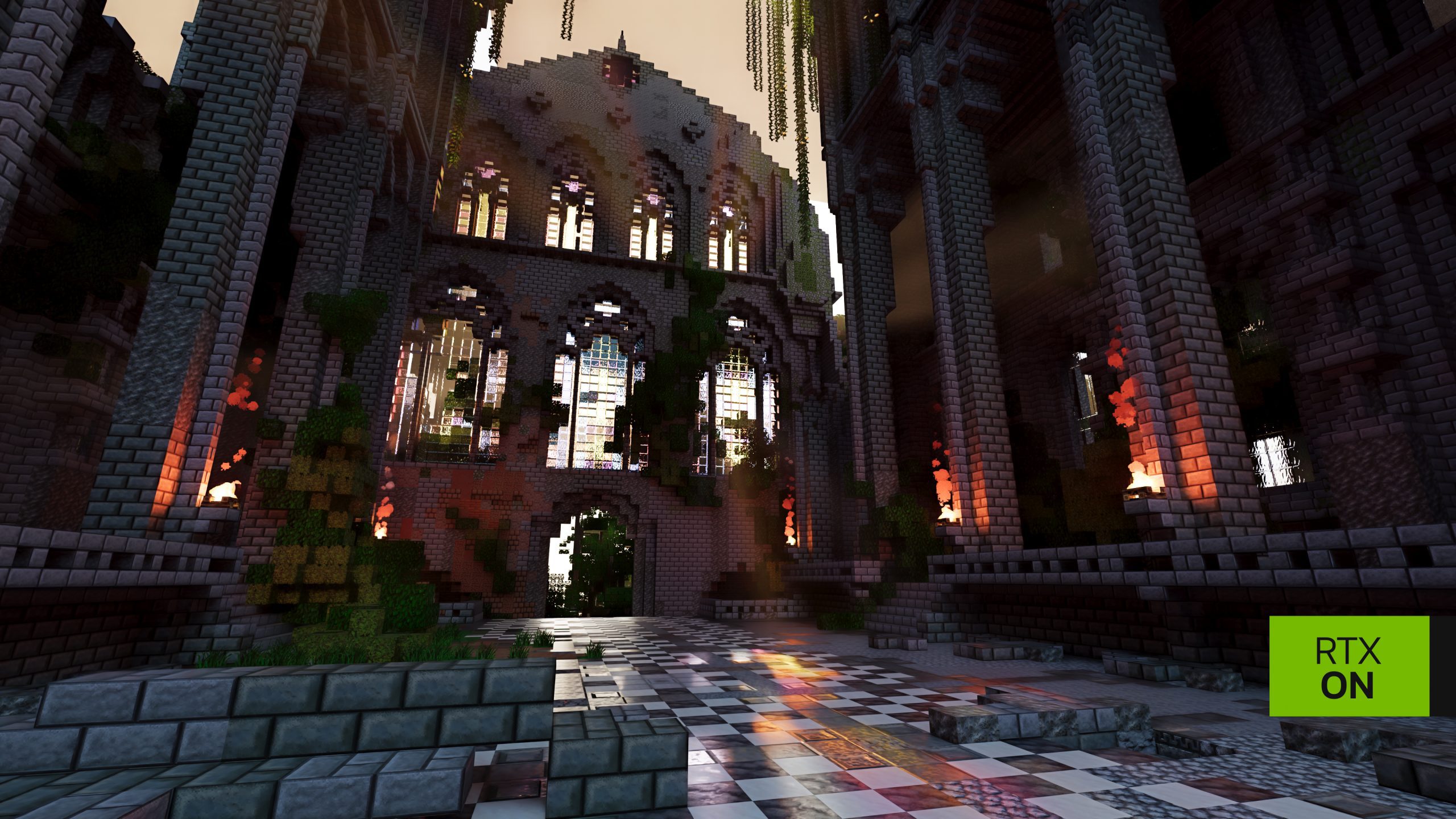
Minecraft RTX Remix Settings appear under Options → RTX Remix Settings in Java Edition. The menu controls render distance, sky, clouds, lighting, exposure and materials, while the RTX Remix runtime has a separate graphics-quality panel.
Start with render distance if FPS is low, then adjust the runtime quality tier. NVIDIA also provides DLSS-assisted rendering and a status command for checking path tracing. These are controls included with this Minecraft beta, rather than guesses taken from other RTX games.
Minecraft RTX Remix Settings Menu and RTX Graphics Options
Open Options from the title or pause screen, then choose RTX Remix Settings. This menu has pages for performance, lighting, image and exposure, and materials. Most adjustments take effect when you move the slider. Block Lights and Block Glow Intensity apply when you leave their page because they need to rebuild loaded terrain.
To adjust the renderer’s own quality tier, select the RTX Remix Graphics Settings button from the mod’s settings landing page. NVIDIA keeps this runtime menu separate from Java’s ordinary video settings. You can also use /rtx preset <name> to try a runtime tier for the current session; that command is not saved as a permanent change.
Minecraft RTX Remix Settings for FPS and Render Distance
Render distance determines how much world Minecraft attempts to show. The mod’s light and view-culling controls work within the game’s render distance, with Auto values at the far right of relevant sliders. Shorter distances reduce the area being traced, which can help in dense builds or demanding worlds.
Start by lowering render distance in steps, then compare the same camera view. If you still need performance, choose a less demanding quality tier from RTX Remix Graphics Settings. The BlockWorks demonstration is more thoroughly tested than arbitrary worlds, so it is a useful reference scene for your comparisons.
RTX Remix Settings also includes a background frame cap. It lowers Minecraft’s own maximum frame rate when the game isn’t in focus, but does not cap an active benchmark. For performance comparisons, keep the same resolution and world location.
Lighting, Exposure and Materials
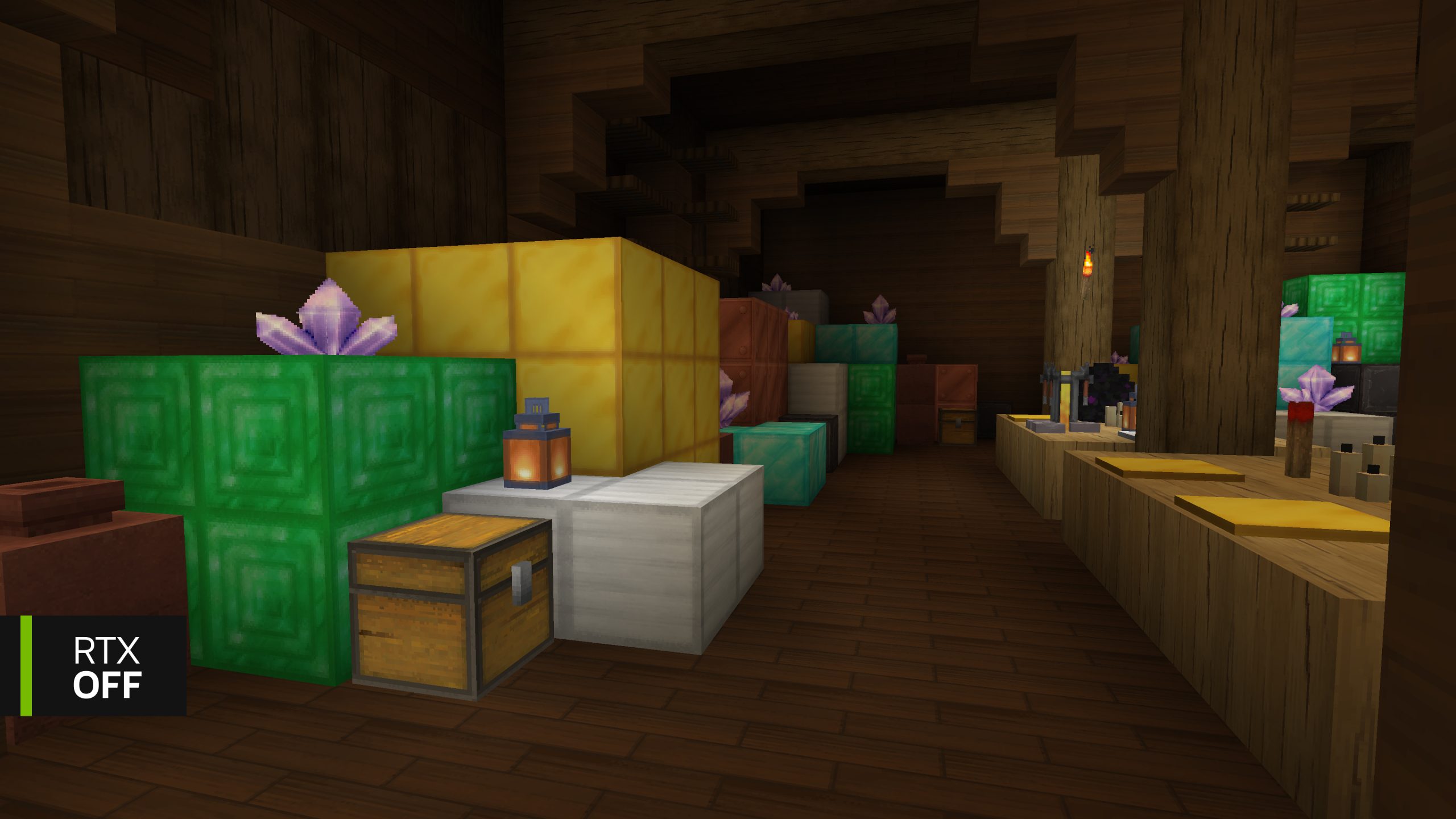
In RTX Remix Settings, the Lighting page controls sky light, clouds and block brightness. Minecraft’s cloud option still matters: Off removes clouds, while Fast and Fancy keep their geometry visible. Block Lights includes separate brightness controls.
Image & Exposure controls tonemapping and eye adaptation, which affect how quickly the image brightens or darkens. The Materials page includes Block Glow Intensity and Smooth Relief Maps. Glow changes the light coming from luminous block surfaces, while Smooth Relief Maps helps reduce banding in bump and height-map detail.
The menu marks changed controls as (overridden). That matters in custom maps: a manual exposure setting can take priority over the lighting profile created for a particular area.
Minecraft RTX Remix Settings: DLSS and Alt+X
NVIDIA’s RTX Remix runtime provides DLSS-assisted rendering and advanced graphics controls. Access its regular graphics quality panel through the RTX Remix Graphics Settings button. Alt+X instead opens the developer-oriented runtime overlay, which contains more technical options and saves changes separately.
When a Remix runtime menu is open, Minecraft won’t receive normal keyboard or mouse input. Use the overlay’s own close control or press Alt+X again to return. If the title screen appears unresponsive, close the RTX Remix First Use Guide first; it can intercept input until dismissed.
The 1.6 runtime supports several DLSS features, but that does not make every frame-generation mode automatically available for every GPU and Minecraft configuration. Use the options actually shown by your supported driver and runtime rather than enabling a quality mode based on a benchmark from a different game.
Minecraft RTX Remix Settings: Check and Reset RTX
In a world, open chat and run /rtx status. Check Renderer Initialized: true, SDK Available: true and Enabled (master). Press F8 or enter /rtx off and /rtx on to compare the world with and without path tracing.
Each settings page has a Reset to Defaults control, and the landing page has Reset All. Your choices are stored under config\rtxremix.json in the active Minecraft folder. If you reset Image & Exposure or Smooth Relief Maps, restart the game to hand those values back to the renderer’s normal lighting profiles.
Change one setting, return to the same scene and compare. The normal settings menu is designed for gameplay; Alt+X opens the technical runtime overlay. Back up custom lighting profiles before experimenting with advanced renderer values.
Official source: NVIDIA RTX Remix Minecraft settings documentation.