
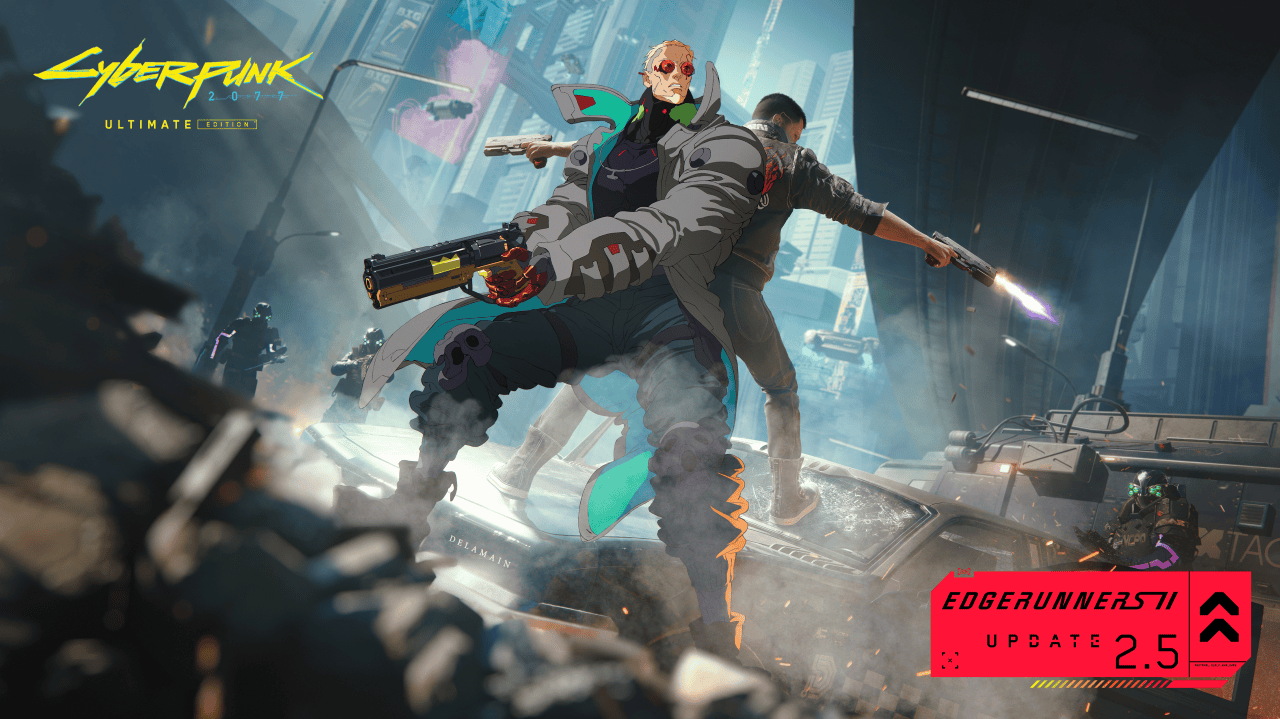
Cyberpunk 2077 Photo Mode lets you pause the action, reposition the camera, adjust V’s pose and capture Night City without the usual HUD. Update 2.5 adds Cyberpunk Trading Card Game frames and poses designed for the new dual-wielding feature, while earlier updates expanded character placement, lighting and SmartFrames.
For a clean character portrait or vehicle shot, Cyberpunk 2077 Photo Mode is easier than trying to crop a gameplay screenshot. The camera, pose and frame options do most of the work. Here’s what the controls allow and how to save pictures on your platform.
How to open Cyberpunk 2077 Photo Mode
Open Photo Mode from regular gameplay using the control shown in the game’s settings for your current platform. The default shortcut is N on PC, L3 + R3 on PlayStation and LS + RS on Xbox, according to CD Projekt RED’s support page. You can review and change key bindings if the default has been reassigned.
Once the menu opens, move the camera around the paused scene and choose between camera and character settings. Console players can use the on-screen button prompts to switch tabs and adjust options. You cannot assume a PC keyboard shortcut is correct for a console controller, so the in-game prompts are the reliable guide.
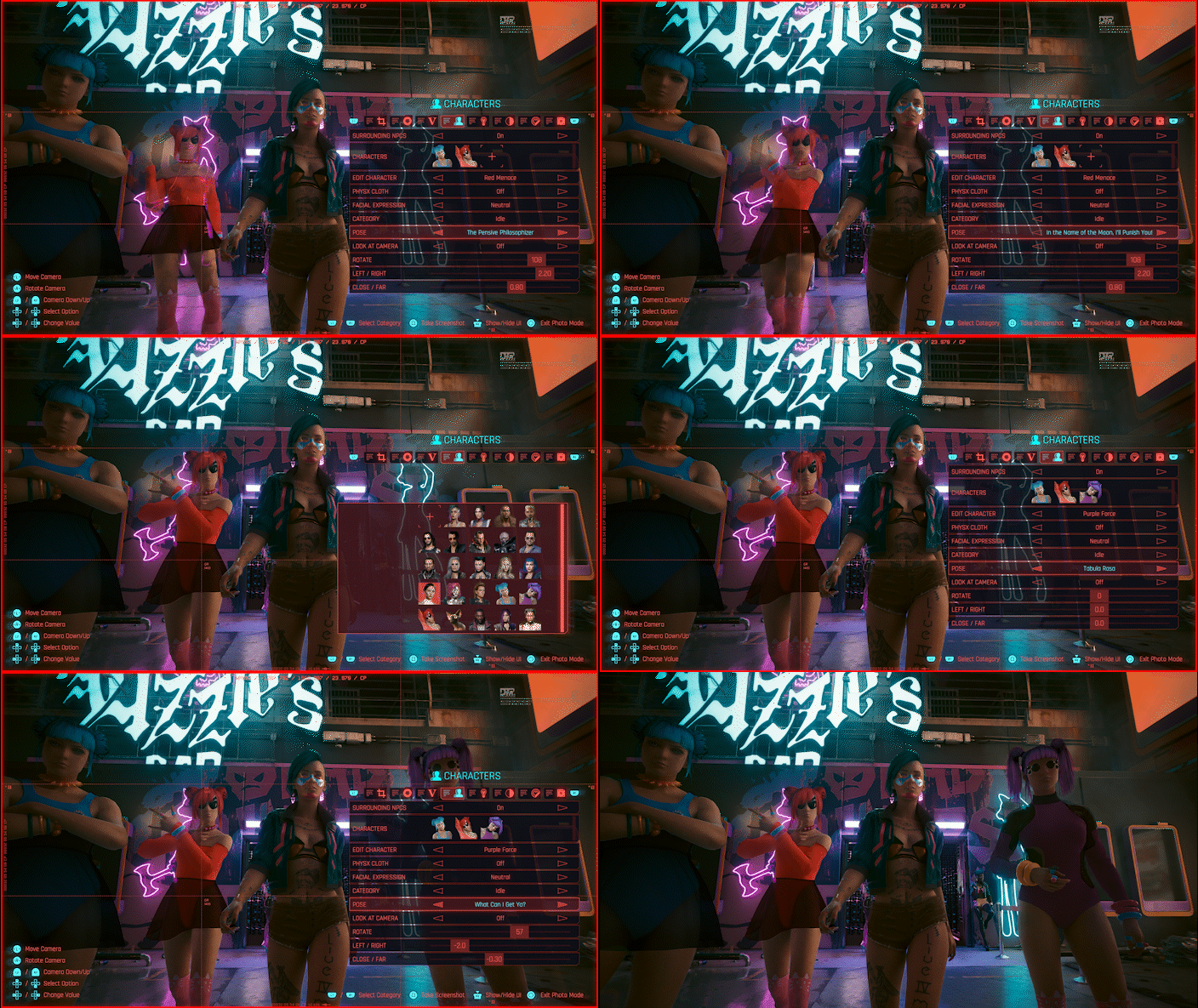
Move the camera and position V
Start by framing the scene. Use the camera controls to move closer, pull back or rotate around V, then adjust the camera’s field of view and depth-of-field effects for the look you want. A close portrait benefits from a tight focus; a cityscape needs more space around the subject.
For Cyberpunk 2077 Photo Mode, the posing controls offer a way to change V’s stance, facial expression and position without replaying the action. Newer versions of Photo Mode include expanded character movement and positioning tools, giving you more freedom to place V away from the centre of the original camera shot. Check clipping around walls and vehicles before taking the picture.
How to use Cyberpunk 2077 Photo Mode Trading Card Game frames
Cyberpunk 2077 Photo Mode gains new frames inspired by the Cyberpunk Trading Card Game in Update 2.5. In Photo Mode, find the frame options and cycle through the designs to give your shot the look of a collectable card. The new frames do not require V to collect physical tarot graffiti or complete the newly added story missions.
To show off the Double Trouble playstyle, try the additional dual-wielding poses that arrived with the same patch. The perk itself comes from the Cool attribute tree and works with Power Pistols and Revolvers; our Dual Wielding guide explains the unlock. The new poses are photographic options rather than extra combat perks.
Cyberpunk 2077 Photo Mode lighting and effects
In Cyberpunk 2077 Photo Mode, lighting can make more difference than another camera angle. Use the Photo Mode adjustments to work with the light already in the environment, then explore the available effects, focus, exposure and contrast controls. The game’s colour palette changes dramatically between the neon streets of Japantown and the open Badlands, so a preset that looks good in one scene may flatten another.
CD Projekt RED expanded Photo Mode in previous patches with additional lighting and posing controls. If you can’t find an option from a current guide, check your installed game version and whether it is under camera, effects or character. For console players, Update 2.5 also adds a separate gameplay FOV slider; that is not the same as adjusting the camera composition in Cyberpunk 2077 Photo Mode.
What are SmartFrames and how do they work?
Cyberpunk 2077 Photo Mode also connects to SmartFrames, display options for pictures you’ve taken inside the game. The system lets you bring photography into V’s apartment rather than treating every image as something viewed only outside gameplay. Use Photo Mode for the shot, then interact with a compatible SmartFrame to choose the saved image.
SmartFrames are available in V’s apartments. Open Gallery beside Journal, Shards and Tarot, then interact with an apartment SmartFrame to select a photograph. Images don’t travel with cross-progression saves: the Gallery reads from the PC screenshot folder or the console’s own capture gallery. On Xbox, only Photo Mode captures appear in the Gallery. SmartFrames aren’t the same as the Trading Card Game overlays added in 2.5: one displays your saved work in the world, while the other changes the design of the photo itself.
Where do Cyberpunk 2077 Photo Mode screenshots save?
On PC, press Spacebar to capture an image in Cyberpunk 2077 Photo Mode. The documented folder is %UserProfile%\Pictures\Cyberpunk 2077. In-game Gallery images are read from there; screenshots taken through Steam or other launcher controls may be saved elsewhere.
On PlayStation, press Square to capture and check the console’s Capture Gallery; on Xbox, press X in Photo Mode, then check Xbox captures. If you are taking several images in a row, save one and confirm that it appears before building an entire set of photos. Don’t assume the picture is saved merely because you changed a pose in the editor.
Can you use Cyberpunk 2077 Photo Mode with mods?
Photo Mode works without community mods. Update 2.5 separately introduced mod.io support on supported platforms, but you don’t need it for Trading Card Game frames or dual-wielding photo poses. On consoles, CD Projekt RED says playing a modded save blocks trophies and achievements, so an ordinary unmodded Photo Mode session is a better option for players still working through achievement completion.
Our Console Mods guide explains how modded saves work and what is supported. For the complete Update 2.5 feature list, including the two new quests, use the main patch overview. The new outfit sets and Glamdoc cyberware skins also give you more appearances to photograph.
Five quick ways to improve a Cyberpunk 2077 screenshot
Find a background that suits your subject before opening Photo Mode. Move the camera until V is clearly separated from the surrounding objects, then adjust the pose to suit the composition. Use depth of field sparingly when you want a recognisable Night City backdrop rather than a blurred colour wash.
Next, inspect the light on V’s face or cyberware, and try a frame only after you’re happy with the basic composition. If you’re taking a trading-card-style image, leave enough space around the character for the border. For vehicle photos, use a lower camera angle to show the car’s shape and avoid cropping the wheels.
Cyberpunk 2077 Photo Mode is most useful when you treat it as a small photography studio inside the game. You can make clean portraits, action poses or city scenes without installing anything. The latest frame options simply extend the creative tools already available to players.
Related Guides
Official sources: CD Projekt RED’s Photo Mode, Gallery and SmartFrame instructions and Update 2.5 Photo Mode additions.





