PS5 Error CE-108262-9 means the console encountered an error while reading system software or application data. Sony’s official troubleshooting order starts with updating the PS5, then reinstalling the affected game or app, rebuilding the database in Safe Mode and only later considering a full console reset.
That order matters with PS5 Error CE-108262-9 because a reset erases data stored on the console. Do not jump to the most destructive option when an update, reinstall or database rebuild may solve the problem first.
PS5 Error CE-108262-9: update the PS5 first
For PS5 Error CE-108262-9, open Settings > System > System Software > System Software Update and Settings and install the latest available update. Restart the console after the update completes and test the same game or app again.
If the normal update process fails, use our Update PS5 in Safe Mode guide. If you are specifically stuck in the September update loop with SU-101312-8, use the separate PS5 Update Loop article because that code points to Blu-ray drive detection.
Reinstall the app for PS5 Error CE-108262-9
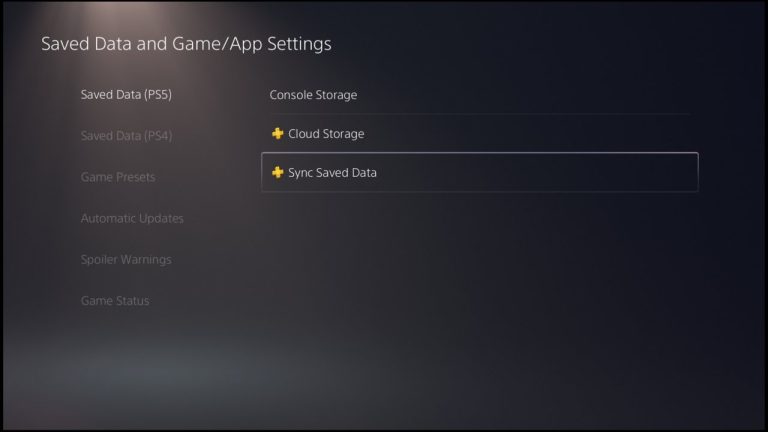
If PS5 Error CE-108262-9 only occurs when one game or app starts, Sony recommends deleting that application from Settings > Storage and installing it again. Make sure synced or local save data is protected before deleting anything beyond the application itself.
A one-game failure is more likely to justify a game reinstall than a system-wide problem affecting several apps. If multiple unrelated titles trigger the same code, continue to the Safe Mode database step rather than reinstalling your entire library one game at a time.
Rebuild the database for PS5 Error CE-108262-9
Sony recommends Safe Mode > Clear Cache and Rebuild Database > Rebuild Database for PS5 Error CE-108262-9. Rebuilding the database scans the console’s content structure and recreates its database. It is not the same as Reset PS5.
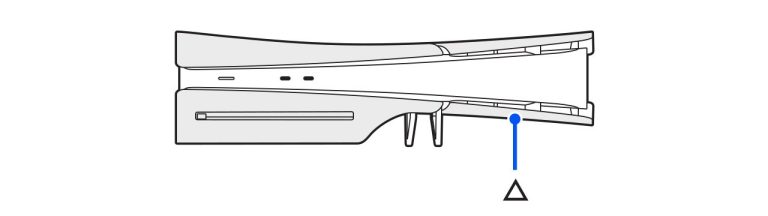
Turn the console off, hold the power button until the second beep, connect the controller by USB and press the PS button. Choose the database option carefully. Read the on-screen wording before confirming so you do not select a reset option by mistake.
When should you reset for PS5 Error CE-108262-9?
A console reset is a later step for PS5 Error CE-108262-9. Sony warns that Reset Your Console erases all data saved on console storage. Back up your PS5 first whenever the console is stable enough to do so.
After a reset, reinstall the affected game or app and test again. If the same code continues on a clean system, stop repeating destructive resets and contact PlayStation Support or arrange repair guidance.
PS5 Error CE-108262-9: one app or the whole console?
| Pattern | Best next step |
|---|---|
| One game triggers the code | Update and reinstall that game |
| Several apps trigger it | Update PS5 and rebuild database |
| Update itself fails | Use Safe Mode update troubleshooting |
| Error remains after clean reset | Contact PlayStation Support |
Check storage and system stability before repeating repairs
If the code appears while the console is extremely low on free space, make room before repeating the update or reinstall steps. A nearly full system can complicate downloads, patches and temporary installation work even when the error itself does not specifically mean “storage full.” Also note whether the PS5 has recently lost power unexpectedly, crashed during an update or begun showing storage warnings. Those details are useful if you eventually need PlayStation Support because they help separate a one-app data problem from a wider console issue.
PS5 Error CE-108262-9: quick checklist
- Install the latest PS5 system software.
- Restart and test the affected app again.
- Reinstall one affected game or app if the code is isolated.
- Use Safe Mode to rebuild the database.
- Back up console data before any reset.
- Use Reset PS5 only after the lower-risk steps fail.
Official support for the CE-108262-9 error
Sony’s official CE-108262-9 support page defines the CE-108262-9 error as a system-software or application-data reading error and gives the update, reinstall, database rebuild and reset sequence used above.