GTA 6 How to Switch Aiming Shoulder takes one button press: aim with L2 on PS5 or LT on Xbox, then press Left on the D-pad. The camera shifts from one shoulder to the other, making it easier to aim around walls, cars and corners.
This is an aiming control, not a general camera toggle. If you try D-pad Left while driving, you’ll activate your left indicator instead. The function changes with what Jason or Lucia is doing.
GTA 6 How to Switch Aiming Shoulder: PS5 and Xbox steps
Draw a weapon with the loadout wheel, hold L2 or LT, then tap D-pad Left. You can keep the aim button held while checking the view and changing back. The game’s Aiming layout lists this as Switch Shoulder on both platforms.
You shouldn’t have to hold the D-pad until a menu appears. A normal press is the aiming binding shown in the control diagram. If the camera isn’t moving, confirm that you’re actually aiming with a weapon drawn.
Why you should change shoulders
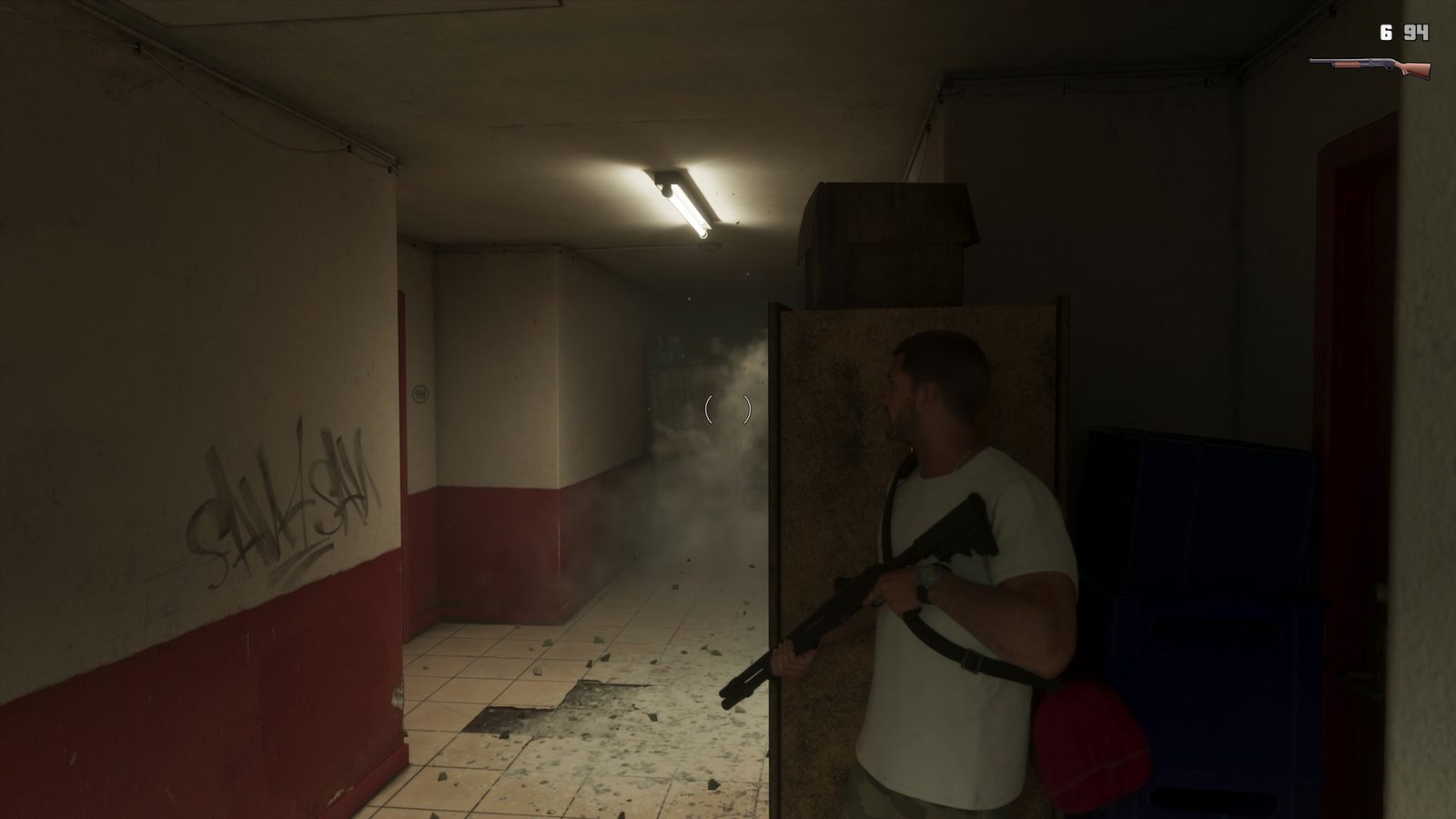
Peeking around a wall is the most obvious use. If the camera is behind your right shoulder but the opening is on your left, much of your view can be blocked by the wall. Moving the camera over the other shoulder gives you a clearer line of sight without forcing you to step as far into the open.
Aiming from behind parked cars is another good example. Shift the view toward the end of the vehicle you’re using as cover. It won’t move bullets through a solid object, but it can help you see whether the shot is clear.
Switching shoulder while using cover
Tap R1 on PS5 or RB on Xbox next to a suitable wall or barrier to take cover. Raise your weapon with L2/LT, then tap D-pad Left if the camera is on the wrong side. You can still move along the cover to find a better firing angle.
The cover and shoulder controls do separate jobs: one places your character behind protection; the other positions the aiming camera. They’re particularly useful together in tight alleys and indoor firefights.
GTA 6 How to Switch Aiming Shoulder versus scope zoom
D-pad Left moves your aiming view sideways; it doesn’t zoom. If you’re using an attached rifle scope, R3/RS activates the optic view, and D-pad Up or Down adjusts zoom on scopes that allow it.
If you’re wondering why D-pad Left seems to affect the radio, you may have stopped aiming. On foot, holding Left is associated with radio controls; in a car, a tap signals left. Always try the aiming input with L2/LT held.
If it still won’t switch
Open Pause > Settings > Control Scheme > Aiming and check your selected layout. GTA 6 includes Default, Classic and Left-Handed schemes, and the game’s current diagram is more useful than memorising controls from an older GTA.
Once you’ve found the Aiming page, GTA 6 How to Switch Aiming Shoulder is a habit worth practising at a quiet wall before the next shootout. A good angle often matters as much as having a stronger gun.
Click Flare: GTA 6 How to Switch Aiming Shoulder — Related Guides
Official source: Rockstar Games — Grand Theft Auto VI.