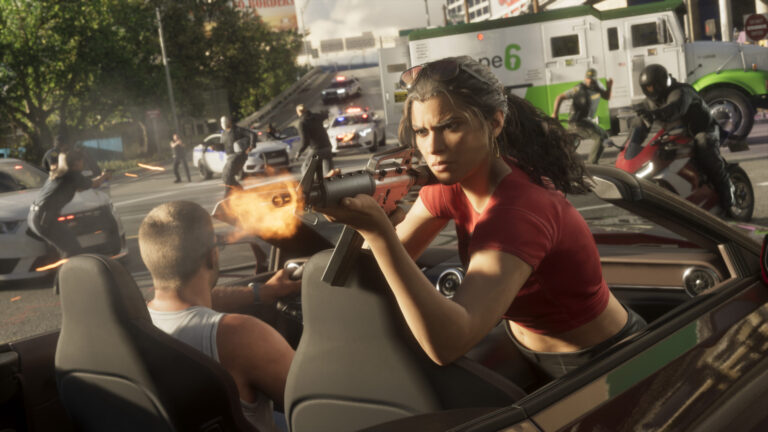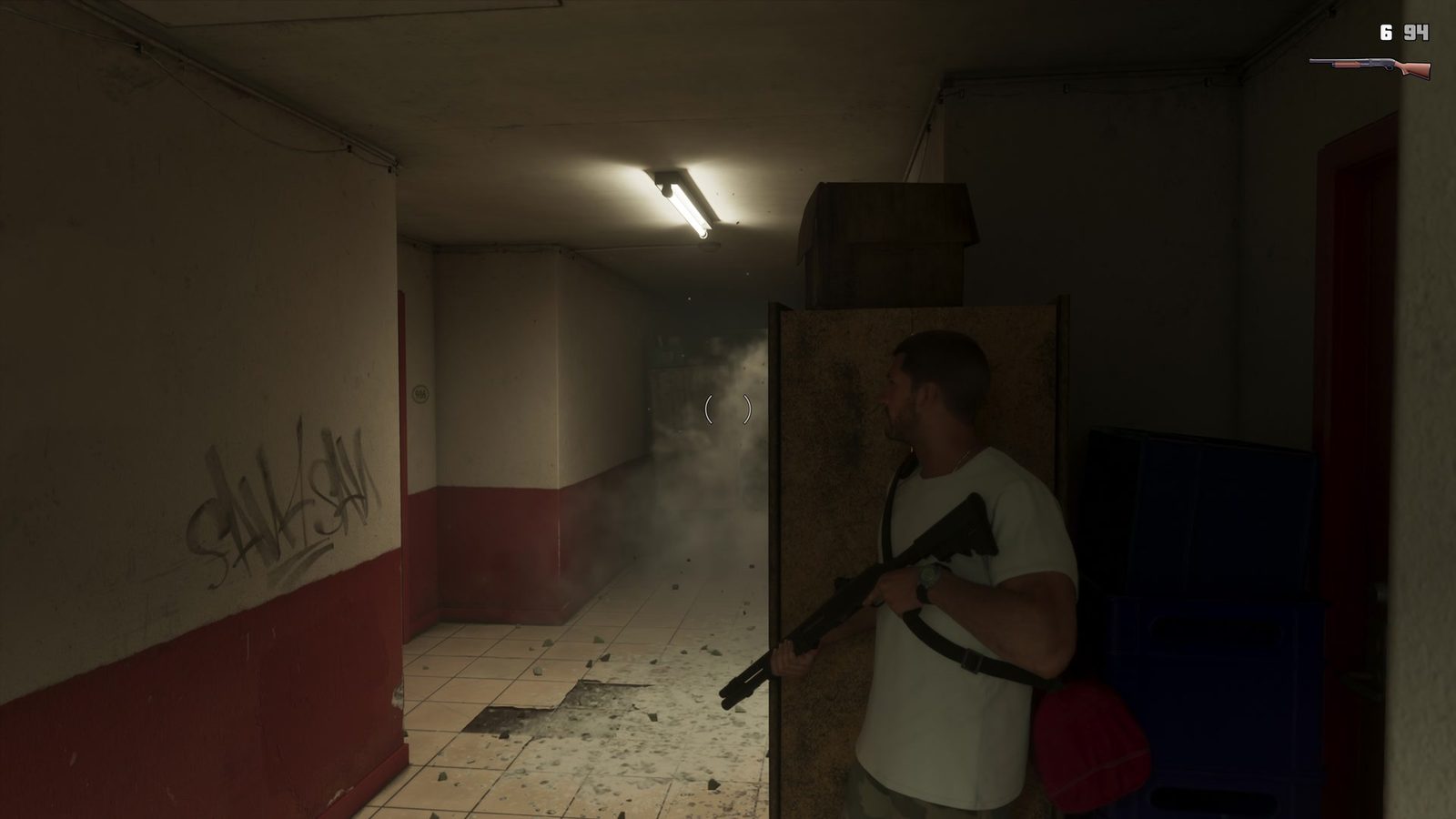
GTA 6 How to Take Cover uses R1 on PS5 or RB on Xbox Series X|S on the Default control layout. Stand beside a wall, parked car or low barrier and tap that button to move into cover. Tap it again to leave.
Crouching is a separate move. You can lower yourself in the open without locking onto a wall, while cover keeps Jason or Lucia positioned behind a nearby surface. Here’s how each works, including the button swap in the Classic control scheme.
GTA 6 How to Take Cover: PS5 and Xbox buttons
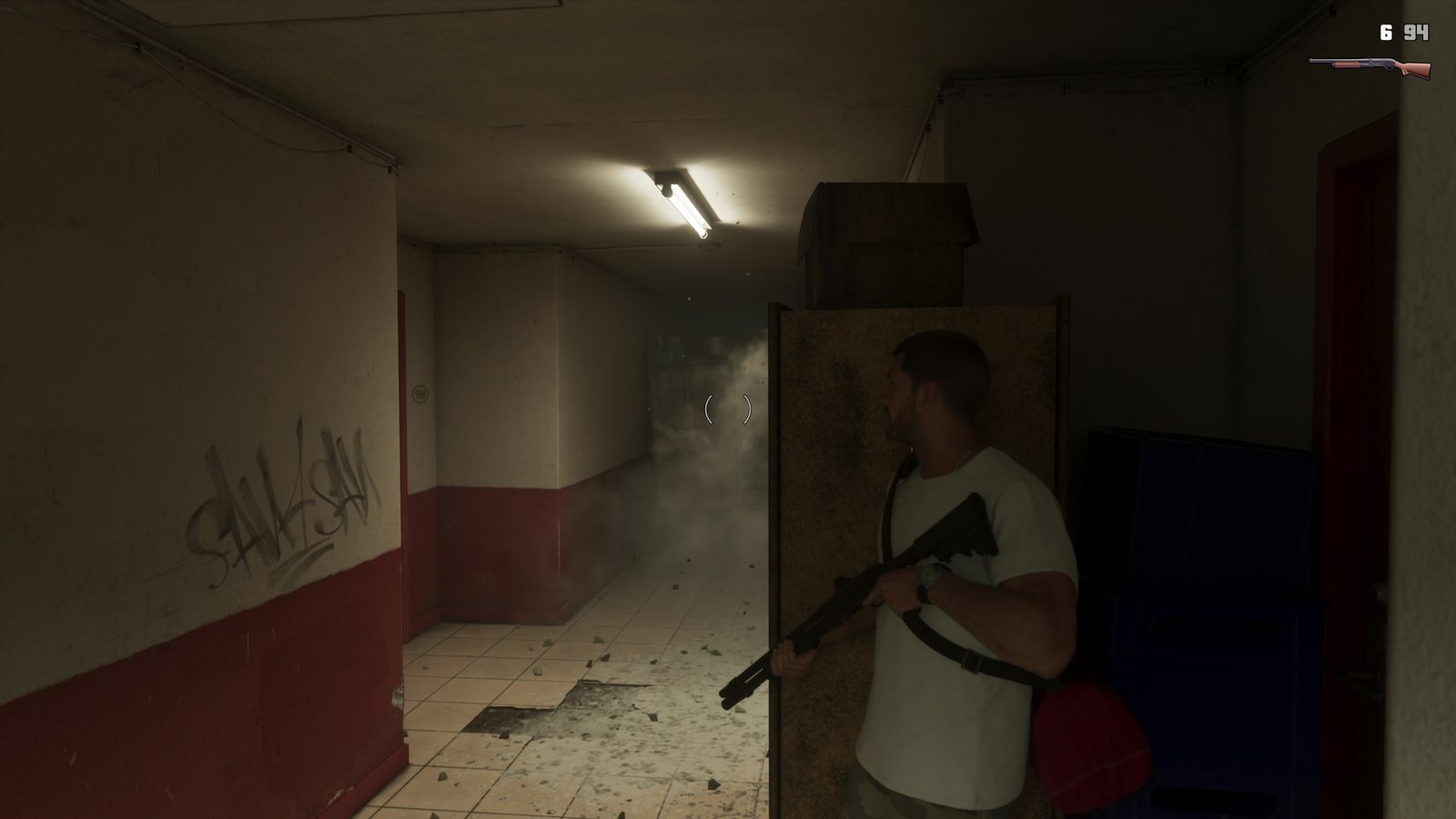
Move close enough to an object that can be used for cover, then press R1 / RB. Your character shifts into position behind it. Press the same button to step out when you want to move freely again.
Use the left stick to move along the edge. When you reach a corner, press Cross on PS5 or A on Xbox to move around it while remaining in the cover system. You can work your way along a wall without rushing out into an exposed corridor.
Cover is useful when enemies have a clear shot, but it doesn’t protect you from attacks coming around the side. If someone moves to flank you, reposition rather than staying pinned to the same obstacle. Low walls and vehicles are good starting points, although not every small prop supports the cover animation.
GTA 6 How to Take Cover: aiming and shooting
While you’re in cover, hold L2 / LT to aim and press R2 / RT to fire. Release the aim input when you need to tuck back behind the surface. This is much safer than standing in the middle of a doorway and trading shots.
While aiming, press D-pad Left to change which shoulder the camera looks over. Switching shoulders can help you line up a shot on the opposite side of a wall. The full PS5 and Xbox controls guide covers aiming, shooting and weapon selection in more detail.
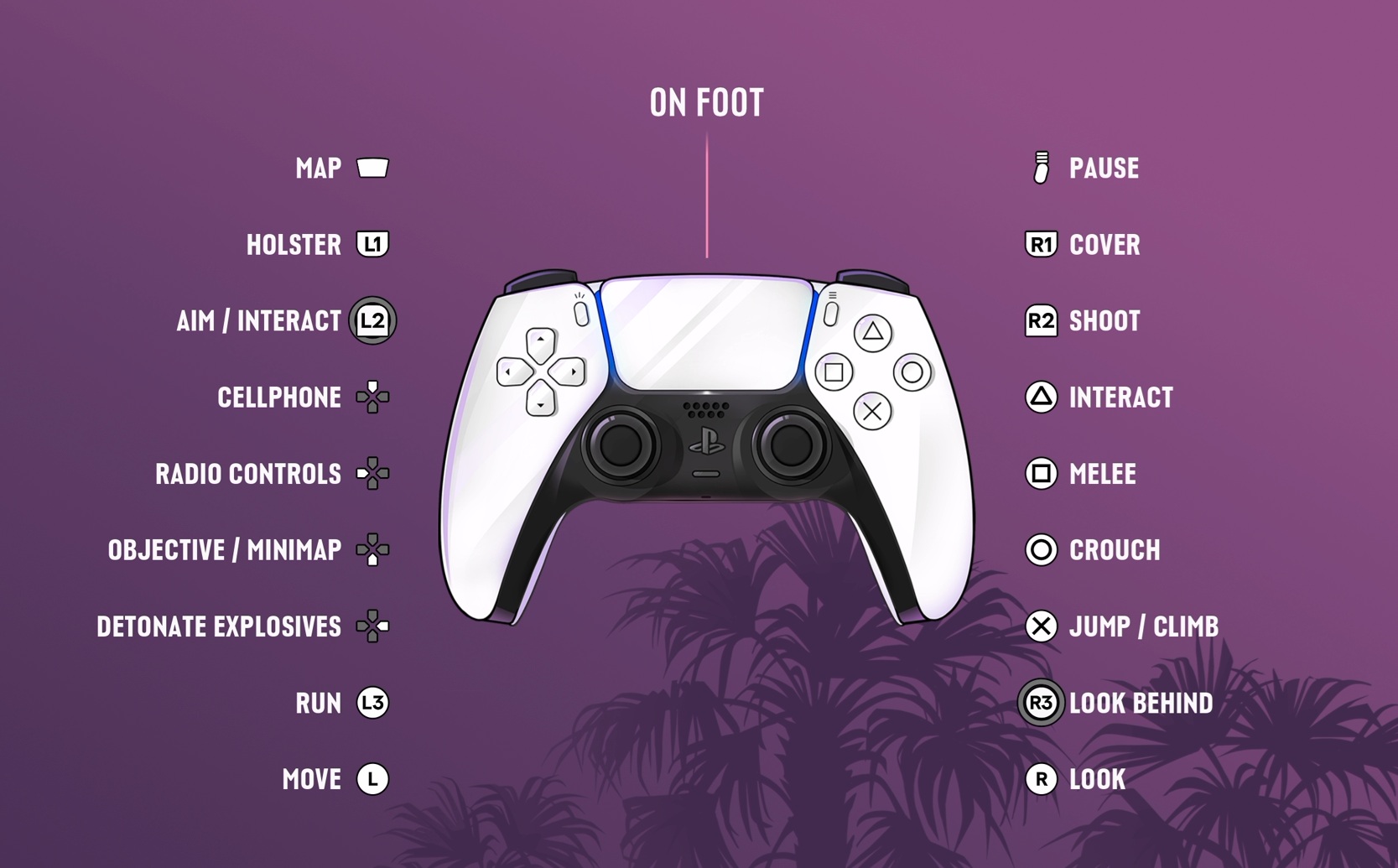
If pressing R1 / RB isn’t attaching you to anything, move closer to a suitable wall, vehicle or barrier and try again. The button has different uses while aiming or inside vehicles, so check that you’re on foot and next to a cover surface.
GTA 6 How to Take Cover: crouching and stealth
For a normal crouch on the Default layout, press Circle on PS5 or B on Xbox. You can move with the left stick while crouched. Holding Circle / B is the Rest input, not the same as tapping it to lower your stance.
Crouching makes sense when you’re moving quietly without a suitable object to lean against. Cover is different: R1 / RB attaches you to an obstacle and enables corner movement. Pressing the cover button repeatedly in an open room won’t replace crouching.
For a stealth grab, approach an enemy from behind and hold R2 / RT, then tap Square / X for the takedown while they’re held. Those are separate from crouching and cover. Our Non Lethal Combat guide covers stealth encounters.
Classic control scheme: why crouch is on a different button
If Circle / B doesn’t crouch, check Settings > Control Scheme. In Classic, press L3 / LS (click the left stick) to crouch. Running moves to Cross on PS5 or A on Xbox, like it did in GTA V.
Classic also moves jump and climb to Square / X and melee to Circle / B. Cover stays on R1 / RB. If the buttons still behave differently, check the in-game control preview; the Left-Handed layout changes them again.
The separate Classic Controls article explains the preset, while How to Fight covers melee buttons for encounters where cover isn’t enough.
For GTA 6 How to Take Cover, press R1 / RB at a wall and Cross / A to move around its corner. Circle / B crouches on Default; on Classic, use L3 / LS for crouching and Cross / A to run.
Official controls and gameplay imagery: Rockstar Games, Grand Theft Auto VI.