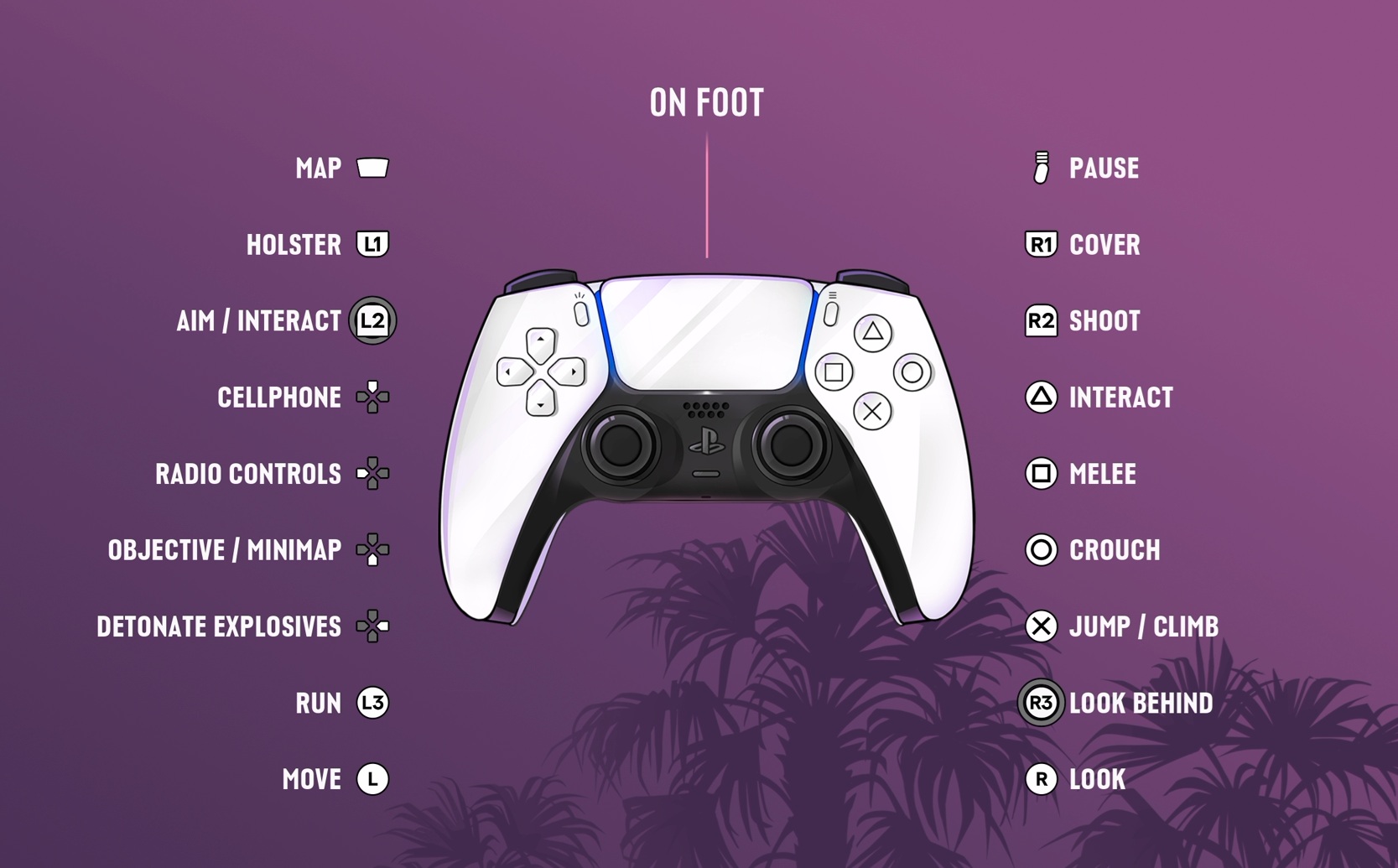
GTA 6 PS5 and Xbox Controls have changed a few habits that GTA 5 players have spent years learning. On the Default layout, clicking the left stick makes Jason or Lucia run, while Cross or A handles jumping. If you’ve just launched the game and keep leaping into the air instead of escaping the police, that’s why.
The buttons below cover the standard on-foot and driving layouts on PS5 and Xbox Series X|S. There are separate layouts for aiming, melee, planes, bicycles, swimming and parachutes, so use the game’s own Control Scheme preview whenever an action changes between activities.
GTA 6 PS5 and Xbox Controls at a Glance
| Action | PS5 Default | Xbox Default |
|---|---|---|
| Walk and steer on foot | Left stick | Left stick |
| Run, then sprint | Click L3 twice | Click LS twice |
| Look around | Right stick | Right stick |
| Aim | L2 | LT |
| Fire on foot | R2 | RT |
| Take cover | R1 | RB |
| Jump or climb | Cross | A |
| Crouch | Circle | B |
| Melee | Square | X |
| Interact | Triangle | Y |
| Bring out phone | D-pad Up | D-pad Up |
| View map | Touch pad | View button |
| Pause game | Options | Menu button |
GTA 6 PS5 and Xbox Controls use the Default scheme. Prompts change while aiming or driving, so check the screen if an input fails.
GTA 6 PS5 and Xbox Controls for Running and Sprinting
Press L3 on PS5 or click LS on Xbox while moving to start running. Click the same stick a second time to sprint. You don’t need to hammer Cross or A as you did in older GTA games; on the new layout that button is for jumping. Running and sprinting also use your stamina, so you won’t always keep maximum pace indefinitely.
You can change the starting movement speed under Settings > Gameplay > Movement. This adjusts what happens when you push the stick without clicking it. You can also choose Classic in Control Scheme if the face-button sprint setup is too deeply wired into your muscle memory. The separate sprint guide explains that difference without mixing it up with the controls for bikes.
GTA 6 PS5 and Xbox Controls for Driving
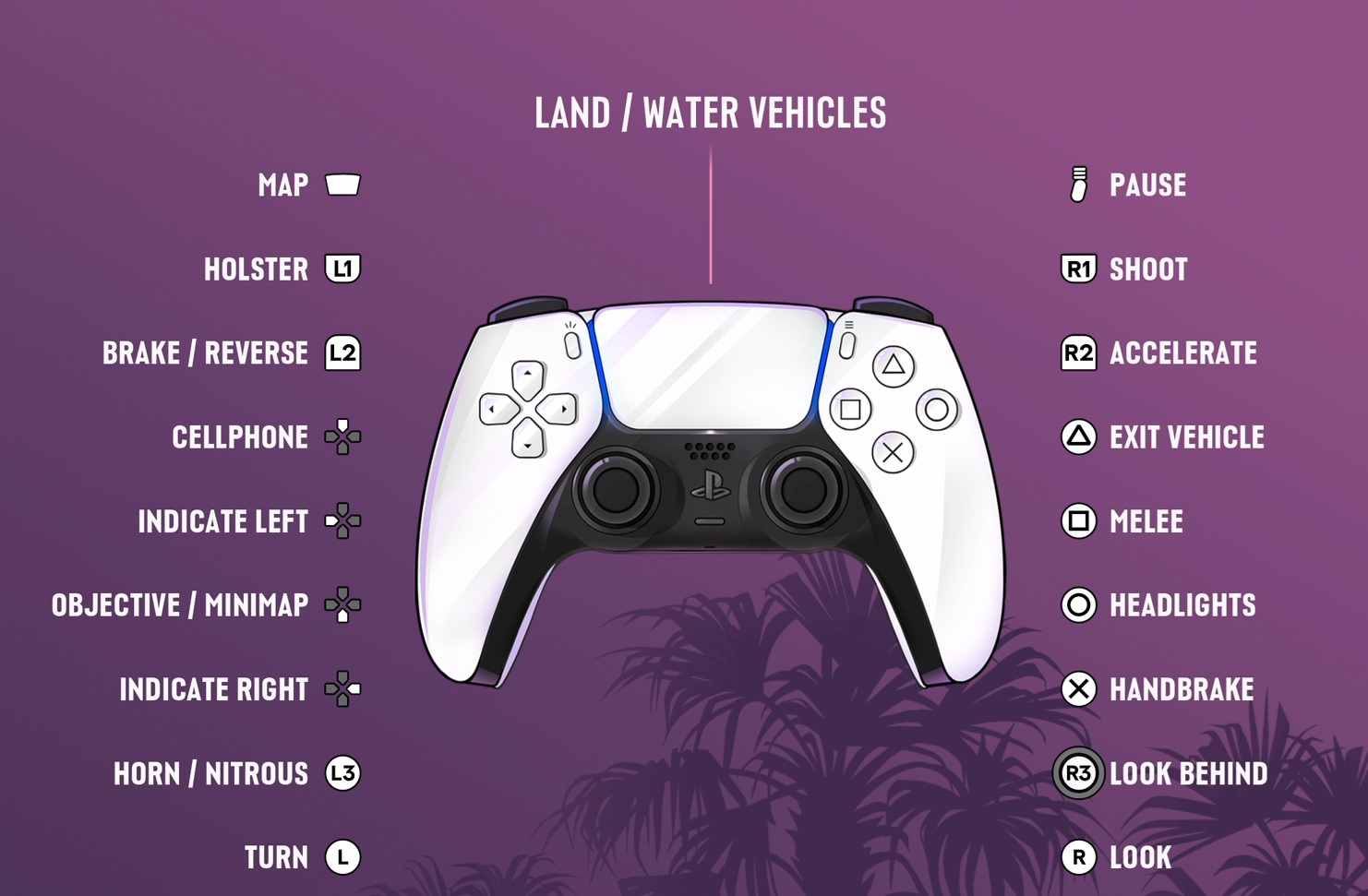
| Action | PS5 | Xbox |
|---|---|---|
| Accelerate | R2 | RT |
| Brake or reverse | L2 | LT |
| Steer | Left stick | Left stick |
| Handbrake | Cross | A |
| Exit vehicle | Triangle | Y |
| Look behind | R3 | RS |
| Horn or nitrous, where available | L3 | LS |
| Left indicator | D-pad Left | D-pad Left |
| Right indicator | D-pad Right | D-pad Right |
| Vehicle menu (radio, lights and more) | Hold D-pad Left | Hold D-pad Left |
On the GTA 6 PS5 and Xbox Controls layout, Cross or A applies the handbrake. You shoot from the car with R1 or RB, while R2 or RT handles acceleration. Tap D-pad Left or Right for the indicators, or hold Left to open the vehicle menu for radio and lighting controls. Aircraft use a separate control diagram.
GTA 6 PS5 and Xbox Controls for Combat
On foot, hold L2 or LT to aim and use R2 or RT to fire. R1 or RB takes cover. The aiming preview adds controls for switching shoulders and adjusting a weapon’s scope, so this is one of the screens worth checking before your first serious firefight. With an optical attachment, the zoom or aiming view can also change. The exact prompts appear as you use the weapon.
The Gameplay tab contains targeting and aim-assist options as well as settings for how interaction buttons behave. Those aren’t alternative controller layouts: choosing a different aim strength will not move Jump or Crouch onto another button. If shooting feels sluggish, check Controller for horizontal and vertical aim sensitivity before you rebuild the whole layout.
How to Change GTA 6 PS5 and Xbox Controls
- Pause the game with Options on PS5 or Menu on Xbox.
- Select Settings and open Control Scheme.
- Choose between the available layouts, including Default and Classic.
- Use the on-screen previews for On Foot, Aiming, Melee, Land / Water Vehicles, Aircraft, Bicycle, Swimming and Parachute.
- Return to gameplay and test moving, interacting and driving before starting a mission.
The Classic scheme puts Run back on Cross on PS5 or A on Xbox and shifts several other actions. It doesn’t make every new GTA 6 mechanic behave exactly like GTA 5. There is also a Left-Handed scheme. For fine tuning rather than swapping schemes, open the Controller tab to change look sensitivity, inversion and, on PS5, DualSense vibration and triggers.
Why Is the Button Different From the Screen Prompt?
Check the Control Scheme preview for your current activity. The same button can behave differently on foot, while aiming or inside a vehicle. The preview also shows whether you’re using Default, Classic or Left-Handed.
If the game is still not following the expected input, look in Settings for Restore Default before resetting every setting you’ve changed. Rockstar provides both a reset for the selected option and Restore All. It’s also possible to remap controls at console level, which can make the buttons you physically press differ from the labels displayed in the game.
Official source: Rockstar Games Support, How to Change Grand Theft Auto VI Settings.