How to check which DLSS model is active: launch a supported game with DLSS enabled, press Alt+Z to open the NVIDIA overlay, then go to Statistics > Statistics View > DLSS. NVIDIA says this overlay can show the model and override information actually active in the game, so you can check whether a change in NVIDIA App took effect.
The game’s Quality, Balanced and Performance labels tell you about the rendering mode, not which DLSS model is active. The overlay is the place to check the actual preset rather than reading too much into a frame-rate counter.
How to check which DLSS model is active using the NVIDIA overlay
- Install a compatible recent NVIDIA graphics driver and NVIDIA App, and make sure the game supports the relevant DLSS feature.
- In the game’s display settings, enable DLSS Super Resolution or the specific DLSS function you want to inspect.
- Launch the game and press Alt+Z to open the NVIDIA overlay. If you changed the shortcut, use the assigned overlay key instead.
- Open Statistics, then Statistics View, and select or enable the DLSS statistics view.
- Return to the game and read the active DLSS information in the overlay. Check the reported model or override status rather than assuming the newest model is selected.
- If you have just applied an override, exit and relaunch the game if necessary, then inspect the overlay again.
NVIDIA added its in-game DLSS statistics view alongside support for global DLSS overrides in NVIDIA App 11.0.5. The information may not be present in older versions or titles that do not use an eligible DLSS integration. Keeping both the driver and NVIDIA App reasonably current is a useful first step.
How to check which DLSS model is active after changing presets
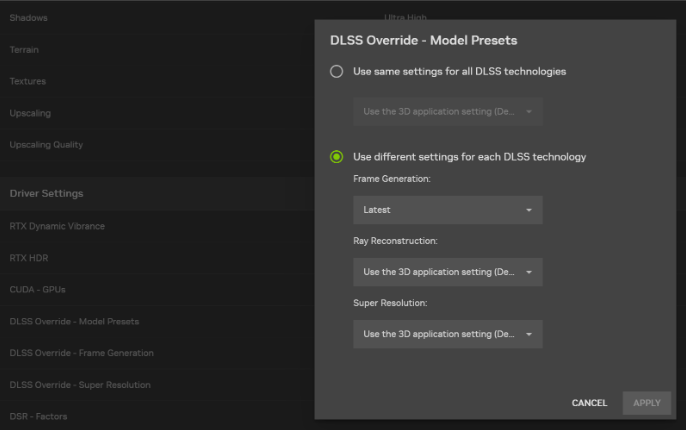
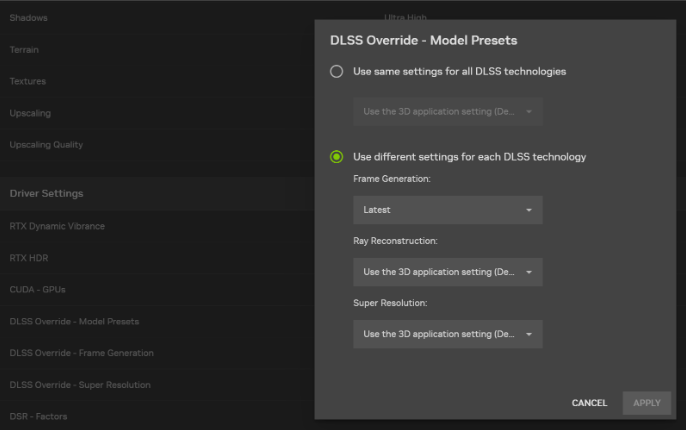
Open NVIDIA App and go to Graphics > Program Settings > Driver Settings > DLSS Override – Model Presets for a compatible game. The Recommended option for DLSS 4.5 Super Resolution chooses Model M for Performance, Model L for Ultra Performance at 4K and Model K for the remaining modes.
Apply the preset, then launch the game with DLSS enabled and check the overlay. A model can be selected in NVIDIA App while the corresponding game feature is turned off.
Model K is an earlier transformer Super Resolution preset. Models M and L are the newer second-generation options. RTX 20 and RTX 30 cards can use supported Super Resolution overrides, but NVIDIA says M and L may cost more performance on those GPUs because they lack native FP8 support.
How to check which DLSS model is active when the overlay shows N/A
Start by confirming that DLSS is enabled inside the actual game. If the app is trying to read a DLSS feature the title is not running, the expected model information may not appear. Also check whether the game is one of NVIDIA’s supported override titles.
An old app version can matter. NVIDIA’s release notes include fixes for overlay statistics showing N/A after a client update or in games with separate executables for different modes. Updating NVIDIA App and the driver may resolve one of those already documented problems, but it is not a guarantee for every missing overlay.
If Alt+Z does nothing, open NVIDIA App and check whether its overlay is enabled. Make sure you are pressing the actual configured shortcut rather than assuming all systems retain Alt+Z. Restart the game after changing settings.
How to check which DLSS model is active without relying on FPS
No. The frame-rate counter shows performance, not the exact model preset. Frame Generation can increase displayed frames, while Super Resolution changes the image reconstruction path. Two people can report similar FPS but be using different models or completely different DLSS modes.
How to check which DLSS model is active after resetting an override
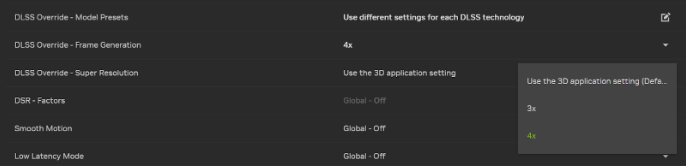
If you want to compare the original game implementation, go back into the relevant NVIDIA App Program Settings entry and restore Use the 3D application setting for the override you changed. Apply, restart the game, and inspect the DLSS statistics view again.
How to check which DLSS model is active versus DLSS 5
The NVIDIA App’s DLSS model statistics are especially useful for Super Resolution and available model overrides. DLSS 5 3D-Guided Neural Rendering is a separate in-game technology, not merely another Super Resolution preset you can select in every title. Hardware and game integration still determine availability.
If the game has just received a graphics update, check its own patch notes as well. An overlay showing one DLSS model does not prove every other DLSS feature is turned on.
Related Guides
Once you know how to check which DLSS model is active, these guides explain the available presets and compatible GPUs.
Official source: NVIDIA App release highlights: DLSS Override global settings and in-game statistics.