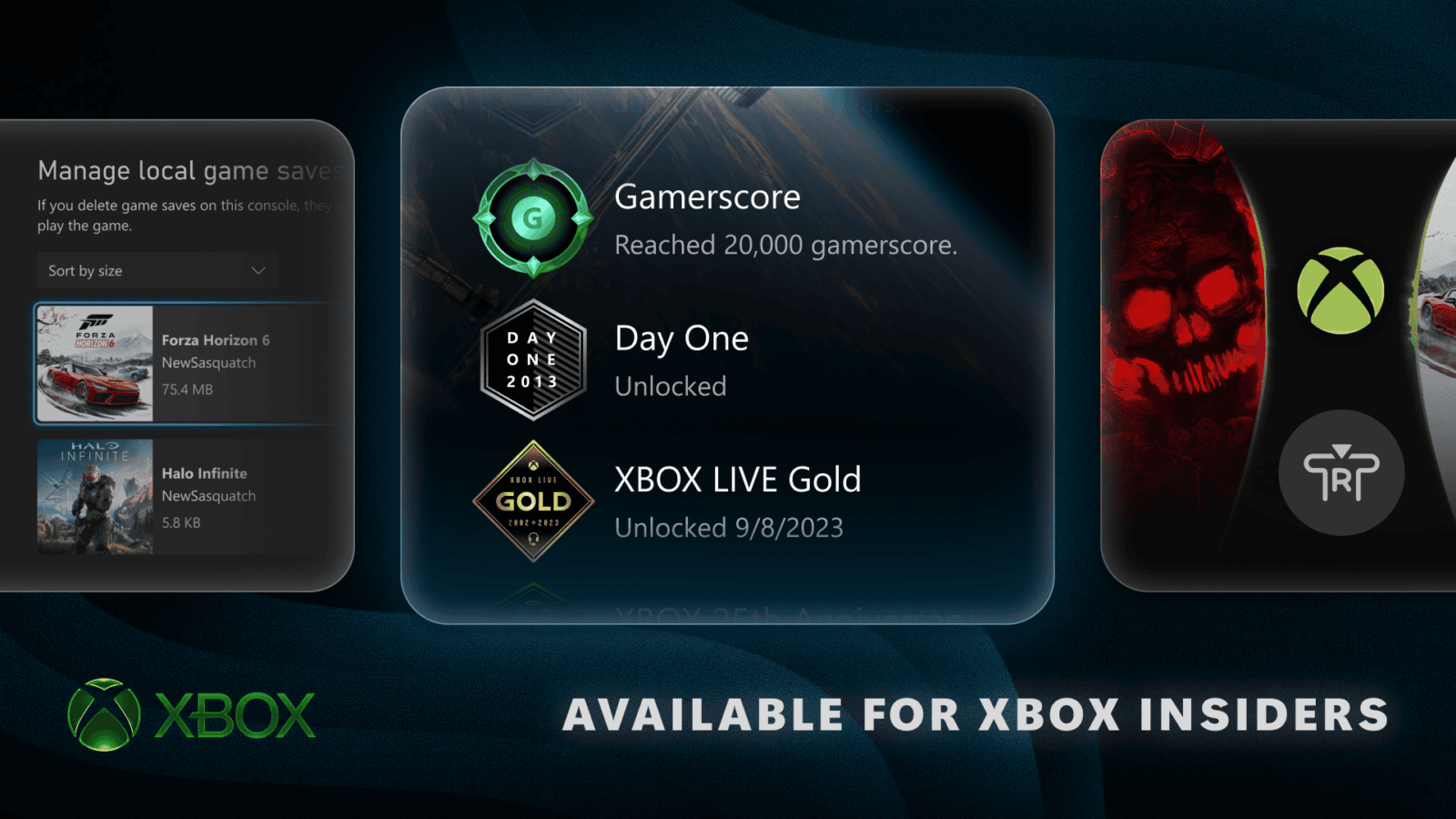
Manage local game saves is now part of Microsoft’s 28 October 2026 public Xbox console update, making it easier to deal with the Not Enough Space to Save warning. It lets you find unused local save files and remove individual copies to free room for new progress. Files already backed up to the Xbox network can sync again when you open the game.
Before deleting anything, check that your newest progress has synced. If you’ve played offline or seen a cloud-sync error, that progress may exist only on your console. Keep the local copy until it’s safely uploaded. Here’s how to use the menu without losing a save you still need.
Where to Find Manage Local Game Saves on Xbox
On a console with the feature, follow Settings > System > Storage > Manage local game saves. You can also open it from the console notification that warns there isn’t enough space to create another game save.
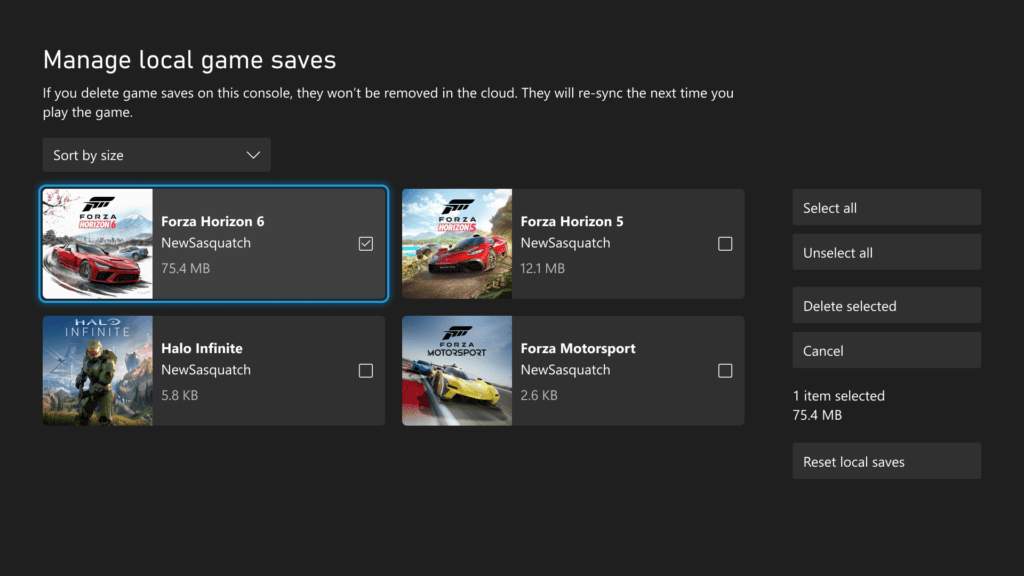
The screen shows unused saves alongside their game, profile and file size. Sort by size to find the biggest files first, then decide which local copies you no longer need. You don’t have to select everything.
How to Use Manage Local Game Saves Safely
- Make sure the console is online and signed into the profile that owns the saves. Finish any pending cloud sync before proceeding.
- Open Manage local game saves from the Storage settings.
- Use Sort by size to find large unused saves first.
- Tick the files you want to remove. Check the game, profile and total selected size before going further.
- Choose Delete selected and confirm the action. Avoid the wider Reset local saves option if you only want to clear particular games.
- When you next play an affected game, launch it online with the same Xbox account and let the cloud save download.
The official screen shows a checkbox for each entry, a running total of the selected file sizes and a Delete selected button. Reset local saves is a broader action, so don’t choose it when you only need to clear one or two files.
Does Deleting Local Xbox Saves Remove Cloud Progress?
Manage local game saves removes files from the console, not from the Xbox cloud. Microsoft says cloud-backed saves download again when the game launches. If that backup contains your latest progress, deleting the local copy should not make you start again.
But a cloud backup only protects progress that actually synced. If your last session was offline or interrupted, reconnect with the same Xbox account and let the game finish syncing before removing its local data. If Xbox offers a choice between local and cloud saves, check which contains the newer progress rather than selecting one blindly.
Delete From Console vs Delete Everywhere
Delete from console removes a game’s local save. An existing cloud copy can return the next time you play online. Delete everywhere deletes that game’s save from the console and the Xbox cloud. Do not choose Delete everywhere when you’re trying to preserve your progress.
Manage local game saves works differently from the per-game controls. It lists unused local files across several games, so you can choose which copies to clear. It cannot restore progress that was never backed up.
Why Is Manage Local Game Saves Missing?
Microsoft first tested Manage local game saves with Xbox Insiders on 19 August 2026. The feature is now included in the 28 October public release, OS version 10.0.26100.9647. To check the installed version, open Settings > System > Console info. The rollout started October 28, so an individual console may receive it later.
Check Settings > System > Updates for the October release. If Manage local game saves is missing, compare the installed OS version with 10.0.26100.9647 and finish any available console update before checking again. Our October 2026 Xbox update guide covers the other additions. You can inspect a single game’s data through My games & apps, select the game, press Menu, then open Manage game and add-ons > Saved data. Don’t delete from there unless the cloud copy is current.
Still Seeing Not Enough Space to Save?
If the warning returns after clearing unused local files, restart the console and see which game triggers it. This error concerns space for saved data, which isn’t always the same as free installation storage. Moving a game to an external drive won’t necessarily clear the save warning.
If the console won’t connect, follow our Xbox network connection guide before changing any more saves. If a game download is failing instead, our Xbox Installation Stopped guide covers that separate problem.
Official source: Microsoft Xbox console system update notes for October 2026.