Xbox Cloud Gaming phone controller is a new preview that turns your iPhone or Android phone into the controls for an Xbox cloud game on a supported smart TV. You don’t need to pair a gamepad or install a separate controller app. The buttons appear in your phone’s browser, while the game stays on the big screen.
It’s the sort of feature that’s useful when the controller has gone missing or someone else is using it. Microsoft began rolling it out on 4 November 2026, but it’s not available on every TV or with every game. Here’s how to get the option working and how to tell when your setup isn’t supported yet.
How to set up the Xbox Cloud Gaming phone controller
You need the latest supported Xbox cloud-gaming experience on your TV and a cloud game that works with the preview. Start on the television, not on your phone:
- Open the Xbox cloud-gaming experience on your supported smart TV and sign in to your Xbox account.
- In the TV app, go to Settings > Account and turn on Preview Features.
- Open a supported cloud game with no physical controller connected.
- When the option to use your phone appears on the TV, select it.
- Scan the QR code displayed on the TV with your Android phone or iPhone.
- Use the controls that open in your phone’s browser to play the game on the television.
That’s it. Your phone handles the input and your TV displays the game. Some titles have touch layouts designed around their particular controls, rather than squeezing every game into exactly the same on-screen buttons.
Does the Xbox Cloud Gaming phone controller work in the UK?
The phone preview is rolling out on supported televisions in countries where Xbox Cloud Gaming operates. That includes the UK. What Microsoft hasn’t promised is that every supported country, TV model or cloud game will get the option at once. It’s a preview, so support is still limited.
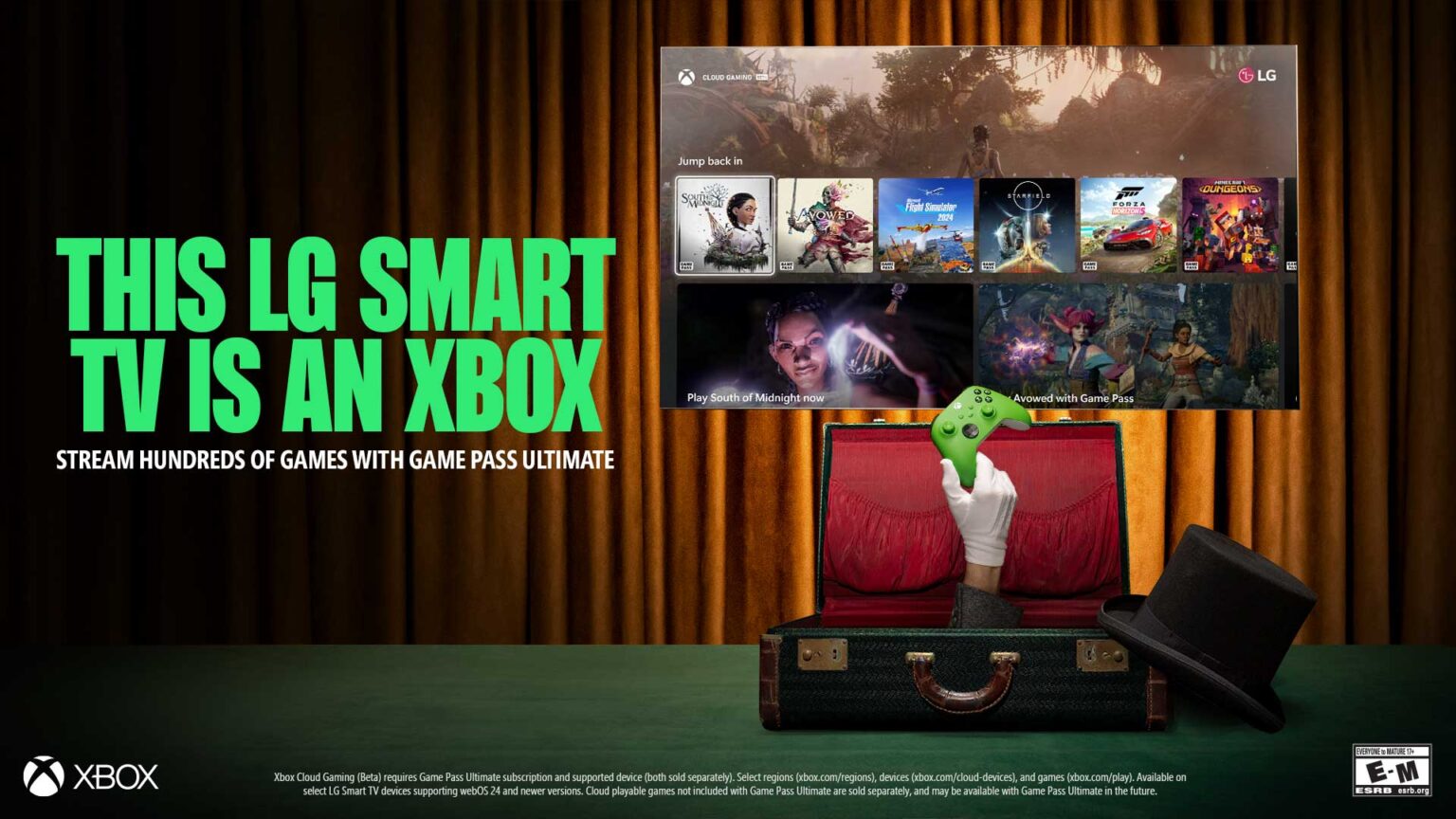
There isn’t a verified complete model-by-model compatibility list for this specific feature in the announcement. If you’re using an Xbox app on an LG or Samsung TV, don’t assume the phone option is there simply because the normal cloud service works. Check for the Preview Features setting and the prompt when you launch a game.
Which phones can use the Xbox Cloud Gaming phone controller?
Both supported Android and iOS phones can be used. The important part is that the phone’s browser opens the controls after you scan the TV’s QR code. You aren’t streaming a second copy of the game to the phone, and you don’t need the Xbox beta app used for another controller preview.
This also isn’t Remote Play. With Xbox Remote Play, the game runs on a console you own. With this feature, Xbox Cloud Gaming runs the game on Microsoft’s servers. If you’re deciding which one suits your setup, our Xbox Remote Play vs Cloud Gaming guide covers the differences.
No phone option or QR code on your TV?
If the Xbox Cloud Gaming phone controller option isn’t showing, check the three requirements first: you’re in the latest supported TV experience, Preview Features is switched on, and you’ve launched a compatible cloud game without another controller attached. Those are the conditions Microsoft sets out.
If you can’t find the Preview Features setting at all, the feature might not be available on that TV experience. If the setting is there but you never see a phone prompt, the selected game or rollout could be the limiting factor. Microsoft hasn’t given a complete supported-games list, so there isn’t an honest way to promise a specific title will work everywhere.
If the QR code does show up, scan the code displayed for that session and keep the game open while the browser loads the controls. You shouldn’t have to search an app store for a special phone controller download. The browser page is the controller.
Do you need Game Pass for the Xbox Cloud Gaming phone controller?
The phone feature doesn’t add games or cloud playtime to your account. You still need the appropriate cloud gaming access for the title you’re trying to play, whether that’s through an eligible Game Pass plan or another supported entitlement. It isn’t a way around subscription rules.
If you mainly stream on a TV, the November 2026 cloud gaming limits are worth checking. The allowances apply to the streaming session; using phone controls instead of a physical gamepad doesn’t change them.
Phone controller versus Xbox Nano cloud connect
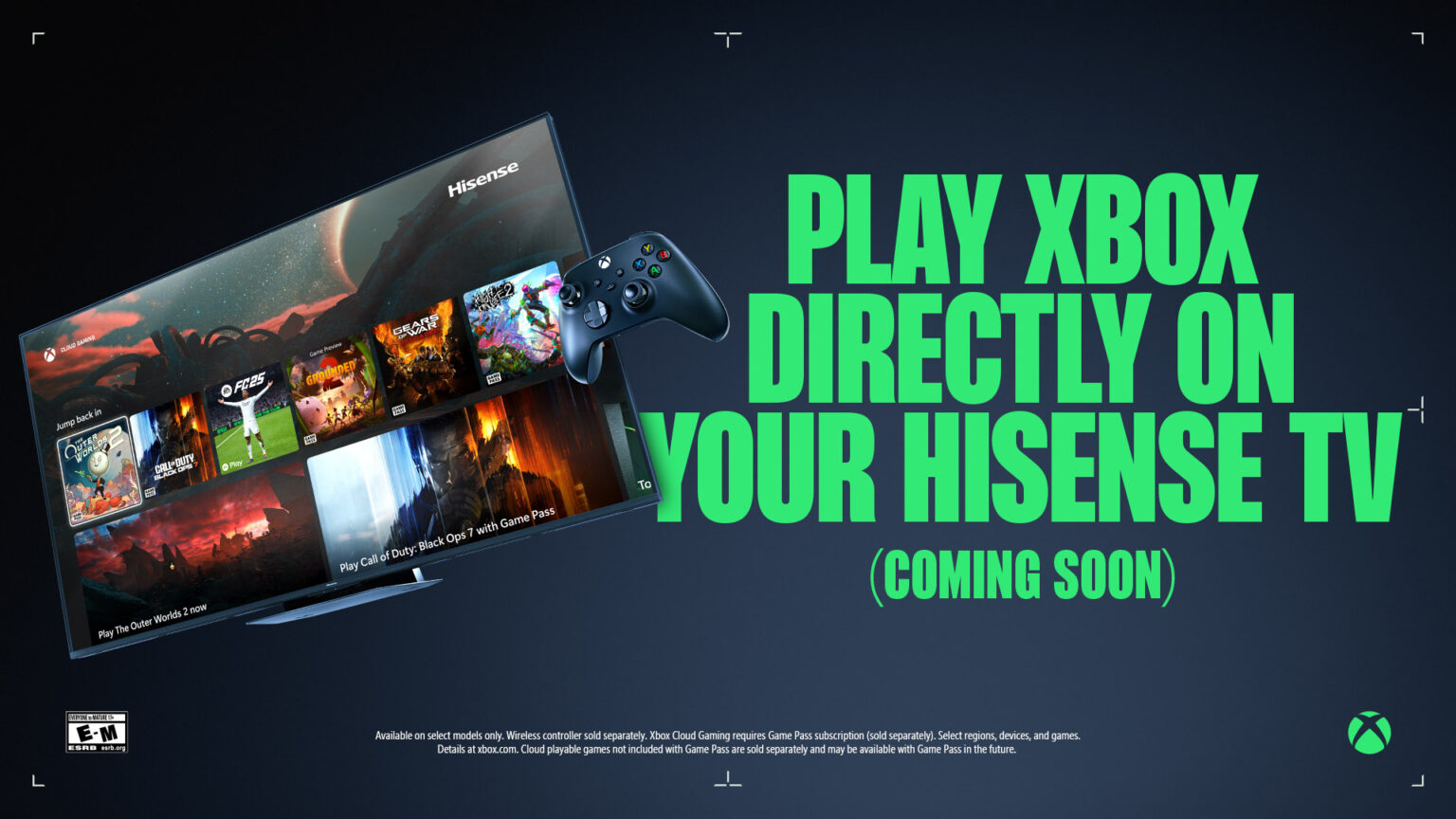
There are two different Xbox previews, and the names are easy to muddle. The Xbox Cloud Gaming phone controller replaces the physical pad with touchscreen controls. Xbox Nano cloud connect Wi-Fi uses a physical Nano controller, but sends its button presses directly to the cloud server over Wi-Fi instead of through the TV’s Bluetooth connection.
Nano cloud connect is currently a US-only test. The phone controller has a wider rollout across supported cloud-gaming countries. You don’t need to buy a Nano to try the phone feature.
How to give feedback on the preview
Once your phone is connected, tap the Xbox icon in the top-left corner of its controls and select Give Feedback. You can also send feedback through the supported Xbox TV app’s guide or profile menu. If a touch layout is awkward or a game doesn’t respond properly, this is where to report it.
The Xbox Cloud Gaming phone controller won’t be the best way to play every game, especially ones that need quick, precise inputs. But if your TV and game support it, using the phone already in your hand is a practical way to get playing without a separate controller.
Official source: Xbox Wire’s phone-controller and cloud-connect preview announcement.