
Roblox decal IDs are the numerical references assigned to picture decals in the Roblox Creator Store. This list gives you eight actual Roblox listings, including cat pictures, smiley faces, memes and a crosshair, with a link to check the asset before you try it in an experience.
The IDs below were checked against official Creator Store pages. That confirms each listing exists and is identified as a decal; it doesn’t mean every Roblox game lets players use it. Some games require an image ID rather than a decal ID, and developers can limit which custom assets their experience accepts.
Roblox decal IDs: eight verified Creator Store listings
| Decal | ID | Roblox listing |
|---|---|---|
| Smiley | 80588863019931 | Check decal |
| Banana Cat | 5113188453 | Check decal |
| Smiley Face Crosshair | 12601227339 | Check decal |
| Static Smiley Face | 11168477051 | Check decal |
| Uncanny Smiley Face | 12892935177 | Check decal |
| Noob Colors | 162957387 | Check decal |
| Smiley Faces | 31023351 | Check decal |
| Smiley Face | 144627484 | Check decal |
Each Roblox decal ID links to a Creator Store result labelled as a Decal. These are genuine asset numbers, but we have not redeemed or inserted all eight inside individual games. The creator can also change an asset’s availability later.
How to use Roblox decal IDs in Roblox Studio
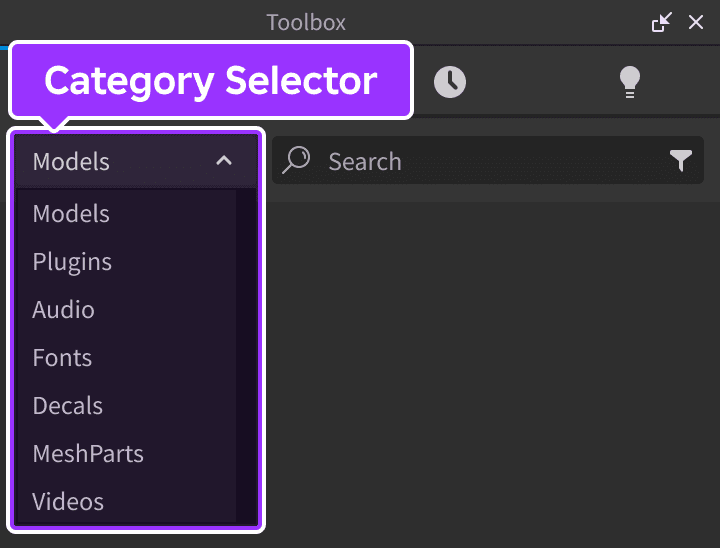
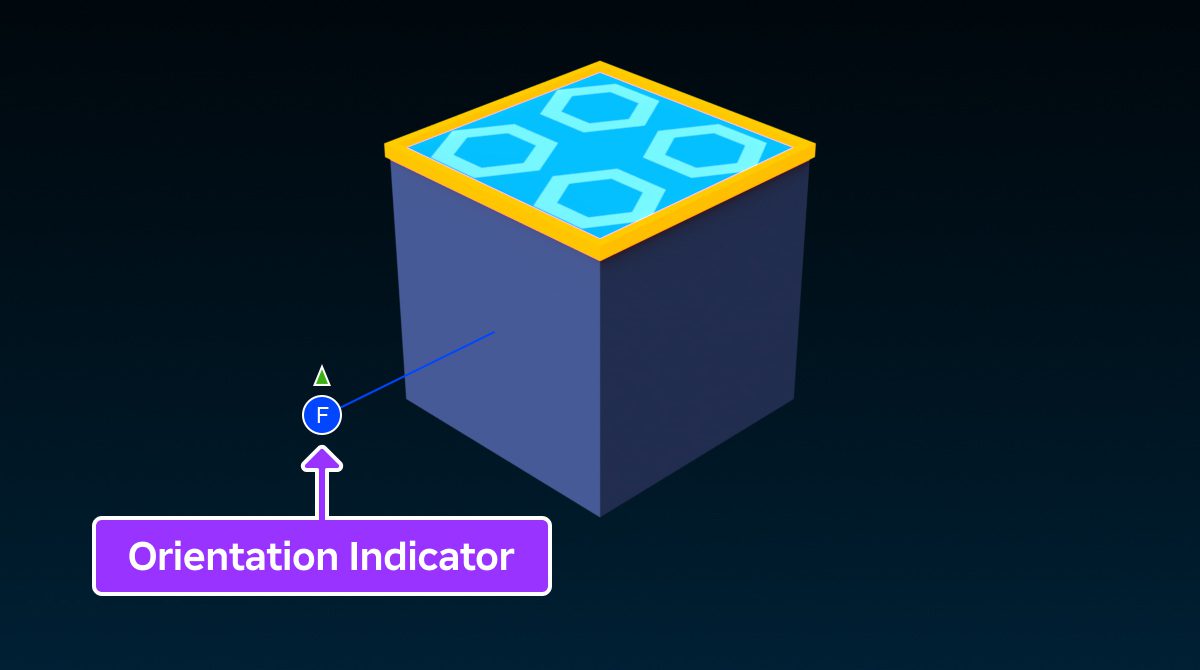
Open Roblox Studio and load an experience you can edit. Open Toolbox, choose Creator Store, then Decals. Search for the decal name or number and inspect the asset before inserting it. To put a decal on a Part, select that Part, insert a Decal instance, and choose the Face where the picture belongs.
For a Decal instance, the Texture property refers to the image being displayed. Using the Creator Store selector is helpful because it handles asset selection while showing the source. If your Studio workflow expects a numerical asset identifier, copy it from the Creator Store rather than relying on random image-ID compilations.
Roblox decal IDs describe images applied to surfaces, not audio tracks or playable equipment. If you need audio codes instead, our Creator Store audio guide covers a different asset category.
Roblox decal IDs versus image IDs: what’s different?
Not always. A public listing can have a decal ID while the underlying picture has a different image ID. The creator of Banana Cat explicitly identifies 5113188453 as its decal ID and 5113188427 as the image ID. They are different numbers for related assets, so check what the game or property is requesting.
For example, a Roblox Studio ImageLabel may use an image resource, while a player-facing spray-paint feature might ask for a decal listing. There isn’t one universally accepted type of picture ID across every game. Check the instructions in the experience where you want the art to appear.
Roblox decal IDs not working: what to check
The game blocks custom images: The developer may not allow user-supplied decals. It needs an image ID: A decal listing number may not be the format the input accepts. Asset unavailable: Moderation, privacy or permissions can stop an existing decal from loading. Wrong side: In Studio, the image may appear on a different Part face.
Start by opening the official listing and checking that you copied the number correctly. Then review the game’s requirements. If you are editing your own place, try selecting the item in Creator Store and placing it directly. Roblox’s asset privacy rules explain why a publicly discoverable number cannot always be used by everyone.
Roblox decal IDs: where to find more
Open Roblox Creator Store and browse Decals by subject. Searches like cat, crosshair, smiley and funny face can surface assets with a preview and creator name. Check the result’s type rather than taking the first number from a search-engine snippet. The eight examples above are a starting set, not a claim that Roblox has only eight usable decals.
Roblox decal IDs can also be used in supported player-upload systems, but each experience decides whether that feature exists. A game asking for an ID does not guarantee it accepts every asset from Creator Store. If a number fails, try the officially supported asset picker or ask the game’s developers which category they support.
Roblox decal IDs: frequently asked questions
Are these verified IDs? All eight have an official decal listing, but individual game compatibility remains untested. Can I use a decal ID in a Boombox? No, a Boombox needs audio. Can I upload my own image? Roblox creators can upload images subject to moderation and asset permissions. Can an ID stop working? Yes, if the asset becomes restricted or a game changes its supported IDs.
Related Roblox decal IDs guides
Official documentation: Roblox Creator Hub: Textures and Decals, and Roblox asset privacy. Each ID in the table also links to an individual Roblox Creator Store listing.





