
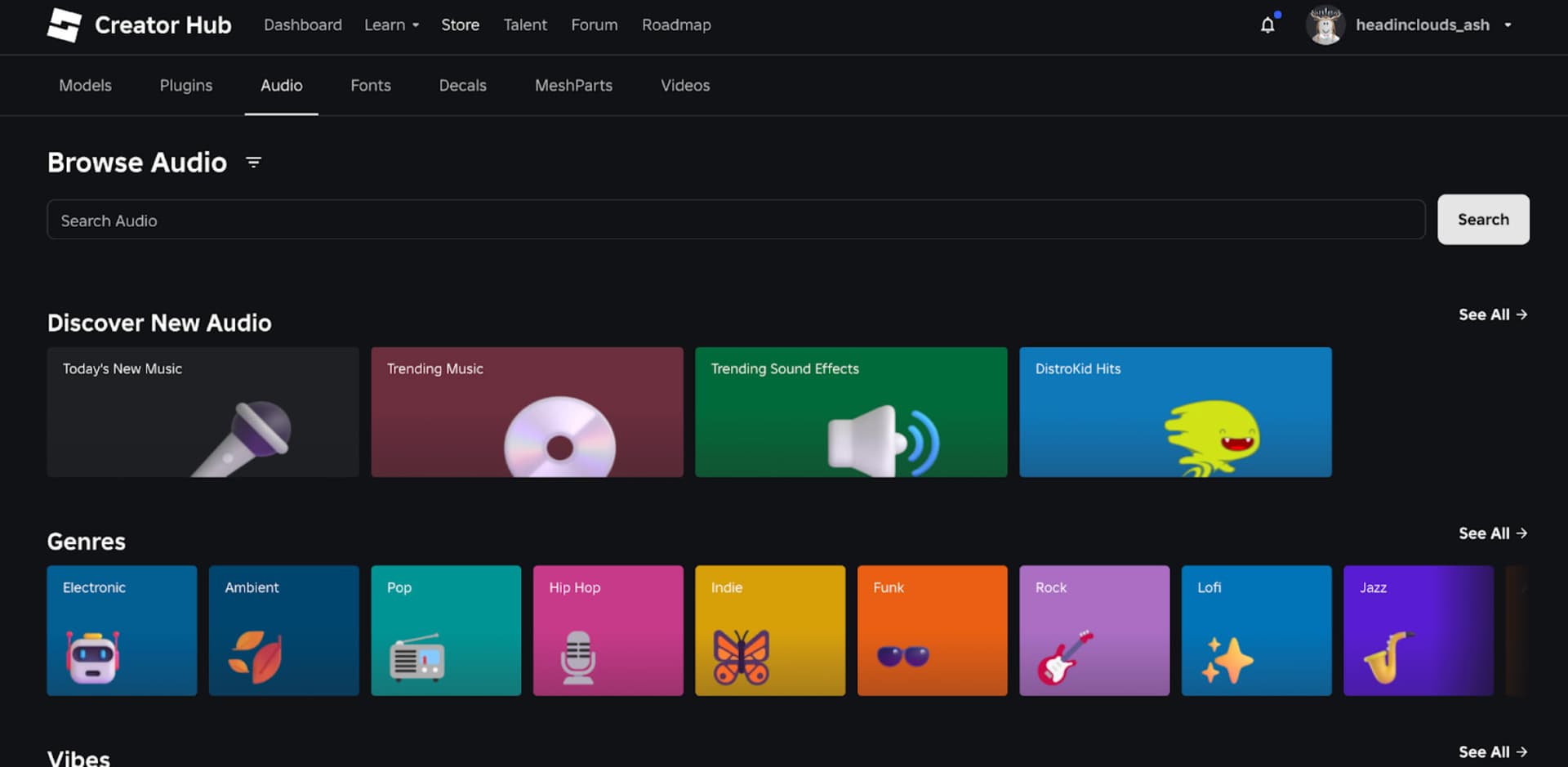
How to Find Roblox Audio IDs in the Creator Store starts inside Roblox Studio. Open Toolbox, choose Creator Store, select Audio, then search for a sound. Right-click an audio result and choose Copy Asset ID to get its number. Roblox documents this exact workflow for finding usable audio assets.
This is for creators choosing audio for an experience, not a guarantee that a copied ID will work in somebody else’s Boombox. Roblox’s catalogue contains sound effects and music, but experience-specific access and playback configuration still matter. Here’s how to search, copy, test and use the asset you find.
How to Find Roblox Audio IDs with the Toolbox
Open Roblox Studio and your editable experience. From Home or the Window menu, open Toolbox. Select Creator Store, then choose Audio from the category selector. You are now searching audio instead of models or plugins.
To narrow the results, type a relevant keyword such as rain, footsteps, notification or ambient music. Roblox provides quick filters and advanced filters, including sound length. This helps separate short effects from longer tracks. Learning How to Find Roblox Audio IDs is easier when you search for what your game needs instead of guessing numeric asset IDs.
How to copy a Roblox audio asset ID
When following How to Find Roblox Audio IDs, once you find a useful sound, right-click it and select Copy Asset ID. Roblox specifies that command in its audio documentation. You can paste the resulting number into the appropriate audio property or keep it in your project notes for later use.
Clicking the result instead inserts a Sound instance into Explorer. This is convenient for an older Sound-object workflow. Roblox notes that its newer AudioPlayer objects offer different dynamic functionality, so choose the audio object your project actually uses.
How to Find Roblox Audio IDs doesn’t require copying an external streaming URL. The Roblox asset number is what matters. If two recordings have similar names, inspect them separately because they may have different durations, creators and access conditions.
Where to put the copied ID in Studio
When using How to Find Roblox Audio IDs with an AudioPlayer object, assign the selected asset to its Asset property. Roblox documents references such as rbxassetid://123456789, with your real ID replacing the example. Complete the output or emitter setup so the audio has somewhere to play.
For a Sound instance, use its SoundId property. Sound objects can be triggered by scripts or configured to play automatically. A copied number doesn’t add playback controls by itself; the object needs to be set up as part of your game’s audio system.
How to check audio permissions
The Creator Store is intended for finding assets to use in development, but audio permissions still matter. Assets imported by individuals are private by default until the owner grants access where appropriate. Check the creator and asset details before using a recording in another experience.
If a sound doesn’t play, start by previewing the Store entry, then test the configured object in Studio. Check that the object references the correct ID, that your sound routing is configured, and that the experience can access the recording. The audio troubleshooting guide goes deeper into silent IDs.
When learning How to Find Roblox Audio IDs, make sure you are copying from the asset you intend to use. A valid number for a private upload doesn’t become public simply because it appears in someone’s old code list. The audio compatibility guide explains that limitation.
Can you use Creator Store IDs in any Boombox?
No. A Boombox input is supplied by a particular game. Some Roblox experiences offer a music pass or player-controlled audio field, but others do not. Finding a number in the Creator Store cannot change another developer’s game or give it permission to play private audio.
Players interested in listening can consult Roblox Boombox Codes and How to Get a Boombox. If your goal is to build an experience, the official Toolbox and asset workflow is the correct starting point.
How to find your own uploaded audio IDs
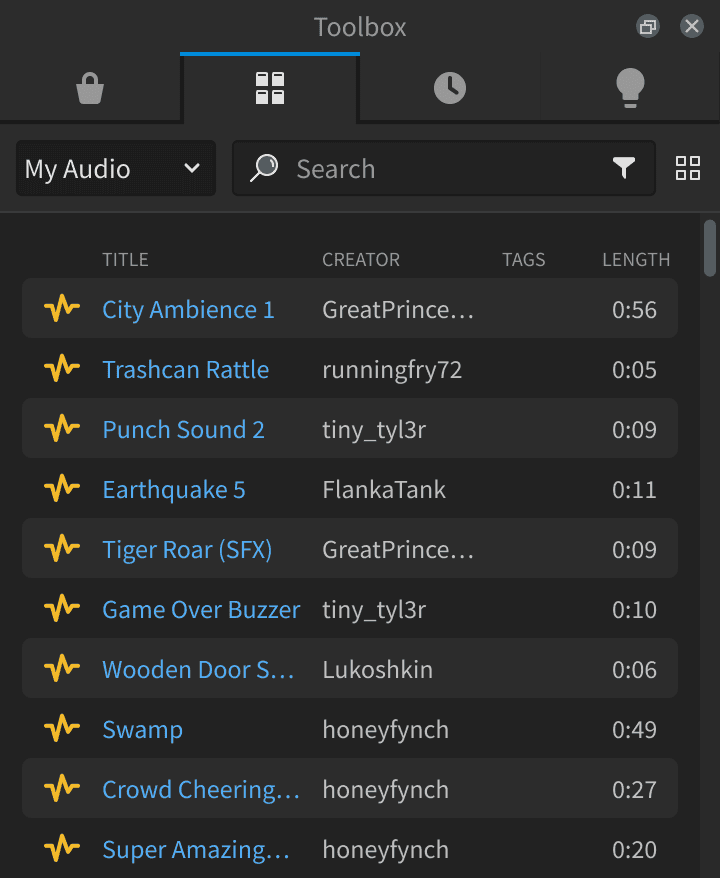
For How to Find Roblox Audio IDs that you’ve uploaded yourself, Studio’s Toolbox includes a Creations section for assets you’ve published, including eligible group assets. The Asset Manager shows assets imported into the currently opened experience. Inspect your existing audio entry there instead of re-uploading the same file to generate another number.
Roblox supports authorised uploads in MP3, OGG, WAV and FLAC formats, subject to moderation and file specifications. You must have the rights to the recording. Uploading copyrighted music without permission is not a reliable alternative to searching approved audio in the Creator Store.
What to do after you find a suitable sound
After How to Find Roblox Audio IDs, keep the asset’s title, creator and ID alongside the name of the scene or interaction using it. Test the sound in Studio, then listen again in the published experience. This can catch mistakes involving wrong objects, volume and access before players encounter silence.
If you’re gathering references for soundboards or game effects, Roblox Sound Effect IDs has historical community codes, while Funny Sound IDs and Meme Sound IDs cover recognisable short recordings. Those lists are references, not substitutes for Creator Store asset checks.
How to Find Roblox Audio IDs is straightforward once you know the Toolbox route: Creator Store, Audio, search, inspect and Copy Asset ID. The remaining work is making sure the audio is permitted and properly configured for the experience where you want to play it.
Related Guides
Official source: Roblox Creator Hub’s audio assets instructions.





