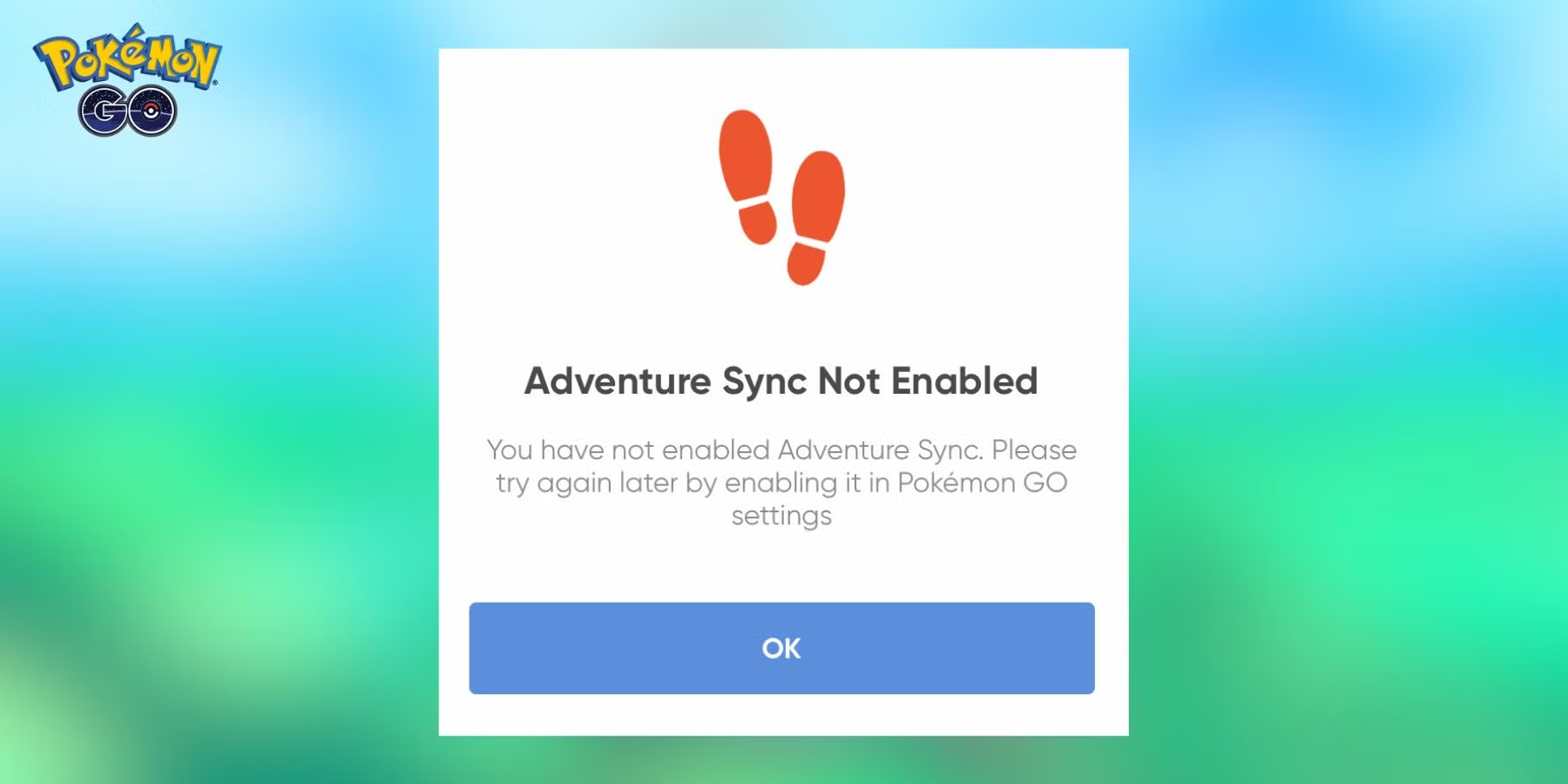
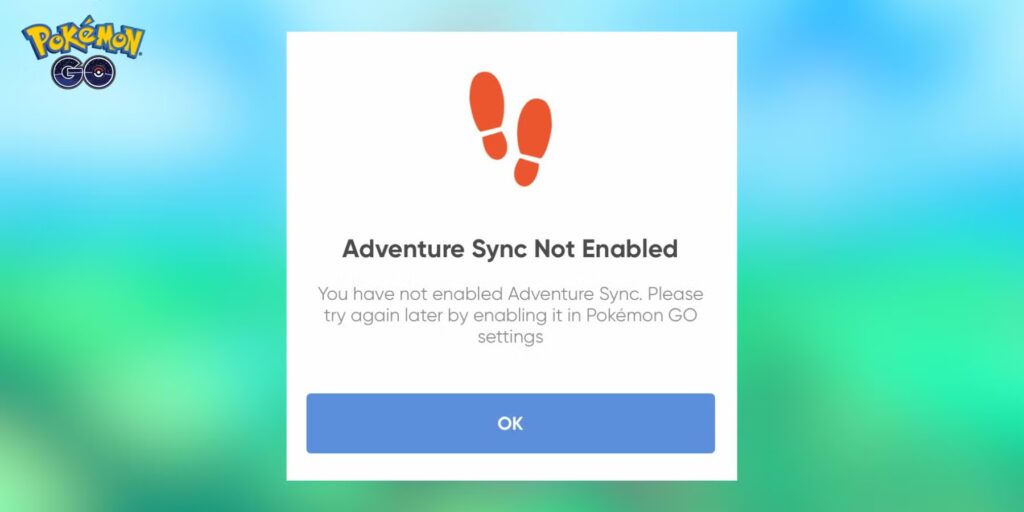
Pokémon GO Adventure Sync not working is usually caused by missing location permission, a disconnected Apple Health or Google Fit account, aggressive battery saving or a delay before fitness data syncs into the game. Start with permissions before reinstalling anything, because a fresh install can recreate the same problem if the phone settings remain wrong.
Check Adventure Sync is enabled
Open Settings, choose General and confirm Adventure Sync is switched on.
A Pokémon GO Adventure Sync not working problem can begin after an app update, phone migration or reinstall changes permissions even though you remember enabling the feature months ago.
Toggle it only after checking the operating-system permissions too.
The in-game setting alone cannot collect background fitness data when the phone blocks access.
Give Pokémon GO location access
Adventure Sync needs background location permission.
On iPhone, Niantic advises setting Pokémon GO location access to Always. Android menus vary, but the app needs the appropriate background location access for the feature to work correctly.
Pokémon GO Adventure Sync not working after a phone update is often a permission reset rather than a game bug.
Check precise-location settings too if your phone offers them.
Check Apple Health or Google Fit
Open the fitness app directly.
Apple Health should list Pokémon GO as an authorized source, while Google Fit should show Pokémon GO among connected applications on compatible Android devices.
If the health app itself records zero movement, Pokémon GO Adventure Sync not working is the symptom rather than the cause.
Fix fitness tracking first, then reopen Pokémon GO and allow time for the new data to sync.
Wait for delayed syncing
Adventure Sync distance can take several hours to appear.
A short walk that does not immediately move the Egg distance is not proof that the feature has failed.
Niantic specifically warns about sync delays from Apple Health or Google Fit.
When Pokémon GO Adventure Sync not working seems intermittent, restart the game after the health app has finished updating rather than checking the number every few minutes.
Turn off aggressive battery saving
System battery-saving modes can disable sensors or restrict background activity.
Disable restrictive battery settings for Pokémon GO and the fitness app, especially on Android phones with manufacturer-specific sleeping-app controls.
Pokémon GO Adventure Sync not working only when the screen is off strongly points toward background power management.
The game’s own Battery Saver display setting is not the same thing as the phone preventing apps from running.
Manually entered fitness data does not count
Typing a workout or distance manually into Apple Health or Google Fit is not a valid way to generate Adventure Sync progress.
Niantic says manually entered fitness data will not count.
A Pokémon GO Adventure Sync not working report based only on manually added kilometres is therefore expected behaviour.
Test the feature with real recorded steps or walking distance captured by the device.
Check Trainer level and app version
Adventure Sync is available from Trainer level 5.
Update Pokémon GO through the normal app store and restart the phone if an older version is behaving strangely.
If Pokémon GO Adventure Sync not working began immediately after changing devices, sign into the correct health account and re-grant permissions on the new phone rather than assuming settings moved automatically.
Avoid duplicate tracking confusion
Smartwatches and multiple fitness apps can sometimes make it unclear which source is writing activity into the health platform.
Use Apple Health or Google Fit as the point of truth and verify the walking data is actually present there.
Pokémon GO imports supported fitness information from that system; it does not need every fitness app on the phone to have separate Pokémon GO access.
When to reconnect the feature
If permissions look correct but several real walks still fail after giving the sync time to catch up, disable Adventure Sync, restart Pokémon GO and enable it again so the permission prompts are refreshed.
For a persistent Pokémon GO Adventure Sync not working problem, also restart the phone before considering a reinstall.
Most cases are fixed by restoring Always/background location access, reconnecting the fitness service or removing battery restrictions, which is much quicker than deleting the whole game first. Test again with a short real walk afterward.
Official site: Pokémon GO