NVIDIA driver installation failed on your Windows PC? Start by restarting the computer, letting Windows Update finish any pending work, and trying the correct driver package again. If NVIDIA App still refuses to install the graphics driver, NVIDIA provides a manual installation method that usually gives you a clearer starting point than repeatedly pressing Retry.
First look at where it stopped. A download that never completes is a different problem from an installer that fails halfway through. The checks below start with NVIDIA’s own advice before moving on to more disruptive options.
NVIDIA driver installation failed: what to check first
Save open work and restart Windows before making further changes. A reboot can clear a half-finished installer and allow pending system updates to complete. This matters especially if NVIDIA driver installation failed while Windows was applying another update. Once Windows is back, check Settings > Windows Update. If an update is running or waiting for a reboot, finish that process before trying the NVIDIA installer again.
Next, close games, browsers, video players and utilities that monitor or tune your GPU. NVIDIA specifically identifies background applications, including overclocking and monitoring software, as possible sources of interference. If NVIDIA driver installation failed while those programs were open, retrying with them closed is a sensible next check.
Make sure you are actually downloading a package for your graphics hardware. A GeForce RTX 50 driver listing does not automatically cover every much older NVIDIA model, and desktop and notebook packages can have different compatibility lists. Windows 10 must be the 64-bit version for the current 621.24 package; Windows 11 is also listed.
How to fix NVIDIA driver installation failed in NVIDIA App
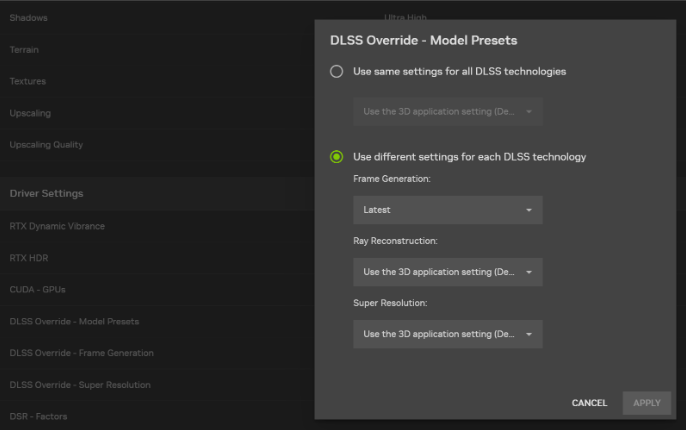
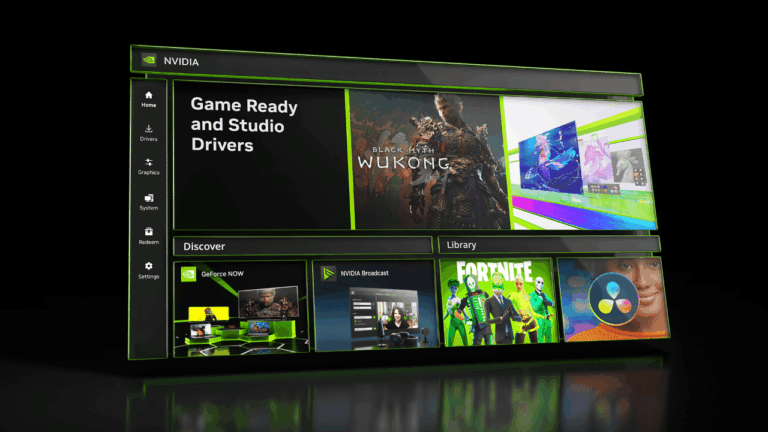
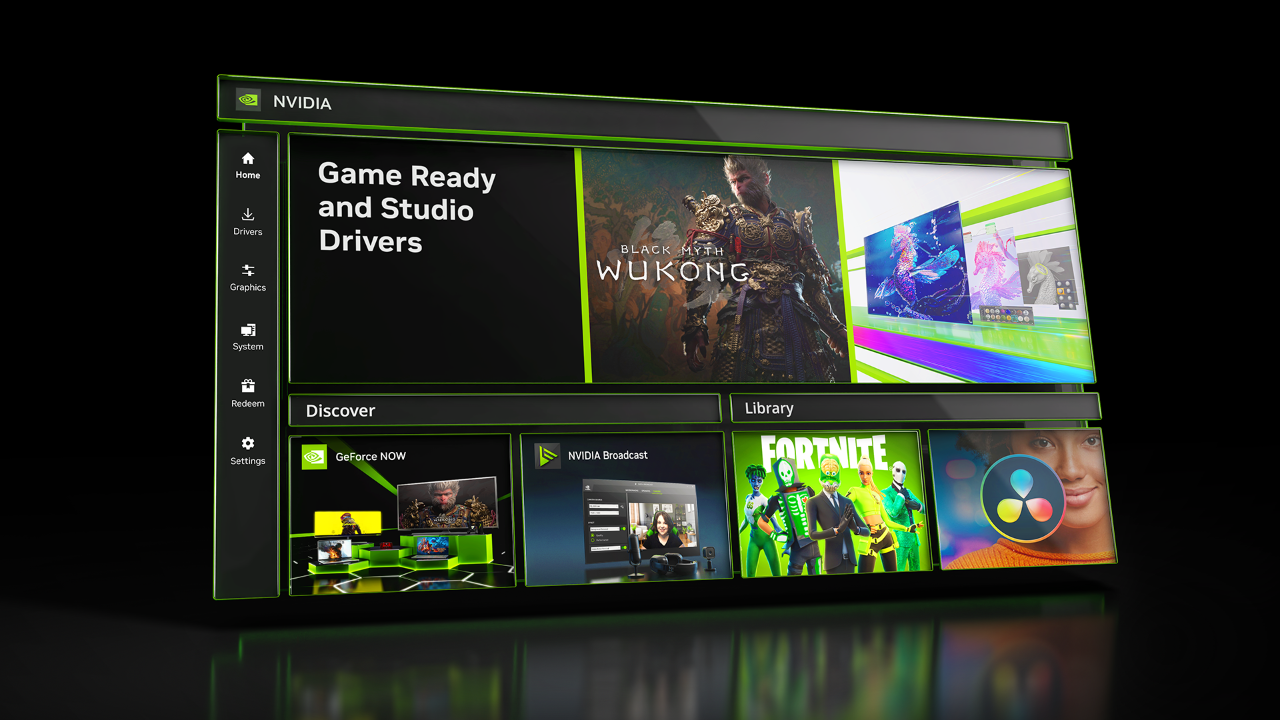
Open NVIDIA App and look at its Drivers section. Check whether the driver download has completed and whether the selected branch is Game Ready or Studio. If the app is installed correctly but the installation itself fails, use the direct installer from NVIDIA rather than downloading the same file from an unofficial mirror.
- Close NVIDIA App and any open games or GPU monitoring tools.
- Open NVIDIA’s official driver download page and select your exact GPU and Windows version.
- Download the appropriate Game Ready or Studio package; keep the downloaded installer somewhere easy to find.
- Right-click the installer file and select Run as administrator. Accept the Windows security prompt if it appears.
- Follow the installation wizard. If a normal installation has repeatedly failed, use the Custom (Advanced) option described below.
- Restart the PC when installation finishes, then reopen NVIDIA App or NVIDIA Control Panel to confirm the installed version.
Windows Update can interfere if it is installing its own driver at the same time. Let one installer finish, note any error message, then try again. A screenshot of the error is far more helpful than repeatedly pressing Retry.
Use NVIDIA’s clean installation option if the driver still fails
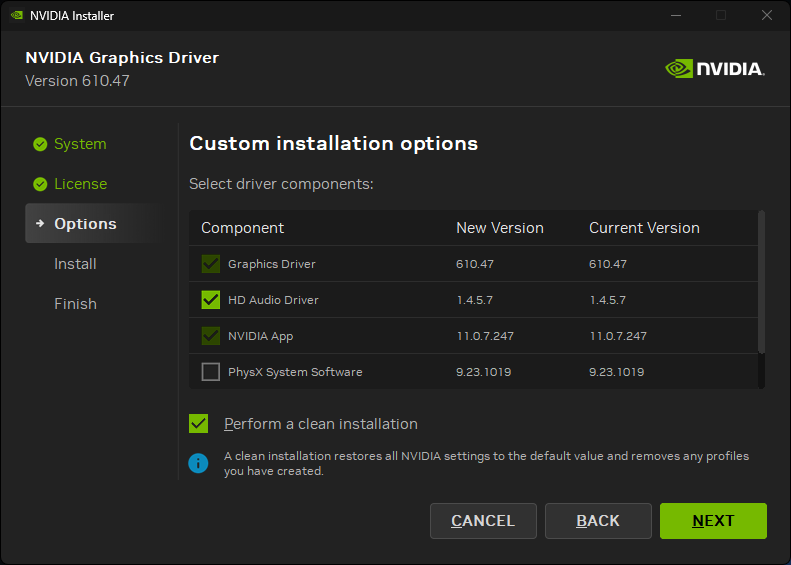
NVIDIA’s support instructions provide a built-in clean installation path. Run the official package as administrator. After agreeing to the licence, select Custom (Advanced) rather than the express route. On the component selection screen, tick Perform a clean installation, then proceed through the wizard.
If NVIDIA driver installation failed during an ordinary install, this is the built-in alternative to try before more drastic measures. This option resets NVIDIA settings and removes profiles you created, so take note of any custom 3D settings you want to restore later. It is not the same as deleting your Windows installation or uninstalling every GPU-related application manually. For a step-by-step walkthrough of each screen, see our dedicated clean install guide.
If it still fails, note the error text and version. Check that your Windows account can install software, that there is enough space for the installer, and that the download matches the GPU. NVIDIA recommends keeping the default temporary extraction path.
What not to do after NVIDIA driver installation failed
Avoid third-party driver updaters and unofficial download mirrors. They introduce another variable before you’ve established why the NVIDIA installer failed. A clean installation through NVIDIA’s own package is a less drastic next step.
How to tell whether the NVIDIA driver installed correctly
After restarting, open the NVIDIA App’s Drivers area and check the installed version. NVIDIA Control Panel also offers System Information for driver details. If you are targeting a specific game update, check whether the required game patch has arrived as well. Installing a graphics driver cannot unlock an in-game feature that the developer has not shipped.
Still getting the same error? Gather your GPU model, Windows build, driver branch, exact error message and whether Windows Update was running. Those details give NVIDIA Support something concrete to investigate.
Related Guides
If NVIDIA driver installation failed, the clean-install and manual-download guides below are the next things to try.
Official source: NVIDIA Support: manual clean installation after a failed NVIDIA App driver installation.