Minecraft Java keyboard navigation now lets you move through many gameplay screens using only the keyboard. Introduced in Java 26.4 Snapshot 7 on 3 November 2026, the system adds focused item slots, keyboard actions and narration for menus such as Crafting Tables, Stonecutters, Looms and Villager trades.
You can now craft, trade and manage items without reaching for a mouse in many screens. There are still gaps: Creative Inventory and the Recipe Book don’t support these controls yet. These are the Minecraft Java keyboard navigation shortcuts you can use in Snapshot 7.
Minecraft Java keyboard navigation controls
| Action | Key or shortcut |
|---|---|
| Move to another slot group | Tab |
| Move between slots in a group | Arrow keys |
| Normal left click | Enter or Space |
| Right click | Ctrl + Enter or Ctrl + Space |
| Shift click | Shift + Enter or Shift + Space |
| Collect matching items | Press Enter or Space twice |
| Distribute items across slots | Hold Enter or Space and move with arrow keys |
| Use hotbar or drop action on focused slot | Usual hotbar number keys or Drop key |
To begin Minecraft Java keyboard navigation, start by opening a supported interface, such as the Crafting Table. Press Tab until the group of slots you want has focus, then use the arrow keys to select an individual slot. Minecraft Java keyboard navigation highlights your current location, so you can see which place will respond when you press the selection key.
Press Enter or Space for the action that would normally be a left click. Holding Ctrl while pressing that key behaves like a right click, while Shift gives the shift-click action used to move stacks quickly. These shortcuts act on whichever slot has focus.
Moving stacks with Minecraft Java keyboard navigation
For matching items, double press Enter or Space to perform the collect action normally handled by a mouse double click. To spread items across different slots, hold Enter or Space while moving through the slots with the arrow keys. The game treats the movement like carrying a stack across slots while holding the left mouse button.
The usual hotbar keys and Drop key work on the focused slot too. Try the controls with ordinary materials first, especially when moving full stacks.
Stonecutter, Loom, trades and Enchanting Table
The new controls also work outside the Crafting Table. Stonecutter recipes, Loom patterns, Enchanting Table options, Villager trades and Wandering Trader trades can be navigated as slot groups. Use Tab to reach the group, arrow keys to move through choices and the selection key to activate the focused option.
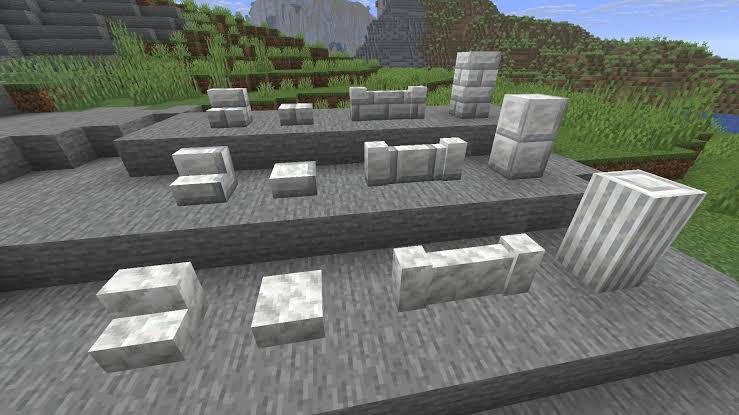
When a screen contains several areas, Tab and the focus outline make it easier to tell which one you’re using. The Stonecutter, for example, gives a way to select recipes for the new Calcite blocksets using the same general controls.
Minecraft Java keyboard navigation and narrator controls
Narration works alongside the new controls. The narrator reads slot contents, their tooltip information and descriptive names for special slots such as fuel, armour or potion slots. It can announce where the slot sits within a group, such as a numbered position or a row and column in a grid.
Stonecutter recipes and Loom patterns are narrated by row and column, while trade and Enchanting Table options are described by their position in the list. When a group is focused, the narrator can tell you which arrow keys move within it. You can move between slots and hear what each one contains without switching back to the mouse.
Text boxes and mouse behaviour
Text boxes behave differently depending on how you reached them. Pressing Tab to focus a text box makes it editable. When you reach one using arrow-key navigation, the box is highlighted first; press Enter or Space to begin editing. That prevents arrow-key navigation from automatically putting you into text-entry mode.
The mouse pointer hides when you’re navigating the UI by keyboard and returns when you move the mouse. You can therefore switch between the two control styles without leaving the screen. Clear focus outlines also help keep track of the selected list entry.
What Minecraft Java keyboard navigation cannot do yet
Creative Inventory and the Recipe Book are not supported in Snapshot 7. You’ll still need another way to interact with those screens until Mojang expands keyboard support.
Minecraft Java keyboard navigation is a Java Snapshot 7 feature. If the shortcuts aren’t working, check the version first. They were added in Java Snapshot 7, not Bedrock Preview. Open the Minecraft Launcher, choose Installations, enable Snapshots and select the current test installation. Mojang recommends backing up worlds before testing.
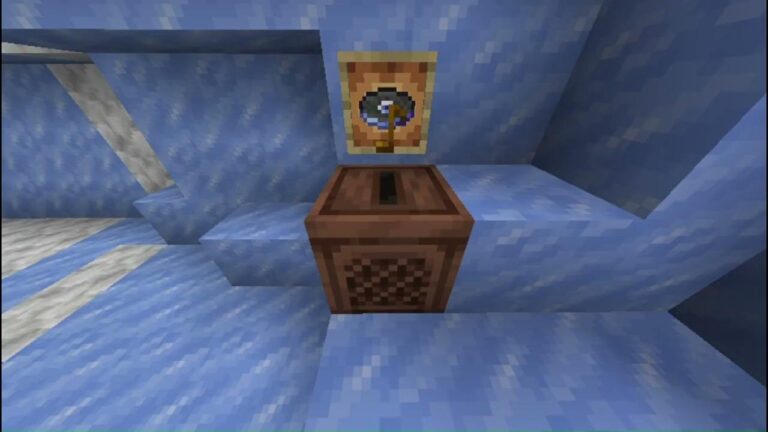
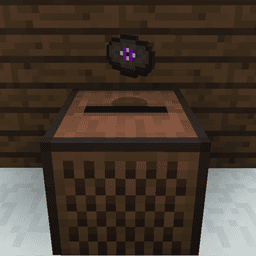
For the Calcite blocks, Flurry disc and other changes in this build, see our Java Snapshot 7 guide. Bedrock players can check the separate Preview 26.70.23 changelog, which covers a different set of interface and gameplay changes.
Related Guides
Official source: Mojang Studios’ Java Snapshot 7 keyboard navigation details.