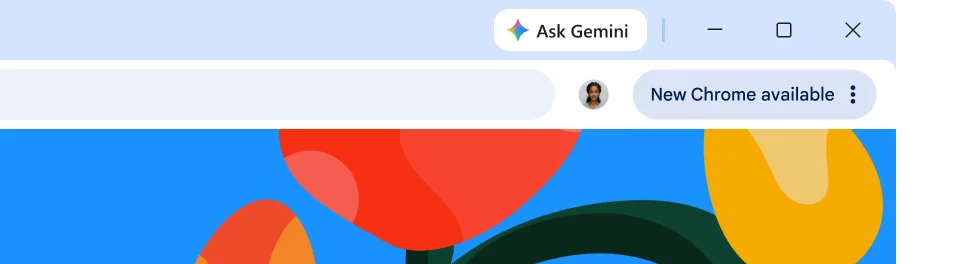
How to update Google Chrome to 158 on Windows or Mac: open the three-dot menu, choose Help, select About Google Chrome and click Relaunch if an update is ready. Chrome 158 reached the stable channel on 17 November 2026 with 204 security fixes, so it’s worth checking which version you’re running.
You won’t see a separate download labelled Chrome 158 inside the browser. Google’s updater offers the latest version available for your system, which could already be newer than 158. Here’s how to confirm the version and deal with an update that won’t appear.
How to update Google Chrome to 158 on Windows or Mac
With Chrome running, click the three vertical dots at the top-right of the browser window. Hover over Help and open About Google Chrome. Chrome checks for an available update as soon as the page opens, so you don’t need to hunt for a download on a separate website.
If a new version has been downloaded, the About page offers a Relaunch button. Click it once you’ve saved any unsent messages or online form entries. Chrome normally restores your ordinary tabs and windows after restarting. Incognito windows do not reopen, so finish anything important in them first.
Return to Help and About Google Chrome after the restart. The number shown beneath the browser name tells you which build was installed. That version number confirms what was installed. A missing Relaunch button alone doesn’t tell you which build you’re using.
Which Chrome version is the November security update?
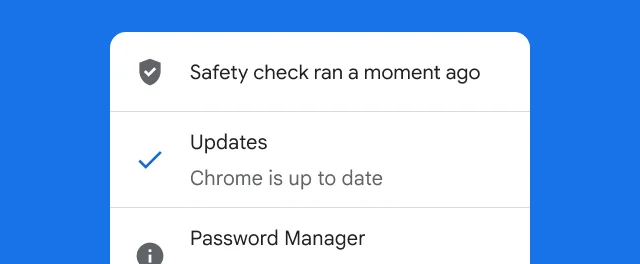
Google released Chrome 158.0.8127.36 and 158.0.8127.37 for Windows and Mac, and 158.0.8127.36 for Linux, to the stable channel on 17 November 2026. The associated Android build is 158.0.8127.42. Google’s Chrome Releases blog documents 204 security fixes for the desktop release.
A higher number can also be legitimate. Chrome 159 began reaching a limited early-stable group shortly afterwards, and further maintenance updates can change the build. The goal is an up-to-date supported stable browser, not forcing an older installation merely to match the number in an article.
For a full explanation of the patched vulnerabilities, read our Chrome 158 security update guide. It covers the release dates, affected browser platforms and why relaunching matters.
How to update Google Chrome to 158 on Android
Open the Google Play Store and search for Google Chrome, or tap your profile picture, choose Manage apps & device and look under available updates. When Chrome has an Update button, tap it and let Google Play finish. If it says Open instead, an update may not currently be available for that device.
Google said its Chrome 158 Android rollout would spread across devices over several days. The release number published on 17 November was 158.0.8127.42, but distribution can vary, and a newer version may already be offered. Use the Play Store instead of hunting for an unofficial APK. You can check the installed version in Chrome’s Settings, then About Chrome.
How to update Google Chrome to 158 on Linux
Google’s help documentation says Linux users should update Chrome through their package manager. This usually means applying the Chrome package update from your distribution’s software updater or the package-management command you normally use. Exact commands depend on the distribution and how Chrome was installed.
After updating, open Chrome and check Help, then About Google Chrome. For the initial stable Chrome 158 rollout, Google’s listed Linux version was 158.0.8127.36. A later supported stable build is fine.
How to update Google Chrome to 158 if the update is missing
If About Google Chrome reports an older version, close and reopen the browser once, then check the page again. A Windows computer may also need every Chrome window closed before a background update can finish. Make sure you’re connected to the internet and look for any error message displayed by Chrome itself.
On a managed school or workplace machine, your administrator may control browser updates. Google advises contacting the administrator when the organisation handles deployments. Avoid attempting to bypass those policies or installing a different build over the managed browser.
If how to update Google Chrome to 158 isn’t working as expected, note your operating system, current version and any error text before troubleshooting. An unsupported platform, a failed update service and a temporary download problem are different situations; they won’t share one universal fix.
Can you update Chrome without losing bookmarks or tabs?
Normally, yes. Learning how to update Google Chrome to 158 through Google’s standard update process does not require deleting the browser profile. Chrome says ordinary open tabs and windows are restored on relaunch, although Incognito sessions are not. Syncing your bookmarks to a Google Account is an additional backup option, not a prerequisite for a normal browser update.
For anyone checking how to update Google Chrome to 158, the built-in About page is the quickest place to start. It checks the existing installation, and there is usually no need to download the browser again. Never install an update offered by a random webpage claiming your Chrome is infected.
Once About Google Chrome shows the latest available stable build and no restart is pending, you’re finished. If the rollout hasn’t reached your device, stay with Google’s update channel rather than a version-specific installer from an unfamiliar site.
Official instructions: Google Chrome Help: Update Google Chrome.