Windows 11 24H2 update error 0x80070306 can stop November’s security update from installing on Enterprise and Education PCs. Microsoft also recorded errors 0x800f0989 and 0x800f0993 for the same problem, with some systems repeatedly trying and failing to install the update.
Microsoft started sending an automatic repair on 11 November 2026. Affected devices connected to the internet and using Windows Update in Settings should have received it within 24 to 48 hours of encountering the error. Still stuck? Check your Windows edition and version before trying anything else.
Who is affected by Windows 11 24H2 update error 0x80070306?
Microsoft names Windows 11 24H2 Enterprise and Education as the affected editions. The same error code can appear for other reasons on Home or Pro, so this particular automatic repair isn’t a catch-all solution for every Windows Update failure.
You can check your version and edition in Settings under System and About, or press Windows + R, type winver and press Enter to see the release information. If you’re using a managed school or work PC, your IT department may also control how security updates are installed.
Microsoft’s KB5132061 page lists all three errors, but its known-issue wording also mentions KB5127936, the October preview release. If you’re comparing error reports, open Windows Update history and check which KB actually failed on your computer.
How to fix Windows 11 24H2 update error 0x80070306
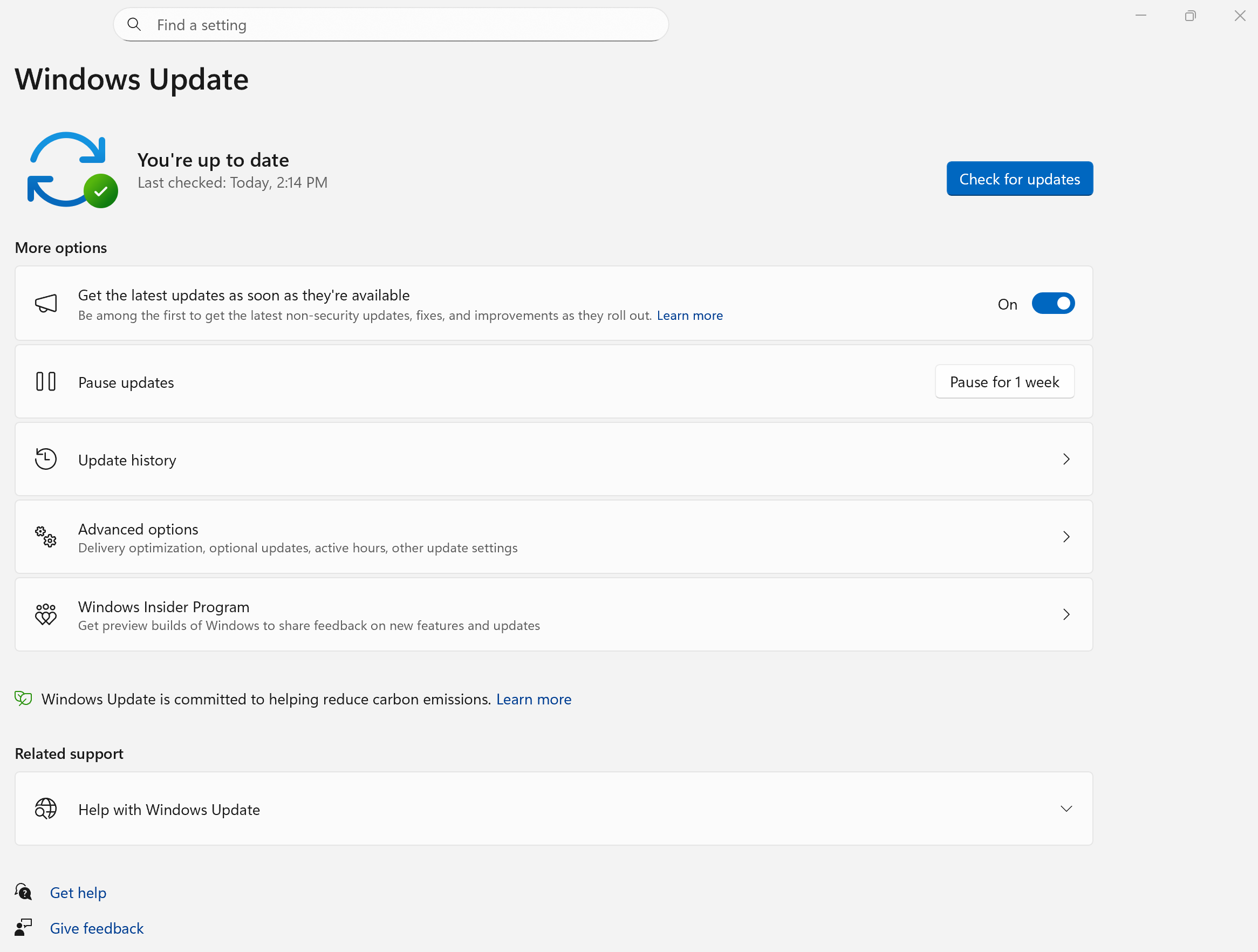
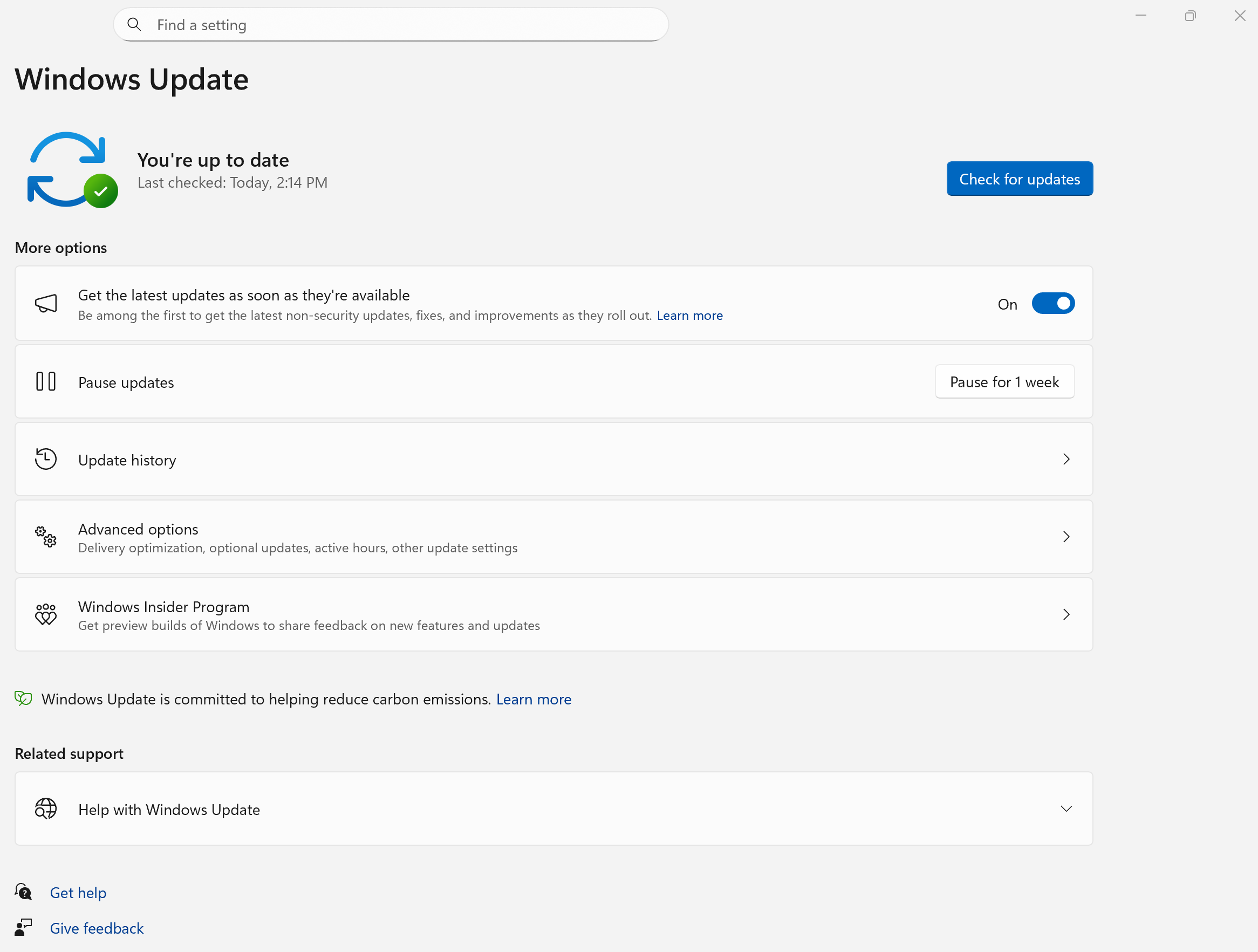
Start with Settings, then Windows Update. Connect to the internet, select Check for updates and allow Windows Update to run. Microsoft says the automatic remediation for this specific incident was delivered through that channel, so a normal retry is preferable to downloading third-party repair tools.
If Windows has a pending restart, save your work and restart before checking again. Once Windows Update finishes, open Update history and look for the November security package rather than relying solely on the disappearance of the error. The update can install after the repair without showing an obvious explanation of what changed.
For a managed Enterprise or Education machine, ask your IT administrator to check update policies and deployment status if Windows Update is disabled or controlled centrally. A device using a company-managed servicing route may not behave like a personal computer downloading updates directly from Settings.
What about errors 0x800f0989 and 0x800f0993?
Microsoft groups these codes with Windows 11 24H2 update error 0x80070306 under the same November 2026 installation incident. If your device matches the affected edition and version, the first response is therefore the same: remain connected, check Windows Update again and review Update history.
The codes are not interchangeable in every Windows problem. If you encounter 0x800f0989 or 0x800f0993 during a different update or on a different Windows release, treat it as a fresh diagnosis rather than assuming this November repair applies.
By 19 November, the published 24-to-48-hour repair window has passed. If Windows 11 24H2 update error 0x80070306 continues after a fresh check, the original rollout window is over. It’s time to look at the specific installation failure rather than keep waiting for that initial repair.
What to try if Windows 11 24H2 update error 0x80070306 continues
First run the Windows Update troubleshooter through Microsoft’s Get Help app, which can look for common update faults. Check that the system drive has adequate free space and that the connection is stable. These are general Windows Update checks, not separate remedies Microsoft specifically attached to November’s 0x80070306 incident.
If Windows Update still fails, note the KB number, full error code, Windows edition and build. Microsoft also documents command-line system repairs, but on a managed school or office PC those belong with the IT team. There’s no reason to start with invasive changes when the problem may be a controlled update deployment.
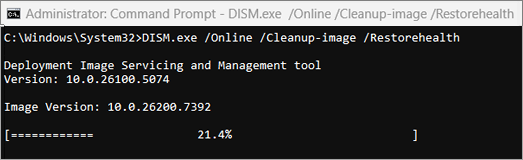
DISM and System File Checker can help with general Windows corruption, but Microsoft doesn’t identify either command as the automatic fix for this November update incident. Avoid deleting update folders or resetting Windows just because you’ve seen one of these codes.
Did Microsoft fix the November update error?
For Windows 11 24H2 update error 0x80070306, Microsoft says affected connected devices received the repair automatically through Windows Update. Once it arrived, the November security update could download and install. That’s the confirmed remedy for Windows 11 24H2 update error 0x80070306 in the affected Enterprise and Education editions.
If your Windows 11 24H2 update error 0x80070306 is still present after checking your edition and retrying the update, contact your organisation’s administrator or Microsoft Support with the code and KB number. That gives support a way to distinguish the documented incident from other failures that happen to use 0x80070306.
Official source: Microsoft KB5132061 release information.