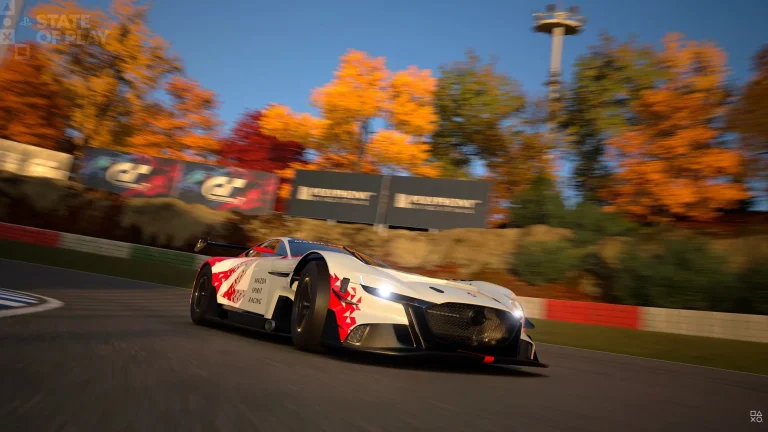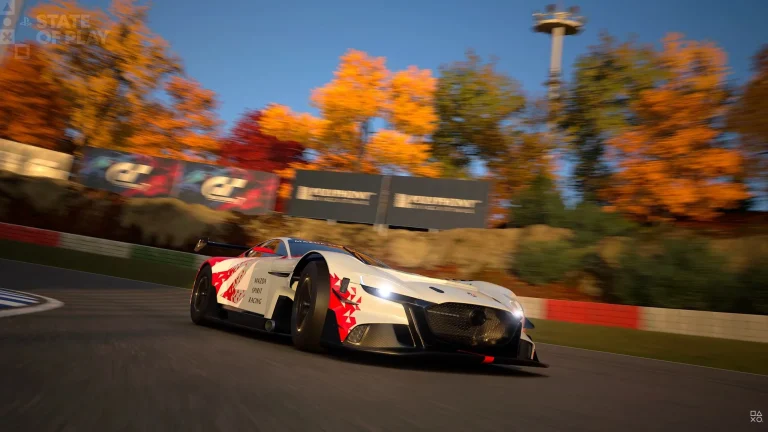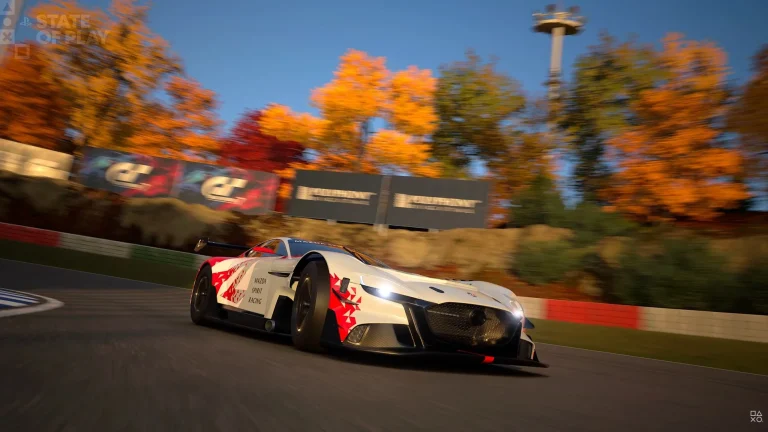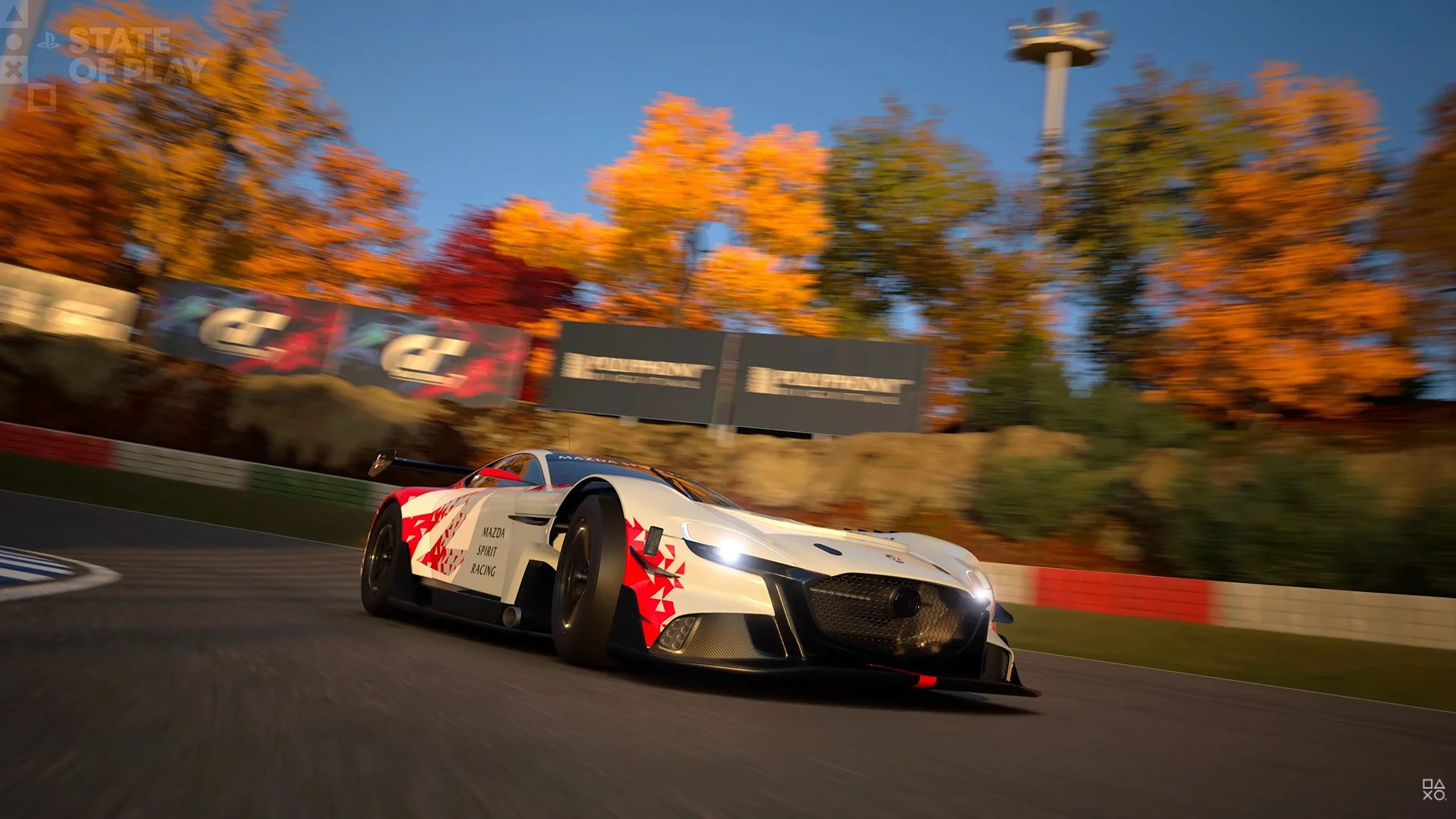
Gran Turismo 7 Car Viewer is a new Garage feature introduced by Spec IV update 1.72. It allows you to inspect the car you’re currently driving from almost any angle, change the background and adjust details such as the direction of the front wheels or whether the lights are on.
The viewer is handy for photographing a new purchase or checking a livery from several angles without loading a race. Its background and light controls are simpler than Scapes, so you can set up a quick Garage shot.
Where to find Gran Turismo 7 Car Viewer
Install Spec IV update 1.72, enter the Garage and select the car you want to inspect. The new Car Viewer is a Garage function, so you don’t have to join an online race or visit the Café first.
Gran Turismo 7 Car Viewer works with the currently selected car. If you want to photograph a different model, switch your active vehicle in the Garage and open the Viewer again. It’s designed for inspecting your collection one car at a time.
How to change the background
Inside the Viewer, use the Change Background function to switch scenery. Polyphony Digital confirms this exact control name in the official update notes. Try a background that contrasts with your vehicle paint so you can see its shape and details clearly.
The background change is part of Gran Turismo 7 Car Viewer itself. You don’t need to earn a reward in World Circuits to use that visual option, although your current game progression determines which vehicles you own.
How to turn the front wheels
The Car Viewer lets you change the steering direction of the vehicle’s wheels. Adjust the wheel angle while rotating the camera, then compare the car with the wheels centred or turned. It’s a small detail that can make a photograph appear more dynamic.
This is a visual inspection setting, not a mechanical tuning adjustment. Changing the steering angle in Gran Turismo 7 Car Viewer doesn’t alter alignment, handling or the car’s race setup.
How to switch the lights on and off
Use the available vehicle settings to turn the lights on or off in the Viewer. It’s useful for a close-up of the headlamps, a night-time feel or a photograph where the lighting suits the background.
You can combine Gran Turismo 7 Car Viewer light controls with a different scenery and camera angle. The Viewer doesn’t change the car’s installed parts or permanently modify its lights for competition.
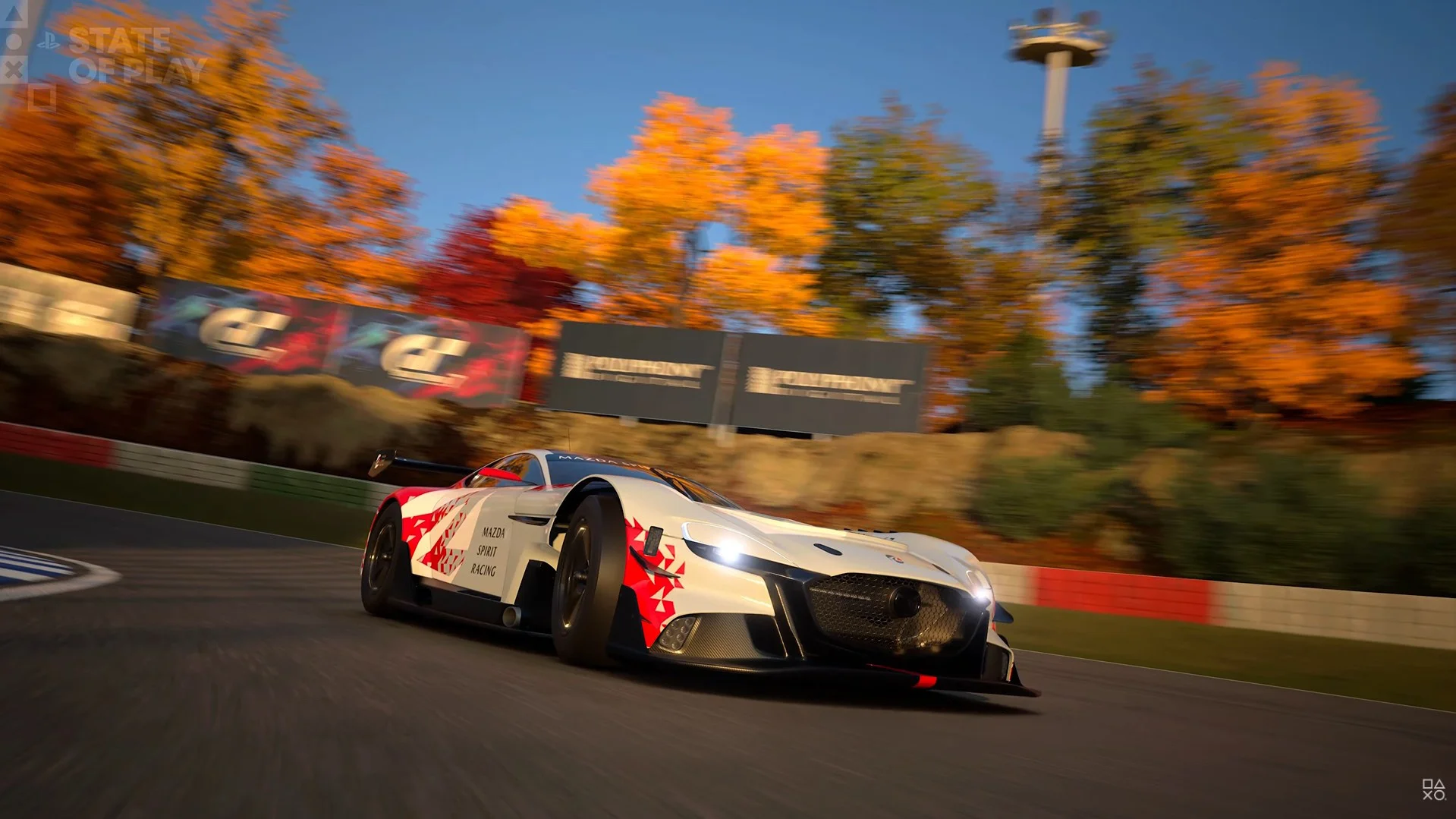
How to take a Garage Photo
Rotate and position the camera around the car to set up your preferred angle. Polyphony says the mode makes photography easy, with scenery and lighting adjustments. Spend a moment framing the full vehicle before capturing a close-up.
Frame the picture using the viewer’s camera controls, then use the on-screen photo command or the console’s capture function. Try a wider shot first, followed by close-ups of the wheels or paintwork.
Car Viewer compared with Scapes
Scapes still has its photography features and new featured locations, including Angeles Crest Highway and Sportsland SUGO. Experience Mode, introduced with Spec IV, is a separate activity featuring branded driving experiences.
Gran Turismo 7 Car Viewer is simpler: it begins in the Garage, shows your selected car and provides direct background, wheel, lighting and camera controls. Use Scapes when you want its location-based photography options.
Why the Garage viewer isn’t appearing
First check the installed update version. The feature arrived with 1.72 on October 15, so a game still on the previous build won’t have it. Next, return to the Garage and select an actual car rather than looking for the option in World Circuits.
Gran Turismo 7 Car Viewer is included in the free Spec IV Part 1 update, so you only need version 1.72 or newer and an owned car selected in the Garage.
| Entry | Information |
|---|---|
| Current vehicle | View the selected Garage car |
| Change Background | Switch the Car Viewer scenery |
| Front wheels | Turn the displayed steering wheels |
| Lights | Switch vehicle lights on or off |
| Camera | Move around the car to find an angle |
Related Guides
Official source: Polyphony Digital — Gran Turismo 7 Spec IV 1.72 patch notes.