FSR 4.1.2 not showing in a game’s graphics menu? Start with the GPU, the game’s update and the rendering API. AMD’s October release supports RX 6000, RX 7000 and RX 9000 desktop cards, plus specific Ryzen integrated graphics. The game also needs a compatible FSR implementation.
DirectX 12 and Vulkan work differently. Eligible DirectX 12 games can receive supported newer effects through the driver, while older Vulkan integrations need a game update containing FSR SDK 2.4. That explains why the same Radeon card can offer different upscaling options in different games.
FSR 4.1.2 not showing: check the GPU first
To confirm FSR 4.1.2 hardware compatibility, open Device Manager, select Display Adapters and find your exact graphics card. Radeon RX 9000, RX 7000 and RX 6000 discrete cards support the new upscaler. AMD also names Ryzen AI Max 300 and 400, Ryzen AI 9 300 and 400, Ryzen AI Z2 Extreme, Ryzen Z2 Extreme and Ryzen Z2 A for its two integrated models.
RX 5000 cards use older analytical FSR in compatible games. For Ryzen handhelds, check the exact processor in Windows. Ryzen Z2 A and Z2 Extreme are supported, but a generic Ryzen or Radeon Graphics label does not tell you which upscaling model a system can run.
FSR 4.1.2 driver check for Radeon graphics
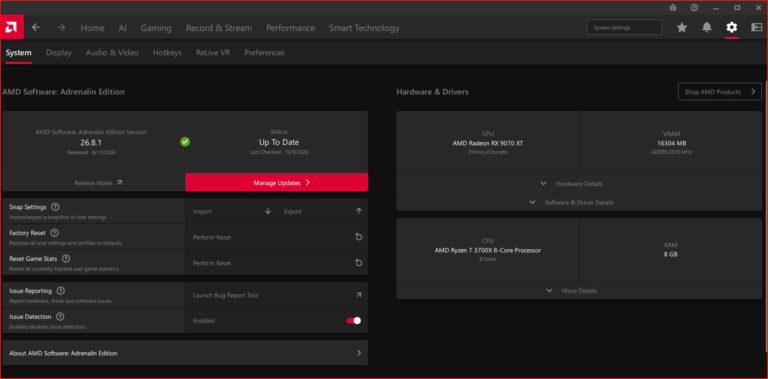
Adrenalin 26.10.1 introduced FSR 4.1 hardware support for RX 6000 and several Ryzen AI families. On desktop Radeon hardware, open AMD Software to find the installed driver version and get the appropriate compatible package from AMD support. Finish installation and restart Windows if asked before checking the game again.
On a handheld, open the manufacturer’s update utility. AMD directs owners to device-specific graphics drivers rather than its standard Adrenalin 26.10.1 desktop reference package. Laptop owners should also use validated OEM drivers where their system depends on custom graphics and power features.
Check the game version and renderer
After the game updates, open Graphics or Display settings and look for FSR Upscaling. Check the Quality, Balanced and Performance presets. Some games display only an FSR label, rather than the precise effect version. The game’s official patch notes are the better way to identify the integration.
For DirectX 12, eligible FSR 3.1 or newer integrations can receive supported driver effects. Vulkan titles first need the developer’s SDK 2.4 implementation. If an older Vulkan game shows analytical FSR, check its patch version before reinstalling the Radeon driver.
What about Windows 10 and Windows 11?
FSR Upscaling 4.1.2 can run on compatible Windows 10 and Windows 11 systems. The DirectX 12 integration requires Shader Model 6.6 and a suitable Agility SDK; Vulkan uses Vulkan 1.2 with SPIR-V 1.5. These requirements are normally handled by the game’s developer, not by manually downloading shader files.
Upscaling and frame generation have different requirements. FSR 4.1.2 upscaling supports eligible RX 6000 and RX 7000 cards, while ML Frame Generation 4.0.2 needs RX 9000 or newer and Windows 11. Older compatible cards can use analytical FSR 3 frame generation in games that offer it.
FSR 4.1.2 not showing in the menu after updating
Restart the game once its patch completes. If it offers a choice between DirectX 12 and Vulkan, select the renderer used by that game’s supported FSR implementation. Once the setting appears, compare Quality and Balanced in the same scene before changing other graphics options.
For a repeatable issue, record the GPU, installed driver, game version and renderer. Include a screenshot of the graphics settings if you contact support. Those details make it easier to identify the actual compatibility problem than changing registry entries or replacing game files.
Can you force FSR 4.1.2 in unsupported games?
A game needs an eligible DirectX 12 integration or a new Vulkan SDK implementation to offer the ML model. Older FSR branding on a game store page establishes support for earlier versions, not necessarily the current upscaler. Check the installed build and game’s graphics menu.
For FSR 4.1.2 not showing, check your GPU, then the correct driver, the game’s latest update, DirectX 12 or Vulkan support and finally the graphics menu. That sequence tackles the compatibility question without changing unrelated Windows settings.
Related Guides
Official source: AMD GPUOpen FSR Upscaling technical requirements.