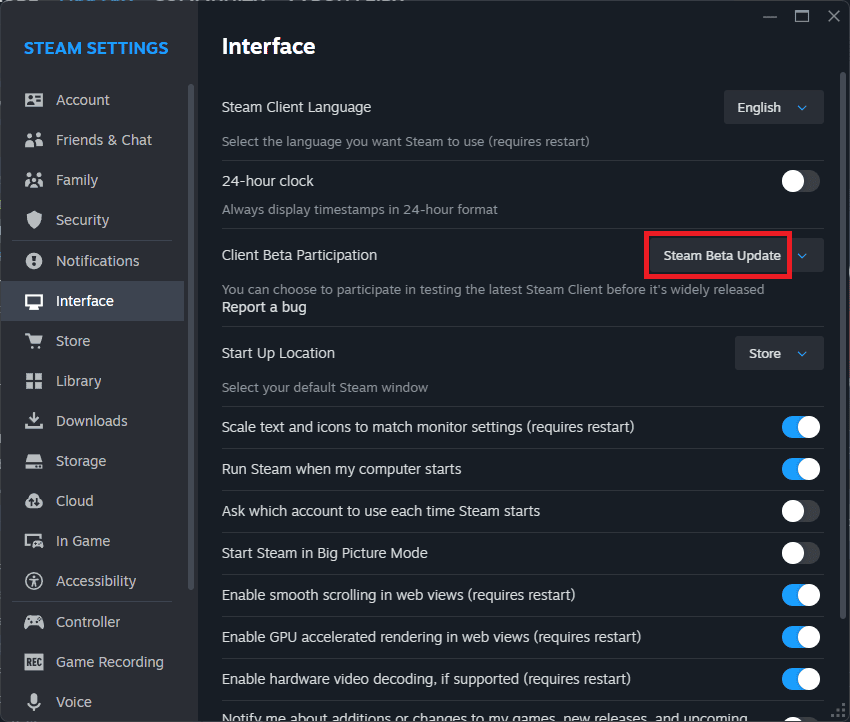
Steam Client Beta is where Valve releases new client features and fixes before moving them to the regular Steam app. Joining takes a few clicks in Settings, and you can return to stable through the same menu whenever you like.
The October 28, 2026 beta fixes missed friend-game alerts, notification sounds and individual friend preferences. It updates the Steam application, not your account, purchases or installed games.
Steam Client Beta: How to join on Windows, Mac and Linux
Open Steam on Windows or Linux and select Steam > Settings > Interface. On Mac, open Steam > Preferences > Interface instead.
Under Client Beta Participation, choose Steam Beta Update. Click Restart Now when Steam prompts you. The beta downloads and installs as Steam restarts.
This changes the Steam client, so your library and each game’s own beta settings are left alone.
How to return to stable Steam
To leave Steam Client Beta, return to Steam > Settings > Interface > Client Beta Participation, select the normal non-beta option and restart. Steam will install the public client version.
You can switch back if the beta has an issue or you prefer the standard client. Your games, friends and purchases stay on the same Steam account.
How to check which Steam update channel you use
To check which channel is installed, look at the selection under Client Beta Participation. Steam Beta Update means you’ve joined the test client; the normal option means stable.
Valve released the October 28 notification fixes through Steam Client Beta. That’s the channel you need for these changes before they move into the normal public client.
Steam Client Beta in Big Picture Mode
Open Big Picture Mode, go to Settings > System and find Beta Participation. Under Steam Client Update Channel, choose Steam Beta Update and restart when prompted. This is the route Valve documents for its controller-focused interface.
The October 28 beta makes Big Picture Mode respect individual friend notifications again and improves its Quick Access Menu’s response to controller input.
How to join the beta on Steam Deck
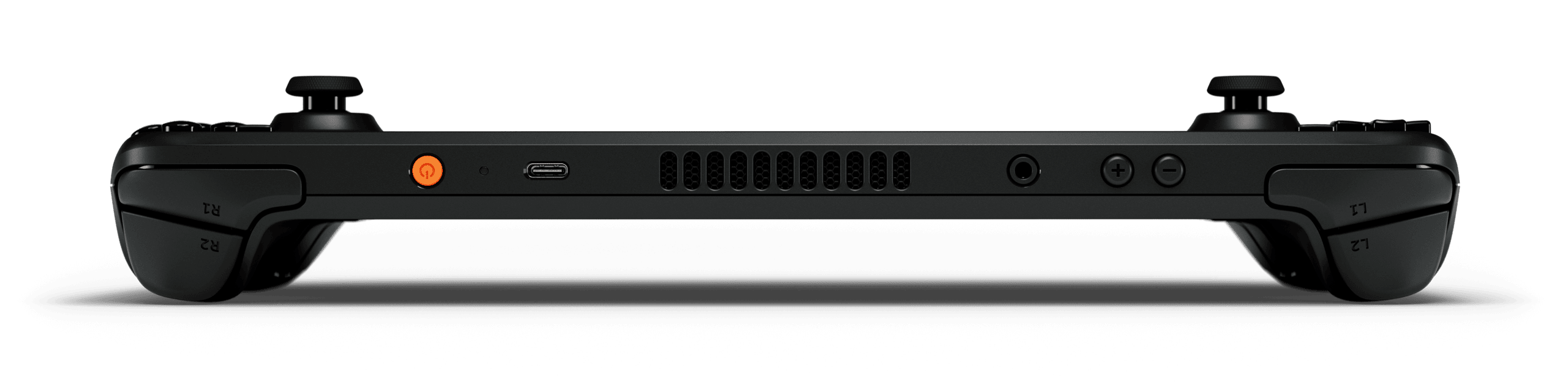
The Steam Deck has an additional SteamOS channel setting. Press the Steam button and choose Settings > System. Scroll to Beta Participation and select Beta from the System Update Channel dropdown. Restart when prompted.
SteamOS has its own update channel on the Deck, so use System Update Channel there rather than the Windows PC’s Interface dropdown.
What changes after you join Steam Client Beta?
Steam downloads updates for the beta client as they become available. That may bring features and fixes before they appear in the standard version. On October 28, the important changes were friend-alert reliability, correct notification sound settings and per-friend overrides.
Beta builds can change between releases. If you encounter a problem, switch back to stable through the same menu.
Client updates versus individual game betas
A game beta is selected for that particular title, usually from the game’s Properties and Betas settings. The Steam client beta is different: it updates the program you use to browse your library, chat with friends and install games.
For notification fixes, use Client Beta Participation. Changing a game’s separate Properties > Betas option won’t update Steam’s friend-alert code.
Is the beta worth using for notification fixes?
If friends’ game launches vanish when several people start playing within ten seconds, Valve’s October 28 beta directly addresses that problem. It also corrects friend-online and game-start sound preferences that previously ignored the selected controls.
If the missed alerts are bothering you, Steam Client Beta is where Valve has already delivered the fix. Otherwise, remain on stable until it receives the update.
Related Guides
Official source: Valve Steam Support: Steam Client Beta installation instructions.