
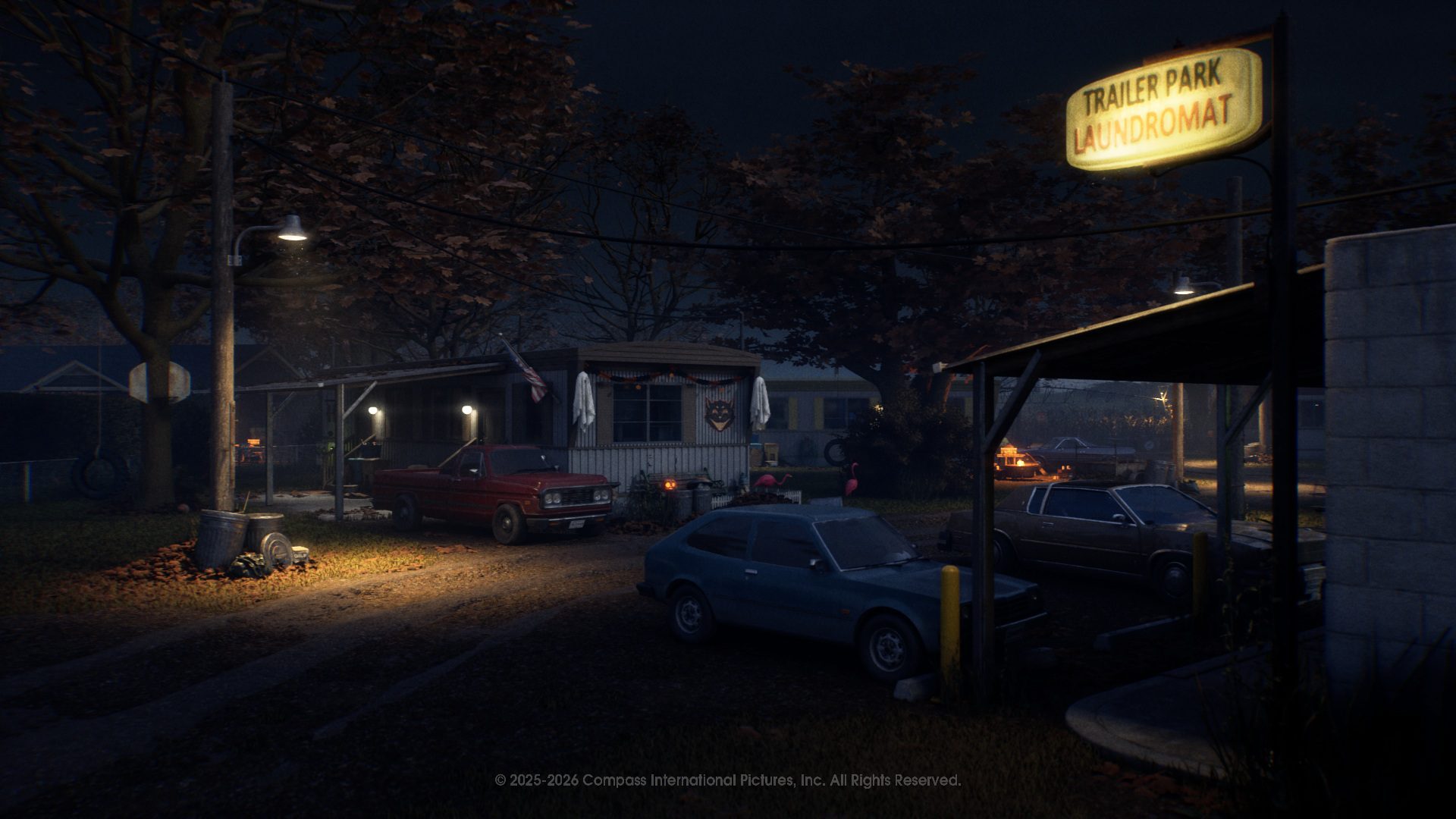
Halloween The Game Best PC Graphics Settings should make matches feel consistent without sacrificing your ability to see Michael moving in dark corners. IllFonic has already improved shaders and upscaling, then fixed certain DLSS-G Frame Generation FPS drops in the October 28 Hotfix 1.2.1.
The starting values below target stable frame pacing, clear visuals and responsive controls. They’re drawn from the game’s actual PC graphics options, so you can apply them directly.
Halloween The Game Best PC Graphics Settings: Starting Values
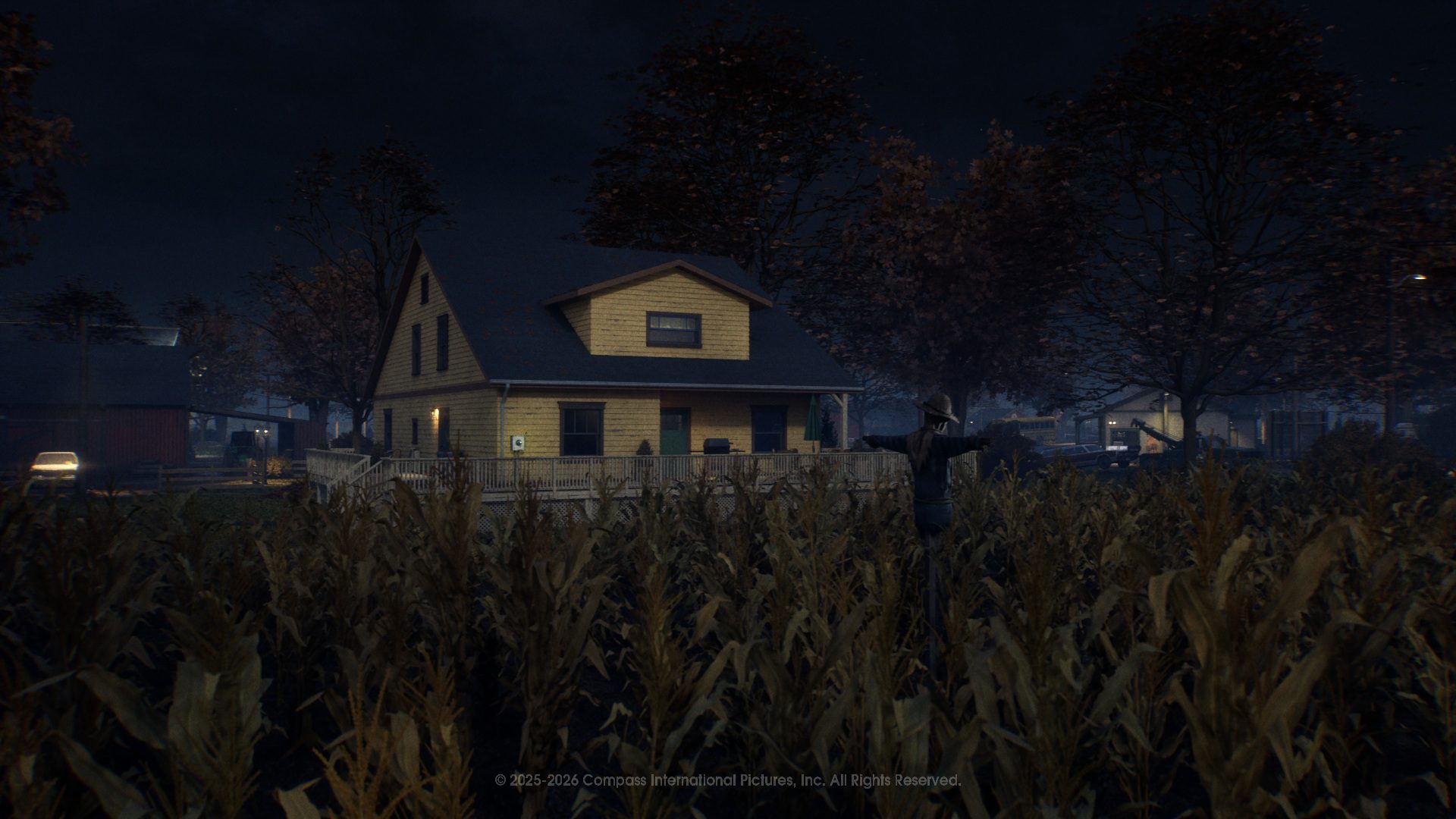
Install the latest game update, restart, and allow any shader preparation to finish. Compare the same map or scene after changing individual settings, rather than trying a dozen changes at once.
| PC graphics setting | Starting value |
|---|---|
| Resolution | Native monitor resolution |
| Resolution scale | 100% |
| FPS cap | 60 FPS initially |
| V-Sync | Off unless tearing appears |
| Gamma | Default |
| Motion Blur | Off |
| Ray Tracing | Off |
| Anti-Aliasing | Medium |
| Effects | Low |
| Foliage | Low |
| Post-Process | Medium |
| Shading | Low |
| Shadows | Low |
| Textures | Medium, raise with available VRAM |
| View Distance | Medium |
| Global Illumination | Low |
| Reflections | Low |
| DLSS / FSR / XeSS | Quality or Balanced if supported |
| Frame Generation | Off for first test; retry after 1.2.1 |
These Halloween The Game Best PC Graphics Settings are a midrange starting point. If your PC holds the FPS cap comfortably, try raising textures, anti-aliasing and post-processing one setting at a time.
Halloween The Game Best PC Graphics Settings: What to Lower First
Try shadows, effects, reflections and foliage before sacrificing your monitor’s native resolution. Use a stable frame cap and compare the same scene. When the game stops stuttering, raise one setting at a time to recover image detail.
Texture quality depends heavily on available video memory. A GPU with ample VRAM may handle sharper textures; a memory-limited card may hitch while streaming. Keep enough detail to see movement in dark farmhouses and streets. An extreme brightness setting doesn’t solve uneven frame times.
Halloween The Game Best PC Graphics Settings balance visibility and responsiveness. The highest preset is not automatically the best choice for close-range combat.
Halloween The Game Best PC Graphics Settings: DLSS, FSR and Frame Generation
Update 1.1.0 added DLSS-G, PC shader precompilation and improvements to DLSS, FSR and XeSS. Hotfix 1.2.1 fixed some DLSS-G frame-rate drops. Start with Frame Generation off and compare native rendering against a compatible upscaler’s Quality setting.
Then test Frame Generation separately. Some PCs feel worse when displayed FPS rises but underlying frame pacing remains uneven. Hardware support varies, and IllFonic hasn’t promised a universal FPS increase. Our DLSS-G troubleshooting guide covers the October 28 fix.
Graphics Menu Not Working With a Controller?
Hotfix 1.2.1 also fixed a PC issue preventing controller users from reaching graphics performance settings. Install it and restart the client. See our graphics-menu controller guide if you can play normally but cannot open that submenu.
Once you can access the menu, compare settings in the same map location. If your controller cannot navigate there, install Hotfix 1.2.1 and restart first.
Best PC Settings for Stutter Versus Crashes
Frame-time stutter and application crashes require different checks. If the game closes to desktop, our crash guide covers known crash conditions. If you’re running below the documented PC requirements, lowering settings may not guarantee smooth play.
Halloween The Game Best PC Graphics Settings should be tested in real matches, not only the menu. If you have frame drops even with DLSS-G disabled, review the PC system requirements and background GPU load before assuming Hotfix 1.2.1 failed.
Official source: IllFonic Hotfix 1.2.1 PC performance notes.





