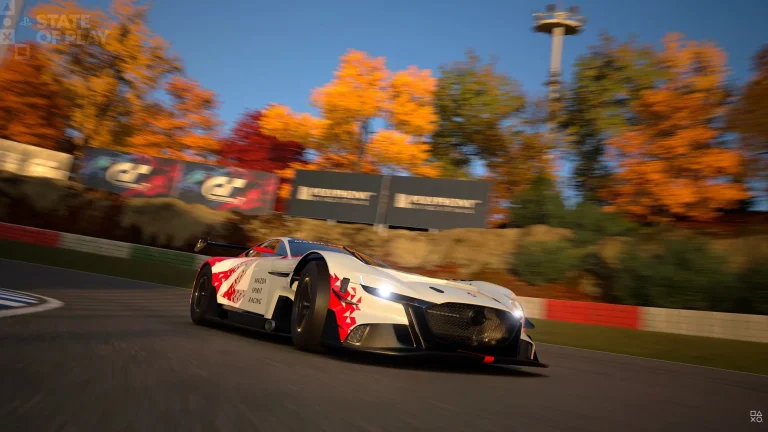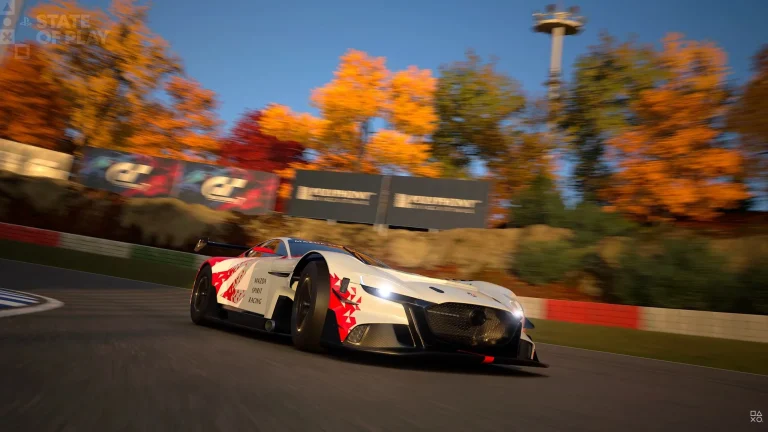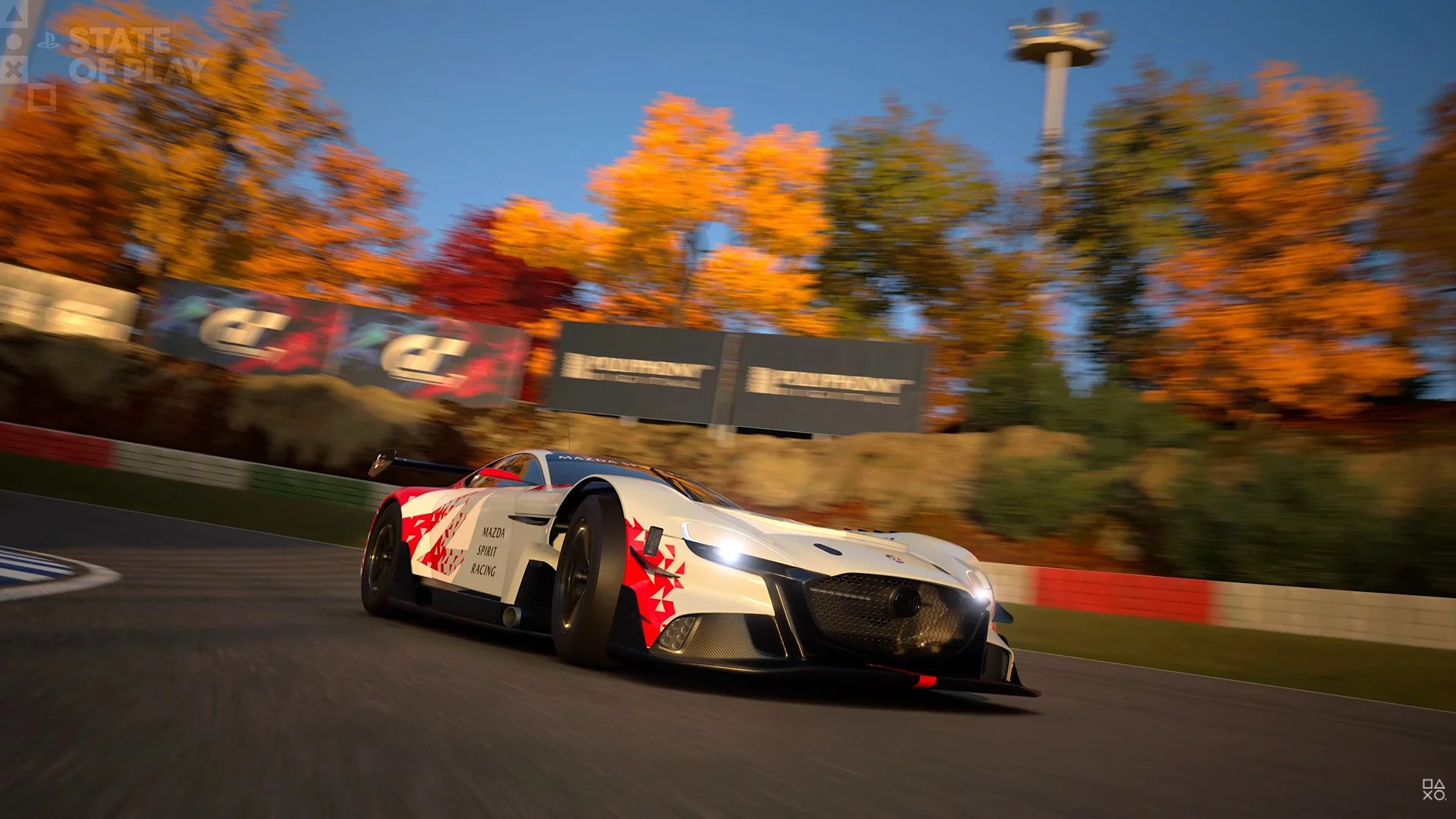
Gran Turismo 7 Car Viewer arrived in Update 1.72 on October 15, 2026. It’s a Garage feature for looking around the car you currently have selected, changing the backdrop, turning its front wheels and switching its lights on or off. You can also use it to take photographs without having to enter a race or set up a Scapes scene.
There are no parts to collect or challenges to complete before you use those viewing tools. The controls change how the car is presented, not its racing setup, so it’s a handy way to inspect a new purchase or take a picture of a favourite livery. Here’s exactly where to find it and what you can adjust.
Where to find Gran Turismo 7 Car Viewer in the Garage
After installing version 1.72, open Garage from the World Map, choose the car you want to examine and select Car Viewer. It displays your current car from a variety of angles. You don’t open it through Brand Central, and you don’t have to finish the Café story just to look at an owned vehicle.
- Update Gran Turismo 7 to version 1.72 or newer.
- From the World Map, enter the Garage and choose the car you want.
- Open Car Viewer from the Garage features.
- Rotate the view to inspect the vehicle, then use its background, wheels and lights options.
- Take a photo once you’re happy with the angle.
If the Gran Turismo 7 Car Viewer option isn’t there, the first things to check are your installed game version and which menu you’re using. The feature is for cars in your own Garage, not a gallery of every model in Brand Central.
How to change the background in Gran Turismo 7 Car Viewer
Select Change Background while Car Viewer is open. That changes the scenery behind your current car. A plain backdrop makes a paint finish or body kit easier to inspect; a more detailed setting can work better for a finished photograph.
The background setting doesn’t move the vehicle to a different race track or alter its performance. You’re simply choosing where the car appears in the viewer. For full location-based photographic scenes, Scapes remains a separate feature.
Gran Turismo 7 Car Viewer: turning the wheels and switching the lights
The viewer includes a setting to turn the front wheels. Pointing the wheels slightly towards the camera can make a front-quarter photograph more interesting and show off the wheel design. That change only affects the displayed position; it doesn’t alter alignment, steering sensitivity or suspension settings.
You can also turn the car’s lights on or off. Try changing the background first, then toggle the lights and move the viewpoint to examine the headlamps, tail lamps and reflections. These are independent presentation options, not upgrades you have to buy.
None of the adjustments in Gran Turismo 7 Car Viewer replaces GT Auto’s actual customisation or the car tuning screen. If you want different wheels, different paint or changed handling, you’ll still need the appropriate separate menu.
How to take Garage Photos with Gran Turismo 7 Car Viewer
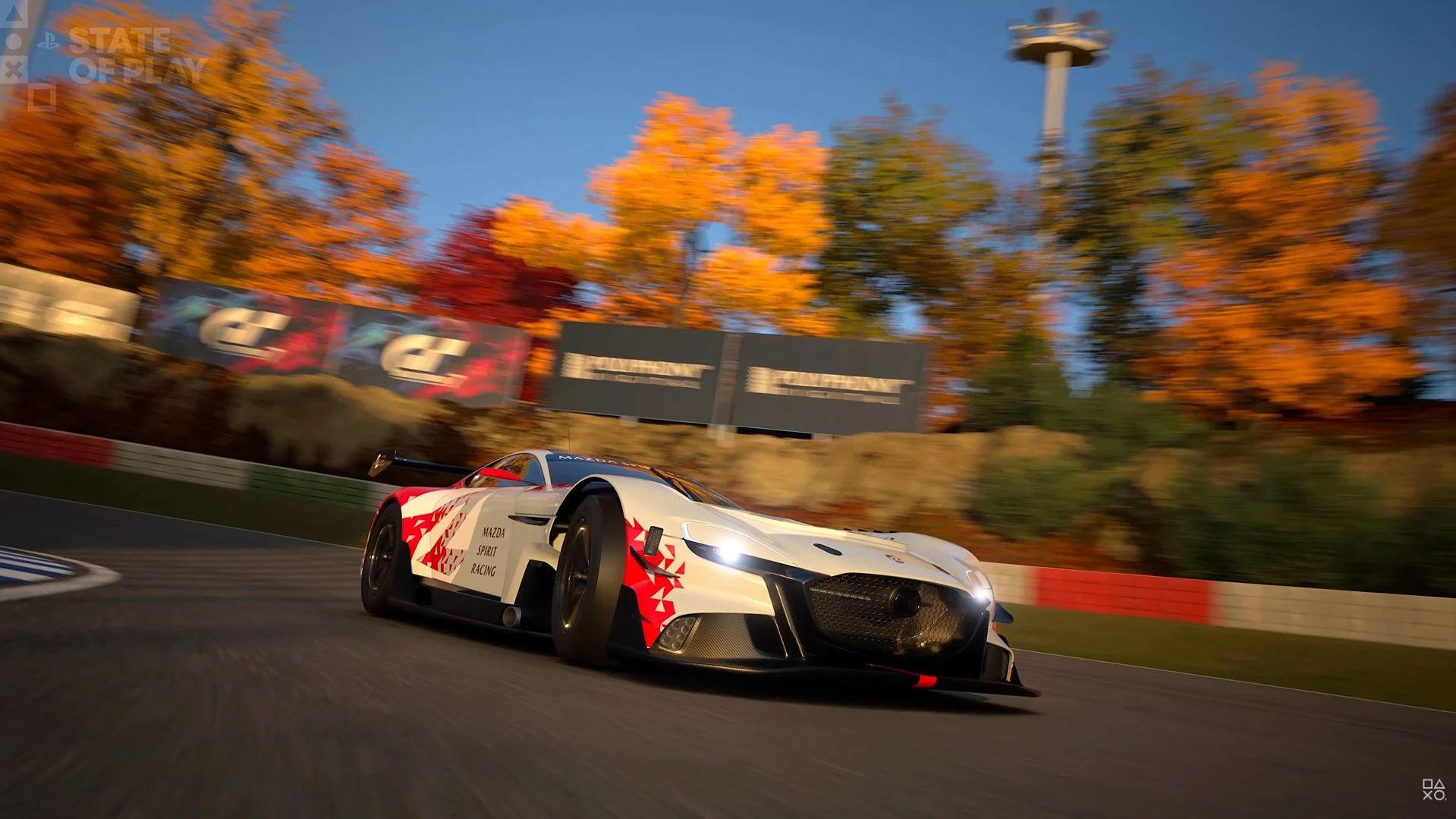
Car Viewer lets you capture photographs from many angles. Pick a car, choose a background and frame the whole body first; after that, move closer for a detail picture of the grille, wheels, rear lights or livery. Turn the front wheels and lights to suit the photo, then use the mode’s on-screen photograph control.
- Select the desired car in Garage and open Car Viewer.
- Set the backdrop with Change Background.
- Move the viewing angle, adjust the front wheels and toggle the lights.
- Use the viewer’s photo function to capture the image.
- Reposition the view and repeat if you want a close-up of a particular detail.
There is also a reason to use the new photo feature beyond taking attractive shots. Polyphony Digital’s final 1.72 patch notes add Garage Photos to the requirements for the Snap-Happy trophy. That is a change to an existing trophy, rather than a newly announced Car Viewer trophy.
Is Gran Turismo 7 Car Viewer different from Scapes and Car Concierge?
Yes. Car Viewer examines the car you have selected in the Garage. Scapes is Gran Turismo’s separate location-based photography feature, while race photos are created from racing scenes. The new Garage tool is especially useful when you want a stationary car photographed quickly.
Car Concierge does something unrelated: after reaching the game’s ending, it searches for older cars matching your preferred model, colour and condition from Brand Central’s Vintage section. You don’t have to place an order or raise Collector Level to use Gran Turismo 7 Car Viewer. Those are collecting features rather than viewing controls.
What to check if Gran Turismo 7 Car Viewer isn’t appearing
Make sure the October 15 Spec IV Part 1 patch has been installed and the game is running Update 1.72 or later. Enter Garage, select an owned car and use the Garage’s new viewer. The official update describes the feature as a Garage addition and doesn’t list a separate level requirement for viewing your current car.
For the rest of the patch, including the new SUGO races and Collector Level increase, see our Spec IV Update 1.72 overview.
Official sources: Polyphony Digital’s Spec IV Part 1 announcement and Update Notice 1.72.