Update PS5 in Safe Mode when a normal system software update fails, the console has been offline for a long time or PlayStation Support directs you to the manual update path. Sony includes Update System Software directly in PS5 Safe Mode, so you do not need unofficial firmware tools.
The key to Update PS5 in Safe Mode safely is choosing Update System Software rather than a reset or full system software reinstall. Safe Mode contains several options with very different consequences, and the reinstall/reset routes can erase data.
How to Update PS5 in Safe Mode
To Update PS5 in Safe Mode, begin with the console fully powered off. Sony says to hold the power button again after shutdown and release it after the second beep, which occurs around seven seconds after the first beep.
- Turn the PS5 off completely.
- Press and hold the power button.
- Release it after the second beep.
- Connect the DualSense controller with a USB cable.
- Press the PS button.
- Choose Update System Software.
- Follow the on-screen option for a direct download or the official USB update method.
What you need to Update PS5 in Safe Mode
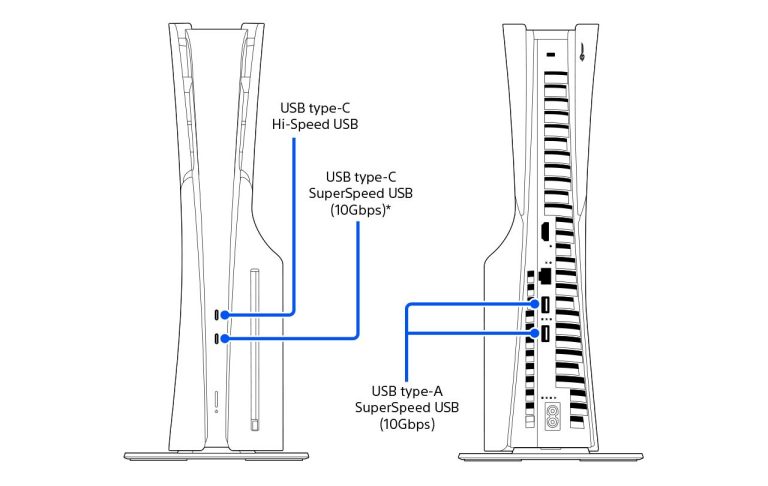
You need a working USB connection for the controller to Update PS5 in Safe Mode because Safe Mode requires the controller to be connected by cable. A charge-only cable may not pass the required data, so try another USB cable if the controller refuses to respond on the Safe Mode screen.
For a direct online update, the console also needs a usable network connection. For the USB method, use a compatible USB drive and download the current PS5 system software only from PlayStation’s official support site.
Update PS5 in Safe Mode with a USB drive
If you need to Update PS5 in Safe Mode by USB, follow Sony’s folder names and file names exactly. A file in the wrong folder or with the wrong name will not be recognised. Do not download PS5 firmware from third-party mirrors.
Sony separates an update file from a full reinstallation file. They are not interchangeable. The reinstallation process is much more destructive, so confirm that you are using the update instructions if your goal is simply to install newer system software.
Which Safe Mode option should you use to Update PS5 in Safe Mode?
Choose Update System Software to Update PS5 in Safe Mode. Do not choose Reset PS5 or Reset PS5 (Reinstall System Software) just because an update has failed. Those options are intended for more serious recovery and can erase console data.
| Safe Mode option | What it does |
|---|---|
| Update System Software | Installs current PS5 system software by download or USB |
| Clear Cache and Rebuild Database | Troubleshoots cache/database issues without being the normal update button |
| Reset PS5 | Erases user data and restores the console |
| Reset PS5 (Reinstall System Software) | Erases data and reinstalls system software |
When Update PS5 in Safe Mode is useful for error codes
Update PS5 in Safe Mode is relevant to several update-related errors, but the exact code still matters. For PS5 Error CE-113338-9, Sony first says to wait 48 hours and retry. For SU-101312-8, Sony identifies a Blu-ray Disc drive detection problem, so Safe Mode updating is only part of that troubleshooting route.
For PS5 Error CE-108262-9, system software updates are also part of Sony’s official sequence before database rebuilding and reset. Using exact error-code guidance prevents Update PS5 in Safe Mode becoming a one-size-fits-all answer.
What if you cannot Update PS5 in Safe Mode?
If Safe Mode will not appear, Sony recommends checking HDMI, USB and power cables, then power-cycling the console. If you still cannot use the Safe Mode update option or Safe Mode is inaccessible, use PlayStation Repairs rather than repeatedly forcing power cycles.
If the console is stuck in Safe Mode after an update attempt, read each option carefully and avoid a reset until your data situation is understood. A failed update is frustrating, but deleting local saves does not automatically solve every firmware or hardware fault.
Use the Safe Mode update option: quick checklist
- Power the console off completely.
- Hold the power button until the second beep.
- Connect the controller by a data-capable USB cable.
- Choose Update System Software.
- Use only Sony’s official download for USB updates.
- Do not select reset or reinstall options unless you intend to erase data.
- Use the exact error code to decide what troubleshooting comes next.
Official instructions to use the Safe Mode update option
Sony’s official PS5 support page explains how to enter Safe Mode and lists Update System Software as the option for direct-download or USB firmware updates. That is the first-party method to use the Safe Mode update option when a normal update cannot complete.