The Sims 4 Low FPS After Update means the rendered game is running slowly: camera movement becomes choppy, animations stutter and frame rate drops even when Sims are still following commands. That is different from simulation lag, where the clock or interactions stall.
The Sims 4 Low FPS After Update can come from changed graphics settings, overlays, drivers, a demanding lot or third-party visual tools. Start with reversible display and background-app tests before touching saves or reinstalling the game.
The Sims 4 Low FPS After Update: quickest fixes
Image credit: Electronic Arts
The Sims 4 Low FPS After Update is easiest to troubleshoot when you make one change at a time and test the same symptom again. The steps below are ordered from reversible checks to deeper repair work, so you can stop as soon as the problem is gone.
- Restart the game and system after the update finishes.
- Check whether graphics settings or resolution changed.
- Disable overlays and capture tools temporarily.
- Update the GPU driver and test V-Sync or a frame-rate cap.
- Compare a new empty lot with the lagging household.
Confirm it is really an FPS problem
Move the camera around an empty area. If camera panning itself is choppy, you are dealing with rendering performance rather than purely slow Sim decisions.
If the camera is smooth but actions and game time are delayed, use the simulation-lag guide instead. Keeping those two problems separate prevents wasted troubleshooting.
Check graphics settings after the patch
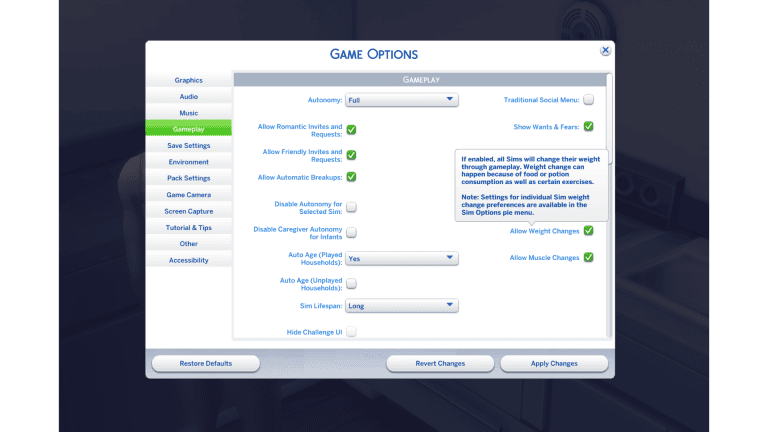
Updates or driver changes can alter resolution, fullscreen mode or quality settings. Confirm the game is using the expected resolution and graphics preset, then lower one expensive setting at a time rather than changing everything at once.
Windowed or borderless mode can also be useful for comparing display behaviour when fullscreen performance suddenly changes.
Disable overlays and background applications
EA recommends closing background apps when troubleshooting performance and notes that overlays can contribute to game problems. See the official crashing and freezing guide for the same general isolation approach.
Temporarily disable the EA overlay, GPU recording overlays, browser video playback and other capture utilities, then test the same lot.
Update drivers and consider a frame cap
EA specifically suggests frame-rate capping and V-Sync as troubleshooting options in its performance guidance. Update the GPU driver first, restart, then compare uncapped and capped behaviour.
Do not install unofficial driver tools from random sites. Use the graphics manufacturer or operating-system update path.
Test mods and lot complexity
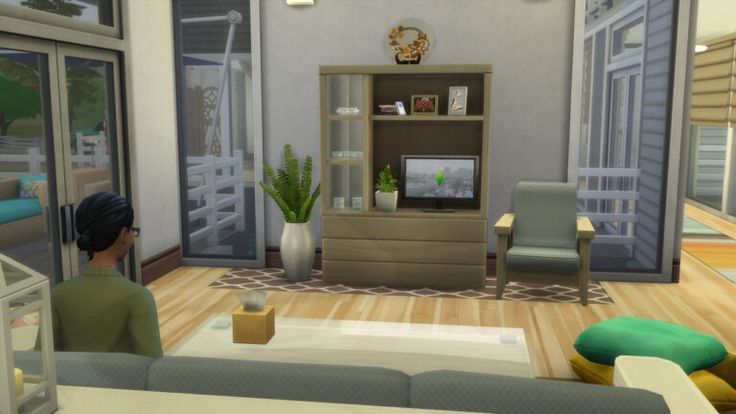
Visual mods, high-resolution CC and very dense lots can increase rendering load. Remove Mods for one clean test and compare an empty lot with the household that shows the worst FPS.
If performance is normal in a clean save, restore content gradually so you can identify whether one mod, one lot or simply the size of the setup is the bottleneck.
What your troubleshooting result means
If The Sims 4 Low FPS After Update disappears in a clean test, you have narrowed the problem to something in the normal user setup rather than the untouched base game. Restore files in small groups, retest after each change and stop as soon as the symptom returns. That is much safer than putting the full Mods, Tray and settings collection back at once.
If The Sims 4 Low FPS After Update still happens in a brand-new save with no Mods folder after Repair, keep the clean test intact and record the game version, platform and exact reproduction steps. At that point the evidence is much stronger for a game, installation or platform issue, and those details are useful for an EA support case or bug report.
Fix The Sims 4 Low FPS After Update without confusing it with simulation lag
The Sims 4 Low FPS After Update needs a graphics-focused diagnosis: compare camera smoothness, verify display settings, disable overlays, update drivers and test a lighter lot. If the picture is smooth but Sims are slow, switch to simulation-lag troubleshooting instead.
More The Sims 4 guides
- THE SIMS 4 GUIDES HUB
- How to Fix Broken Mods in Sims 4? Common Causes and Fixes (2026)
- How to Fix Infinite Loading Screens in Sims 4 ? How to Fix It (2026)
- The Sims 4 Won’t Launch After the July 21 Update: How to Fix It
- Sims 4 Custom Content Missing After Update: How to Restore It
- How to Fix Broken UI in Sims 4 – How to fix Guide 2026