Windows 11 USB Audio Code 10 can leave a gaming headset or DAC completely silent after an update. Microsoft confirms that some USB Audio Class 1.0 devices can fail to start and display “This device cannot start (Code 10)” in Device Manager. The 10 November 2026 security updates fix the problem, although the KB number depends on your Windows version.
Not every USB headset uses Audio Class 1.0, and a Code 10 error can have other causes. Before changing drivers or replacing hardware, check the device class, the actual error and your Windows version. That will tell you whether Microsoft’s fix is the right place to start.
Windows 11 USB Audio Code 10: symptoms to check
Microsoft lists four symptoms. You might see just one, or several together:
- Device Manager reports “This device cannot start (Code 10)” for the affected USB audio device.
- The device is plugged in but produces no sound.
- Volume controls are stuck at zero or do not respond.
- Sound settings become unavailable or stop responding.
This particular fault affects USB Audio Class 1.0. A wireless headset dongle or USB DAC is not automatically covered just because it uses a USB socket. Check the manufacturer’s specifications if you’re unsure of the device class. A game-only sound problem or microphone issue needs its own checks.
Which November patch fixes the problem?
| Windows version | November fix | OS build |
|---|---|---|
| 26H2, all editions | KB5132061 | 26300.9974 |
| 25H2, all editions | KB5132061 | 26200.9974 |
| 24H2, Enterprise and Education | KB5132061 | 26100.9974 |
| 26H1, all editions | KB5132059 | 28000.3501 |
For Windows 11 USB Audio Code 10, match the update to your PC. KB5132061 covers 25H2 and 26H2 in all editions, plus 24H2 Enterprise and Education. Windows 11 26H1 uses KB5132059 instead. Windows 11 24H2 Home and Pro are no longer supported for security updates, so don’t force an update meant for another edition.
Check your Windows version and Device Manager error
- Press Windows + R, type
winverand press Enter. Read the Windows 11 version and OS build. - Open Settings > System > About to check whether the edition is Home, Pro, Enterprise or Education.
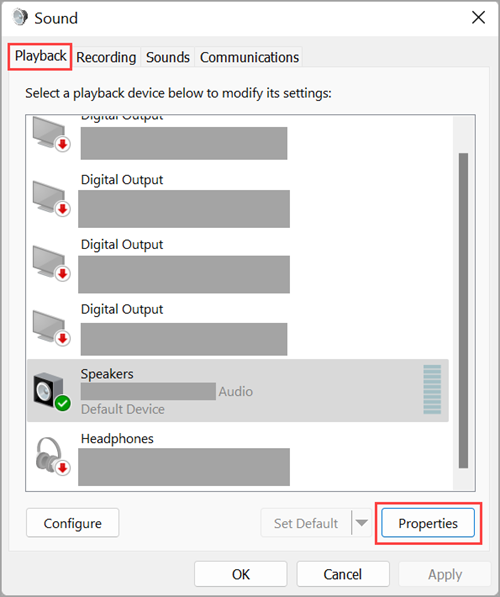
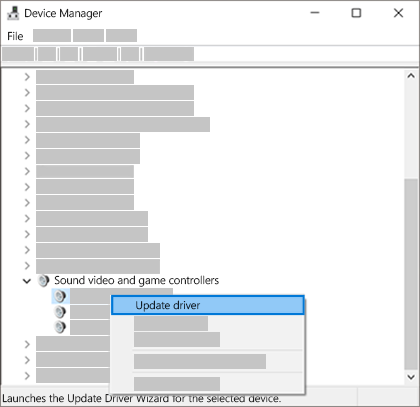
- Right-click Start and open Device Manager. Expand Sound, video and game controllers, or the relevant USB device category if needed.
- Right-click the affected audio device, choose Properties and read its Device status. Look for the actual Code 10 message.
- Check official device documentation if you need to establish whether it is a USB Audio Class 1.0 product.
If the headset works in Windows but one game is silent, check the game’s sound output first. Microsoft’s fault can prevent the affected device from starting at all.
Install the correct Windows update
Open Settings > Windows Update > Check for updates, install the security update offered for your supported version and restart if prompted. Check winver again to compare your build with the table. If Windows 11 USB Audio Code 10 is the problem, an unofficial driver pack or full Windows reinstall is not the first fix to try.
Work and school PCs may receive updates on an IT-controlled schedule. If your 24H2 Enterprise or Education computer is managed, ask the administrator about KB5132061 rather than overriding policy. On 26H1, Windows 11 USB Audio Code 10 is addressed by KB5132059 instead.
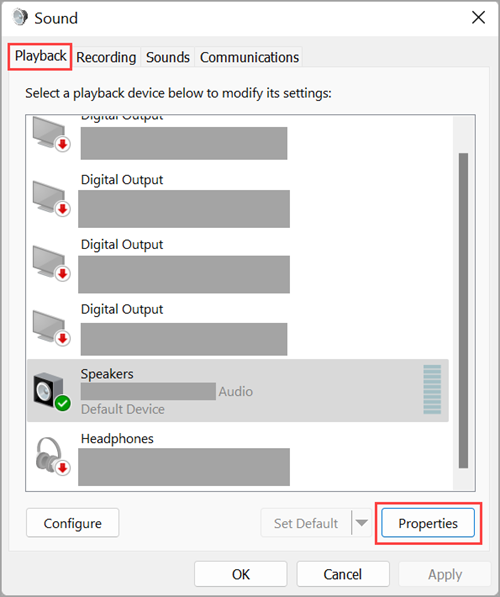
Reconnect the headset or DAC and test ordinary audio before launching a game. If the device now starts successfully, go to Settings > System > Sound > Output and select it. Some games also let you choose a separate audio output inside their own settings.
What if Windows 11 USB Audio Code 10 persists?
Try a different USB port and check the cable or adapter. Make sure Windows has not switched to another playback device. If Code 10 remains after the appropriate update, note the OS build and device model before contacting the manufacturer’s support team. The same error can also come from a connection, power, firmware or driver problem.
Windows 11 USB Audio Code 10 FAQ
Does the fix work on every USB headset?
No. The confirmed Windows issue is limited to USB Audio Class 1.0 devices. The port alone does not identify the device class.
Why can’t I see KB5132061?
Check your Windows version, edition and update history. The 26H1 fix is KB5132059, and managed devices may have a separate rollout schedule.
Does this fix HDMI audio on an AMD graphics card?
That’s a separate entry in Microsoft’s 24H2 Enterprise and Education notes. Our Windows 11 AMD HDMI audio not working guide explains the limited scope of that fix.
Should I force a generic audio driver?
No. Check the correct security update and device status before making major driver changes.
Related Guides
- Windows 11 AMD HDMI Audio Not Working: November Update Fix
- Best Gaming Headsets for Competitive and Everyday Gaming
- Fortnite Voice Chat Not Working: How to Fix It
- Dune Awakening Microphone Unmuted After Audio Switch Fix
- Windows 11 Memory Integrity Gaming: What It Means for FPS
- How to Update AMD Adrenalin Drivers on Windows 11
Official source: Microsoft KB5132061 November 2026 release notes.