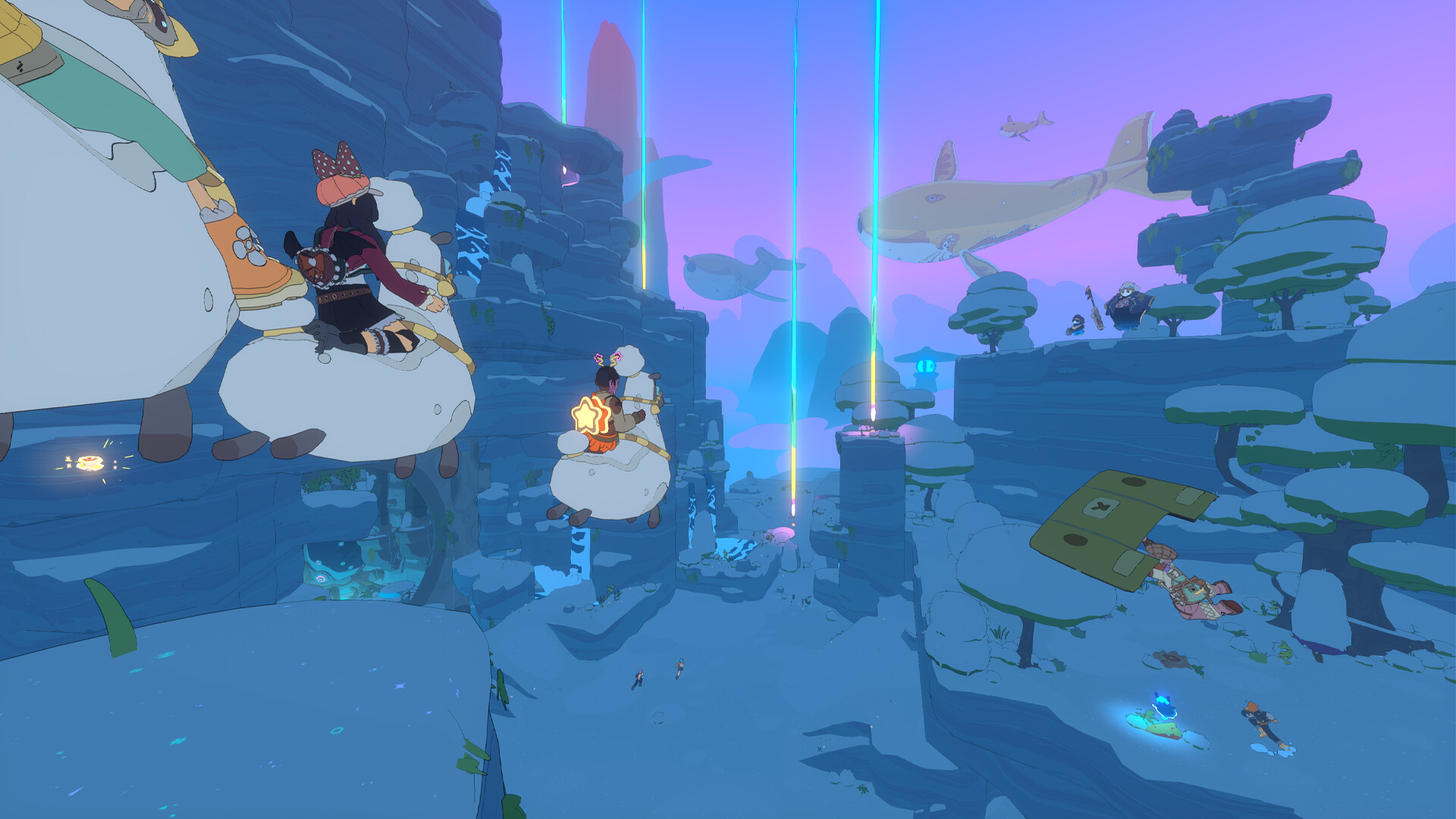
Spirit Crossing Moods show other players whether you fancy a chat, want some quiet time or are happy to help newcomers. There’s also a way to stop automatic introductions, but it isn’t controlled by your Mood any more.
That last part is worth knowing if you played an earlier version. In July, the less-social Mood also stopped auto-meeting. The August 15.3 update moved that control into Settings. You can now choose how you feel and how you meet people separately.
Where to change Spirit Crossing Moods
Open Character Customization and select the Moods tab. That’s where you pick the status other players will see. You can change it whenever you’d rather be social, explore alone or offer help.
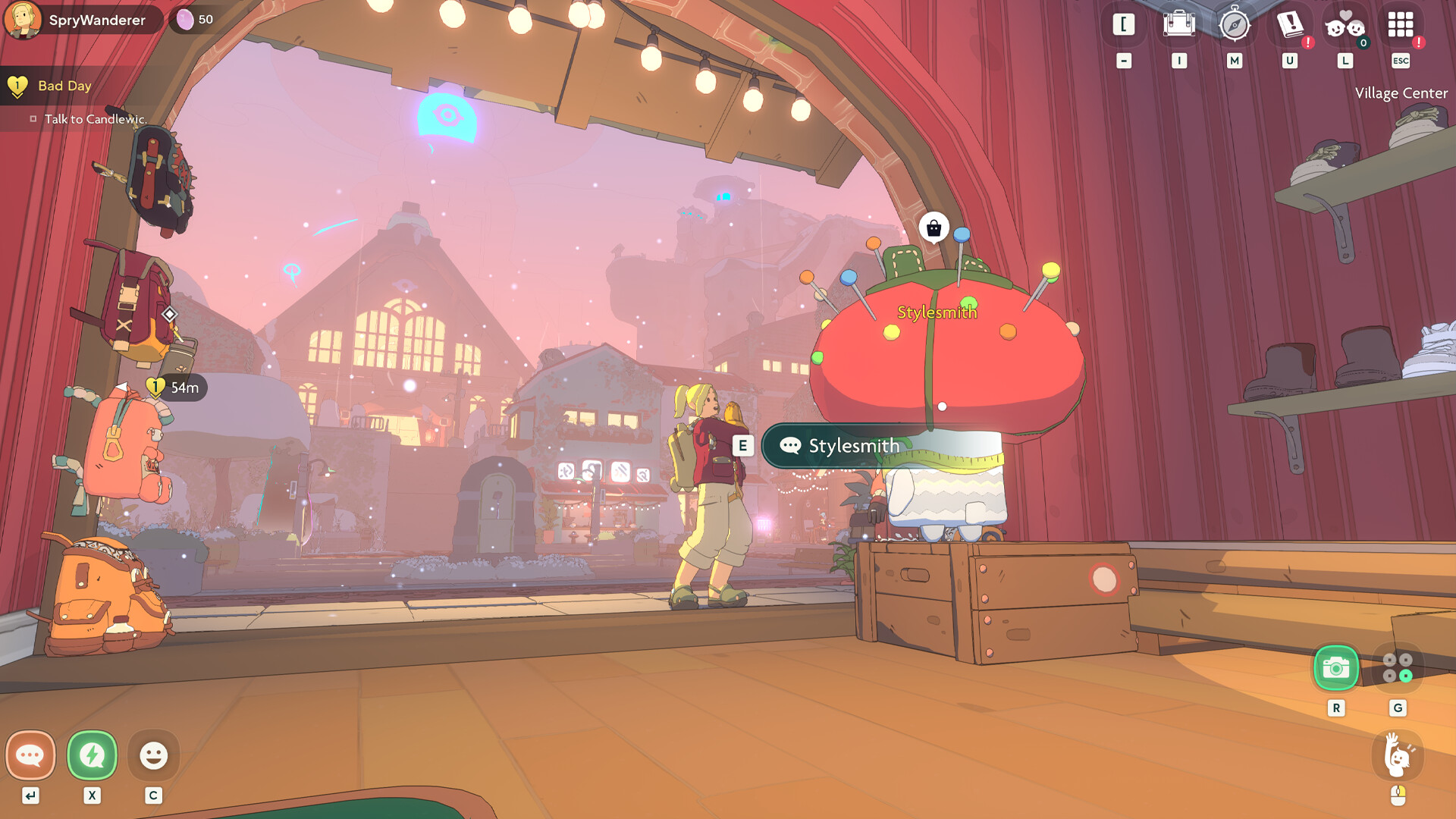
Your selected Mood appears as a small indicator above your character. Since update 15.3, Spirit Crossing also prompts you to choose a Mood during your first session of the day.
Do Spirit Crossing Moods stop strangers meeting you?
Do Not Disturb blocks ordinary meeting requests from Strangers, so it’s the one to choose when you’d prefer not to be approached. It doesn’t take you offline, and it doesn’t automatically stop every way of meeting someone.
July’s notes called the earlier option Not Feeling Social and linked it to automatic meeting. That’s no longer how the controls are split. In version 15.3, the separate Auto Introduction setting handles that behaviour instead.
Spirit Crossing Moods and the Auto Introduction setting
Go to Settings and switch Auto Introduction off if you don’t want the game automatically introducing you to other players during shared activities. Your Mood can stay on whichever option suits you.
Those automatic introductions can happen when you accompany somebody playing music or join them on a fluffalo train ride. You don’t have to avoid both activities just to stop the game making a new connection; use the setting.
In short, Spirit Crossing Moods let you signal how you feel. Do Not Disturb stops manual meeting requests from strangers, while Auto Introduction controls the automatic ones. Check both if you want some peace and quiet.
Newbie and Volunteer Guide Spirit Crossing Moods
Newbie and Volunteer Guide were introduced to help players find one another. Spry Fox’s July patch notes say these Moods make you visible on the world map, either as someone looking for help or someone happy to give it.
If you’re still getting used to the game, Newbie is a useful signal. Volunteer Guide lets other players know you’re up for helping them find their feet. You can switch back to another Mood once you’ve finished.
Which other Moods are available?
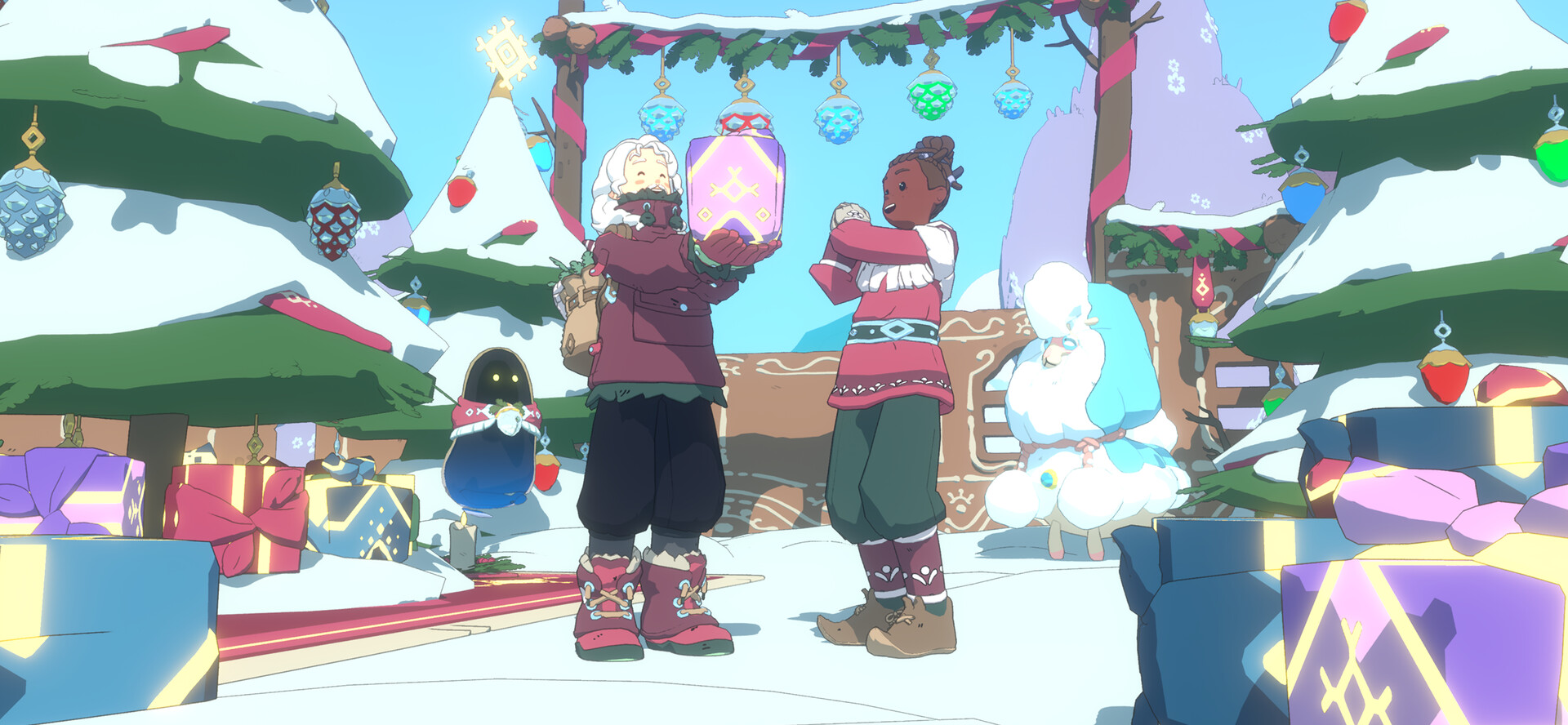
Version 15.3 also lists Cheerful, Tired, Grumpy, Birthday, Wandering, Away, Do Not Disturb and Lurking. These give you a quick way to express yourself without sending a message to everyone nearby.
Don’t treat every Mood as a privacy setting. Tired and Birthday, for example, are expressions rather than controls that disconnect you. Nor does the name Lurking prove your character becomes invisible. Use the dedicated meeting options when privacy is what you need.
What’s the difference between Moods, blocking and Flairs?
Spirit Crossing Moods, blocking and Auto Introduction solve different problems. Blocking is for a specific player: the game hides blocked players’ avatars from you instead of showing them as strangers. The August update also stopped their music and related effects reaching you.
September’s 15.4 patch introduced Flairs, which are another type of profile decoration. You can equip up to three tags earned through activities or friendships. They add personality to your profile, but they don’t replace Moods or meeting controls.
You still need an internet connection to play. Nintendo’s UK store listing describes Spirit Crossing as an online game even when you choose to spend time alone, so Do Not Disturb is not an offline mode.
Best Spirit Crossing Moods when you want to be alone
For the quietest session, choose Do Not Disturb from Spirit Crossing Moods, then disable Auto Introduction in Settings. Strangers won’t be able to send ordinary meeting requests, and the game won’t introduce people to you automatically through group activities.
If you’re feeling sociable tomorrow, you can turn introductions back on and try Volunteer Guide instead. Our Spirit Crossing multiplayer guide explains how the wider shared world works.
More Spirit Crossing guides
- Spirit Crossing Demo Progress Transfer: What Carries Over After November 9
- Spirit Crossing Recruit a Friend Codes: Rewards and Waystation Changes
- Spirit Crossing Starter Plots: Neighbor Role, Permissions and Architects
- Spirit Crossing Multiplayer: 100 Players, Switch Online and Solo Play
- Spirit Crossing Release Date: Switch Versions, Gameplay and Online Requirements
- Spirit Crossing Switch 2 Save Transfer: Can Progress and DLC Move Across?
- Witchbrook Multiplayer: How Four-Player Online Co-op Works
Official source: Spry Fox, Spirit Crossing version 15.3 patch notes.