PS5 won’t connect to Wi-Fi usually means the console can’t join your wireless network or can connect to the router but can’t reach the internet. Those two failures look similar when you’re just trying to play online, but they need different checks.
Start by testing whether phones and other devices can use the same network, then reconnect the PS5 through its proper network menu. Sony’s support instructions cover saved Wi-Fi networks, manual setup, wired testing and a particularly easy-to-miss limitation involving IPv6-only connections.
PS5 won’t connect to Wi-Fi? Check the connection menu first
- On your console, open Settings > Network > Settings > Set Up Internet Connection.
- Find your wireless network in the available or saved networks list.
- Select the network and choose Connect, entering the current Wi-Fi password if prompted.
- If you use a saved network, confirm its password hasn’t changed since you last connected.
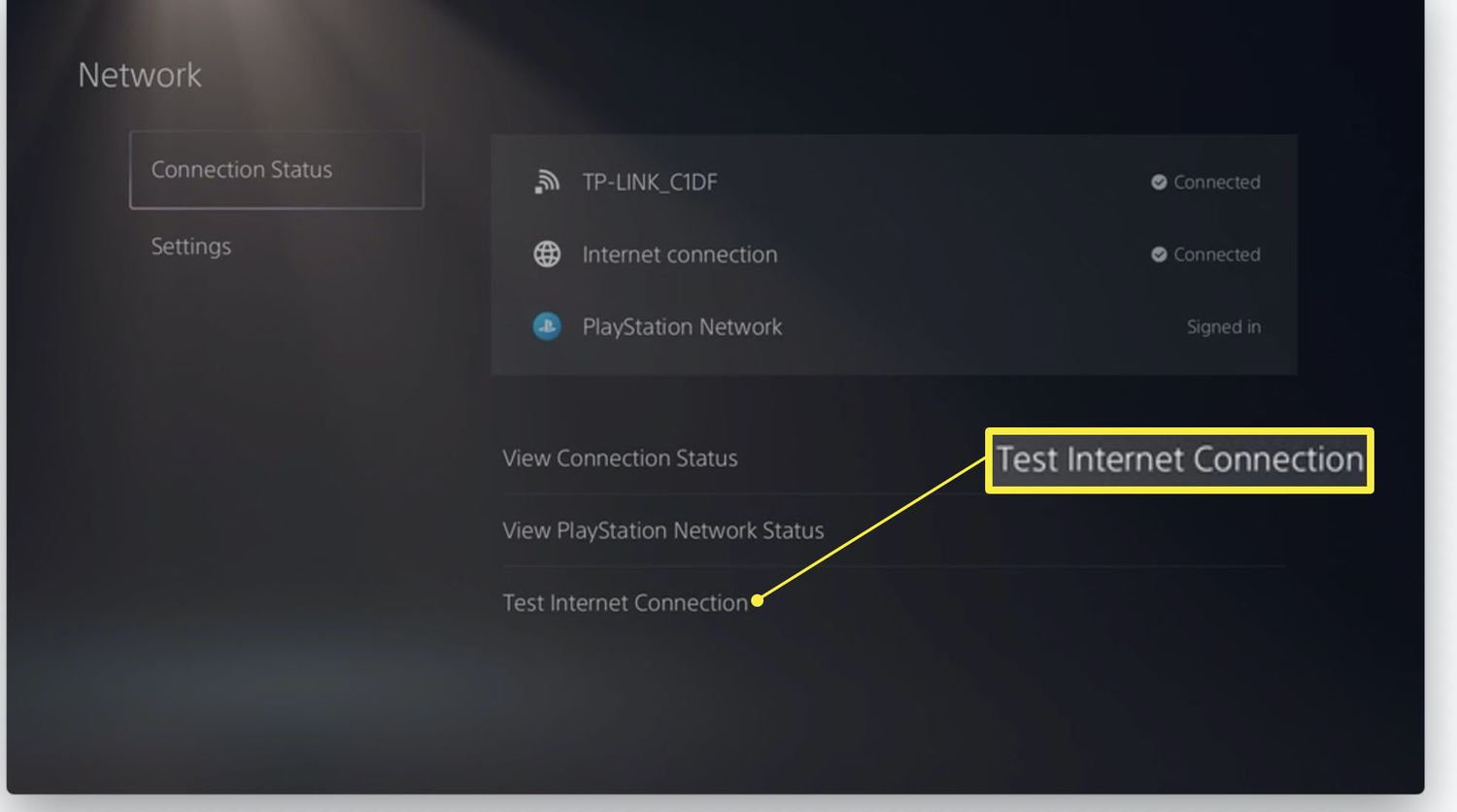
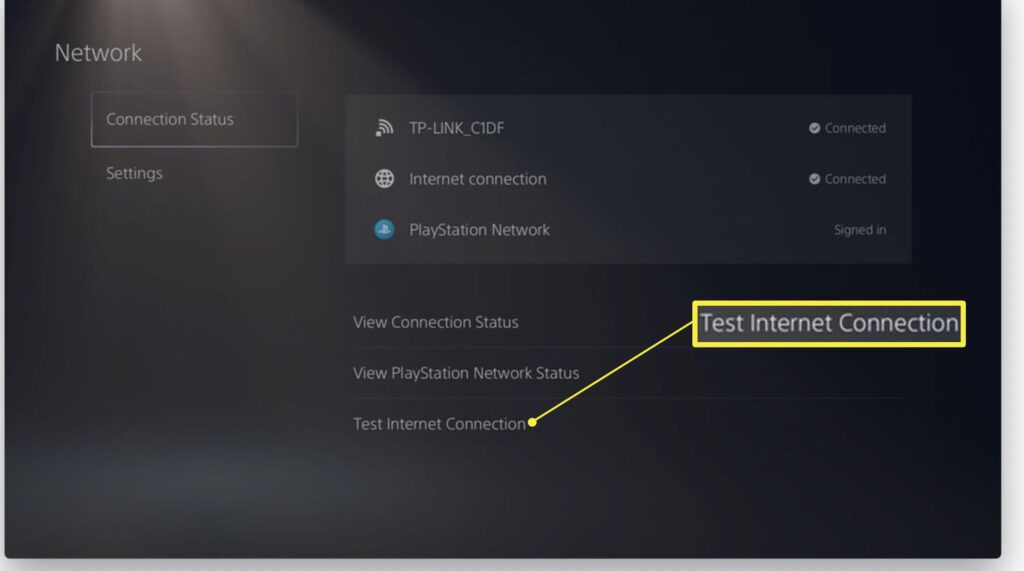
- After connecting, go to Settings > Network > Connection Status and use Test Internet Connection to check what works.
The PS5 shows nearby and saved access points in this menu. If you recently replaced your router or changed its password, an old saved connection may no longer work. Use the current router credentials rather than assuming the console has automatically picked up the new settings.
If PS5 won’t connect to Wi-Fi even though your password is correct, keep an eye on exactly where the test fails. Trouble joining the wireless network is different from joining it successfully but being unable to reach PlayStation services.
PS5 won’t connect to Wi-Fi because the network is missing?
Make sure wireless is enabled on the router and test the network with a phone near the console. If other devices also can’t see the network, investigate the router before changing the PS5. If your phone can see it but your PS5 can’t, move the console closer to the router for a quick signal test and then refresh the network list.
Sony provides a Set Up Manually option farther down the PS5 connection screen when an access point isn’t listed. Routers that support WPS can also use the Set Up Using WPS Button path. Manual setup is particularly useful when the network name isn’t being broadcast, but you’ll need the correct network information from whoever manages the router.
If PS5 won’t connect to Wi-Fi on one specific network but it can connect elsewhere, the router’s wireless configuration deserves attention. Don’t factory-reset the console just because it fails to see one network name.
PS5 won’t connect to Wi-Fi after restarting? Test wired LAN
Turn the router off using its normal controls, allow it to restart fully and reconnect the PS5. If other household devices were also offline, this may resolve a temporary router problem. Next, try a wired Ethernet connection if you’re able to reach the router.
To connect by cable, open Settings > Network > Settings > Set Up Internet Connection, select Set Up Wired LAN and choose Connect. Sony documents this as the wired setup path for PS5. If the wired connection works but wireless still fails, you’ve isolated the issue to the Wi-Fi side instead of a complete internet outage.
When PS5 won’t connect to Wi-Fi, a temporary LAN cable is useful even if you don’t want to use a cable permanently. It helps you work out whether the failure comes from wireless coverage, router configuration or the internet service itself.
PS5 won’t connect to Wi-Fi on IPv6-only networks
Sony confirms that PS5 consoles can use IPv6 network connections but cannot use an IPv6-only connection. If your router or internet setup has been changed to IPv6-only, ask your ISP or router administrator how to enable IPv4 alongside IPv6. This can explain a connection failure that isn’t fixed by repeatedly entering the password.
Only change advanced router settings if you know what they do or have guidance from your provider. Most household networks will not need you to enter custom DNS addresses or manually assign a static IP address just to reconnect a PS5.
PS5 won’t connect to Wi-Fi, or are PlayStation services down?
If the PS5 connects to the router and other websites work on your devices, check PlayStation Network service status before changing more settings. A PSN outage can stop sign-in, multiplayer or online services even when your internet connection itself is healthy.
Also note any error code shown in the test results. Sony has separate troubleshooting for connection-related error codes, and a specific code is much more helpful than a general ‘internet not working’ description. A failing Wi-Fi connection won’t be fixed by clearing the console cache if the wireless network can’t be joined in the first place.
What to do if the PS5 won’t connect to Wi-Fi after all checks
Write down whether the network appears in the list, whether the password is accepted, whether a wired connection works and whether other devices use the same router successfully. Those four details quickly point toward a signal issue, a network configuration problem or a service outage.
Once you know which stage fails, contact your internet provider for a router-side issue or PlayStation Support if the console cannot connect to otherwise working networks. There’s no good reason to reset the entire PS5 or erase games and saves as a first response to a Wi-Fi problem.
More PlayStation Guides
Is PSN Down? · PS5 Error CE-108262-9 · PS5 Error CE-113338-9 · PS5 Controller Not Connecting · PS5 Update File Not Recognized · PS5 Clear Cache · PS5 Cloud Saves Not Syncing
Official source: PlayStation Support: Set Up an Internet Connection on PlayStation Consoles