Discord screen share no sound is usually one of two problems: the person streaming isn’t sharing the application’s audio, or the person watching has their stream muted. Both can leave the picture working perfectly while the game, browser or video plays in silence.
When Discord screen share no sound happens in a browser, compatibility is worth checking: Discord supports audio sharing on Windows and macOS desktop clients, Chrome and supported mobile apps, but not every browser or operating system can capture application sound. Work out whether the silence affects one viewer or everyone, then use the steps below to narrow it down without changing unrelated microphone settings.
Discord screen share no sound? Find out who has the problem
To diagnose Discord screen share no sound, ask someone else to watch the same stream. If one person hears audio and another doesn’t, the streamer’s capture is working and the affected viewer should check their own stream volume and output device. If nobody hears anything, the streamer needs to inspect what they are sharing and whether audio-capture permission was granted.
This single test saves a lot of unnecessary troubleshooting. Discord screen share no sound isn’t necessarily a broken headset or microphone. Hearing voices in the call but not the game usually means the stream audio is the only part missing.
Fix Discord screen share no sound for people watching
- Open the stream you’re watching and right-click its video window.
- Look for Mute and Stream Volume in the stream’s menu.
- If Mute is selected, turn it off; then raise the Stream Volume slider.
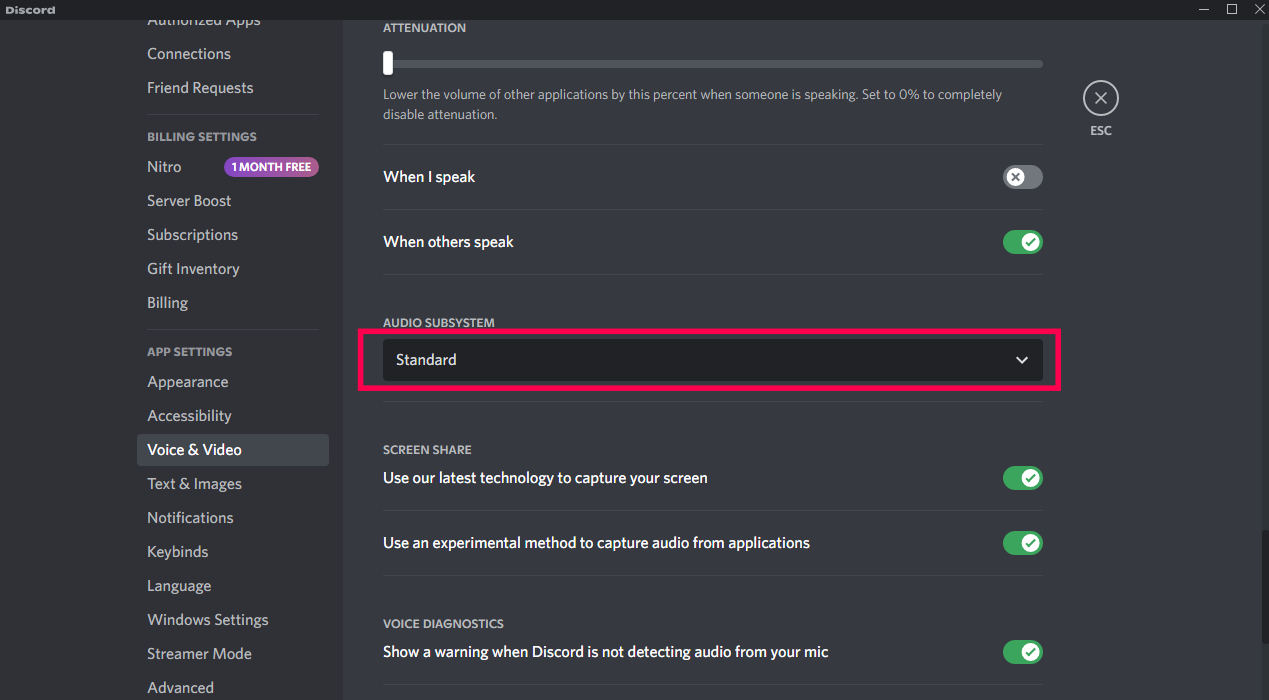
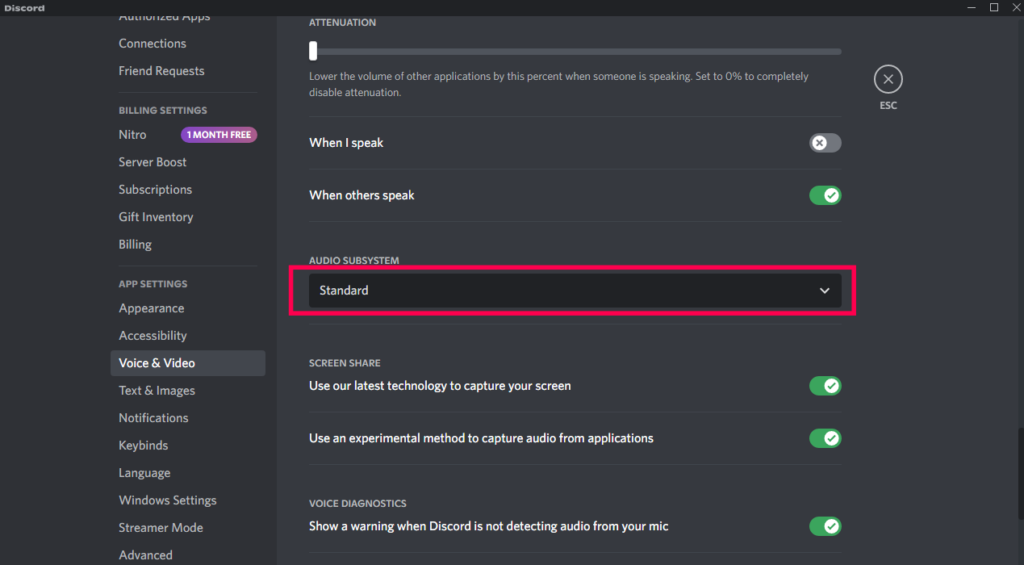
- In Discord User Settings > Voice & Video, make sure the intended Output Device is selected.
- If other streams sound normal, ask the streamer to test another application window or restart their stream.
Discord documents the stream’s separate mute and volume controls, which are easy to overlook when the call itself sounds fine. A viewer can hear friends talking but still have the shared application muted. If Discord screen share no sound occurs only for you, check these controls before suggesting the broadcaster reinstall anything.
Share the correct application window with audio
On the streaming side, join a voice channel or direct call and use the Screen Share control. Select the actual application window you want to show, then choose Go Live. For a game, Discord can also identify the running game and offer it as a shareable application. If it isn’t detected, check Discord’s registered games and try selecting the correct window directly.
If Discord screen share no sound persists, choosing an application rather than a generic screen can help you identify exactly which program should supply the audio. If your stream shows a browser but the sound actually comes from another app, viewers may not hear what you’re expecting. Test with a simple application that is already playing audio before trying to stream a more complicated setup.
Allow Discord sound sharing permission
Discord’s support documentation identifies Sound Sharing error 1001 as an audio-capture problem. When Discord asks for sound-sharing access at the operating-system level, approve the relevant request if you intend to broadcast that application’s audio. Without the permission, the screen can still be visible while application sound is absent.
On macOS, also check the screen and audio recording permissions Discord requests. If you recently denied one, grant access in system settings and restart Discord. The permissions required vary by platform and current OS release, so respond to the actual permission prompt rather than following outdated menus.
If Discord screen share no sound persists after allowing access, fully quit and reopen Discord. Merely closing its window may leave it running in the background. Start a fresh call and test again with one application.
Can Discord share audio in Firefox or Linux?
Discord’s current official guide lists audio capture for Windows desktop, macOS desktop, Chrome browser and mobile clients. It says application-audio sharing is unavailable on Linux and in other browsers. That means screen sharing may work while the audio simply cannot be transmitted by that client.
If you’re streaming from Firefox or another unsupported browser, try the Discord desktop app on a supported operating system or Chrome. Don’t waste time chasing a nonexistent browser toggle. On Linux, the limitation is a platform support issue rather than evidence that your speakers are broken.
What about games that stream silently?
Discord uses game detection to offer games for streaming. Open the game first, check whether Discord recognises it, then select the game window and start a fresh stream. If there are multiple similarly named windows, make sure you’re capturing the one actually producing sound.
Keep the test simple: one game, one viewer and no additional audio-routing software. If that works, reintroduce virtual mixers or unusual audio outputs one at a time. Those programs can change where sound is sent, and Discord may be capturing a different device or process than the one you hear through your headphones.
If Discord screen share no sound still happens
Compare three things: whether other people can hear your stream, whether the current client supports sharing audio, and whether Discord has permission to capture it. Check stream volume on the viewer’s side and application/window selection on the sender’s side. If the stream produces an error code, note its exact number before contacting support.
A silent screen share is not the same issue as Discord failing to detect your microphone. You can have a perfectly working voice conversation while the application audio is missing, so fix the part of the call that actually failed.
Related Voice Chat and Discord Guides
Discord Microphone Not Working · Discord RTC Connecting Error · Discord Stuck on Connecting · Discord Quests Not Showing · How to Get Discord Orbs · World of Warcraft Discord Guild Chat · Roblox Voice Chat Not Working
Official source: Discord Support: Go Live and Screen Share