Discord microphone not working can make a perfectly normal voice call feel broken. With Discord microphone not working, you can hear everyone else, but they cannot hear you, or Discord claims it isn’t detecting an input device even though your headset is plugged in.
Before reinstalling Discord, find out whether the microphone works outside the app. Then check Discord’s selected input, your device permissions and the difference between Voice Activity and Push to Talk. These are the controls Discord’s own support team recommends checking first.
Discord microphone not working? Check the selected input device
A common reason for Discord microphone not working is that the app is listening to the wrong input. On the desktop app or in your browser, open User Settings using the cogwheel near your profile, then select Voice & Video. Under Input Device, choose the microphone you’re actually using instead of assuming Default is correct.
This matters if you have a gaming headset, webcam, laptop microphone and controller connected at once. Windows or Discord may favour an older input after a device reconnects. Use Discord’s microphone test to speak and see whether the level responds. If the test detects your voice but other people still cannot hear you, look at mute and transmission settings next.
Check mute, Push to Talk and Voice Activity
- Look at the microphone icon beside your Discord profile. If muted, unmute it before making other changes.
- Inspect the headset cable, earcup or inline mute switch. A hardware mute can stop input even while Discord looks ready.
- Under User Settings > Voice & Video, check Input Mode. Voice Activity sends speech automatically; Push to Talk only sends it while your chosen key is pressed.
- Try switching modes temporarily. If Voice Activity won’t detect you but Push to Talk works, review input sensitivity and activity detection.
- Make sure you are allowed to speak in the server voice channel and are not server-muted. Test in a direct call if needed.
When Discord microphone not working complaints happen in one server but not in direct calls, a channel restriction or server mute deserves attention. If you can’t send speech anywhere, keep investigating the device and app instead.
Allow microphone permission in Windows or macOS
On Windows, open Settings, find Privacy & security and Microphone, and check that microphone access is on for the system and applicable apps, including desktop apps. Then return to Discord, confirm your Input Device and run the microphone test again. If you’re using Discord in a browser, the browser’s permission for the Discord site also needs to allow microphone access.
On a Mac, open the system’s Privacy & Security settings and confirm Discord has microphone permission. If you change a permission, fully quit and reopen the app so it can request access again. A system-level privacy block can make Discord microphone not working symptoms persist even though the headset sounds fine in other contexts.
Discord microphone not working with a USB headset
Unplug the headset, reconnect it securely and try a different USB port. For a 3.5 mm headset, confirm the plug is in the correct combined headset or microphone jack; some desktop PCs require a splitter for separate headphone and mic connections. Test the headset in another application so you’re not guessing whether the problem is hardware.
Discord also recommends checking audio drivers and device software. If Windows recognises the headset but audio comes from the wrong microphone, set the correct input at operating-system level and in Discord rather than repeatedly reinstalling the app. Bluetooth users should verify which microphone profile is active during a call.
Try Discord’s Legacy audio subsystem
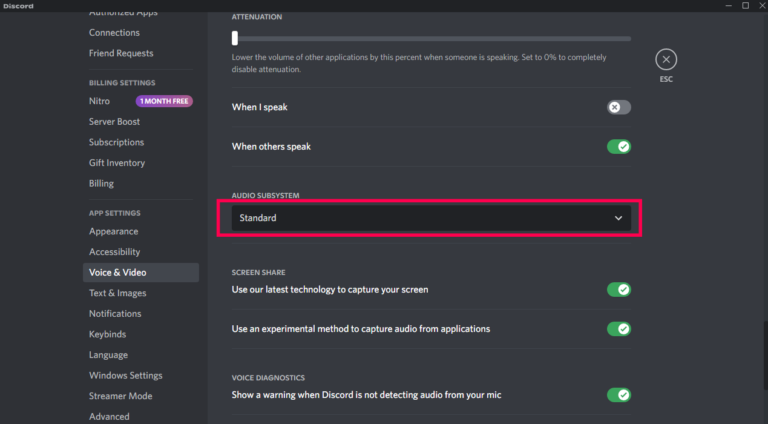
If the standard settings haven’t helped, Discord’s official microphone troubleshooting suggests a further desktop test: under Voice & Video, scroll to Audio Subsystem and try Legacy if that option is available on your version. Discord also recommends checking its Quality of Service High Packet Priority setting during deeper troubleshooting.
Treat those as later checks, not the first move. Close and reopen Discord after a change, make one test call and keep track of whether the microphone worked. If the setting is absent in your version, skip it rather than hunting for old screenshots. Discord microphone not working can have a different cause on updated clients.
What if Discord microphone not working still isn’t fixed?
Restart your computer and test the microphone in a second application. If neither app hears you, address the device, driver, connection or operating-system permission before returning to Discord. If another app hears you clearly but Discord still won’t, try the browser version or desktop app to narrow down whether one client is affected.
You can also collect the exact microphone name, Discord input choice, operating system and results of the built-in Mic Test before contacting support. Those details are more useful than simply reporting that audio is broken. Above all, don’t reset unrelated network settings to fix a device that isn’t detected as an input in the first place.
More Discord and Voice Chat Guides
Discord RTC Connecting Error · Discord Stuck on Connecting · Discord Quests Not Showing · How to Get Discord Orbs · Discord Halloween Ringtone 2026 · World of Warcraft Discord Guild Chat · Roblox Voice Chat Not Working
Official source: Discord Support: Where Did My Audio Input Go?