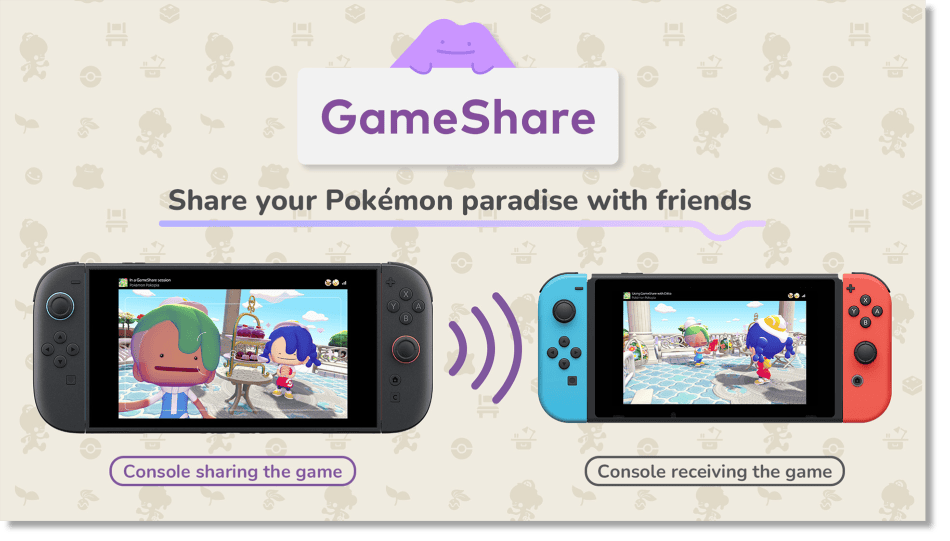
Pokémon Pokopia GameShare lets someone who doesn’t own the game visit a friend’s Palette Town. The host needs a Nintendo Switch 2 and a copy of Pokopia. The guest can join locally on Nintendo Switch or Switch 2, or remotely through GameChat on Switch 2.
There’s plenty to do together without a second copy, including changing the landscape and talking to Pokémon. GameShare isn’t the same as full multiplayer, though: visitors cannot craft, access the PC or leave Palette Town. The steps below explain how to host, how to join and what happens to items you collect.
Pokémon Pokopia GameShare: How to host a session
Only the player with the game can start GameShare. Begin in Palette Town, rather than at a Pokémon Center PC in one of the ordinary story towns.
- Go to the Pokémon Center PC in Palette Town and press A.
- Choose Link Play in the bottom-left corner.
- Select Invite Others to Visit.
- Choose GameShare from the connection methods.
- Select With nearby players for local play, or Via GameChat for remote play.
- Once the guest has joined, select Start on the host’s console.
The choice between nearby players and Via GameChat matters. A guest using an original Nintendo Switch can join locally, but cannot connect remotely through GameChat. For remote GameShare, everyone joining through GameChat needs a Nintendo Switch 2, a Nintendo Account and a Nintendo Switch Online membership for online features. The original Nintendo Switch can only receive a locally shared session.
A Pokémon Pokopia GameShare session supports two players total: one host and one guest. Normal Link Play supports four. An original Nintendo Switch can receive a locally shared game, but cannot host.
Pokémon Pokopia GameShare: How to join locally or online
The joining steps differ between nearby play and GameChat. Guests don’t need the game installed and won’t use a Pokémon Center PC to join.
- For nearby play, open GameShare on the HOME Menu and select Join GameShare.
- Choose A Local User, select the host and find their available session.
- Choose Join GameShare, then wait for the host to select Start.
To join remotely, both players first join a GameChat room on Switch 2. After the host sends an invitation, press C, open See Invites to GameShare and select Join GameShare. The host starts the session once you’ve joined. You’ll arrive in Palette Town, and the shared game works only for that session.
What can a GameShare guest actually do?
In Pokémon Pokopia GameShare, you can use moves to change the environment, pick up items, speak to Pokémon and help the host terraform. It’s useful when somebody wants help clearing space or reshaping a build without buying a second copy.
| Action | Guest without the game |
|---|---|
| Visit Palette Town | Yes |
| Talk to Pokémon | Yes |
| Use moves to change terrain | Yes |
| Pick up items | Yes |
| Craft new items | No |
| Use the Pokémon Center PC | No |
| Visit the host’s other towns | No |
The host still needs to handle crafting. Guests can help with terrain, but GameShare doesn’t give them every tool available to players who own the game.
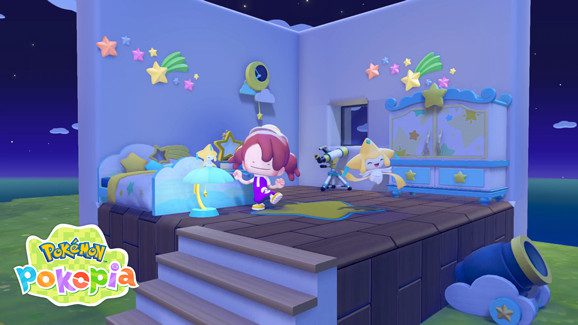
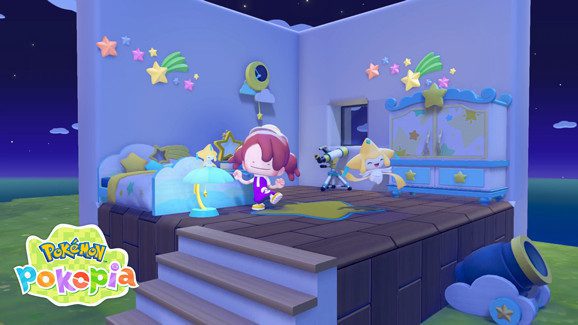
Pokémon Pokopia GameShare is started from the Palette Town Pokémon Center PC. Official game image: The Pokémon Company
Where do collected items go when GameShare ends?
Any items picked up by a GameShare visitor are sent to the Lost & Found when the visit ends. They are not carried away in the guest’s own permanent game inventory. That means it’s best to think of collecting materials as helping the host, not gathering supplies to take home.
If you can’t find something after a Pokémon Pokopia GameShare visit, check Lost & Found in the host’s town. This is the expected handling of guest-collected items, rather than evidence they were deleted.
GameShare versus normal Link Play
The standard multiplayer option is for people who each own Pokémon Pokopia. They can use a Link Code to visit other towns and, with Spectator Mode disabled in Palette Town, build and craft together. GameShare is more limited because a guest without a copy can only visit Palette Town and cannot craft.
If you both own Pokopia, use Link Play to explore towns beyond Palette Town. Use Pokémon Pokopia GameShare when one player doesn’t own the game and wants to try it or help with terrain.
How to end Pokémon Pokopia GameShare
The host can end GameShare from the Palette Town PC. There’s also a shortcut: press + to open the main menu, then press − to end the GameShare session. The guest’s access to the shared game ends with it.
Guests can leave early by pressing HOME and selecting Close. Items they picked up go to Lost & Found when they leave, rather than travelling with them.
Official source: The Pokémon Company’s official GameShare instructions.