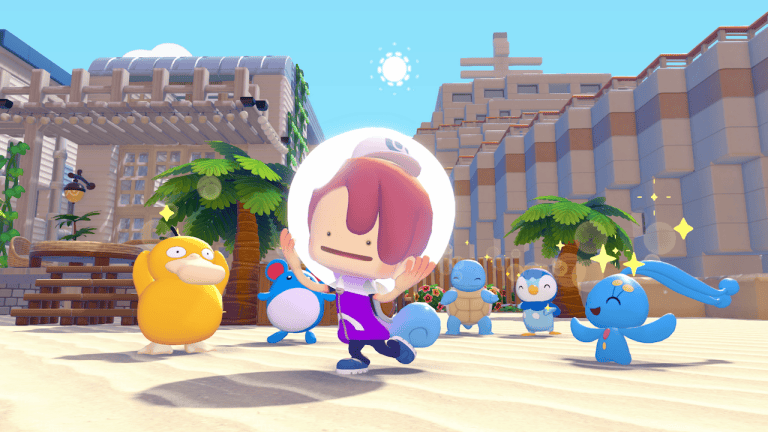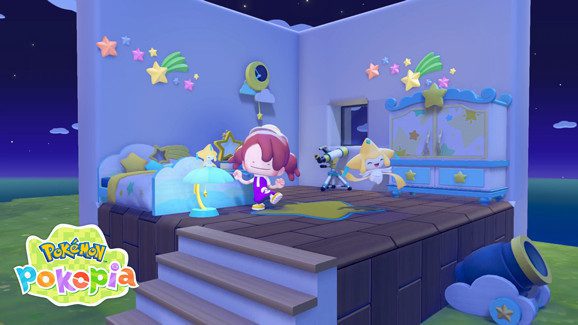
Pokémon Pokopia multiplayer lets you invite friends to visit your towns or travel to theirs through Link Play. You’ll find Link Play at a Pokémon Center PC. Online visits use a Link Code; local wireless sessions appear nearby, with an optional code for private visits.
You can look around another player’s world, discover Pokémon and take inspiration from their builds. There are restrictions, though: ordinary towns use Spectator Mode, while Palette Town allows friends to work on the same project. Here are the exact steps for each option.
Pokémon Pokopia multiplayer: How to invite friends
Start at the Pokémon Center PC in any of your towns. Hosting works in the same menu whether your friend is sitting beside you or connecting online.
- Press A at the Pokémon Center PC.
- Select Link Play in the bottom left.
- Choose Invite Others to Visit.
- Pick Local Connection or Online Connection.
- For Local Connection, choose whether to set a private four-digit Link Code. For Online Connection, the game provides a Link Code.
- Set the player limit (up to four including yourself) and check Spectator Mode.
- Press + to start. For online play, share the Link Code with your friends.
Standard Pokémon Pokopia multiplayer supports up to four players total, including the host. Local wireless requires a system and copy of the game for each player. Online Link Play requires Nintendo Switch Online and an internet connection. Everyone playing with their own copy should have the latest game update installed.
To finish hosting, open Link Play at the PC and choose Close the Connection. Visitors can leave earlier by opening Link Play and choosing Go Back Home.
How to visit a friend’s world
The host needs to start a session first. Ask for the Link Code if you’re joining online. For local visits, you’ll see nearby destinations and only need a code if the host set one.
- Press A at the PC and open Link Play.
- Select Visit a Friend.
- Choose Local Connection if you’re together or Online Connection if you’re apart.
- For Local Connection, choose the host’s town from the list and enter a code only if required. For Online Connection, enter the host’s Link Code.
- When the destination appears, choose Yes to visit.
If a Pokémon Pokopia multiplayer connection fails, confirm that both players chose the same connection type and the host’s session is still active. For online play, check the code, Nintendo Switch Online membership and game updates. For local play, select the correct nearby destination.
Where can friends build together?
The difference between sightseeing and building depends on Spectator Mode. In an ordinary town, the mode turns on automatically. It stops visitors from using certain moves and items, and restricts the host as well. Friends can still talk to Pokémon and view houses and habitats.
| Location | Setting | What friends can do |
|---|---|---|
| Ordinary town | Spectator Mode on | Limited moves and items; mainly visiting and looking around |
| Palette Town, mode on | Spectator Mode on | Visitors can explore but shared building remains restricted |
| Palette Town, mode off | Spectator Mode off | Players can use moves and items to build together |
To switch the mode off for collaborative building, invite people through the PC in Palette Town. You can also take friends there across the bridge from Withered Wasteland. Palette Town is the only area where the host can turn Spectator Mode off for ordinary visitors.
If friends can see the building site but cannot change anything, check that you’re in Palette Town and Spectator Mode is off. Only the host receives challenge progress and rewards; visitors can still order items from the PC Shop to receive after returning home.
Pokémon Pokopia multiplayer: Do Pokédex entries carry over?
Yes. Speaking to an unfamiliar Pokémon in somebody else’s town can add it to your Pokédex. Interacting with a habitat you haven’t recorded also adds information to your Habitat Dex. You don’t need to make that Pokémon a resident of your own town just to collect the entry.
You can also talk to a Pokémon in a friend’s world about visiting yours later. Bringing a new Pokémon of that species into a vacant habitat involves collecting Stardust and crafting a Star Piece. That’s a separate process explained in our Star Pieces guide.
The Pokémon Pokopia multiplayer visits also make it easier to discover furniture ideas. You can take reference photos of objects in a friend’s world and make copies at your own rebuilt Pokémon Center, provided you have the required Pokémetal.
Is GameShare the same thing as Link Play?
No. The usual Link Play method assumes every participant has their own game. GameShare lets a visitor who doesn’t own Pokémon Pokopia join a hosted session, but only in Palette Town. GameShare guests cannot use the PC or craft items, although they can help change the terrain.
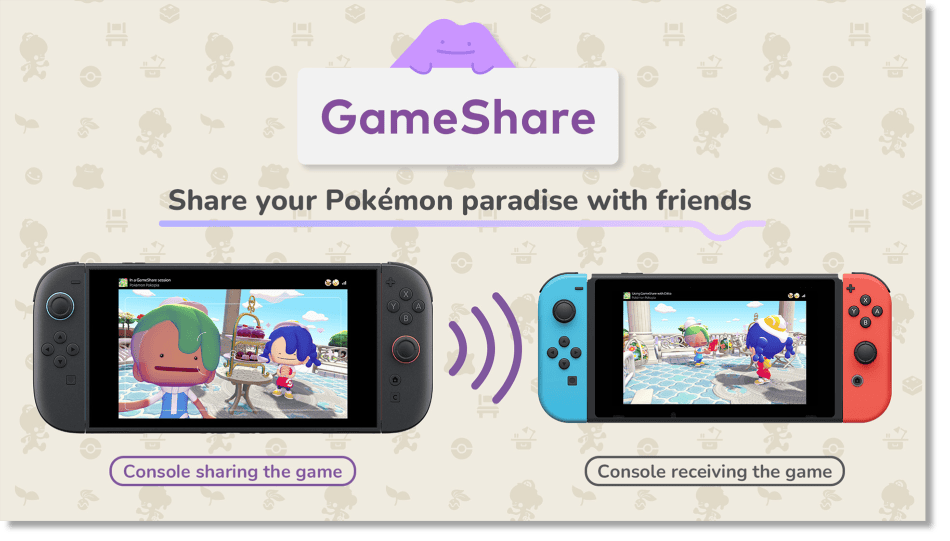
Pokémon Pokopia multiplayer has a separate GameShare option for visitors without the game. Official graphic: Nintendo
For a shared construction session between game owners, standard Link Play offers more freedom. If a friend only wants to try Pokémon Pokopia without buying it, use GameShare instead. Keep these two modes separate when choosing the connection method.
Pokémon Pokopia multiplayer: Why is Link Play missing?
First check which Pokémon Center PC you’re using and whether you’re in Palette Town. The full Pokémon Pokopia multiplayer building options depend on being in Palette Town, not merely entering another town with a visitor. For GameShare, the host must also start the session from Palette Town.
Nintendo says Link Play unlocks after roughly 30 minutes of play and reaching Environment Level 2, although some features require more progress. If the PC isn’t showing Link Play yet, carry on with the early town tasks before trying again.
Official source: The Pokémon Company’s Pokémon Pokopia multiplayer instructions.