Steam Per-Friend Notifications give you control over who appears in your activity alerts. You might want to know whenever a close friend starts playing while muting somebody who launches half a dozen games in an evening. You can make those choices without changing the rest of your friends list.
Valve’s October 28 Steam Client Beta also fixes a bug where personal preferences weren’t taking priority over the global settings, including in Big Picture Mode.
Steam Per-Friend Notifications: Where to find the settings
In the desktop Steam client, open Friends & Chat, right-click the person or use the arrow beside their name, then choose Manage > Notifications. Untick Use my default notification settings to change just that friend’s alerts.
Choose whether to show a toast or play a sound when that friend comes online, starts a game or sends a message. Those choices apply to that person, not everybody on your list.
How Steam Per-Friend Notifications override global settings
The default settings live at Steam > Settings > Notifications, with separate rows for When a friend comes online and When a friend joins a game. Your choices apply across the friends list unless you’ve set an exception.
For example, turn off general game-start toasts but enable them for someone you often play with. Steam Per-Friend Notifications should take priority for that person. Valve’s beta fixes cases where that wasn’t happening.
It works the other way too: silence one busy friend’s game alerts while keeping the rest of your list visible.
Online alerts versus game-start alerts
A friend-online notification tells you that somebody has connected to Steam. A friend-joins-game notification appears when they start playing a title. They’re separate events, and the settings can be adjusted independently.
A game invitation means someone has asked you to join their session. That’s different from simply opening a game, so check the event type before changing its alerts.
How to change toast banners and sounds
Open Steam > Settings > Notifications to see the main Show Notification Toasts control and Play a sound when a notification toast is displayed. The friend activity choices let you tailor the display and sound behaviour for those events.
For sound problems, check that friend’s own sound settings as well as the global toast and sound options. Steam Per-Friend Notifications can be enabled even when the default alert is muted.
Steam Per-Friend Notifications not applying: October beta fix
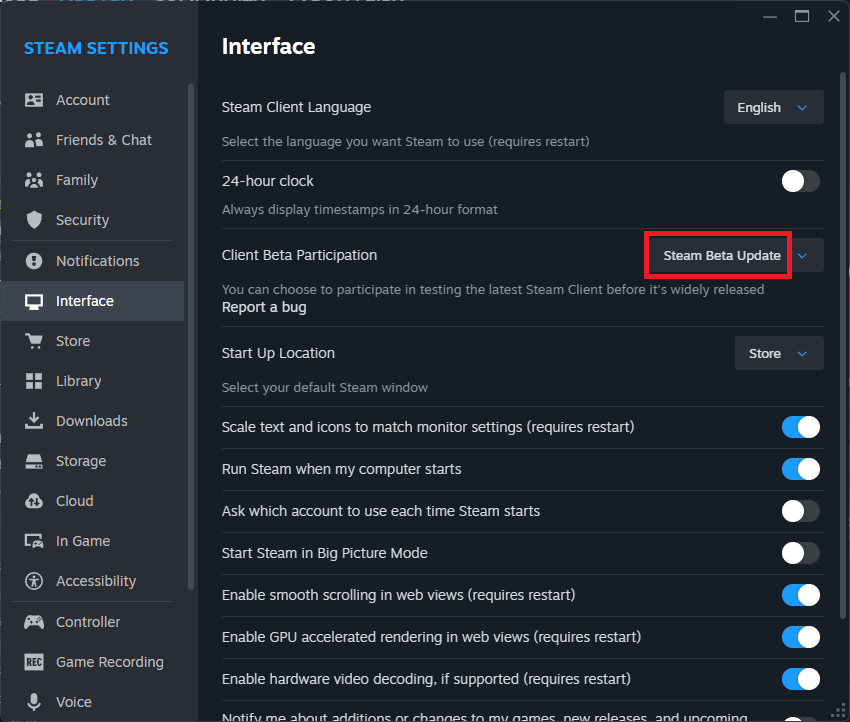
The October 28 beta repairs ignored friend-specific choices. If Steam Per-Friend Notifications still follow your global defaults despite a personal override, use that beta fix.
To try it on PC, select Steam > Settings > Interface, find Client Beta Participation, choose Steam Beta Update and restart. Steam downloads the beta client without reinstalling your games. Beta participation is optional, and the standard client can be selected in the same menu.
Steam Per-Friend Notifications in Big Picture Mode
Big Picture Mode also ignored some individual friend choices. Valve fixed that and made the Quick Access Menu more responsive to controller input in the same update.
On Big Picture Mode, open Settings > System > Beta Participation and select Steam Beta Update under Steam Client Update Channel to install the matching beta. Steam Deck uses separate SteamOS system update channels, so check the correct channel for the device you’re using.
How to reset one friend’s notification choices
To remove the exception, find that friend again in Friends & Chat, open Manage > Notifications and tick Use my default notification settings. Their alerts will follow your global preferences again.
Steam Per-Friend Notifications are especially useful if you only want to follow a few people. You can keep the useful game-start alerts without a constant stream of pop-ups.
What if a friend starts a game and no alert appears?
Valve also fixed a separate timing issue: game-start notifications could be lost when several friends launched titles within ten seconds. That was not caused by the per-friend toggle itself. If the same problem keeps happening, check the client channel as well as the individual settings.
Start with your global choices, then add the handful of exceptions that help you arrange games with friends. The October 28 beta ensures those preferences are applied correctly.
Related Guides
Official source: Valve: Steam Client Beta October 28 notification changes.