Xbox Remote Play Stuck at 1080p after the October console update? The new higher-quality mode is supported on Xbox Series X|S, but the stream can still run at a lower resolution if the receiving device or network cannot use 1440p. Start with your console’s display resolution and the installed system build.
Microsoft’s 28 October 2026 update added Remote Play at up to 1440p with higher bitrates. It also notes that Auto may choose a better stream quality than the menu suggests, so seeing 1080p in an older-looking preference doesn’t always prove the connection is limited to 1080p.
Xbox Remote Play Stuck at 1080p: settings checklist
- Check that you are using an Xbox Series X or Series S.
- Open Settings, System, Console info and verify OS 10.0.26100.9647 or later.
- Go to Settings, General, TV & display options.
- Choose 1440p or 4K UHD as Display resolution, where your connected display supports it.
- Make sure Remote features are enabled and start a Remote Play session on a supported receiving device.
- If stream quality offers an Auto option, select it and allow the system to negotiate the best quality for that device and connection.
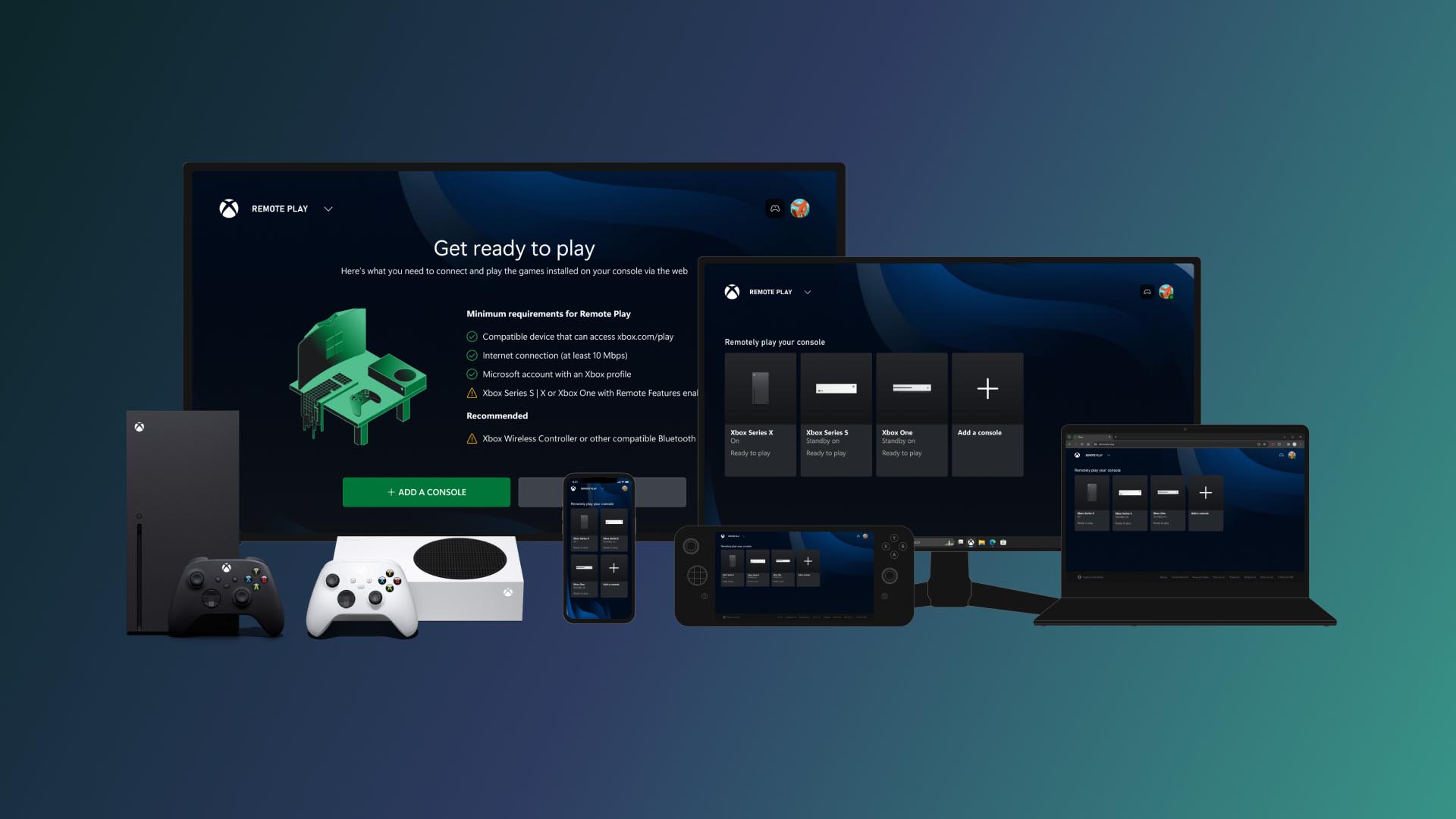
For Xbox Remote Play Stuck at 1080p, start by checking which console you own. Microsoft introduced the higher-resolution mode for Series X|S. An Xbox One console can still Remote Play, but it doesn’t acquire the new Series console capability through a browser setting.
Why Xbox Remote Play Stuck at 1080p may appear with Auto enabled
Auto selects streaming resolution and video bitrate according to what the remote device and network can handle. Xbox says some devices haven’t yet received independent settings for Cloud Gaming and Remote Play. A client can therefore display a lower-looking option while its Auto stream chooses the best supported setting in the background.
Keep the quality option on Auto when testing. If your connection becomes congested, the video can scale down; changing unrelated Cloud Gaming settings will not force Remote Play to 1440p.
Device checks for Xbox Remote Play Stuck at 1080p
Remote Play is available on supported web browsers, including compatible computers and mobile devices, through xbox.com/remoteplay. Microsoft also discusses televisions and other screens in its wider Remote Play support. Choose a receiving device with a screen and browser that support higher-quality video. A supported Remote Play browser isn’t automatically a 1440p-capable client.
Check the receiving device’s native screen resolution and use a supported, updated browser. If you use a 1080p-only monitor, the stream cannot appear as a full 1440p picture on that display. The Xbox Series X|S is the confirmed console-side requirement; individual client support still matters.
Does network speed fix Xbox Remote Play Stuck at 1080p?
A stable network matters, especially when using higher bitrate video. Xbox Auto quality responds to connection conditions, and network congestion can reduce effective streaming quality. If quality falls during a session, reduce other heavy network activity and test on a reliable connection before blaming the console update.
For Xbox Remote Play Stuck at 1080p, a fast connection is only one part of the picture. The console needs the October update and a 1440p or 4K display setting, while the receiving device must support the higher-quality stream.
Remote Play versus Cloud Gaming quality settings
Remote Play streams from your own Xbox console. Cloud Gaming runs games on Microsoft servers and has separate streaming controls and subscription requirements. Changing a Cloud Gaming-only quality option isn’t necessarily the same thing as changing Remote Play output, especially on clients whose settings are still being unified.
If Xbox Remote Play Stuck at 1080p is still your result after those checks, compare the stream on another supported device with a higher-resolution screen. Our 1440p setup guide covers starting Remote Play; the comparison guide explains where cloud-streaming limits apply.
Related Guides
Official source: Microsoft Xbox Wire: Remote Play 1440p settings and Auto quality.