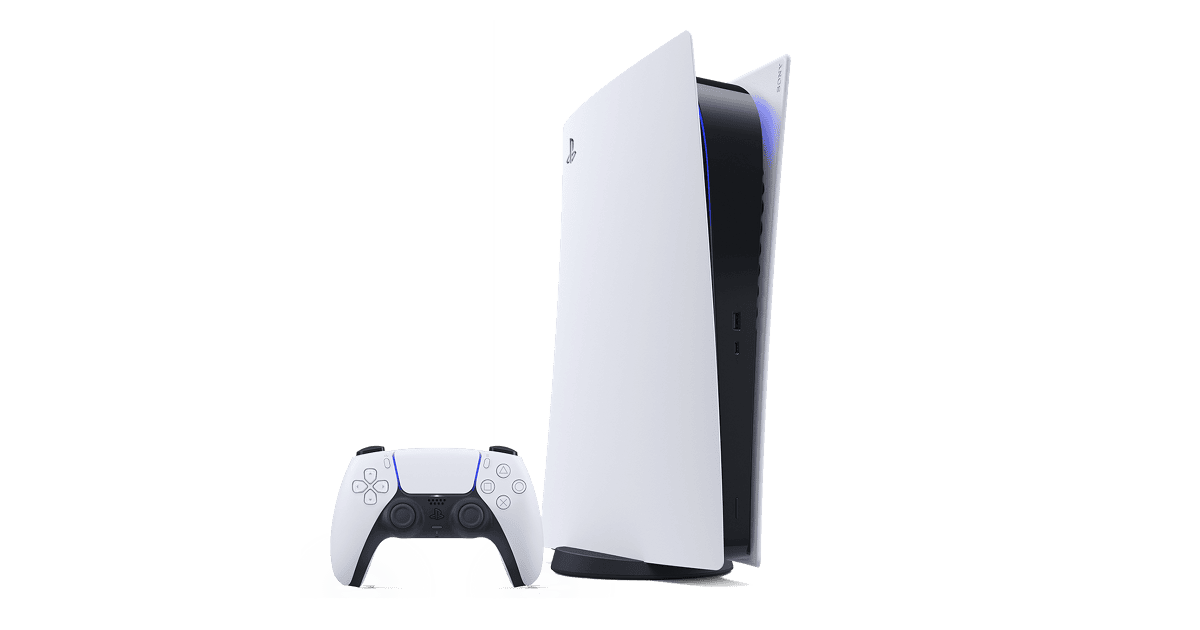
PS5 M.2 SSD Not Recognized should first be treated as a compatibility and installation problem. PS5 requires an M.2 NVMe SSD that meets Sony’s physical and performance requirements, and the drive must be installed correctly in the dedicated expansion bay. That distinction matters because an aggressive reset can waste time or erase data without touching the actual cause.
This guide keeps the risky steps at the end. Start by reproducing the problem once, note exactly what the screen says, and change one thing at a time. If a simple restart, update, cable test, or storage check solves it, there is no benefit in pushing into factory resets or repair tools.
PS5 M.2 SSD Not Recognized: What this message or symptom means
When PS5 M.2 SSD Not Recognized appears, the exact pattern matters more than the fact that something failed. One affected game, card, controller, drive, or connection usually points toward that item. The same failure across several unrelated items makes a console, storage, network, or system-software cause more plausible.
| The PS5 boots but does not offer to format the new M.2 SSD. | Check whether this affects one item or several before moving to destructive steps. |
| The drive was previously working and disappears after reseating or maintenance. | Check whether this affects one item or several before moving to destructive steps. |
| A newly purchased M.2 drive does not meet PS5 requirements. | Check whether this affects one item or several before moving to destructive steps. |
Quick checks before changing anything
Before treating PS5 M.2 SSD Not Recognized as a major hardware failure, capture the simple facts: what changed immediately beforehand, whether a restart changes the result, whether a second item behaves the same way, and whether an update is waiting. Those four checks prevent a surprising amount of unnecessary reinstalling.
- The PS5 boots but does not offer to format the new M.2 SSD.
- The drive was previously working and disappears after reseating or maintenance.
- A newly purchased M.2 drive does not meet PS5 requirements.
PS5 M.2 SSD Not Recognized: Step-by-step fix
Use this order for PS5 M.2 SSD Not Recognized. Finish one step, test again, and stop as soon as the original problem is gone. That keeps the troubleshooting useful because you know which change actually mattered.
- Power the PS5 off fully and disconnect power before opening the expansion bay.
- Confirm the SSD is an M.2 NVMe model that meets current PlayStation requirements.
- Check the heatsink and physical size do not prevent correct seating.
- Reseat the SSD at the correct angle and secure it with the spacer and screw.
- Reconnect the console and follow the format prompt if the drive is detected.
- If another compatible drive works, treat the first SSD as the likely fault.
Narrow down the cause
A drive that works in another computer is not automatically PS5-compatible. Interface, size, heatsink dimensions and required performance still matter.
The useful thing about this sequence is that PS5 M.2 SSD Not Recognized becomes easier to classify as you go. A result that follows one accessory or storage device is different from a result that follows the console everywhere, and that difference should decide whether you reinstall, replace, or seek support.
PS5 M.2 SSD Not Recognized: When repair or support makes sense
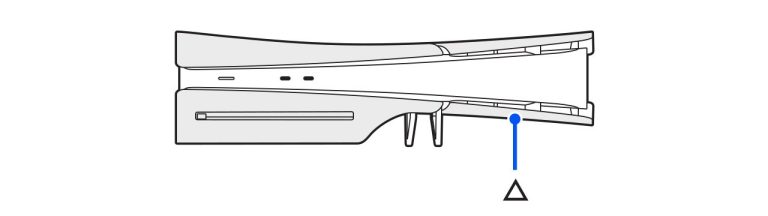
Installing or removing an M.2 SSD should only be done with the PS5 fully powered off and unplugged. Avoid touching connectors unnecessarily.
If PS5 M.2 SSD Not Recognized survives the official low-risk steps and the same failure can be reproduced with a second known-good accessory, card, drive, cable, game, or network where relevant, stop repeating the same resets. At that point the evidence is much more useful to official support or a repair centre than another round of guesswork.
PS5 M.2 SSD Not Recognized: quick checklist
- Confirm the exact PS5 M.2 SSD Not Recognized symptom before changing settings.
- Install relevant system, game, controller, or client updates.
- Test one known-good alternative where possible.
- Keep formatting, resets, and operating-system reinstalls until the end.
- Back up saves or local files before any destructive step.
PS5 M.2 SSD Not Recognized: common questions
Does every M.2 SSD work in PS5?
No. Sony publishes specific M.2 NVMe, size, cooling and performance requirements.
Will PS5 erase a new M.2 drive?
The PS5 formats supported M.2 storage for console use, so existing data on a reused drive should be backed up elsewhere first.
For most people, PS5 M.2 SSD Not Recognized is solved by identifying the layer that is actually failing rather than using the most dramatic fix first. Once the issue is stable again, keep the relevant software current and make a note of what solved it in case the same symptom returns after a future update or hardware change.
Click Flare: more platform fixes
- PS5 Error CE-108262-9
- PS5 Error CE-113338-9
- Update PS5 in Safe Mode
- PS5 update loop
- PlayStation guides
- PS5 Controller Not Connecting: How to Pair DualSense Again
- PS5 Game Not Starting: How to Fix Games That Will Not Launch
- PS5 Database Rebuild: What It Does and When to Use It
- PS5 Clear Cache: What It Does and How to Do It Safely
Official support: PlayStation Support.