
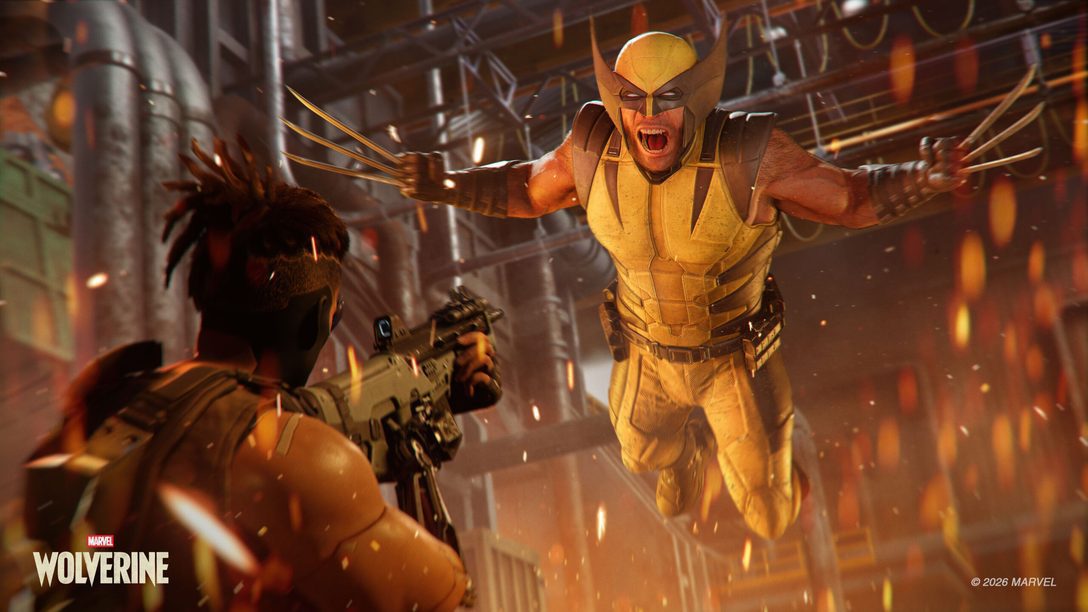
Wolverine Crashing on PS5 is one of the problems targeted by Update 1.002.000. Insomniac says the October 1 patch addresses community-reported crashes, progression problems and overall stability, so the first thing to do before deeper troubleshooting is make sure the game is fully updated.
The important limitation with Wolverine Crashing on PS5 is that Insomniac does not claim every possible crash is eliminated. The patch addresses crashes experienced by a small percentage of players, which means a persistent crash after updating still needs normal PS5 troubleshooting rather than assuming the patch failed for everyone.
First fix for Wolverine Crashing on PS5
Image credit: Insomniac Games / Sony Interactive Entertainment
The first fix for Wolverine Crashing on PS5 is installing Update 1.002.000 or later. Close the game, highlight Marvel’s Wolverine on the PS5 home screen, use Check for Update and let the patch finish before launching again.
After the update installs, restart the console rather than resuming an old suspended session. That gives the game a clean launch on the new files and avoids testing the fix inside a stale process that was already running before the patch.
What did Update 1.002.000 fix?
For Wolverine Crashing on PS5, Insomniac says the update addresses community-reported crashes and improves overall game stability. It also fixes progression issues, UI and Photo Mode problems, out-of-bounds bugs, visual polish issues and several accessibility behaviors.
The notes do not provide a complete list of every crash trigger, so avoid assuming one specific mission or graphics setting was the only cause. The patch is broader than a single reproducible crash fix.
If the game still crashes after the patch
If Wolverine Crashing on PS5 continues on the current build, fully power down the PS5, restart it and test the same section again. Then make sure the console system software is current and that the game is installed on healthy internal storage with enough free space for updates and temporary data.
If the crash only happens in one mission or immediately after loading a checkpoint, try loading an earlier checkpoint or using Mission Replay where available instead of repeatedly forcing the same broken state. Insomniac’s patch also targets progression issues, so a new checkpoint state may behave differently after updating.
Should you reinstall Marvel’s Wolverine?
Reinstalling can help if Wolverine Crashing on PS5 is caused by corrupted local game files, but it should not be the first step. Update, restart and test another checkpoint first. A full reinstall is much slower and will not fix a server-side entitlement or a bug that still exists in the current build.
If you do reinstall, back up or sync save data through the normal PlayStation tools first. Do not delete save data while trying to repair the game application unless support specifically tells you to do so.
Check accessibility and graphics settings only when relevant
Wolverine Crashing on PS5 does not have one officially confirmed graphics-setting workaround in the October 1 notes. QSSR is now the default reconstruction solution on PS5, but Insomniac presents that as an image-quality change, not a crash toggle.
If a crash consistently happens when using a particular accessibility or Photo Mode feature, note the exact setting and report it. The same update includes fixes for Navigation Assist, Lock-On, High Contrast and Screen Reader behavior, which shows why a precise reproduction report is more useful than random settings changes.
When to contact Insomniac Support
If Wolverine Crashing on PS5 remains reproducible after updating, restarting and testing another checkpoint, collect the game version, mission name, what you were doing immediately before the crash and whether it happens every time. That gives Insomniac a much more useful report than “the game crashes.”
Wolverine Crashing on PS5 should be less common on Update 1.002.000 because crash and stability fixes are explicitly part of the patch. If the same crash still happens, stay on the current build, preserve your save and troubleshoot the specific trigger rather than repeatedly reinstalling without evidence.
A useful final check is to compare the live menu with the current developer notes before changing accounts, saves or purchases. Live-service and post-launch features can move quickly, and the current build should always take priority over older screenshots or launch-week assumptions.
If something behaves differently on your system, capture the exact message, platform and game version before troubleshooting. That keeps a temporary service problem, an entitlement issue and a genuine gameplay bug from being treated as the same thing.





