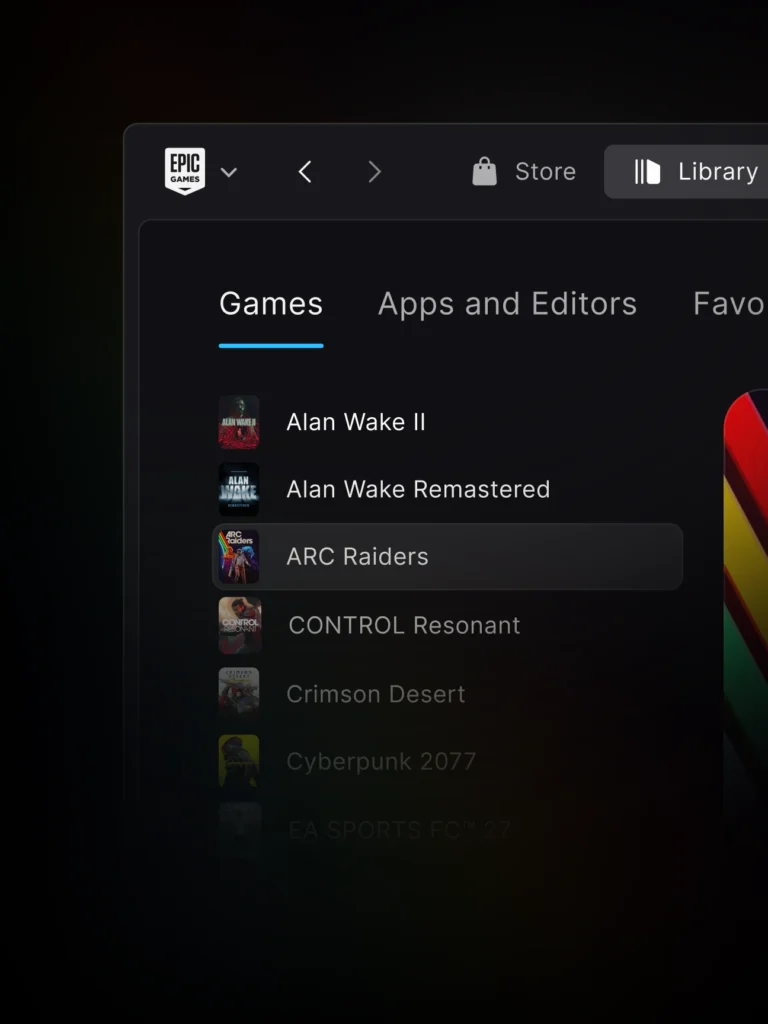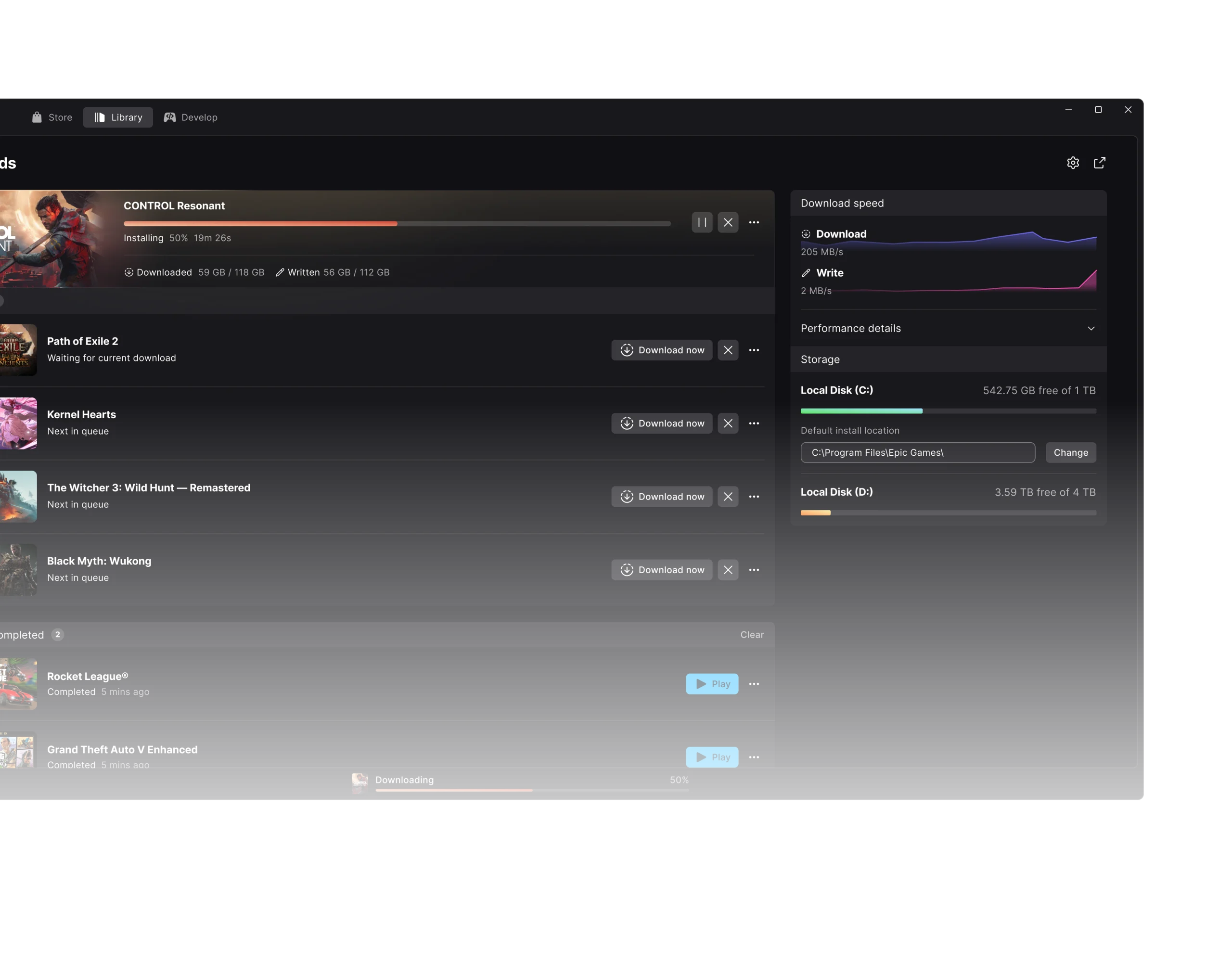
Epic Games Launcher Preview disk full downloads now pause when the installation drive runs out of room. Since version 0.113.0, the download queue waits instead of carrying on when there is no space left. Epic added that behaviour in Preview version 0.113.0 on 6 November 2026. If your download stops, check the drive you’ve chosen for that game before cancelling anything.
The same patch fixed a frustrating launcher-update error: if a mandatory update failed because storage was full, you previously couldn’t close the error message. That is a different fix from the queue change, and neither one guarantees your download will restart as soon as you clear space.
Epic Games Launcher Preview disk full: what changed in 0.113.0?
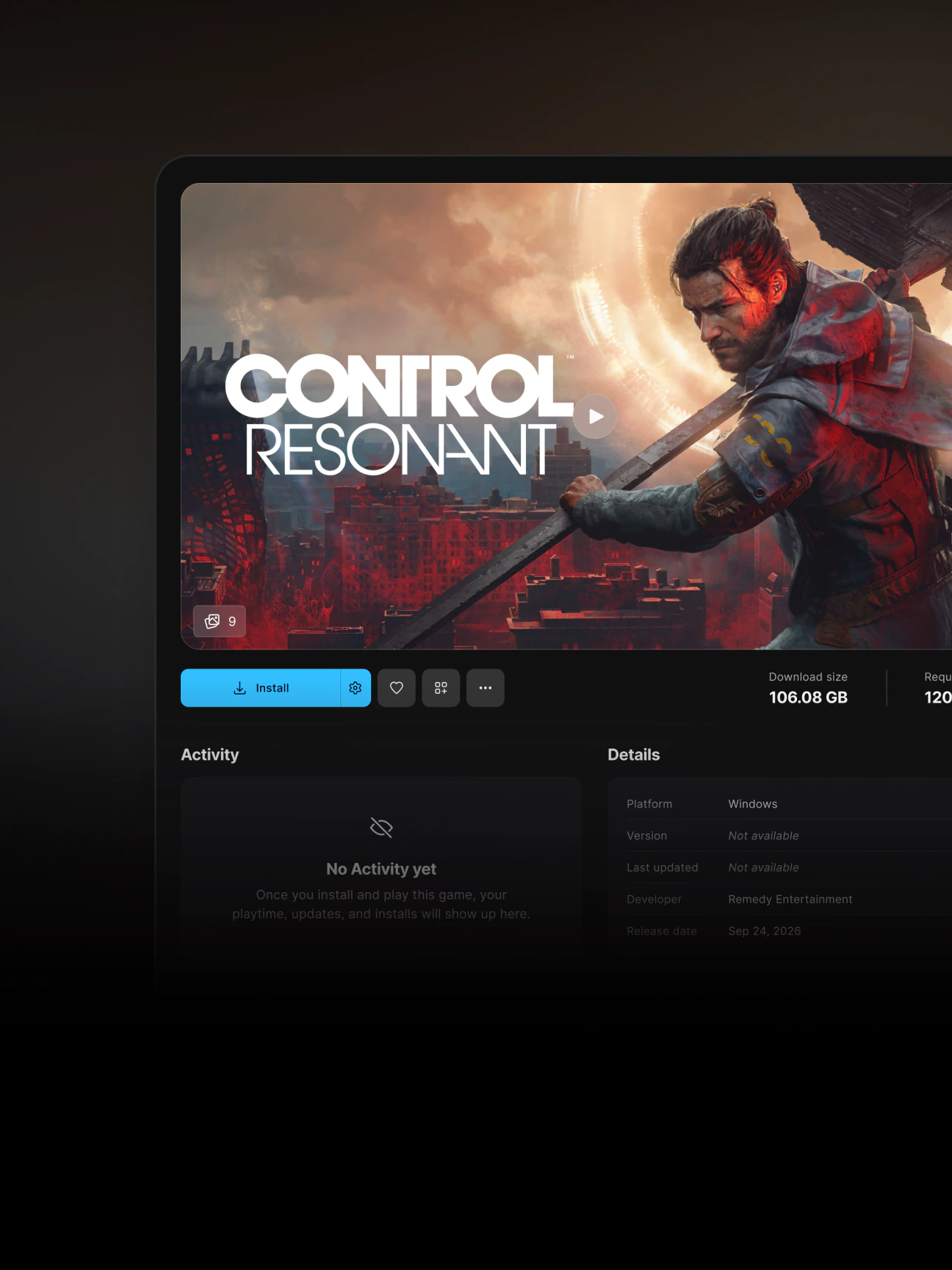
Epic’s 6 November notes cover two specific problems: the queue now pauses when a drive fills up, and the error from a mandatory launcher update failing for lack of space can now be dismissed. Epic does not say that downloads automatically resume. You’ll need to check the waiting task once you’ve made room.
There is a related change from 5 November. Version 0.112.0 warns when the drive holding an installed game reports errors. A drive error can mean trouble reading or writing data; it is not another name for running out of space. For an Epic Games Launcher Preview disk full warning, check the exact message first.
How to fix Epic Games Launcher Preview disk full downloads
- Find the destination drive. Open Downloads at the bottom centre of Preview. Under Default install location, choose Change to check the default folder; the Epic logo > Settings > Downloads also has this option. If you’re choosing a folder for a new game, use the cogwheel beside its Install button. Check the drive you actually selected, not just Windows C:.
- Check available storage. On Windows, open Settings > System > Storage, or look at the drive under This PC in File Explorer. On a Mac, check System Settings > General > Storage. Look at the installation drive, and remember that the launcher and temporary files may also need room elsewhere.
- Free space safely. Remove files you recognise and no longer need, empty the recycle bin if appropriate, or uninstall a game you no longer want through the launcher after checking what will be removed. Do not manually delete installed-game or save folders just to force a download to start.
- Return to Downloads. Look at the paused queue. If the task offers Resume, select it after making space. If nothing changes, use the Epic logo > Exit to close Preview, reopen it and check the queue again. Don’t cancel the download or delete its files before checking whether it can continue. For a download that stays stuck despite adequate storage, Epic advises Preview users to report the problem through the launcher’s feedback option.
- Check your Preview version. Select the Epic Games logo at the top left, then Settings > About > Version > Check now. Confirm a pending update once storage is available. The launcher update may need space on the system drive even if a game is installed on another disk.
An Epic Games Launcher Preview disk full issue isn’t necessarily explained by the download size shown. Installation and unpacking can need extra temporary space too. Epic does not give a fixed amount of spare space needed for every installation in these notes.
What if Epic Games Launcher Preview disk full keeps appearing?
Check that you freed space on the right drive. Changing the default installation folder doesn’t automatically move a game you’ve already installed. If you need a different disk, follow our guide to moving Preview games to another drive rather than dragging random folders around.
If Epic reports a drive error even with plenty of space available, use your operating system’s disk-health checks and back up important files if the drive is having trouble. Contact Epic Support if the launcher still fails. Moving a folder won’t repair a defective drive.
If you deleted an installation folder and the game still appears as installed, version 0.110.0 fixed that stale Library entry. That’s different from a game disappearing after an interrupted Library scan. For missing titles, see our missing games from Library guide.
Epic Games Launcher Preview disk full FAQ
Will downloads automatically resume after I free space?
Epic only says that a full-drive queue will pause and wait. It does not guarantee automatic resuming. Return to Downloads and check for a Resume control before trying more disruptive steps.
Do I need to uninstall Preview?
No. Don’t uninstall just because of an Epic Games Launcher Preview disk full warning. Removing Preview can remove your installed games as well. Since 0.100.0, the uninstall process offers a choice to keep games, but check the prompt carefully. Read our safe uninstall guide before using it.
Did 0.113.0 fix every disk problem?
No. Its download queue behaviour and the stuck launcher-update error are specific changes. Drive error warnings appeared in 0.112.0, and hardware trouble needs separate attention. Our November Preview patch notes cover all six November builds.
For an Epic Games Launcher Preview disk full problem, start with the destination drive, free some room, then check the waiting task. That’s a much safer first move than reinstalling the launcher and risking your game files.
Epic Games Launcher Preview disk full Related Guides
- Epic Games Launcher Preview November 2026 Updates
- Move Epic Games Launcher Preview Games To Another Drive
- Epic Games Launcher Preview Games Missing From Library
- Epic Games Launcher Preview Migration
- Uninstall Epic Games Launcher Preview Safely
- Epic Games Launcher Preview 0.108.0 Patch Notes
- Epic Games Launcher Linux Setup
Official source: Epic Games Launcher Preview release notes.