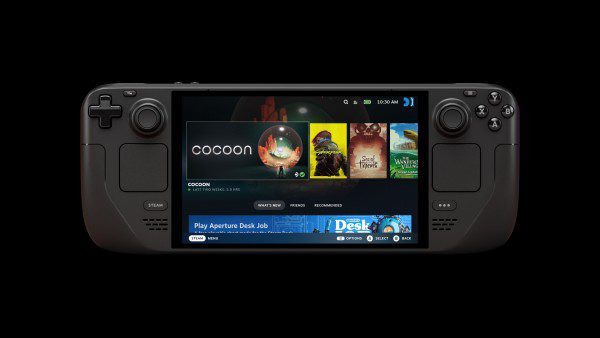
Steam Deck framerate data is now available on qualifying Steam Store pages. To see the average FPS for a game, open its Steam Deck Compatibility section and select Learn more. If enough players have shared performance information, you’ll find an average and an expandable graph showing the framerates they recorded.
That makes it easier to judge a game before buying it, especially when the Verified badge doesn’t tell you how smoothly it runs. Just remember that these are reports from different Steam Deck owners, not a test carried out with identical graphics settings. Here’s what the numbers mean, and why some games don’t have them yet.
How to find Steam Deck framerate data in the Steam Store
- Open the Steam Store page for a game you are interested in.
- Find the Steam Deck Compatibility panel on the game page.
- Select Learn more to open its compatibility details.
- Look for the average framerate figure and expand the histogram for a breakdown of the reported samples.
The figures also appear in the Steam Library for people using Steam Client Beta. You don’t need the beta to check a game’s Store page. If you’d like the Library version, our Steam Client Beta guide covers joining and leaving the test channel.
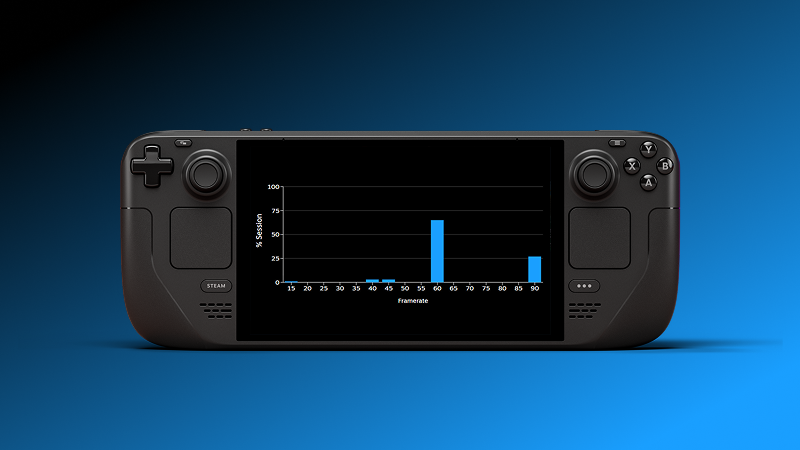
What does the Steam Deck framerate data histogram mean?
The average is a useful starting point, but the histogram deserves a look too. It shows the percentage of reported samples in different FPS ranges. If there are noticeable bars at the lower end, people have been encountering slower sections or hitches that the average alone would hide.
For example, an average of 45 FPS doesn’t mean a game runs at a perfectly steady 45. The readings might include smooth stretches and dips well below that. This is an example of how to read a chart, not a benchmark claim for any particular game. Steam Deck framerate data also isn’t a standardised 1% low test, so it can’t tell you exactly how long every stutter lasts.
One odd-looking pattern is worth knowing about. On the Steam Deck OLED’s 90Hz screen, VSync can produce readings clustered around 90 FPS and 45 FPS. Valve gives a repeating 90, 90, 45 sequence as an example: it averages 75 FPS. Even a game with an internal 60 FPS limit can bounce between those two displayed rates. So don’t assume the 90/45 split means half your playtime will be fast and half will be slow.
How reliable are the reported FPS figures?
Steam Deck framerate data comes from owners who have opted in to sharing anonymised measurements. Unlike a reviewer’s fixed benchmark route, it reflects a mix of games, settings and play styles. That’s useful for seeing what happens in ordinary play, but it’s also why one number can’t predict everybody’s results.
Valve filters the public figures to Decks using the default frame limits: 90 FPS for OLED and 60 FPS for LCD. It does not normalise graphics settings within individual games. Someone playing on Low may contribute alongside somebody who prefers higher image quality.
It’s better to treat Steam Deck framerate data as a guide than a guarantee. The overall figure isn’t an OLED-only benchmark, and it won’t tell you what your exact settings will deliver. Check the average, then look at how widely the results are spread.
This is different from the performance overlay on your own Deck. That overlay tells you what’s happening in your current game; the Store shows a summary from other players. If you’re troubleshooting your own display settings, our SteamOS frame limiter and VRR guide tackles a separate issue.
Why does a game have no Steam Deck framerate data?
The feature doesn’t cover every Steam title yet. Valve needs to have tested the game for Deck compatibility and collected enough opted-in reports to publish the result. That includes games rated Verified, Playable and Unsupported, but not necessarily every game in those groups.
Missing Steam Deck framerate data isn’t proof that a game runs badly. It may simply lack enough qualifying samples. Valve hasn’t published the minimum sample count, so there’s no reliable number to quote.
Does Steam Deck Verified mean a game will run at 60 FPS?
No. Verified doesn’t promise 60 FPS. It’s a separate compatibility rating, and Valve points out that some Unsupported games may still meet a player’s personal performance expectations. That’s why the framerate information is useful alongside the badge instead of replacing it.
Can you see average FPS for Windows PCs too?
Not yet. Valve has started asking desktop Steam Client Beta users to opt in to anonymised framerate reporting, but the publicly displayed averages in this release are for Steam Deck. There are no comparable charts for every Windows PC or graphics card. If you’ve seen the new prompt, our Steam anonymous framerate data guide explains how to change your preference.
Before buying a Deck game, check its Steam Deck framerate data, open the histogram and look for low-FPS readings. It’s more useful than judging the Verified badge alone, provided you remember that the measurements come from players using different graphics settings.
Related Guides
More Steam and Steam Deck guides from The Click:
- Steam Anonymous Framerate Data: How to Opt In or Out
- Steam Client Beta: How to Join and Leave on PC
- SteamOS 3.9.5 Update: Patch Notes and Steam Deck Fixes
- SteamOS Frame Limiter Not Working With VRR
- SteamOS 3.9 Desktop Mode: What Changed
- Steam Remote Play HDR and Steam Deck OLED
- SteamOS 3.8.28 Update: Graphics and Performance Changes
Official source: Valve’s Steam Deck Framerate announcement and FAQ.