Want to play PS5 games from external USB drive storage? The PS5 can store native PS5 games on a compatible USB HDD or SSD, but you have to copy them back to the console’s internal SSD or a supported M.2 SSD before playing them.
PS4 games are different: you can install and run them straight from USB extended storage on your PS5. That makes the drive you choose important, especially if you have a mix of PS4 and PS5 titles and don’t want to keep copying large games back and forth.
Can you play PS5 games from external USB drive?
No. Sony’s official storage rules say that PS5 game installation data can be kept on a SuperSpeed USB extended storage drive, but the game cannot launch from that location. A faster external SSD won’t let you play PS5 games from external USB drive storage, because the console still recognises it as USB extended storage rather than an internal or M.2 drive.
To play PS5 games from external USB drive storage, you must copy the installation back to the console’s SSD or a supported M.2 expansion first. This saves downloading the full game again if you have stored the installation on USB, but it means enough free console or M.2 space is needed before you start playing.
How to play PS5 games from external USB drive storage
Connect your existing USB extended storage drive to the PS5. Open the Game Library, go to the Installed tab and locate the PS5 game stored on USB. Highlight it, press Options and select Copy to return the game to console storage. To free up internal space again afterwards, highlight a game in your library, press Options and select Move Games and Apps.
Make sure the transfer completes before launching the title or unplugging the drive. Trying to play PS5 games from external USB drive while the installation is still stored only on USB will not work; the PS5 needs that native game data on console storage or installed compatible M.2 storage.
Why PS4 games work differently
PS4 games can run directly from a formatted USB extended storage drive attached to a PS5. You can also choose USB extended storage as the installation location for PS4 games, so they use less of your internal SSD space.
That makes a USB HDD or USB SSD a useful option for a large PS4 library. By contrast, if your priority is to play PS5 games from external USB drive without waiting for copying, you need to rethink the purchase: USB storage cannot provide the direct-launch feature you’re looking for.
USB extended storage requirements
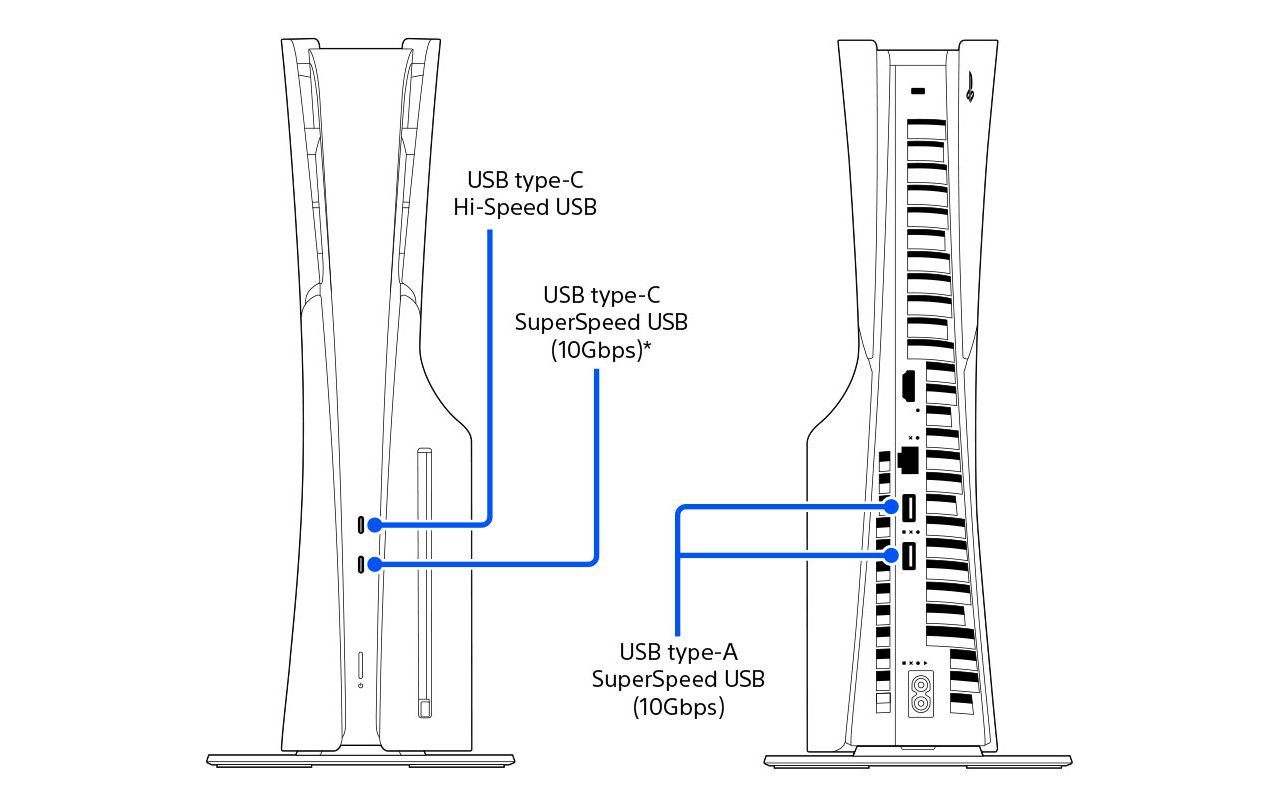
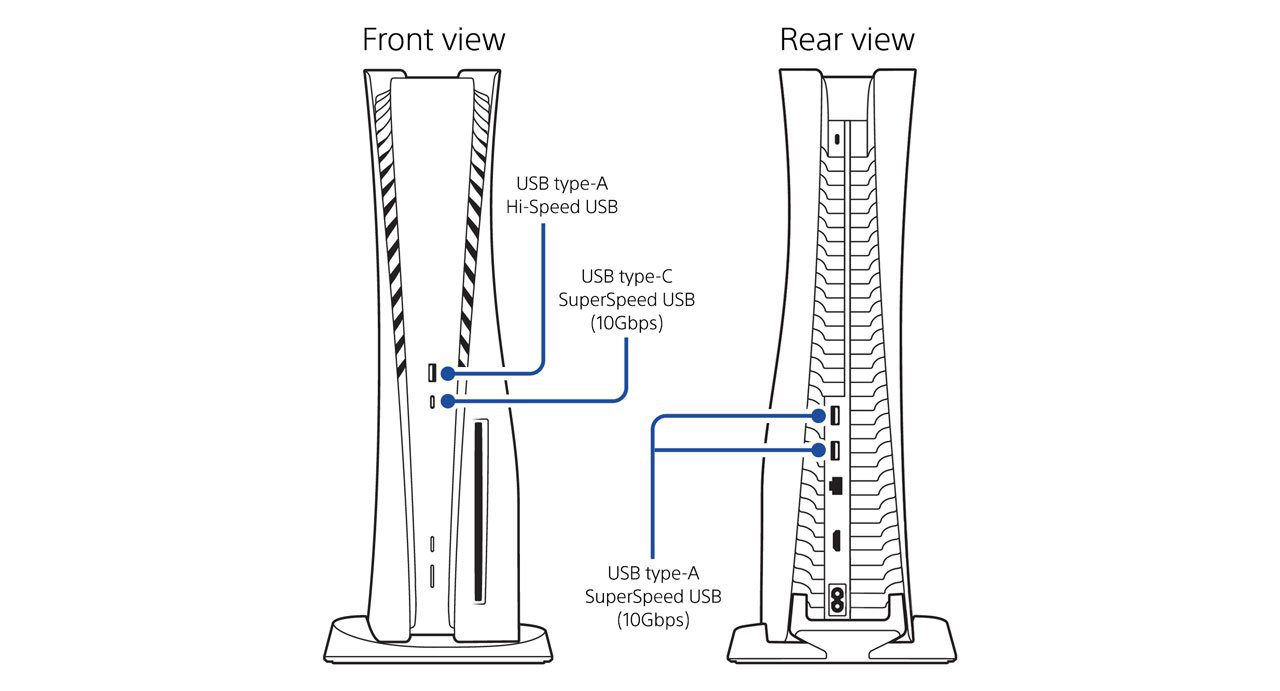
- Use a SuperSpeed USB connection rated at 5 Gbps or faster.
- Choose a drive between 250 GB and 8 TB in capacity.
- Connect directly to an appropriate USB port rather than through a USB hub.
- Only one USB extended storage drive can be used at a time.
- Check compatibility because Sony does not guarantee that every third-party USB device will work.
When setting up a new drive, connect it to a suitable SuperSpeed USB port and open Settings > Storage > USB Extended Storage > Format as USB Extended Storage. Formatting erases the drive, so back up anything important before proceeding. If the device has already been used as PS5 or PS4 extended storage, Sony says you generally do not need to format it again.
Use a supported M.2 SSD to play PS5 games from expanded storage
If you want the extra space to launch PS5 games without waiting to copy them, use a supported internal M.2 NVMe SSD expansion. It lets the console launch PS5 and PS4 games directly from that drive. A fast USB SSD still cannot do this. It must meet Sony’s interface, form factor, heat dissipation and compatibility requirements.
If you want to play PS5 games from external USB drive storage without copying installations every time, choose an internal M.2 expansion instead. Sony’s requirements include PCIe Gen4x4 NVMe with an appropriate heatsink and the supported physical dimensions. An ordinary external USB SSD, regardless of advertised transfer speeds, is not installed in the PS5’s M.2 slot. If the console fails to detect a new expansion, see PS5 M.2 SSD Not Recognized.
External USB game installs are not PS5 save backups
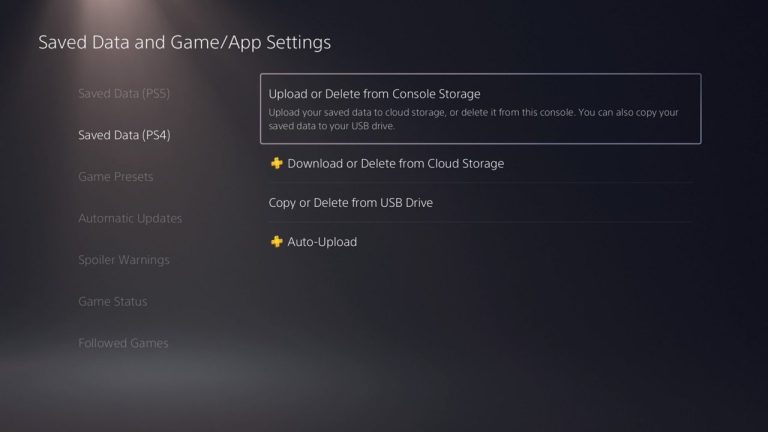
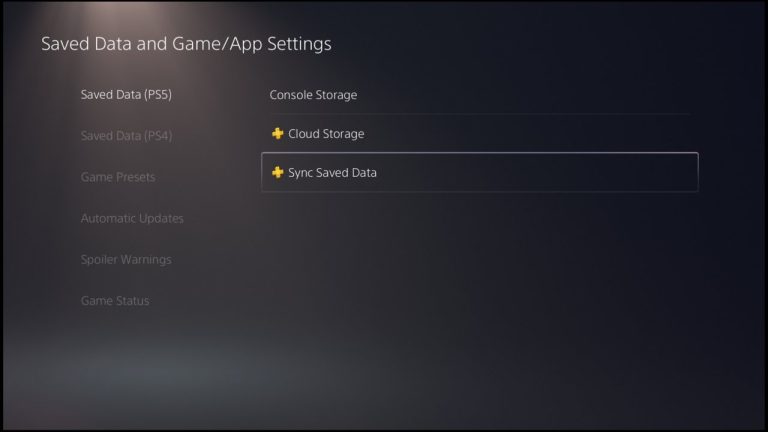
USB extended storage holds PS5 game installation files, not your individual PS5 save progress. You cannot use it as a convenient replacement for PlayStation Plus cloud saving or a complete console backup. Our Copy PS5 Game Saves to USB article explains which saves can actually be copied.
If your drive isn’t detected, check its connections and compatibility before formatting anything that might contain games or other files. Our PS5 External USB Drive Not Recognized guide covers the initial checks. To safely disconnect extended storage, use Settings > Storage > USB Extended Storage > Safely Remove from PS5 before unplugging it while the console is on.
So you cannot play PS5 games from external USB drive storage directly, even if it’s an SSD. Use USB to hold game installations, use the same drive to run PS4 games, or install a compatible M.2 SSD when you want more space for playing PS5 games.
Related Guides
Official source: PlayStation Support, USB extended storage on PS5 consoles.