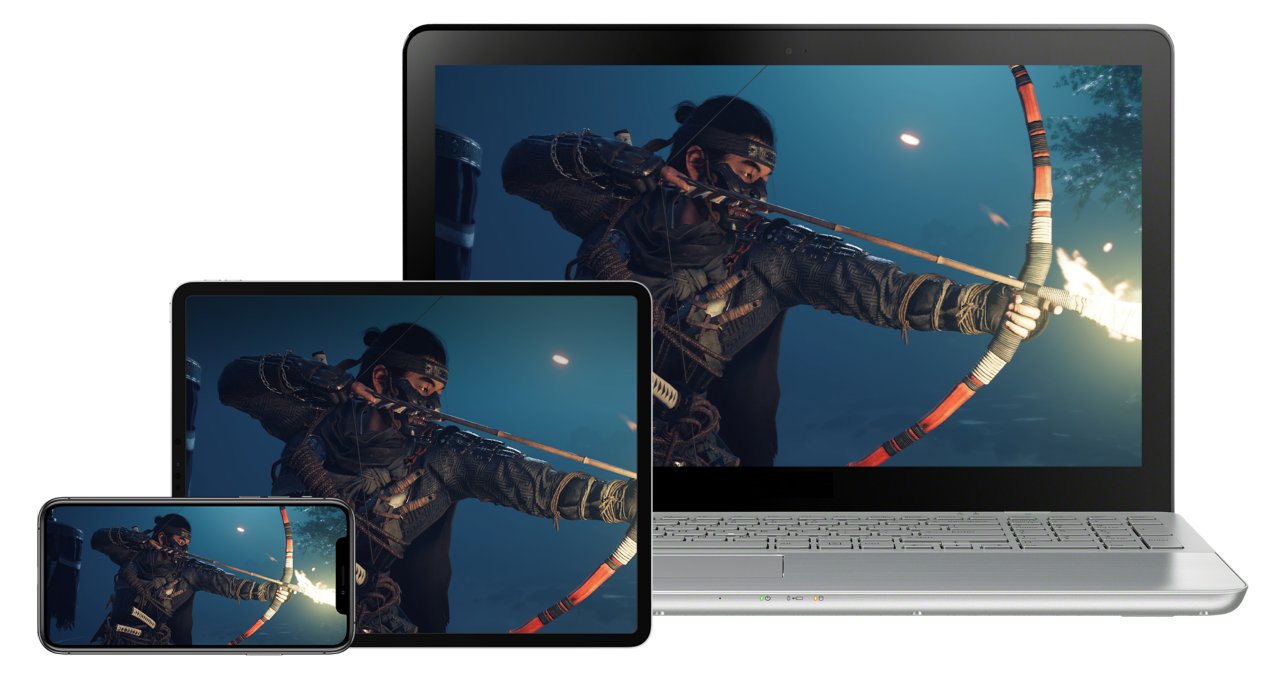
If you’re looking at how to use PlayStation Remote Play on PC after December’s PlayStation Plus app closure, you’ll need your own PS5 or PS4 connected to the internet. Remote Play is a separate, free application that controls your own console from your computer, rather than running a game on Sony’s cloud servers.
It’s handy when someone else wants the TV or you’re away from home, provided your console is still online. The setup works on supported Macs too, and Remote Play itself doesn’t require a PlayStation Plus subscription.
How to Use PlayStation Remote Play on PC: requirements
Sony lists Windows 10 (64-bit) or Windows 11, a seventh-generation Intel Core processor or later, 2 GB of RAM and at least 100 MB of storage. Your PC also needs a display resolution of at least 1024 x 768, a sound card and a USB port. Supported Mac systems include Big Sur, Monterey, Ventura, Sonoma, Sequoia and Tahoe, with 2 GB of RAM and 40 MB of storage.
You’ll also need the latest console software, the same PlayStation account on both devices and a compatible controller. Sony lists DualSense, DualSense Edge and DualShock 4. Connect the controller using a USB cable, and have a microphone available if you want to use voice chat. Sony recommends at least 5 Mbps upload and download, rising to 15 Mbps in both directions for the best experience.
How to Use PlayStation Remote Play on PC With a PS5
On your PS5, open Settings > System > Remote Play and switch on Enable Remote Play for your user. If you want to wake the console remotely, return to System, open Power Saving and select Features Available in Rest Mode. Turn on Stay Connected to the Internet and Enable Turning On PS5 from Network.
Leave the console on or in rest mode. A fully powered-off console cannot be started through Remote Play. Test the connection at home before heading somewhere else.
How to Use PlayStation Remote Play on PC With a PS4
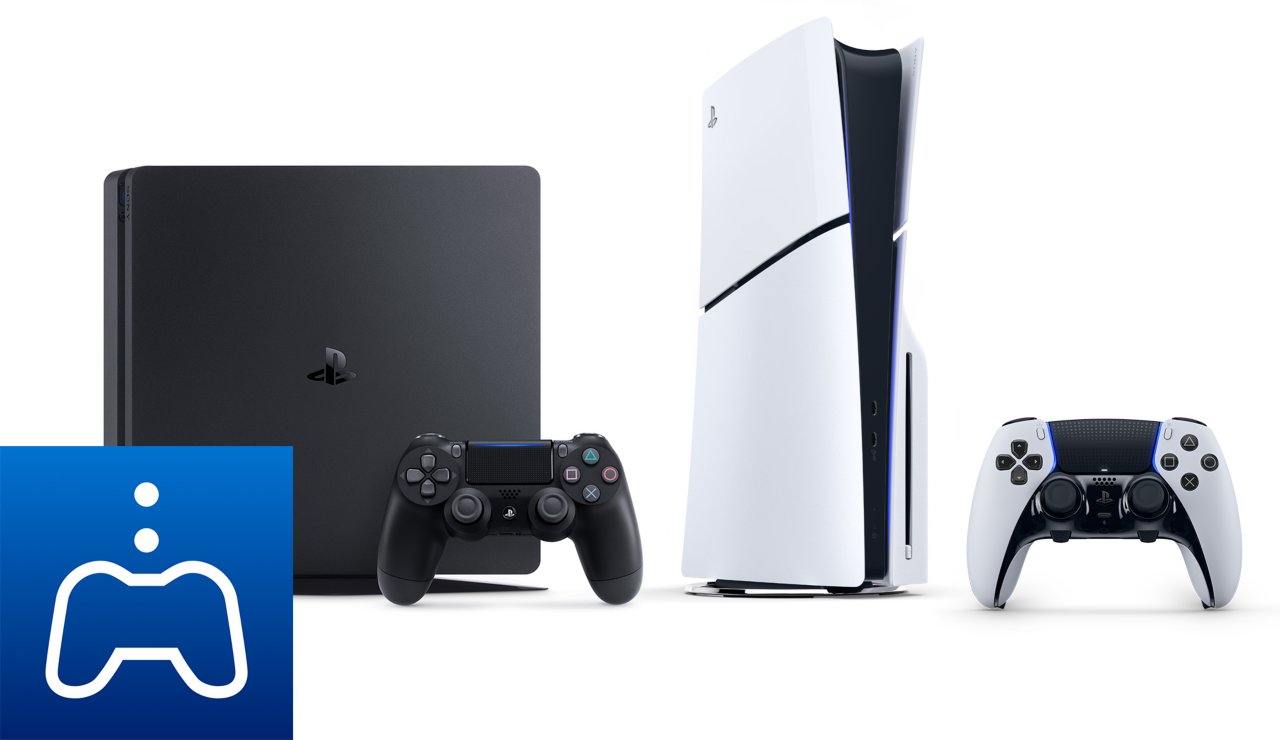
From the PS4 function screen, go to Settings > Remote Play Connection Settings and turn on Enable Remote Play. Under Account Management, select Activate as Your Primary PS4, then Activate. Each account can have only one primary PS4.
For rest-mode access, go to Power Save Settings and Set Features Available in Rest Mode. Switch on Stay Connected to the Internet and Enable Turning On PS4 from Network.
How to Use PlayStation Remote Play on PC: Pairing Your Console
Download PS Remote Play from Sony’s support page below, run the installer and connect your controller before opening the app. Sign in with the same account as your console and choose PS5 or PS4. If the console is online and ready, the app should find it automatically. The app’s Settings menu lets you adjust resolution and frame rate, which is useful if your connection struggles.
If automatic discovery fails, connect both devices to the same network. On PS5, open Settings, System, Remote Play and Pair Device. On PS4, select Add Device under Remote Play Connection Settings. Enter the number displayed by your console into the computer app.
Can you stream the Premium catalogue without owning a console?
Remote Play can’t relay a game that is already being cloud-streamed on your console. Games requiring PS VR, PS VR2 or the PlayStation Camera are also incompatible. If a compatible Game Catalogue title is downloaded on your own console, you can use Remote Play while your subscription gives you access.
If you don’t own a console, the PlayStation Portal can stream selected PS5 games directly from Sony with an eligible adult Premium account. Check the supported cloud library before buying the handheld; it won’t necessarily include every game you played on PC.