GTA 6 How to Auto Drive begins with a waypoint and one easy-to-miss feature: Cinematic Mode. Once Auto Drive is enabled, Jason or Lucia can steer towards your destination while you watch the journey instead of working the thumbsticks. It is a proper driving feature, not the instant journey skip you get from a taxi.
The awkward part is that opening Cinematic Mode does not switch Auto Drive on automatically. You need the right Gameplay setting, a car that can move, and the button prompt on screen. Here is the exact order on PS5 and Xbox, followed by the checks worth making if the prompt never appears.
GTA 6 How to Auto Drive on PS5 and Xbox
Open the pause menu and visit Settings > Gameplay > Auto Drive. Select Unrestricted if you want the feature available throughout ordinary driving. The Restricted option limits when it can take over, so it can make the prompt seem inconsistent even though the control has not disappeared.
Next, open the world map and put a destination marker on a road-accessible place. Get into a car or another supported vehicle and start moving. Hold Down on the D-pad and use Options on PS5 or Menu on Xbox to enter Cinematic Mode, then accelerate briefly with R2 or RT. When the Auto Drive instruction appears, hold Circle on PS5 or B on Xbox to hand over steering. Follow the prompt displayed by your own control layout if it differs.
What happens when Auto Drive takes over?
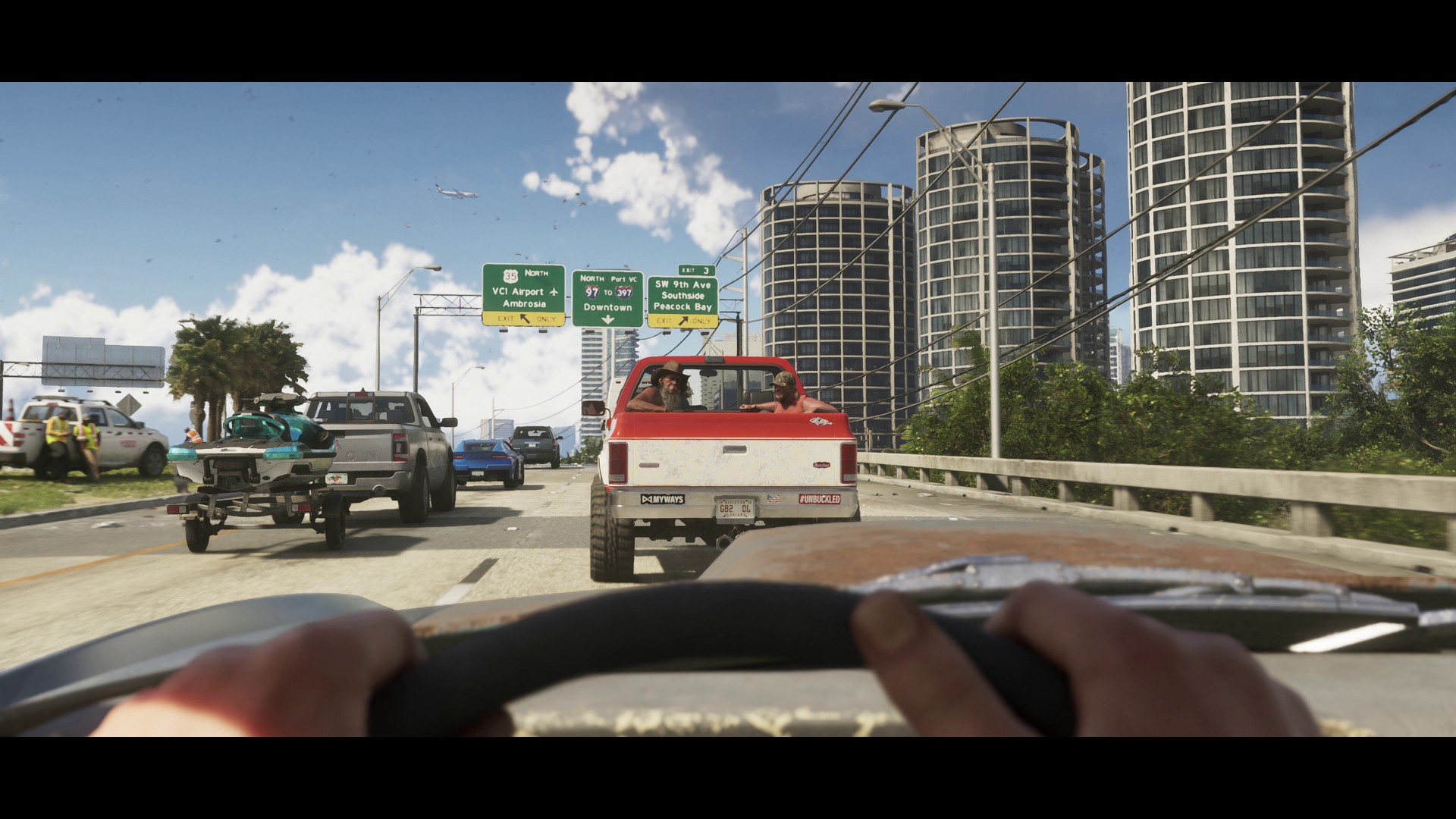
With a route selected, the driver follows the GPS line rather than simply pointing the vehicle straight towards the marker. That means turning through intersections and negotiating the traffic in Vice City. The journey still happens in the game world: there is no loading-screen jump, and crossing Leonida can take a while.
Once GTA 6 How to Auto Drive is working, the scenic camera is the main attraction. It is particularly handy when you want to watch a new neighbourhood pass by or take in an evening drive without holding the steering stick for every bend. It is still worth keeping an eye on the traffic, especially at busy junctions.
GTA 6 How to Auto Drive: Speed up, slow down or regain control
While Auto Drive is active, the controls documented in launch-day testing let you use R2/RT to speed up and L2/LT to slow down. Holding Down on the D-pad takes you out of the cinematic view. Pay attention to the on-screen prompt before intervening: you may need to retake steering yourself rather than expecting the car to keep going indefinitely.
Because Auto Drive follows a route, moving the waypoint can change where the car is headed. For a stop at a business, place the marker close to the road entrance instead of in the middle of a block. You will usually get a cleaner approach than a destination pin dropped in an inaccessible courtyard.
GTA 6 How to Auto Drive: Why the Auto Drive button may not appear
First check that the setting is Unrestricted. Next, look for a waypoint: a general map marker or mission marker is not always the same thing as an active player destination. The Cinematic camera needs to be engaged before the prompt appears. If you have only pressed Down once, you may be looking at Quick Navigation instead of Cinematic Mode.
Test the feature on a normal city road, moving forward slowly. A scripted chase, cutscene or active police pursuit can interfere with ordinary driving controls. Test it during free roam. Those situations can restrict normal controls. GTA 6 How to Auto Drive is easiest to learn on a quiet street before you rely on it during a long trip.
GTA 6 How to Auto Drive: Is Auto Drive the same as RydeMe fast travel?
No. A RydeMe or taxi ride can skip travel once you pay for the journey and the skip option; Auto Drive keeps you in the vehicle and lets the world continue around you. If you care about how Leonida looks, keep the cinematic ride. If you are racing to the next story mission and do not want to spend time on the road, fast travel is the better fit.
GTA 6 How to Auto Drive is also separate from the map’s Navigation Experience setting. Navigation Experience controls whether the minimap and compass appear dynamically or stay visible. It changes the information you see, not who is controlling the car.
Official source: Rockstar Games Support — Grand Theft Auto VI Settings.