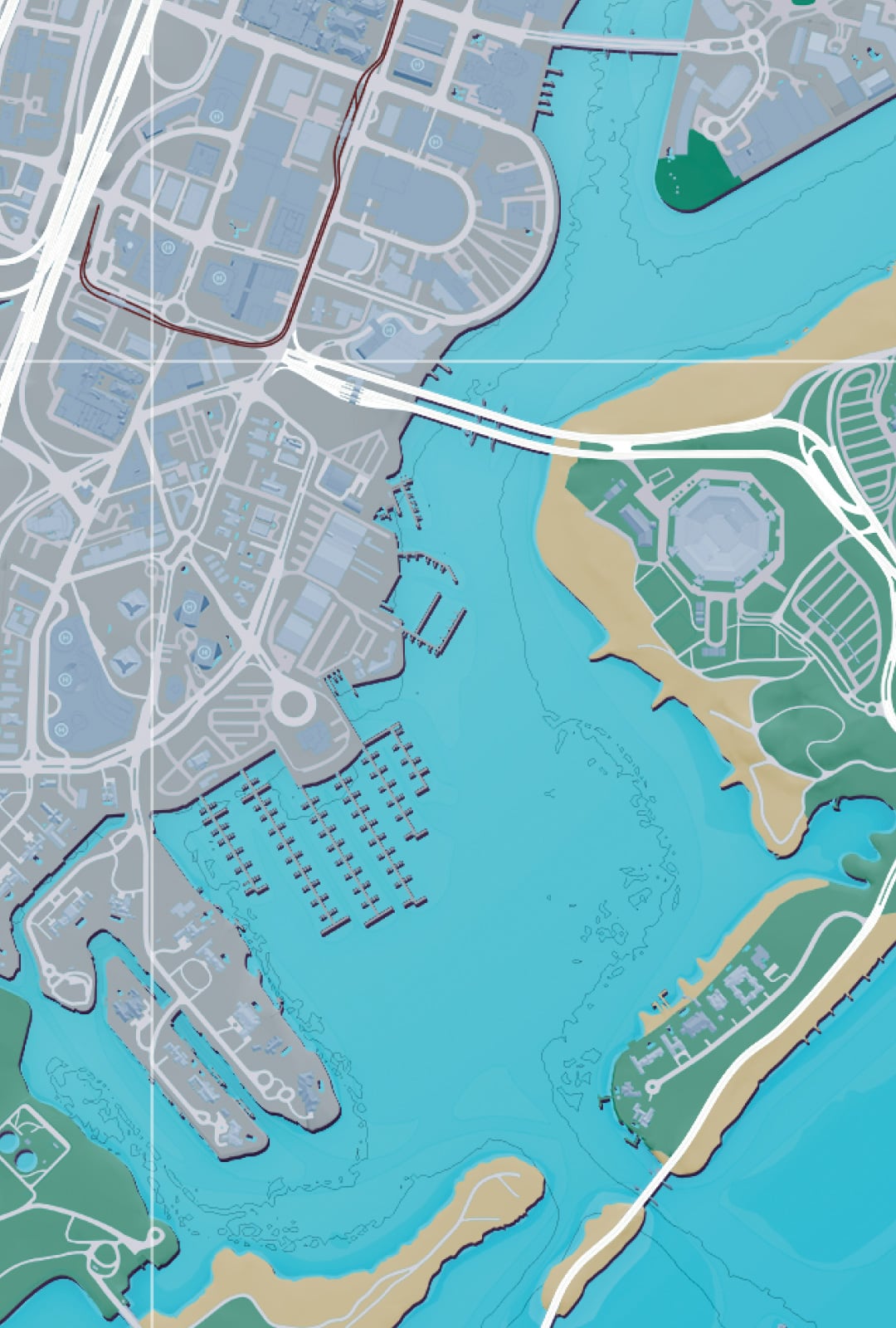
GTA 6 Map Icons Explained begins with the Index on the left side of the map. Open a category and you can see the missions, shops, activities and services you’ve discovered so far, without hunting for tiny symbols across Leonida. It’s the quickest way to find your next job when the map looks crowded.
The map doesn’t reveal every possible location the moment you begin the game. Some entries appear after exploration or story progress, and the Index is designed to help you sort what you’ve found. Here’s how to read the main icons and use them to get where you want to go.
GTA 6 Map Icons Explained: Main Index Categories
- Arrow / Personal: your vehicles, home, garages and ATMs.
- Pink diary / Story: main missions and optional story jobs available to you.
- Money bag / Robberies: discovered robbery opportunities, gang locations and drop-offs.
- Dumbbell / Activities: gyms, races, sports, fishing, hunting and other leisure locations.
- Magnifying glass / Exploration: points of interest, stunts, discoveries and optional exploration tasks.
- Car / Vehicles: mod shops, Pay ‘n’ Sprays, fuel stations, transport and garages.
- Gun / Weapons: known Ammu-Nation stores and other weapon retailers.
- Shirt / Style: clothing shops, hair salons, tattoos and cosmetic services.
- Knife and fork / Food: restaurants, bars, convenience shops and other places to eat or drink.
These are the broad Index groupings, not an exhaustive dictionary for every small marker on the screen. An individual shop can have its own symbol or appear only once you’ve discovered it. The Index is usually more reliable than guessing what a tiny picture represents from a promotional map.
GTA 6 Map Icons Explained: Opening the Index
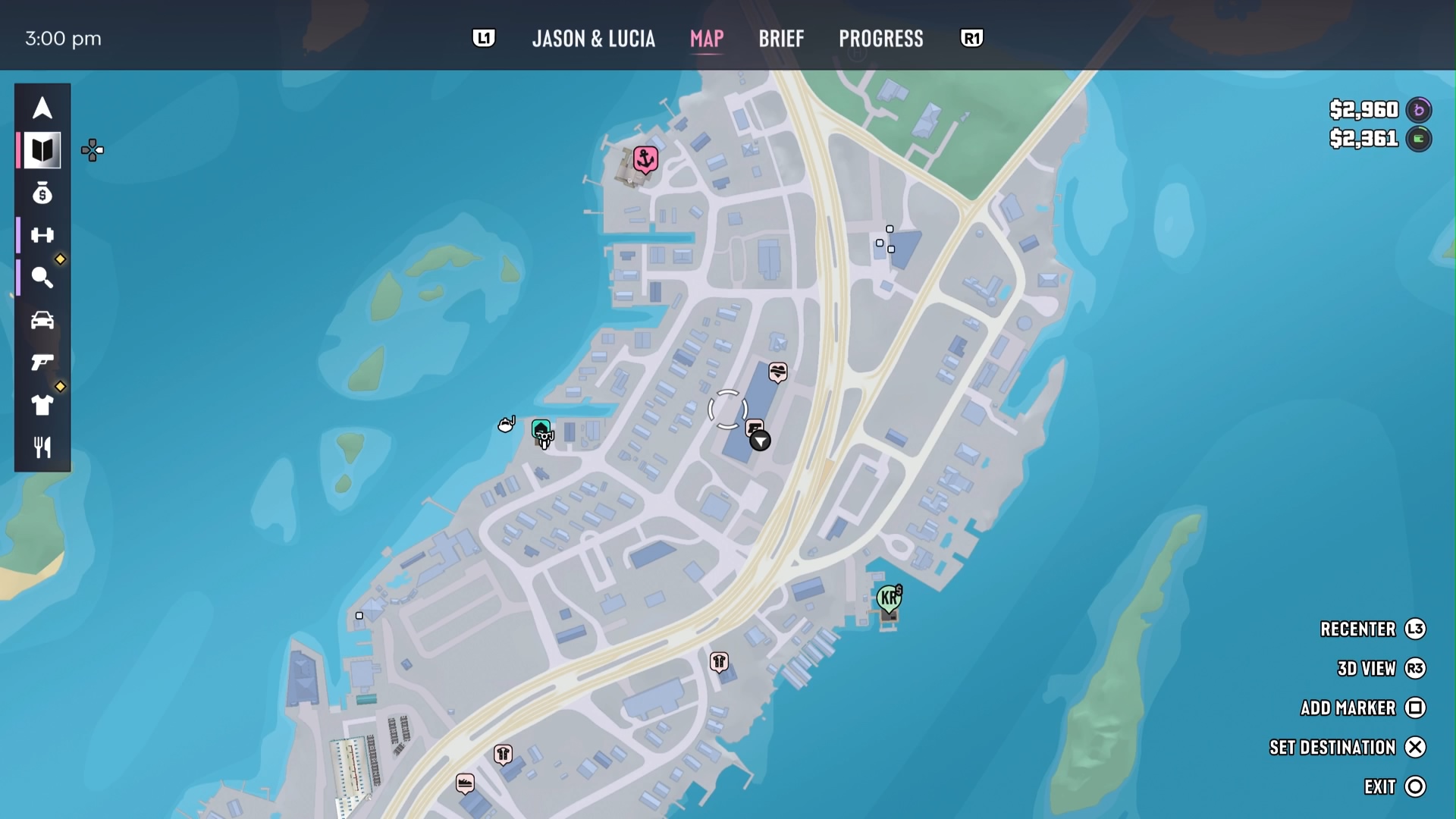
- Press the Touch Pad on PS5 to open the map. On Xbox, use the controller’s map input shown in Control Scheme.
- Look for the column of symbols down the left side.
- Press Right on the D-pad to expand the Index.
- Choose Story, Activities, Vehicles or another category to view the entries you’ve unlocked.
- Select an entry to read its description and show its position on the map.
You can return to the Index whenever you’re unsure what to do next. The Story group puts currently available narrative missions together, including optional jobs, making it much easier to plan what to complete before moving ahead in a chapter.
GTA 6 Map Icons Explained: Pink Story Diary
The pink diary symbol opens the Story category. It shows missions available at your current point in the campaign, and you’ll often see both required story progress and optional work. This is particularly useful if you’ve just finished a mission and can’t immediately find the next objective on the street.
A missing mission marker doesn’t necessarily mean you’ve run out of story. Open the book icon, look through the entries and check whether a character, task or story trigger is waiting elsewhere. If a job still isn’t visible, the game’s progression may require another objective first.
GTA 6 Map Icons Explained: Orange Diamonds
Newly discovered opportunities can be flagged by an orange diamond in the Index. That gives you a quick way to spot what’s been added since you last checked, rather than hunting through familiar shops and story markers. If you’re exploring a new neighbourhood, look for these indicators after travelling a few streets.
Discovery and availability aren’t the same thing. A place can be visible without offering every possible service immediately, and some activities depend on the story. The Index tells you what’s known at that moment; it isn’t a promise that every future mission or upgrade is accessible right now.
GTA 6 Map Icons Explained: Destinations and Markers
Highlight a mission or location in the Index and press Cross on PS5 to set it as the active destination. The map will provide a route where available. If you’re in a hurry, you can also use Quick Navigation to point toward nearby places without working through the whole menu.
There is a difference between a destination and a marker. The game supports one active destination at a time, but you can leave additional markers on the map to remember places for later. On PS5, Square places a map marker. That makes it easier to revisit a promising shop or activity after you finish your current objective.
GTA 6 Map Icons Explained: Missing Shops and Activities
- You may not have visited the location or unlocked the relevant entry yet.
- You may be looking in the wrong Index group, such as Personal rather than Vehicles.
- A mission or activity may be tied to current story progress.
- The symbol may be obscured by the map’s zoom level or other nearby markers.
- Your UI navigation preferences may be hiding some in-world prompts or minimap elements.
Try checking the full Index rather than just the minimap, then revisit the neighbourhood if you’re sure something should be nearby. For visibility problems, Settings > UI > Navigation includes map and minimap blip sizes and in-world markers, so you can make the interface easier to read.
GTA 6 Map Icons Explained: Is There a Full Legend?
If you’re looking for GTA 6 Map Icons Explained in a single picture, the in-game Index is the best reference, even though Rockstar doesn’t put every symbol on one page. Be wary of fan-made images labelled as a complete GTA 6 icon list, especially ones circulated before the game’s release. Many are interpretations, and they may mix confirmed places with guesses.
For ordinary play, you don’t need to memorise dozens of symbols. Learn the nine Index categories, check the pink diary for missions, and use the map descriptions to work out what a newly discovered place offers. That solves most navigation questions faster than decoding every blip by colour alone.
Official source: Rockstar Games Support, How to Change Grand Theft Auto VI Settings.