If your Fortnite Jam Track quest not counting problem has the tracker stuck at 0/25, check the music mode first. The Week 3 challenge asks you to search containers while listening to the Jam Track Player. Fortnite’s Listen option is what you want, not a Jam Loop performed on an instrument.
This has caught out plenty of players because both modes play music. Some have also reported their progress staying at zero after opening chests. The most useful approach is to test one fresh container at a time, starting with the steps Epic confirms.
Fortnite Jam Track quest not counting: check Listen mode first
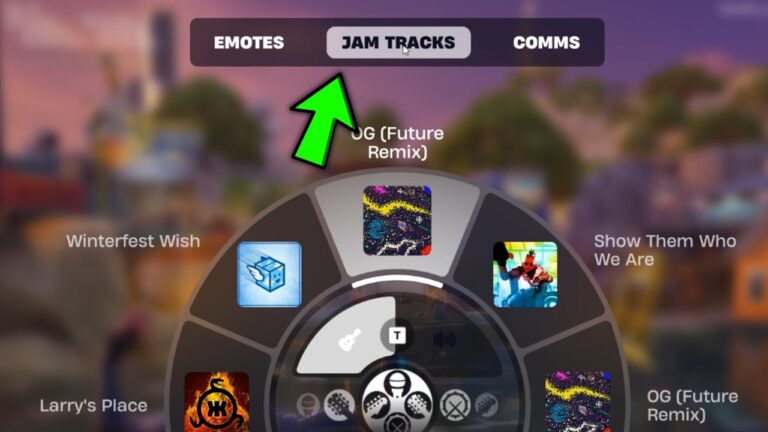
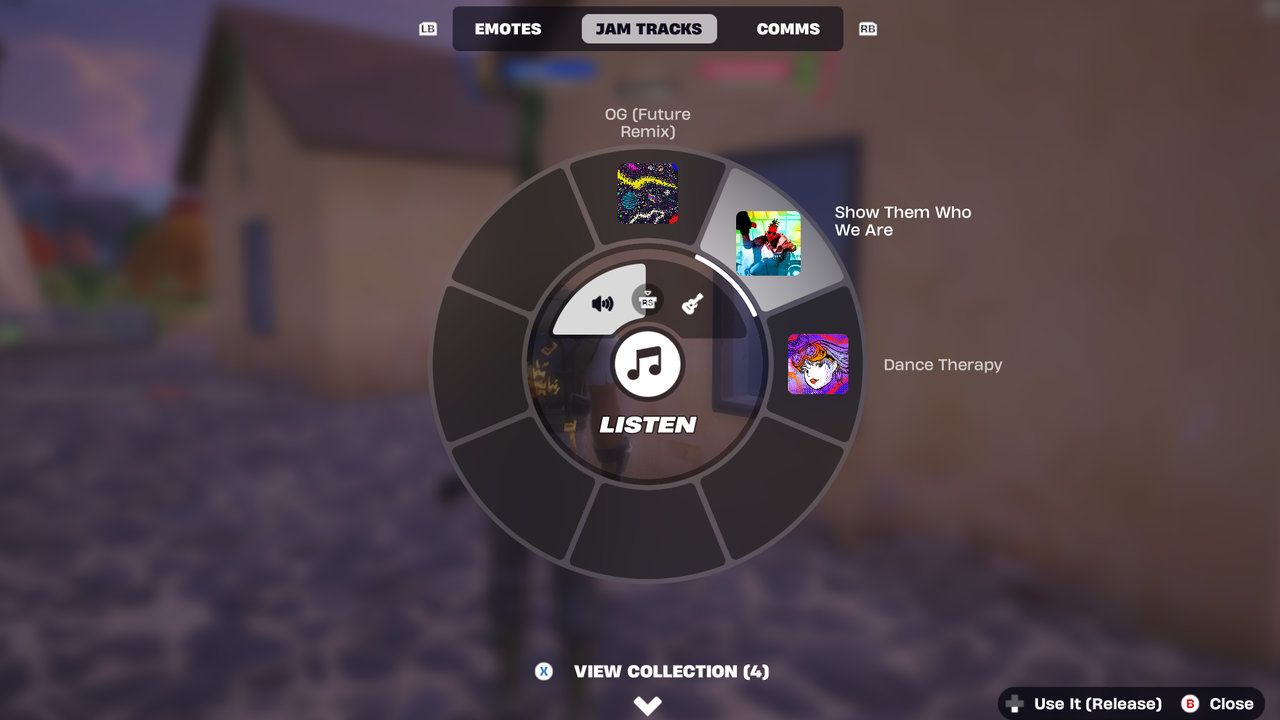
Open the Emote Wheel during your match and move to Jam Tracks. Choose a track in your collection, then set the player to Listen. Epic’s official support page says some quests require listening rather than performing with an instrument.
If your character is jamming on a guitar or playing drums, switch modes. Once the song is running in the background and you can move normally, search one unopened chest and see whether the counter increases. There’s no point opening another twenty-four until that test works.
Fortnite Jam Track quest not counting when you break chests?
Another reason for Fortnite Jam Track quest not counting may be the way you’re collecting loot. The objective says Search, so walk up to a chest or ammo box and use its interaction prompt. Smashing the container or breaking the floor beneath it can spill the loot without registering a search.
Players troubleshooting this Week 3 task have reported that manual searches work more reliably than destroyed chests. The easiest test is an ordinary unopened chest in a quiet building. Make sure Listen is active, use Search and watch the tracker before moving on.
Fortnite Jam Track quest not counting after the Battle Bus?
There’s also a player-reported timing problem. Some found that the count stayed at zero if they started Listen on the pre-match island or before leaving the Battle Bus. Restarting the music after landing helped them. Epic hasn’t confirmed that as a universal bug or official fix.
You can test that without losing a whole match: stop the track, start it again on the ground and open one fresh container. If the counter moves, keep the song running while you continue. You can work towards the 25 searches over several games.
Fortnite Jam Track quest not counting even in Listen mode?
If the Fortnite Jam Track quest not counting issue continues, confirm that the Week 3 objective is still active and you’re in Treasure Hunters Battle Royale. A counter that looks frozen may also be a display problem; checking the quest again after a match is worthwhile, but restarting the game isn’t an Epic-confirmed cure.
When Listen, Search and the right playlist are all in place and a fresh match still doesn’t count, take note of your platform and what you tried. A report to Epic support with those details is more useful than a vague “quests are broken” message.
Can you complete the Jam Track quest without buying music?
You can use a Jam Track you already own. The challenge doesn’t name a paid song, artist or Music Pass reward. Our Jam Track Player controls guide shows where to find the music and switch modes.
The quickest way past a Fortnite Jam Track quest not counting problem is to work in order: Listen mode, a manual Search, then a song restarted after landing if needed. If you’re still learning the quest, the 25-container walkthrough covers it from the beginning.
The Week 3 challenge gives 20,000 XP when all 25 searches register. There’s no verified secret chest or exotic item that forces the counter to move, so focus on the two interactions the game actually tracks.
Related Guides
- Fortnite Treasure Hunters Week 3 Quests
- Fortnite Drop Off a Sprite at Friendship Villa
- Fortnite Survive Storm Phases With a Specialist
- Fortnite Search Containers While Listening to the Jam Track Player
- Fortnite Launch Into the Air From a Cannon
- Fortnite Slone Phone Lantern Landing
- How to Use Jam Track Player in Fortnite
- Fortnite Board a Ship With the Leekcapper
- Fortnite Captain X Rewards
Official source: Epic Games’ Jam Track Player support page.