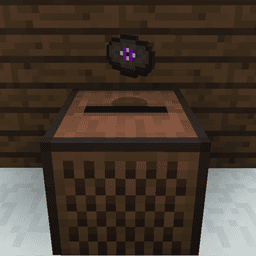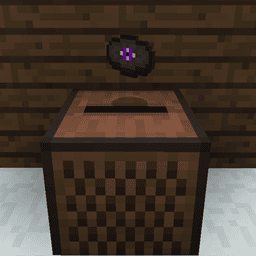
Minecraft Jukebox Playlist lets one Jukebox automatically play a sequence of Music Discs stored in a Chest directly above it. Introduced in Java 26.4 Snapshot 4 and Bedrock Preview 26.70.20, this system reads the discs in inventory slot order, moves on after each song and loops back to the beginning.
Normal, Trapped and Copper Chests work with the new playlist system, which ignores empty slots and unrelated items. Java Snapshot 6 also fixes three problems involving Sculk Sensors, ejected discs and a music-toast crash. Here’s how to set up a playlist and what changed.
How to set up a Minecraft Jukebox Playlist
- Launch the new snapshot or Bedrock preview rather than the stable game.
- Place one ordinary Jukebox in your build.
- Place a Chest directly above the Jukebox.
- Open the Chest and add the Music Discs you’d like to hear.
- Arrange the Music Discs in the order you’d like them to play, according to their inventory slots.
- Activate the Jukebox and listen as the tracks play automatically.
A Minecraft Jukebox Playlist needs only a Jukebox and a supported Chest directly above it. When one track finishes, the Jukebox swaps to the next Music Disc in the Chest. No Hopper or Redstone clock is required.
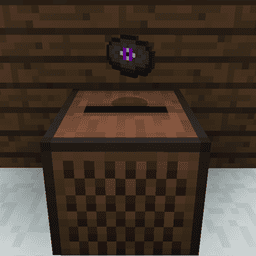
Which Chest types work with a Jukebox playlist?
| Container | Supported |
|---|---|
| Normal Chest | Yes |
| Trapped Chest | Yes |
| Copper Chest | Yes |
Mojang specifically lists Normal, Trapped and Copper Chests as supported for Minecraft Jukebox Playlist playback. Place one of those directly above the Jukebox; a Chest sitting to the side of it isn’t the documented arrangement for this feature.
How the playlist chooses the next disc
The Jukebox reads Music Discs in inventory slot order. That means discs in earlier Chest slots are selected before discs in later slots. The playlist doesn’t automatically sort discs by song name, age or colour.
The playlist skips empty slots and unrelated items. If the first slot holds a disc, the second has stone and the fourth has another disc, the Jukebox plays both tracks and skips the stone. Moving the discs changes their playing order.
How to loop Music Discs automatically
When it reaches the end, the Minecraft Jukebox Playlist starts again from the beginning of its playable discs. You can leave the Jukebox to cycle through the same collection without returning to manually replace each Music Disc.
If you want a longer set, add more Music Discs to the Chest. If you want a shorter one, remove the extras or rearrange them. The sequence is always governed by the slots that currently contain playable discs.
How to skip the current song
Ejecting the current disc skips to the next Music Disc in the Chest’s sequence. This lets you skip a song without waiting for it to end. If the next slot is empty or holds an unrelated item, the playlist skips over it until it finds another Music Disc.
It’s a fixed playlist, not a shuffle feature. Arrange your discs in the order you want to hear them and eject the current disc whenever you want to skip to the next track.
Does the playlist need Redstone?
No additional Redstone circuit is needed to play discs in a sequence or loop them. The Jukebox and Chest handle the function in the new testing builds. You can still use Redstone for other parts of a music room, but it isn’t a prerequisite for the basic playlist.
A Minecraft Jukebox Playlist is particularly useful for shared bases, taverns, museums and large build areas where you’d rather have music continuing in the background than manually insert the next disc.
Jukebox playlist not working: fixes
| Symptom | Check |
|---|---|
| No automatic music | Make sure the game is running Java Snapshot 4 or Bedrock Preview 26.70.20 |
| Only one track | Check that the Chest contains at least two Music Discs |
| Wrong song order | Rearrange the discs in the Chest’s inventory slots |
| An empty slot appears | Empty slots are ignored; the next Music Disc should play |
| Chest next to Jukebox | Move the Chest directly above the Jukebox |
| Song has finished | Playback should move automatically and then loop |
If your Minecraft Jukebox Playlist isn’t working, the game version is the first thing to check. Older stable versions don’t include this Chest-driven system. Updating to the correct test build is necessary; merely placing a Chest on an old Jukebox won’t add the feature.
When will Jukebox playlists release fully?
The Chest-driven Minecraft Jukebox Playlist is available in Java 26.4 snapshots and Bedrock 26.70 previews. It arrived with Snapshot 4 and received more fixes in Snapshot 6. Use a testing build to try it.
If your Minecraft Jukebox Playlist won’t work, check for a single normal, Trapped or Copper Chest directly above the Jukebox, with Music Discs inside. The inventory order sets the playlist. A Chest alongside the Jukebox won’t work.
Minecraft Jukebox Playlist fixes in Snapshot 6
Java Snapshot 6 fixes a Minecraft Jukebox Playlist bug that triggered Sculk Sensors whenever the Jukebox automatically changed tracks. That unwanted vibration should no longer disturb Sculk-powered builds near your music room.
Mojang also fixed ejected Music Discs appearing inside the Chest above the Jukebox and a crash involving a missing music track’s on-screen toast. The Bedrock Music Features Add-On, with its portable Pocket Jukebox, is a different system.
Related Guides
Official source: Mojang Studios: Minecraft Java 26.4 Snapshot 6 notes.