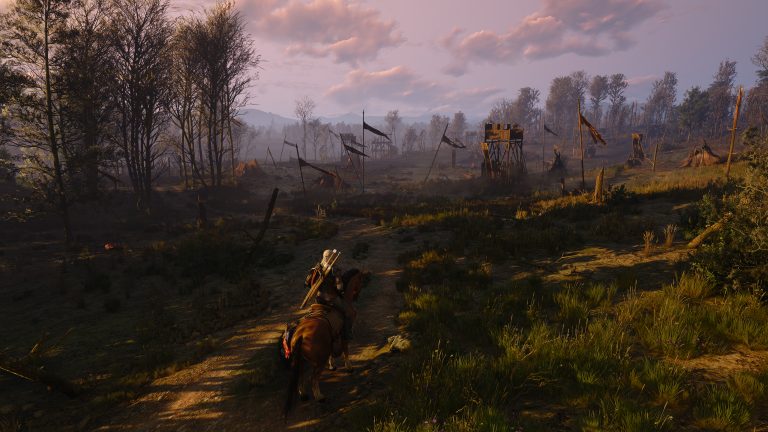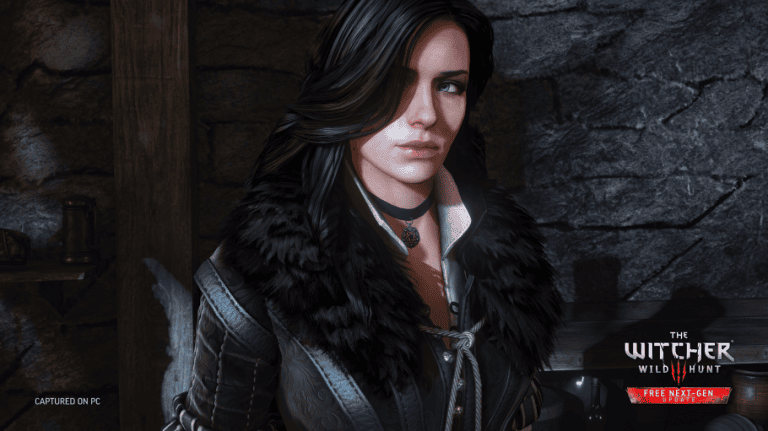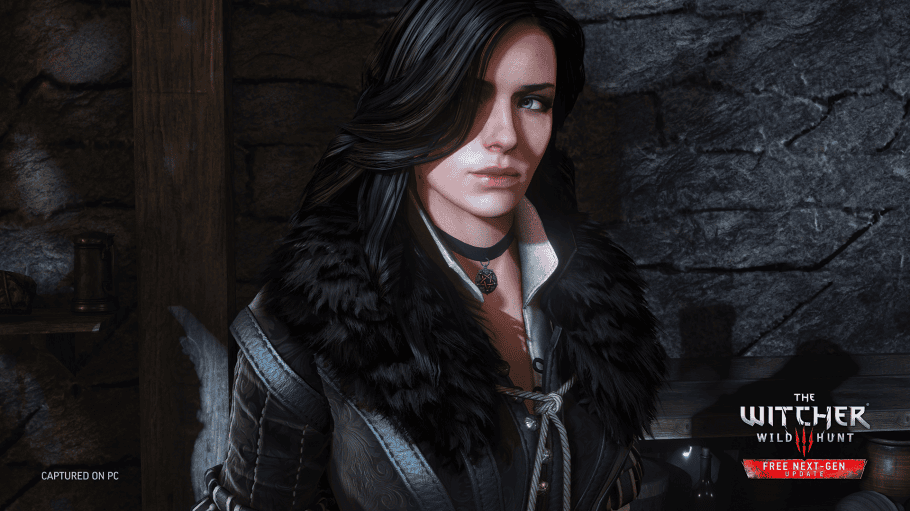
Witcher 3 Remastered Bloom Too Bright received new controls and visual adjustments in Patch 5.01 on October 8, 2026. The update adds Bloom, Light Shafts and Depth of Field controls to PS5 and Xbox Series X|S, alongside broader improvements to tone mapping, character lighting and ray tracing across the game.
Nintendo Switch 2 update (19 October): Patch 5.01 has now reached most regions on Switch 2, with changes to sharpening and resolution for clearer visuals, as well as broader Bloom and tone-mapping adjustments. These changes are documented in CD Projekt Red’s official Switch 2 patch notes. The release in Japan will follow certification.
If a scene is too bright or hazy, console players can now change the Bloom setting directly rather than waiting for another hotfix. The earlier PC Hotfix 5.00c adjusted lighting in Velen, but Patch 5.01 brings the console options and further reworked Bloom effects. Individual scenes may still look different depending on HDR and display calibration.
How to adjust Bloom on PS5 and Xbox after Patch 5.01
Update The Witcher 3: Wild Hunt — Remastered to Patch 5.01. Open the game’s Graphics settings on PS5 or Xbox Series X|S and look for Bloom, Light Shafts and Depth of Field, all added to the console settings in this patch. Reduce or disable Bloom if bright objects and sunsets are producing too much glow, then check the same scene before changing other settings.
Patch 5.01 also improves Bloom processing, tone mapping, character lighting, Ray Tracing and Path Tracing. If the issue continues with Bloom adjusted, check your HDR calibration separately; brightness, tone mapping and Bloom are related visually but aren’t the same control. CD PROJEKT RED’s official Patch 5.01 notes confirm the new console options.
Is Witcher 3 Remastered Bloom Too Bright officially acknowledged?
Yes. Witcher 3 Remastered Bloom Too Bright is not just a community theory about the new art direction. CDPR global community director Marcin Momot said the team is looking into the Bloom effect across all platforms and hopes to have changes ready for the next update.
Quest designer Paweł Sasko has also said more work is in progress, including Bloom, while the team monitors player reports. The developer has not given a date for that next update.
What did Hotfix 5.00c change on PC?
PC Hotfix 5.00c partially addresses Witcher 3 Remastered Bloom Too Bright by making visual adjustments in Velen, including changes to Bloom, vegetation lighting, saturation and Path Tracing lighting.
That does not mean the Bloom issue is declared fully fixed. CDPR’s later comments about continuing work across all platforms show that the 5.00c adjustments are part of an ongoing visual tuning process.
What about PS5 and Xbox Series X|S?
Console Patch 5.00b made lighting adjustments and corrected some interiors that were too dark, but it did not publish a specific all-console fix for Witcher 3 Remastered Bloom Too Bright. CDPR’s separate comments say Bloom changes are still being investigated across platforms.
If you are on PlayStation 5 or Xbox Series X|S, do not assume a PC 5.00c fix applies to your console. CDPR lists 5.00c as a PC hotfix, while 5.00b is the current announced console patch from October 1.
Can you turn Bloom off?
On PC, one temporary response to Witcher 3 Remastered Bloom Too Bright is to disable the Bloom post-processing option if the effect is making bright scenes uncomfortable or washing out the image. This changes the look of the game rather than fixing the underlying tuning.
Console options are more limited, so the same workaround may not be available in the same form. Check your current graphics and post-processing menu before following PC-specific advice.
Should you change HDR settings?
HDR calibration can make Witcher 3 Remastered Bloom Too Bright appear better or worse on some displays, but HDR settings are not the same problem as Bloom. If your peak brightness or paper-white values are badly mismatched to your TV or monitor, highlights can look wrong even after the underlying game issue is patched.
Use your display’s actual capabilities as the starting point and avoid copying somebody else’s exact HDR values. A setting that looks correct on one OLED or monitor can be completely wrong on another.
What not to do
Do not start deleting saves, reinstalling the entire game or changing Windows system settings because of Witcher 3 Remastered Bloom Too Bright. This is a rendering and visual-tuning issue, not a corrupted-save symptom.
Also avoid treating unofficial reshade presets or community configuration edits as an official fix. They can alter the presentation, but CDPR is still changing the game’s own Bloom implementation.
How to report the issue
If Witcher 3 Remastered Bloom Too Bright remains severe on your setup, use CD PROJEKT RED’s Technical Support portal and include your platform, display type, HDR state, graphics mode and a screenshot if possible.
Those details matter because Bloom and HDR complaints can look similar while having different causes. Reporting the exact platform and settings gives CDPR more useful information than a general statement that the game looks washed out.
Should you wait for another patch?
If Witcher 3 Remastered Bloom Too Bright is ruining the image for you, waiting for the next visual update is reasonable. CDPR has explicitly said more Bloom changes are in development, which means the current presentation is not necessarily final.
Patch 5.01 supersedes the initial console 5.00b release and brings direct Bloom, Light Shafts and Depth of Field settings to PS5 and Xbox. If you’re still on the earlier build, install the new patch before relying on old workarounds.
Current Bloom status
Witcher 3 Remastered Bloom Too Bright received a dedicated round of improvements in Patch 5.01, including new Bloom controls for consoles. CD PROJEKT RED has not promised that every scene will look identical on every display after the update.
Install Patch 5.01, adjust Bloom using the available graphics controls, and check HDR calibration if the picture still looks overexposed. There is no reason to delete saves or reinstall the game simply to access these new Bloom options.
Official source: CD PROJEKT RED Patch 5.01 notes.