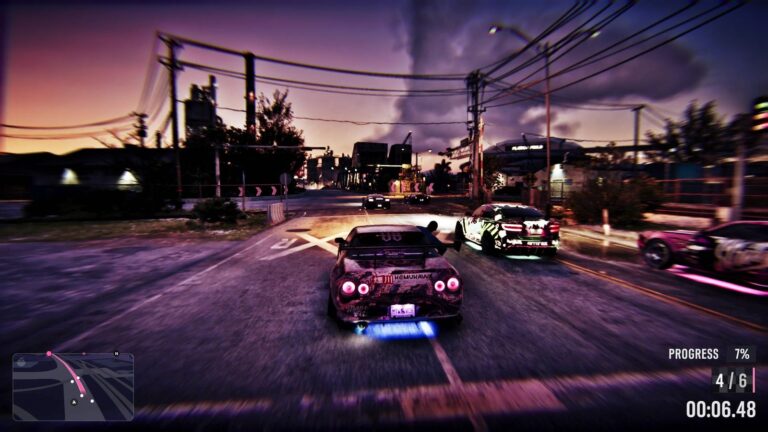
GTA 6 How to Turn Off the Vignette means opening Settings > Display > Visual Effects and lowering Player Status Effects Intensity. That slider controls the darkening around the screen edges when Jason or Lucia has low health or stamina. Move it toward zero if the effect makes the game uncomfortable to look at.
There isn’t a button literally labelled Vignette in the verified menu. Incoming gunfire and police alerts have their own edge effects, too, so you may need to adjust more than one setting depending on what you’re seeing.
GTA 6 How to Turn Off the Vignette: menu steps
Pause with Options on PS5 or Menu on Xbox, choose Settings and open Display. Scroll to Visual Effects and find Player Status Effects Intensity. Reduce it to soften the dark border linked to health and stamina warnings.
The in-game description identifies this slider as controlling effects caused by character status. Screenshots of the setting show a dark vignette preview when the intensity is raised. The effect itself is not the same as the game’s regular shadows or nighttime lighting.
Reduce flashing when you take damage
If the screen flashes or shows blood around the edges during combat, look for Hit Effects Intensity in the same Visual Effects group. It handles a different set of warnings from the low-health vignette.
There is also Awareness Effects Intensity, which controls visual cues about nearby threats, including police. Lowering that may make the screen cleaner, but it also means losing some useful information about an attacker who’s outside your field of view.
What if the edges still look dark?
Look at when it happens. If the vignette only appears after sprinting hard or taking damage, Player Status Effects is a sensible first stop. If the corners stay dark even when both characters are healthy, check whether the scene’s lighting or your HDR calibration is responsible.
The brightness menu can help with a generally washed-out or too-dark picture, but it isn’t an alternative to reducing status effects. Changing the wrong slider can make the whole world harder to see while leaving the overlay unchanged.
GTA 6 How to Turn Off the Vignette without losing warnings

You can lower Player Status Effects more aggressively and leave Awareness Effects visible, or make both less intense while keeping a little feedback. Try the changes in a safe area first, then see how they feel during combat.
If a screen effect helped you notice danger before, taking it all the way to zero may not be your favourite setting in the long run. The separate sliders let you find a balance rather than treating every effect as one switch.
Where the setting sits on PS5 and Xbox
Rockstar’s official support page confirms that Visual Effects live under Display, and the released game’s menu identifies the more precise slider names. The same menu categories are available on both consoles, even though the buttons used to switch tabs differ.
For GTA 6 How to Turn Off the Vignette, start with Player Status Effects Intensity. If the issue is gunfire flashes or an awareness glow instead, adjust those categories separately. That way you change the effect that’s actually bothering you.
Click Flare: GTA 6 How to Turn Off the Vignette — Related Guides
Official source: Rockstar Games — Grand Theft Auto VI.