GTA 6 Navigation Experience Explained is about the little map and compass that guide you around Leonida. When you begin the game, you are asked to pick a Navigation Experience before you have had much chance to see any of them. It’s a choice you make before you really know what driving around Vice City feels like.
Thankfully, you are not stuck with that first choice. You can change the minimap and compass in the UI settings later, so there is no need to restart if you picked the wrong one. The three opening presets affect screen clutter and when navigation appears, not which missions, shops or roads are available.
GTA 6 Navigation Experience Explained: All Three Options
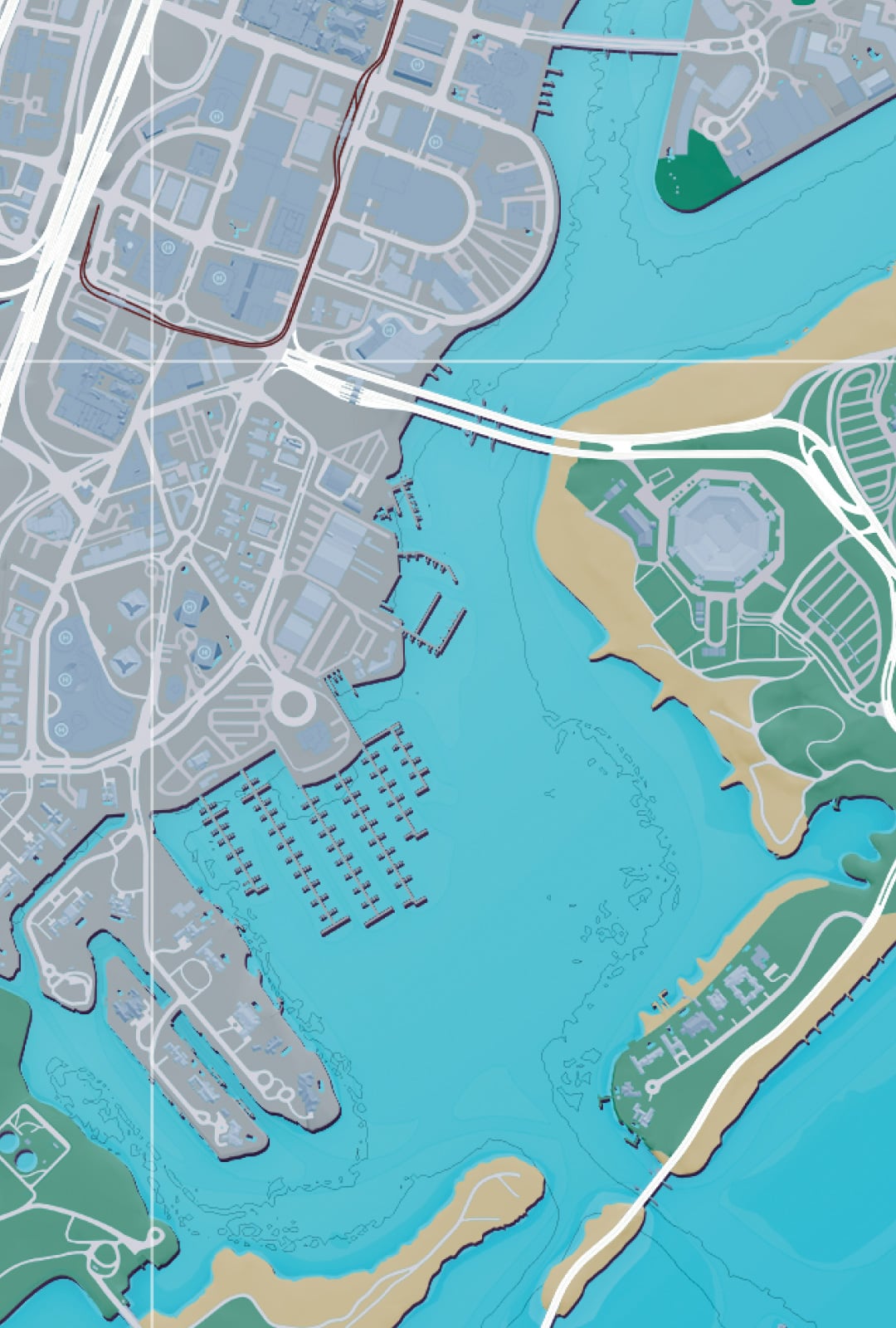
Minimap (Dynamic) shows the familiar corner map when the game thinks it is helpful, such as while driving, following a route or taking part in a mission. In calmer moments, it can disappear to give the scenery more space. You can still call navigation up when needed, rather than giving up access to the map.
Minimap and Compass (Dynamic) adds a compass to that behaviour. The compass gives you a second way of reading directions and nearby mission or point-of-interest markers. This is particularly useful when the minimap is small or you are on foot in a busy area. Always On leaves the minimap visible through ordinary gameplay, although cutscenes are a separate matter.
GTA 6 Navigation Experience Explained: Which Navigation Experience should you choose?
For someone who is still learning Vice City, Always On is the easiest starting point. There is a constant reminder of the road layout and where your next turn should be. It makes driving between missions less fiddly, although the extra HUD element can get in the way when you are trying to enjoy the view.
If you prefer a cleaner image, Minimap (Dynamic) offers a sensible compromise. Pick the dynamic minimap and compass combination when you want more awareness of nearby markers without having both permanently pinned to the screen. GTA 6 Navigation Experience Explained comes down to how often you want to look at navigation, not a performance or difficulty setting.
How to change your minimap after starting
Open the pause menu with Options on PS5 or Menu on Xbox. Go to Settings > UI > Navigation. The full settings screen provides individual Minimap and Compass controls rather than restricting you to the three opening presets.
Each control offers Off, Dynamic and On. That gives you combinations you could not select on the first-run screen. For example, you can leave the minimap on and turn the compass off, or use the compass dynamically while keeping the map available. Try a change, resume play and see whether the information feels useful in traffic.
GTA 6 Navigation Experience Explained: Does changing Navigation Experience affect GPS?
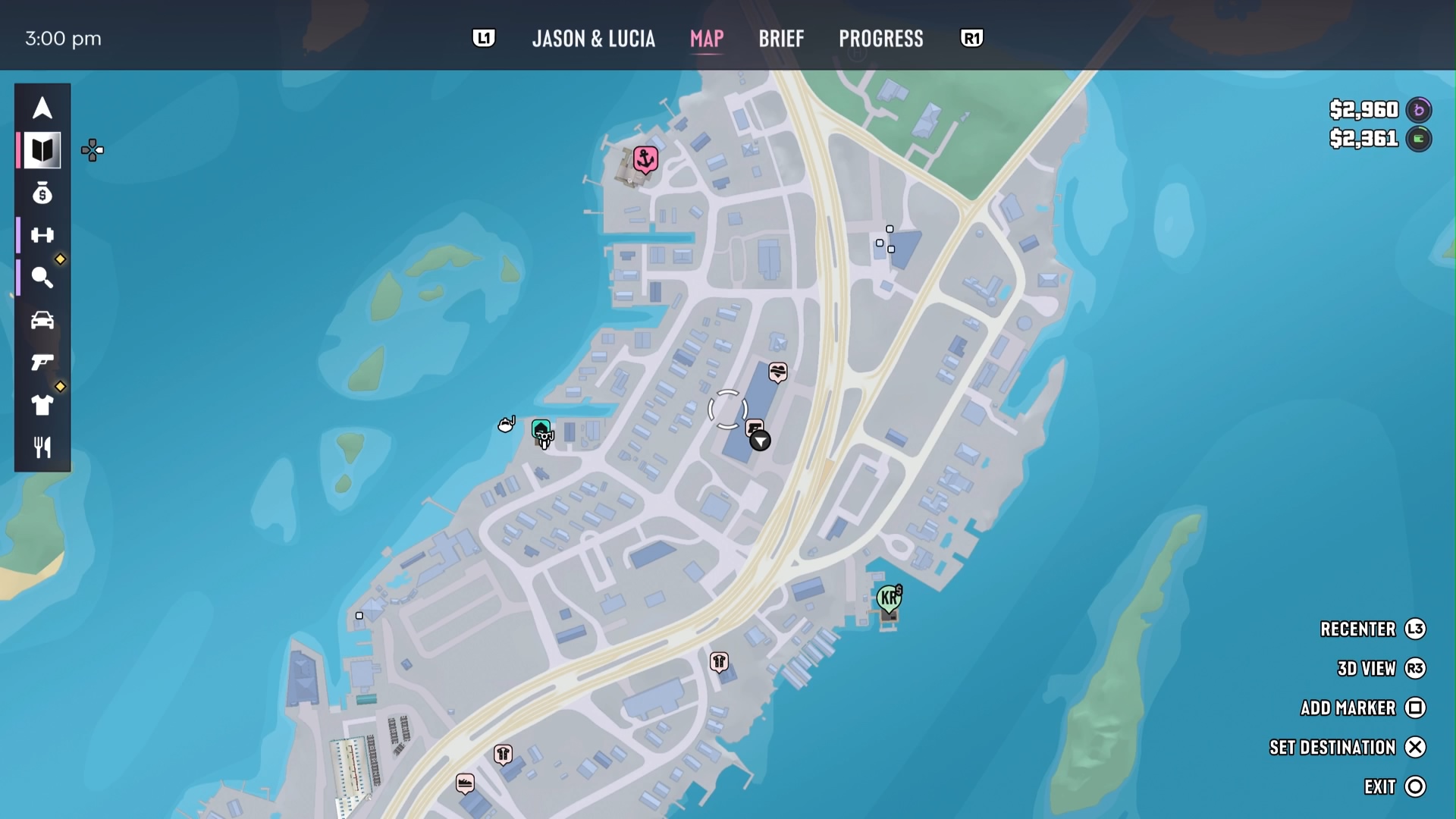
No. You still select destinations on the world map and follow the route to them. The navigation preset determines how the HUD presents information, while the waypoint system determines where you are going. Both work alongside Auto Drive, which handles steering when you want a more relaxed trip.
The map itself has an Index with categories for missions, services and activities, so there is a separate job for our Map Icons guide. GTA 6 Navigation Experience Explained only covers the display choices; it is not a replacement for learning what symbols mean or discovering locations as you progress through the story.
Why your minimap has disappeared
Check the Navigation menu before assuming the game is broken. Dynamic deliberately hides parts of the HUD during quieter scenes, and Off removes that component more completely. If you prefer a persistent GPS line while driving, switch the minimap to On and set an actual destination marker on the world map.
If the marker is missing as well, open the map and choose your destination again. GTA 6 Navigation Experience Explained is especially useful for players who changed their initial preset and then wondered why the same street looked different. Switch the relevant setting back to On if you would rather see the map or compass all the time.
Official source: Rockstar Games Support — Grand Theft Auto VI Settings.