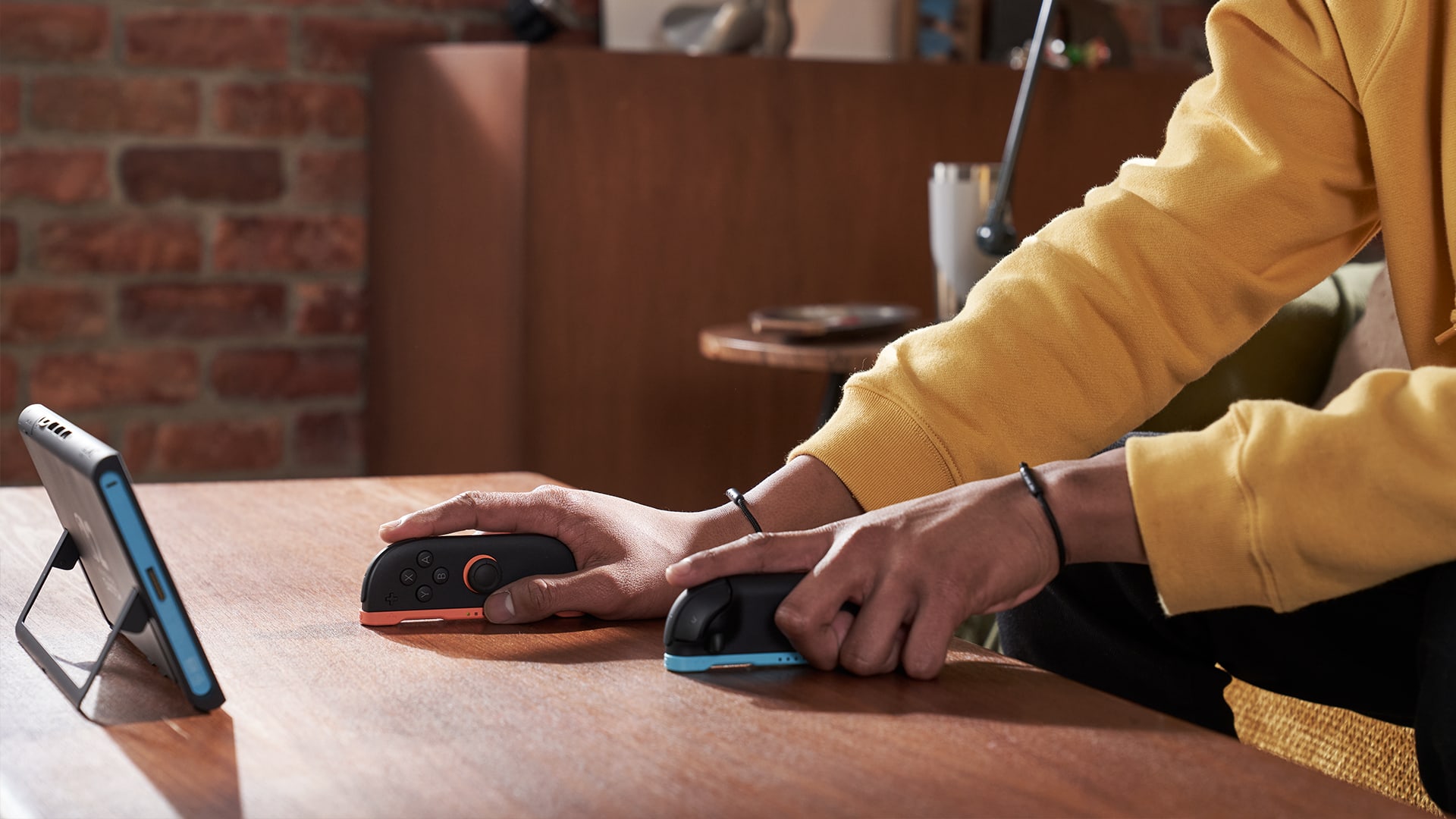
Minecraft Switch 2 Joy-Con Mouse Mode has arrived in the 26.70.24 test build, and it’s a feature I’ve wanted to see on the console. Being able to slide a Joy-Con 2 around like a mouse could make building and fiddling with inventory screens much nicer than wrestling with an analogue stick. It hasn’t been confirmed for the normal released game yet, though.
That last part matters. Mojang listed mouse support under Nintendo Switch 2 in the 10 November Beta & Preview notes, but Switch 2 isn’t one of the usual public Preview download platforms. If you’re playing the regular version and can’t find the option, the issue may be access to the testing build rather than anything wrong with your controllers.
How to enable Minecraft Switch 2 Joy-Con Mouse Mode
You’ll need a Nintendo Switch 2 with Joy-Con 2 controllers, plus access to a Switch 2 beta build containing the feature. The original Switch Joy-Con don’t have the optical mouse sensors, so this isn’t a setting that can be unlocked on an older Switch, Lite or OLED.
On Switch 2, open System Settings → Controllers & Accessories → Joy-Con 2 Mouse Controls and make sure it’s switched on. That’s the actual Nintendo system menu. Attach the Joy-Con 2 strap, then detach the controller and place its sensor against a flat, clean surface.
Slide the Joy-Con 2 across the table or mouse mat and test the pointer on the HOME Menu first. If that works, open the 26.70.24 Switch 2 testing build you have access to. Mojang confirms a separate Joy-Con Mouse Mode settings page in Minecraft, although it hasn’t published a full button-mapping guide for every action.
If Minecraft Switch 2 Joy-Con Mouse Mode doesn’t appear in your game, check the version shown on the title screen. Mojang has confirmed it in the test release, but the company’s normal Preview programme lists Xbox, PlayStation, Windows and iOS, while Android uses Beta. You can’t assume there’s a public Nintendo eShop Preview download waiting for everyone.
How Minecraft Switch 2 Joy-Con Mouse Mode works
Joy-Con 2 mouse controls use the optical sensor along the controller’s side. Lay that sensor on the surface and move the controller as you would a little computer mouse. Don’t wave it at the television like a motion pointer. Nintendo recommends a flat surface without reflections or bumps.
The setup is straightforward once it works, but I’m not going to claim a specific trigger always acts as left-click or right-click. Minecraft’s official 26.70.24 notes announce support and a customisation page, not every button mapping. Check the options in the build you’re actually running.
Minecraft Switch 2 Joy-Con Mouse Mode not working: What to check
If the pointer isn’t moving in Minecraft, try it on the Switch 2 HOME Menu. Nintendo recommends checking that the controller is paired wirelessly and that system mouse controls are enabled. A mouse that doesn’t respond in HOME needs sorting out there first.
Head to System Settings → Controllers & Accessories → Mouse Sensitivity to choose Fast, Default or Slow. Try another surface as well. Glass, reflective furniture, patterned fabric and uneven surfaces can all make the sensor behave badly.
If it works perfectly in the console menus but not in the Minecraft beta, check the game’s own Joy-Con Mouse Mode page and confirm the build number. It’s a testing feature, so reporting the version and what isn’t responding is more useful than reinstalling everything and risking your worlds.
Can the original Switch use Minecraft mouse mode?
No. The old Joy-Con controllers don’t have the mouse hardware built into Joy-Con 2. Minecraft Switch 2 Joy-Con Mouse Mode is designed around Nintendo Switch 2’s newer controllers, not a hidden option in the original console.
You can still use the controls supported by your own platform, of course. On Windows, a conventional mouse and keyboard already cover this job. The interesting part of Nintendo’s approach is giving Switch 2 players a mouse-like option without needing a separate peripheral.
Can everyone install Minecraft Switch 2 Joy-Con Mouse Mode?
As of 17 November 2026, Mojang confirms the feature in the Switch 2 test build but hasn’t separately announced that every released copy of Minecraft on Switch 2 has it. If you’re not in that testing programme, the usual Windows or Xbox Preview instructions won’t give you the same Switch 2 beta access.
I like the idea of mouse input for precision work, particularly when you’re trying to line up a fiddly build. Whether it becomes your favourite way to play will depend on the actual Minecraft controls and the surface you’ve got nearby.
For now, Minecraft Switch 2 Joy-Con Mouse Mode is a confirmed 26.70.24 testing feature. You need the right Switch 2 build, Joy-Con 2 hardware and enabled mouse controls. If your normal game hasn’t received the new setting, there’s no reason to wipe your Minecraft saves trying to force it to appear.
Minecraft Switch 2 Joy-Con Mouse Mode: Related Guides
Official source: Mojang’s Bedrock Preview 26.70.24 notes, including Nintendo Switch 2 Joy-Con Mouse Mode support.