The Minecraft Realms Pro Editor lets you work on a shared Bedrock world while other people are still playing it. Instead of downloading a copy, making your changes and uploading the world again, you can edit the live Realm. If you’ve ever wanted to sort out a messy spawn area without kicking everybody offline, that’s a pretty appealing feature.
There is one limitation you need to know straight away: the Editor runs on Bedrock for Windows. Friends can play on your Pro Realm from supported consoles or phones, but they can’t use the same Editor tools there. Here’s how to get into it, who can help you build and how to avoid wrecking a shared project.
How to launch the Minecraft Realms Pro Editor on Windows
You need an active Realms Pro subscription, Minecraft Bedrock for Windows and Minecraft Editor installed. Mojang’s route is Bedrock for Windows → Realms → Launch in Editor. That’s a specific Realm option, not the ordinary Edit World button.
Open Bedrock on your Windows PC and select Realms. Pick your Pro server and use Launch in Editor. If you don’t have the Editor tools installed, the Minecraft Launcher has a Creator Tools section for installing or launching them. Just pressing Play in the Launcher doesn’t open the standalone Editor workspace.
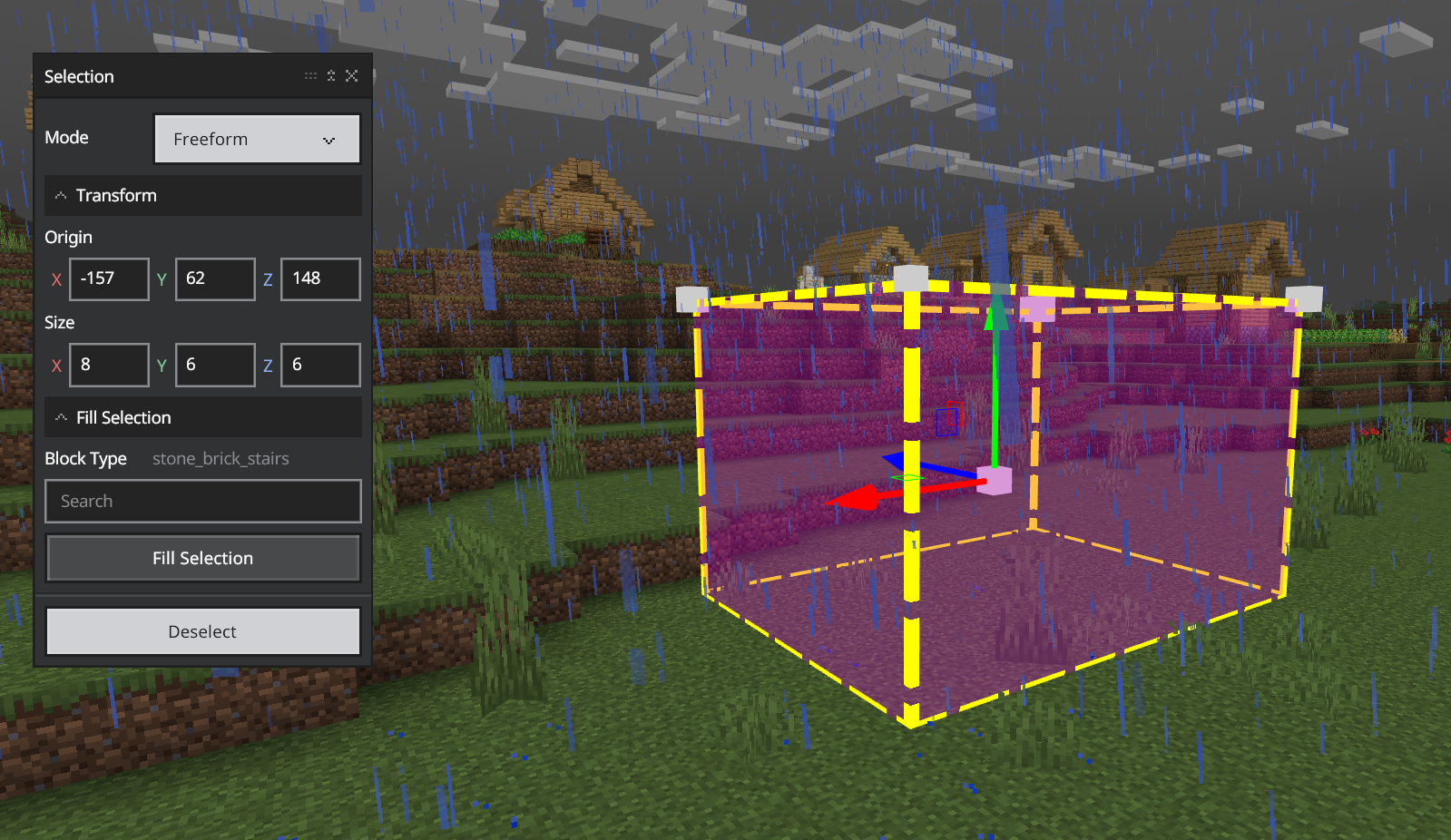
Once you’re in, you can use the Editor’s selection tools, clone parts of a build or paint terrain. The important difference is that these changes take effect on the shared server without a separate export and publish step. That’s what makes Minecraft Realms Pro Editor useful for an active community rather than just another way of editing a private copy.
Minecraft Realms Pro Editor server modes explained
Realms Pro offers three modes: Play and Editor, Play only and Editor only. The names are fairly self-explanatory, but picking the right one can save some confusion when people join expecting to play.
Play and Editor is the fun one for a server you’re constantly improving. Your builders can work while other members explore. Play only is for a normal session, and Editor only puts the emphasis on construction. I’d warn the group before switching modes, especially if you’re in the middle of something important.
There’s something lovely about being able to rebuild a village square without scheduling an entire server shutdown. But it also means your changes are happening to the real shared world. Moving somebody’s house because you fancied a nicer view is unlikely to make you popular.
Can other players use Minecraft Realms Pro Editor with you?
Yes, other trusted members can help. Mojang says collaborative editing is available to members you set as Administrators. Being invited to join a Realm as a player isn’t the same as having permission to edit it. Use those elevated permissions carefully.
Realms Pro supports up to 50 concurrent players subject to device performance, with up to 10,000 invited members. That doesn’t mean the company has promised 50 simultaneous Windows Editor seats. They’re different limits, so don’t plan a giant editing event based on the general player cap alone.
Why can’t I find Launch in Editor?
First, check the platform. Minecraft Realms Pro Editor requires Windows Bedrock, even though people can join and play on the Realm from other supported Bedrock devices. You won’t find the live Editor button on Switch, Android or PlayStation.
Next, check the subscription. Realms Core and Plus let you manage worlds and saves, but the live multi-user Editor is advertised as a Pro feature. Older tutorials showing how to publish an Editor project to a Realm are explaining a different process.
If both of those checks look right, confirm the Minecraft and Creator Tools installations are up to date and that your account has the appropriate Realm permissions. If you’re a member rather than the owner, ask whether the owner has made you an Administrator before you start reinstalling anything.
Can you back up a Realm before editing it?
Before a major editing session, make a manual save. Pro provides 25 GB of manual save storage, plus automatic saves at the end of play sessions and approximately every 30 minutes while people are playing. Those are Mojang’s published limits, not guesses about how often the game might save.
The save options are under Bedrock → Realms → Realm Hub → World → Saves. You can download or restore a Realm save if necessary. I’d use that safety net before shifting whole chunks of terrain, because a brilliant idea in your head can look rather different once it’s built.
Minecraft Realms Pro Editor vs normal Publish to Realms
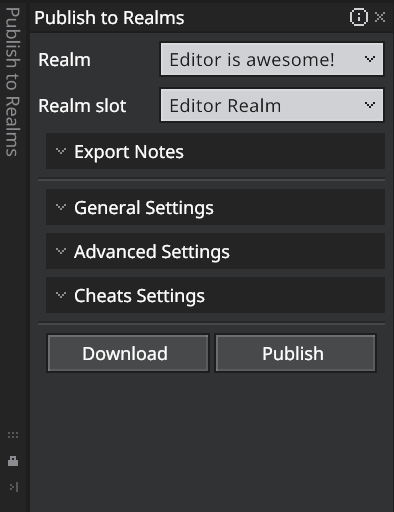
The older Publish to Realms workflow let you edit a project and then publish that version to a Realm slot. The second screenshot shows that older interface, not the new live-editing button. With Minecraft Realms Pro Editor, Mojang’s headline change is working directly on the live server.
That should save a fair bit of faffing about if you regularly update an adventure map or creative world. You no longer have to replace the whole Realm world every time you want to improve a build, provided you’re using the Pro live editing route.
If you’re just hosting a small Survival world for a few friends, Core or Plus may already do what you need. But for a bigger Bedrock community with people who enjoy building together, the Minecraft Realms Pro Editor is one of the strongest reasons to consider the Pro subscription.
Minecraft Realms Pro Editor: Related Guides
- Minecraft Music on the Move Add-On and Realms Support
- Does Minecraft Villager News Work on Realms?
- How to Install Minecraft Preview on Windows
- Minecraft Jukebox Playlist
- Minecraft Switch 2 World Transfer
- Minecraft Preview 26.70.24 Features
- Minecraft Bedrock Drop 4 Experiment
- Minecraft Switch 2 Joy-Con Mouse Mode
Official source: Mojang’s Minecraft Realms Pro feature and live Editor instructions.