Project Zomboid 42.22 save conversion happens when you load an older world in Build 42.22.2 Stable, released on 9 November 2026. Select Continue or Load and the game asks to convert that save. If you agree, it makes an automatic copy in the same folder with _backup added to the name.
The automatic backup is a welcome safety net, but I’d still make a separate copy before opening a world I’ve spent hours building. Vanilla saves should work after the update. Modded saves are less predictable, and there’s a temporary way back to 42.21 if the mods you need aren’t ready.
How Project Zomboid 42.22 save conversion works
Steam now downloads 42.22.2 through the normal Stable branch. There’s no need to select Pre-Release. The conversion prompt appears when you open an older save; it isn’t a separate download or a setting you have to find in Steam.
Accepting the prompt converts the save to the newer version and creates the _backup copy alongside it. The Indie Stone expects unmodded saves to continue working, but that isn’t a promise that every save will load perfectly. Check your world before putting another long session into it.
Back up your save before converting
Before starting Project Zomboid 42.22 save conversion, quit the game and copy the world folder to somewhere away from the active saves. A second drive or a separate backup folder is safer than relying on the game’s own conversion copy. Don’t overwrite the original while testing.
- Quit Project Zomboid completely.
- Find the folder belonging to the world you want to preserve. Don’t guess a save path if you play on a different operating system.
- Copy the whole world folder somewhere separate and name the copy with the date and build number.
- Launch the updated game, choose Continue or Load, and read the conversion prompt before accepting.
- Check that the converted world loads correctly, and leave both your manual copy and the automatically created
_backupuntouched.
If the world loads with missing items, broken mods or other problems, stop and keep the untouched backup. Repeatedly saving a world while troubleshooting can make it harder to get back to the version you wanted. Don’t delete either copy.
What if Project Zomboid 42.22 save conversion breaks mods?
Mods are the main reason to be careful. The Indie Stone says some may not work with 42.22.2 and that it cannot troubleshoot modded saves. That doesn’t mean a failed load has destroyed your world. Keep your old save, check for mod updates and decide whether to test the new version or stay on 42.21.
The studio actually recommends trying the conversion, because it creates an automatic backup. If you would rather wait for essential mods, though, choose the 42.21 fallback and carry on with the unconverted save. Our Pre-Release guide explains the branch history, and the patch notes show what changed.
Project Zomboid 42.22 save conversion: how to roll back to 42.21
Rolling the game back and rolling a save back are different things. Steam can reinstall 42.21, but it doesn’t reverse changes already made to a world in 42.22. Use the copy from before conversion when you return to the older game.
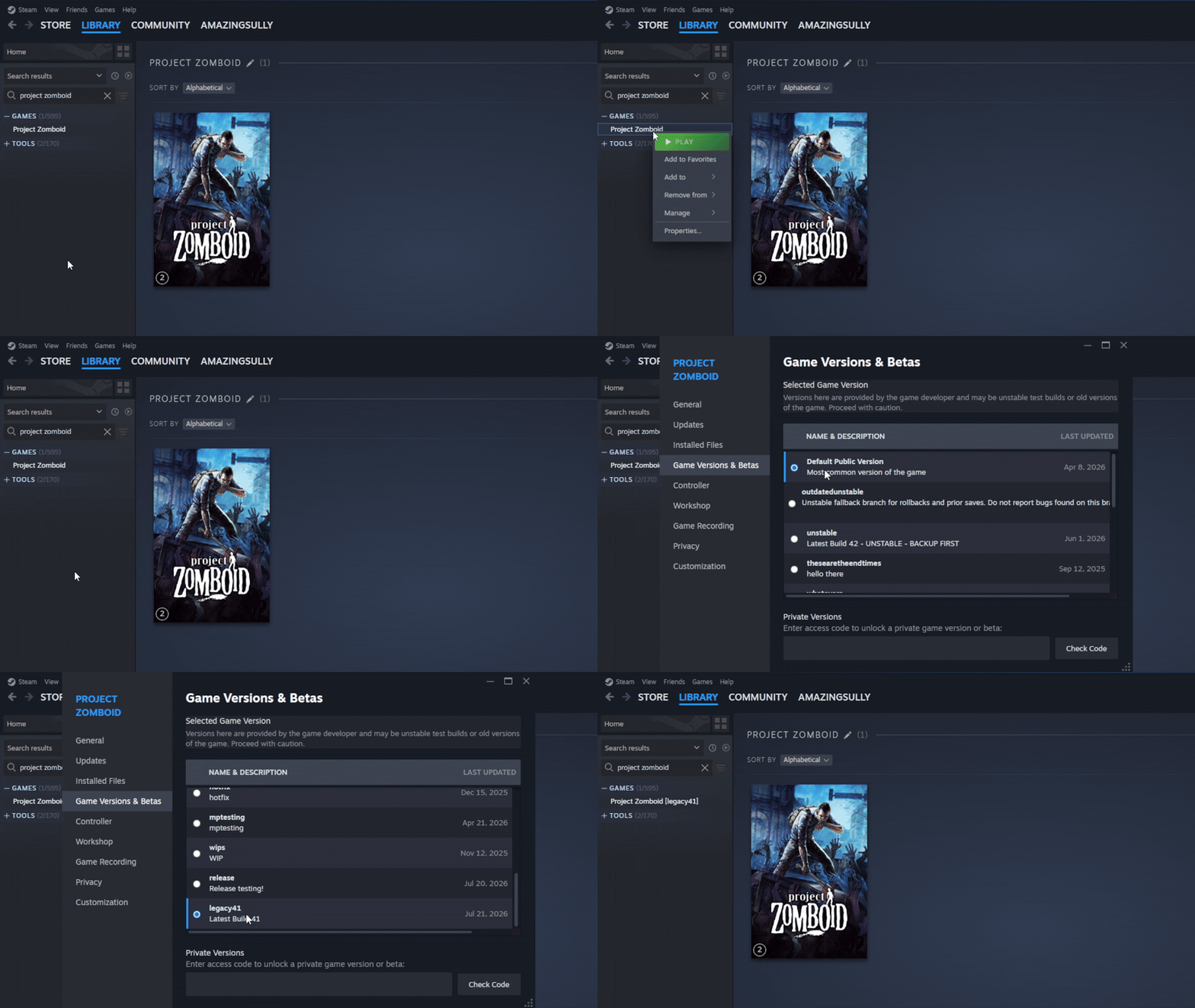
- Open the Steam Library and right-click Project Zomboid.
- Select Properties.
- Open Game Versions & Betas.
- Choose 42.21 from the list, then let Steam finish installing it.
- Launch the older build with your untouched 42.21 save or backup.
The 42.21 fallback wasn’t available at the moment of the Stable release; The Indie Stone added it later on 9 November. It’s a temporary option for players waiting on mod updates, so don’t assume it’ll be there indefinitely.
Can Java mods crash after Project Zomboid 42.22 save conversion?
Yes. The studio has confirmed that changes to the game’s Java code can clash with some Java-based mods and cause a crash before the main menu. Its advice is to use the 42.21 fallback or try a clean reinstall after moving or removing the relevant Java-mod files.
Don’t delete anything until you’ve identified the mod and made a backup. Java-based mods aren’t officially supported, so follow the mod creator’s current instructions rather than a generic list of files to remove. If possible, test the game without mods to narrow down the cause.
What do you lose by staying on 42.21?
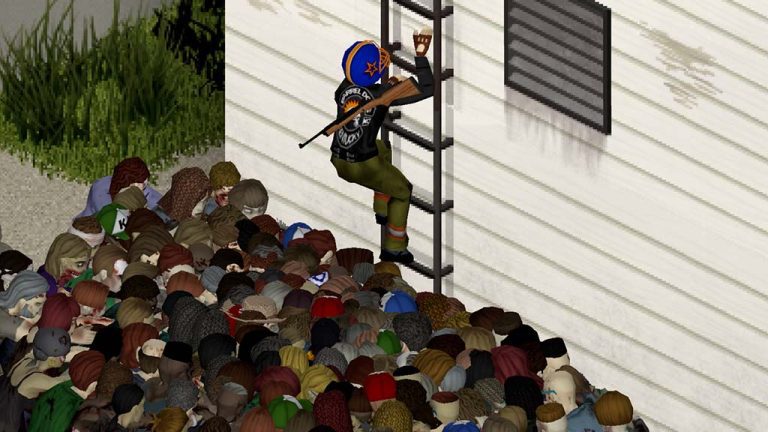
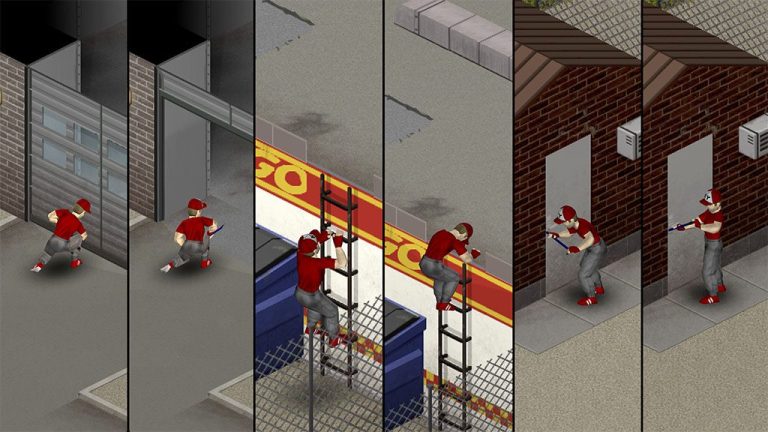
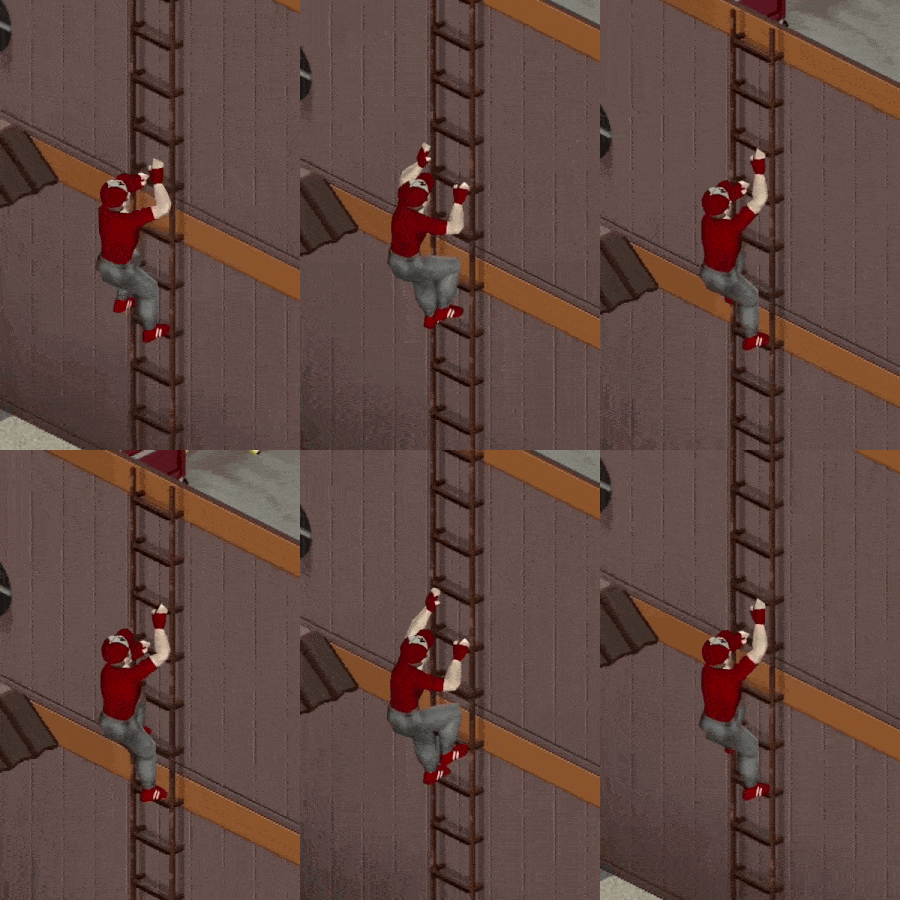
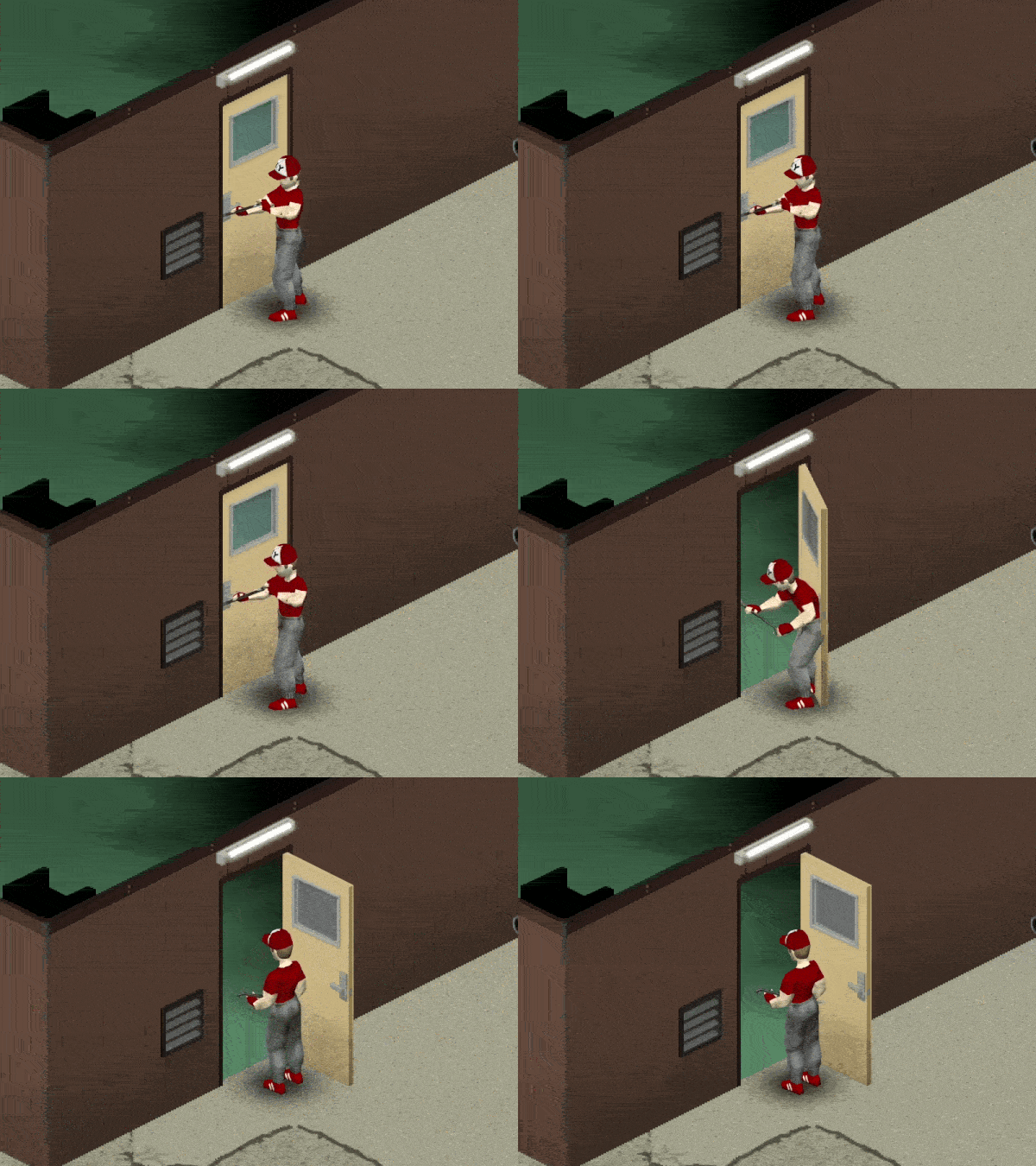
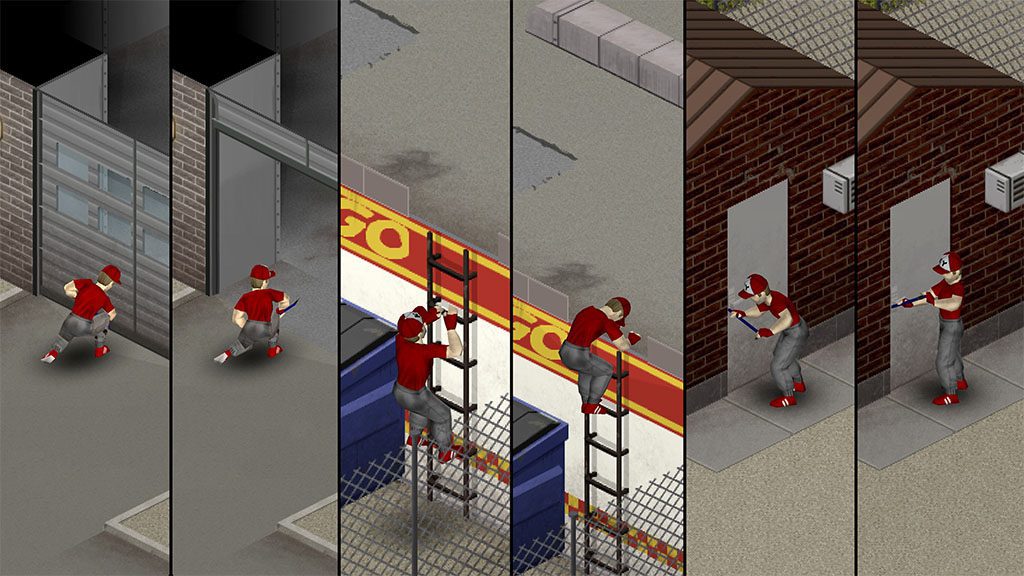
Staying on 42.21 also means missing two additions from 42.22: climbable ladders already placed in the world, and a crowbar action for some locked doors and windows. See our ladder guide and crowbar guide if you’re weighing up the update.
For Project Zomboid 42.22 save conversion, the safest order is simple: copy the old world, update the game, accept conversion if you’re ready, and check that the save and mods behave properly. Keep that original backup until you’re happy with the result. You can always reinstall 42.21 while the fallback exists, but only an untouched old save will take you back to where you started.
Official source: The Indie Stone: 42.22.2 Stable Released.